
Is your Acer laptop acting up when you need it the most? Whether it won’t turn on, the screen goes black, or it’s running slower than usual, these issues can be frustrating and disrupt your work or entertainment.
But don’t worry—you’re not alone, and many Acer users face similar problems. In this guide, you’ll discover easy-to-follow troubleshooting tips that can help you identify what’s wrong and get your laptop back to smooth operation quickly. Keep reading to learn how to fix common Acer laptop problems without needing to rush to a repair shop or spend a fortune.
Your laptop’s best performance is just a few steps away!
Common Acer Laptop Issues
Acer laptops serve millions of users worldwide. Many face common issues that affect daily use. Knowing these problems helps solve them faster. This guide covers frequent Acer laptop troubles and their causes.
Understanding these issues reduces frustration. It also helps keep the laptop running smoothly. Below are the most common Acer laptop problems users report.
Overheating Causes
Overheating happens when fans get dusty or blocked. Dried thermal paste on the CPU worsens heat buildup. Running heavy programs for long periods also raises temperature. Overheating can cause sudden shutdowns and slow performance.
Screen Problems
Screen flickering or dimming often comes from outdated graphics drivers. Loose display cables inside the laptop can cause black or distorted screens. Physical damage like cracked panels also leads to display issues. Regular checks prevent serious screen problems.
Battery And Charging Issues
Batteries may drain quickly or stop holding charge over time. Charging port faults prevent the laptop from charging properly. Using worn-out chargers or cables can worsen battery health. Replacing faulty parts restores charging functions.
Keyboard And Touchpad Malfunctions
Keys might stop responding or become sticky due to dust or spills. Erratic cursor movements often relate to driver glitches or hardware defects. Cleaning the keyboard and updating drivers usually fixes input problems. Severe damage may require part replacement.
Performance Slowdowns
Slow laptops struggle with heavy apps or too many background programs. Windows bloatware can consume system resources unnecessarily. Insufficient RAM or old processors also cause lag. Removing unused software and upgrading hardware improves speed.
Hardware Failures
Motherboard issues arise after long or rough use. Faulty memory modules or hard drives lead to crashes and data loss. Sudden failures often need professional diagnosis. Timely repairs avoid permanent damage.
Build Quality Concerns
Budget Acer models sometimes suffer from weak hinges or loose chassis parts. Poor build quality can cause parts to break or wear quickly. Careful handling extends the laptop’s lifespan. Choosing higher-end models offers better durability.
Quick Overheating Fixes
Overheating issues can slow down or shut off your Acer laptop. Quick fixes help keep temperatures low and performance smooth. Small steps often prevent bigger problems and extend your laptop’s life.
Cleaning Cooling Fans
Dust blocks airflow and stops fans from spinning well. Use compressed air to blow out dust from vents. Hold the fan still to avoid damage while cleaning. Clean fans regularly to keep heat levels down.
Replacing Thermal Paste
Thermal paste moves heat from the CPU to the cooler. Over time, it dries out and loses effectiveness. Carefully remove old paste with alcohol and a soft cloth. Apply a new, thin layer of thermal paste to improve heat transfer.
Managing Heavy Usage
Running many programs can cause your laptop to heat up fast. Close apps you don’t need and avoid heavy tasks at once. Use power-saving modes to reduce CPU load. Let your laptop rest after long use to cool down.
Resolving Screen Issues
Screen problems on Acer laptops cause frustration and stop your work. These issues include flickering, black screens, or no display at all. Fixing them often starts with simple checks. Step-by-step solutions help you find the cause quickly. This section covers how to resolve common screen issues effectively.
Checking Display Connections
Loose or damaged cables often cause screen problems. Open the laptop carefully and check the display cable connection. Make sure the cable is firmly attached to the motherboard and screen. Use gentle pressure to secure any loose connections. Avoid bending or twisting the cable. If the cable looks damaged, replace it with a new one. External monitors can help test if the issue is with the screen or graphics. Connect your laptop to an external display. If the external screen works, the laptop screen or cable likely needs repair.
Updating Graphics Drivers
Outdated or corrupted graphics drivers cause flickering and black screens. Visit Acer’s official website to download the latest driver for your model. Use the Device Manager in Windows to check driver status. Right-click the graphics adapter and select “Update driver.” Choose to search automatically for updated driver software. Restart your laptop after updating. Updated drivers improve display performance and fix bugs. Avoid third-party driver sites to prevent malware risks.
Handling Flickering And Black Screens
Screen flickering can result from software or hardware problems. Check for recent software changes or new apps. Uninstall apps that may conflict with the display. Adjust screen brightness and refresh rate in display settings. Reset your laptop to default display settings if needed. Black screens may require a hard reset. Hold the power button for 10 seconds to force shutdown. Remove external devices and restart the laptop. If problems persist, professional repair may be necessary to fix hardware faults.
Battery And Power Solutions
Battery and power issues are common problems for Acer laptop users. These problems can cause the laptop to shut down suddenly or fail to turn on. Simple steps can help diagnose and fix these issues. This section covers easy solutions to check and restore your laptop’s power.
Testing Power Adapter And Cord
Start by checking the power adapter and cord. Make sure the adapter is plugged into a working outlet. Inspect the cord for any cuts or damage. Try using a different power outlet to rule out socket problems. If possible, test the adapter with another Acer laptop. A faulty adapter or cord often causes power issues.
Resetting Power Supply
Resetting the power supply can fix many power-related problems. First, unplug the adapter and remove the battery. Press and hold the power button for about 30 seconds. This step drains any leftover power in the laptop. Reinsert the battery and plug in the adapter. Turn on the laptop to see if it powers up normally.
Checking Battery Health
Battery health affects how long your laptop runs on a charge. Use Acer’s built-in diagnostic tools or third-party apps to check battery status. Look for signs like rapid draining or failure to charge. Replace the battery if it shows poor health or cannot hold a charge. A healthy battery improves laptop performance and reliability.
Keyboard And Touchpad Repairs
Acer laptops sometimes face keyboard and touchpad problems. These issues can disrupt your work and lower productivity. Fixing them often involves simple steps like cleaning or updating drivers. Some problems need hardware repairs. This section covers practical solutions for keyboard and touchpad repairs on Acer laptops.
Cleaning And Removing Debris
Dirt and dust often cause keyboard and touchpad issues. Particles get stuck under keys or on the touchpad surface. Use a soft brush or compressed air to clean these areas carefully. Avoid pressing keys too hard. Removing debris can restore proper key function and touchpad sensitivity quickly.
Updating Input Device Drivers
Outdated drivers cause unresponsive keys and erratic cursor movements. Visit Acer’s official website or use Device Manager to update keyboard and touchpad drivers. Updated drivers improve device compatibility and fix bugs. Restart the laptop after updates to ensure smooth operation.
Addressing Hardware Failures
Physical damage or worn-out parts lead to hardware failures. Keys may stop working or touchpads may lose responsiveness. Check for spilled liquids or broken components. Replacing faulty hardware parts often resolves these problems. Contact a professional technician if unsure about repairs.
Credit: www.cocosenor.com
Boosting Laptop Performance
Boosting the performance of your Acer laptop can make daily tasks smoother and faster. Over time, laptops slow down due to many background activities and cluttered storage. Simple steps can improve speed and extend your device’s life.
Focus on clearing unnecessary programs, checking system resources, and resetting software when needed. These actions help fix slowdowns and keep your laptop running efficiently.
Using Task Manager To Identify Issues
Task Manager shows which programs use the most memory and CPU. Press Ctrl + Shift + Esc to open it quickly. Look under the Processes tab to find apps slowing your system.
Close apps that consume high resources but are not needed. This frees up memory and speeds up your laptop. Also, check the Startup tab to disable programs that start automatically but are unnecessary.
Removing Unnecessary Programs
Uninstall programs you no longer use. These take up space and may run background processes. Go to Settings > Apps > Apps & Features to see all installed software.
Select unwanted apps and click Uninstall. Keep only essential programs to reduce clutter. This step improves boot time and overall responsiveness.
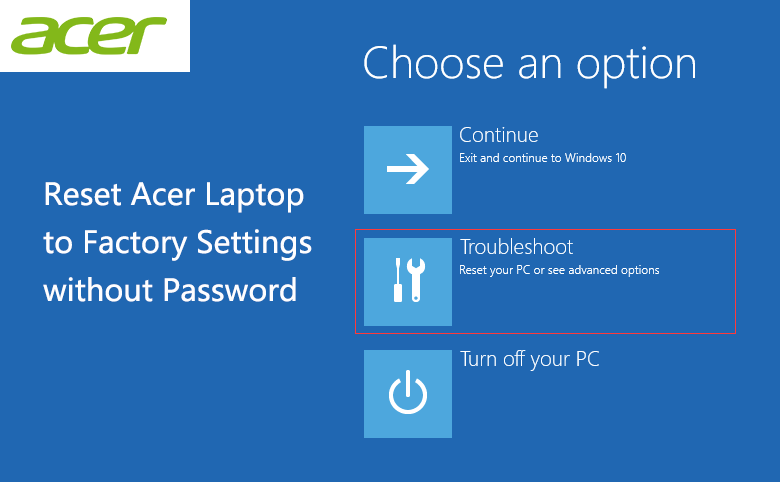
Performing Factory Reset
A factory reset restores your laptop to its original state. It removes all personal files and settings. Use this step if performance issues persist after cleaning and uninstalling.
Back up important data first. Then go to Settings > Update & Security > Recovery and choose Reset this PC. Follow the instructions to start fresh.
Advanced Hardware Troubleshooting
Advanced hardware troubleshooting goes beyond basic fixes. It helps identify deep issues inside your Acer laptop. These steps require care and some technical skill. You can fix problems that block your laptop from working properly.
Start by checking the motherboard. It is the laptop’s main circuit board. Then inspect all internal connections for loose or damaged cables. Finally, replace any faulty parts you find. These actions can restore your laptop’s performance.
Diagnosing Motherboard Problems
The motherboard controls all laptop functions. Signs of motherboard failure include no power, random shutdowns, or no display. Use a multimeter to test power output on key points. Look for burnt or damaged areas on the board. Listen for unusual noises or smells. Testing with minimal hardware attached can help isolate the problem.
Inspecting Internal Connections
Loose cables cause many hardware issues. Open your laptop carefully using the right tools. Check connections for the hard drive, RAM, display, and battery. Reseat cables by unplugging and plugging them back in. Clean connectors gently with a soft brush or compressed air. Secure any loose screws that hold components in place.
Replacing Faulty Components
Damaged parts need replacement to fix hardware faults. Common parts to replace include RAM, hard drives, and cooling fans. Use compatible parts designed for your Acer model. Follow step-by-step guides or manuals to avoid errors. After replacement, test the laptop fully to confirm the fix. Proper disposal of old parts helps protect the environment.
Maintenance Tips For Longevity
Maintaining your Acer laptop regularly extends its life and keeps it running smoothly. Simple care habits prevent common problems like overheating and slowdowns. Follow these easy maintenance tips to protect your investment and enjoy better performance over time.
Regular Cleaning Routines
Dust and dirt block air vents and cooling fans. This causes overheating and sudden shutdowns. Use compressed air to blow dust from vents every few months. Clean the keyboard and screen gently with a soft cloth. Avoid eating near the laptop to reduce crumbs and spills.
Software And Driver Updates
Updating software keeps your laptop secure and fast. Check for Windows updates regularly. Update device drivers, especially for the graphics card and chipset. Outdated drivers cause screen flickering and performance issues. Use Acer’s official website or trusted tools for driver updates.
Safe Usage Practices
Avoid placing heavy objects on your laptop. Use it on flat, hard surfaces to help ventilation. Keep liquids away to prevent spills and damage. Do not force ports or connectors. Use a quality power adapter and unplug it during storms or power surges. Shut down properly instead of just closing the lid.
Accessing Acer Support Resources
Accessing support resources is essential for troubleshooting Acer laptops efficiently. These resources provide tools and information tailored to solve common hardware and software issues. Knowing where to find official updates and repair guides saves time and effort.
Using Acer’s support channels ensures you get accurate and safe solutions. Official downloads and instructions reduce risks of further damage. Start your repair journey with trusted sources for the best results.
Using Official Acer Support
Visit Acer’s official support website to find help for your laptop model. Enter your laptop’s serial number or model name to get specific solutions. You can access warranty details, contact customer service, and find authorized service centers.
Official support pages also offer FAQs and troubleshooting tips. These resources help you diagnose problems quickly. Always rely on Acer’s site for authentic support content.
Finding Bios And Driver Updates
BIOS and driver updates improve system stability and fix bugs. Download updates only from Acer’s official support page. Choose the exact model of your laptop to avoid compatibility issues.
Regularly updating BIOS and drivers can prevent many common problems. Keep your system current to enhance performance and security. Follow Acer’s instructions carefully when installing updates.
Utilizing Online Repair Guides
Acer provides step-by-step repair guides for common issues online. These guides include clear instructions and images for easy understanding. Use them to fix problems like battery replacement or keyboard issues.
Online guides help save money by enabling DIY repairs. They also teach proper handling to avoid damage. Refer to Acer’s official guides before attempting repairs.

Credit: blog.acer.com

Credit: www.youtube.com
Frequently Asked Questions
What Is The Most Common Problem Of An Acer Laptop?
The most common Acer laptop problem is overheating, causing shutdowns and slow performance. Other issues include screen flickering, battery drain, and unresponsive keyboard or touchpad. Dust buildup, outdated drivers, and hardware faults often trigger these problems. Regular cleaning and driver updates help maintain performance.
How Do I Troubleshoot My Acer Laptop?
Check the screen and disconnect external devices. Verify power cord and adapter connections. Perform a hard restart by holding the power button. Update drivers and clean dust from vents. Use Safe Mode to identify software issues. Consider a factory reset for persistent problems.
How To Fix Acer Laptop Startup Problem?
Check power connections and remove external devices. Perform a hard reset by holding the power button for 10 seconds. Boot into Safe Mode to update drivers. Clean dust from fans and vents. If needed, reset BIOS or perform a factory reset to fix startup issues.
Where Is The Reset Button On An Acer Laptop?
The reset button on an Acer laptop is usually a small pinhole on the bottom or side. Use a paperclip to press it gently.
What Causes My Acer Laptop To Overheat Frequently?
Dust buildup in cooling fans and dried thermal paste often cause overheating. Heavy usage can worsen this by increasing internal heat. Cleaning fans and reapplying thermal paste helps reduce overheating.
Conclusion
Troubleshooting an Acer laptop need not feel overwhelming. Start by checking simple fixes like power supply and screen connections. Clean dust from fans to reduce overheating. Update drivers regularly to keep performance smooth. Watch for signs of hardware wear or battery issues.
Small steps often solve common problems quickly. Stay patient and follow clear, easy methods. Your Acer laptop can run well with proper care and timely fixes.



