
Struggling to get AirDrop working when you need it most? You’re not alone.
Whether you’re trying to share photos, documents, or videos quickly, AirDrop can sometimes refuse to cooperate. But don’t worry—fixing AirDrop issues is easier than you think. In this guide, you’ll discover simple, step-by-step troubleshooting tips that anyone can follow. You’ll learn how to check your settings, reset connections, and solve common problems so your files transfer smoothly every time.
Keep reading to take control of your AirDrop and never miss a beat when sharing again.
Basic Checks
Start with basic checks to fix AirDrop issues. These steps help solve common problems fast. Follow each step carefully and test AirDrop after each one.
Toggle Wi-fi And Bluetooth
Turn off Wi-Fi and Bluetooth on both devices. Wait a few seconds. Turn them back on. This refresh often fixes connection issues quickly.
Turn Off Personal Hotspot
Check if Personal Hotspot is on. AirDrop won’t work if it is active. Go to Settings and switch Personal Hotspot off on both devices.
Unlock Both Devices
Make sure both iPhones or iPads are unlocked. Locked devices cannot receive AirDrop files. Keep the screens on while sharing.
Adjust Airdrop Settings
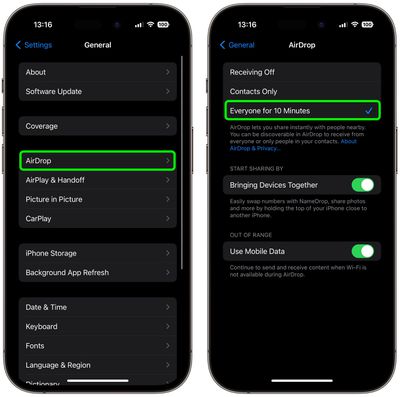
Open Settings and go to General > AirDrop. Choose “Contacts Only” or “Everyone.” Avoid “Receiving Off” as it disables AirDrop completely.
Check Screen Time Restrictions
If AirDrop is greyed out, Screen Time might block it. Go to Settings > Screen Time > Content & Privacy Restrictions > Allowed Apps. Make sure AirDrop is enabled here.
Restart Devices
Restart both devices. Power them off, wait 10 seconds, then turn them back on. This clears temporary errors and improves performance.

Credit: www.youtube.com
Quick Fixes
AirDrop issues can disrupt file sharing between Apple devices. Quick fixes often solve common problems fast. These simple steps improve connection and transfer success. Follow these easy tips to get AirDrop working again without delay.
Power Cycle Devices
Turn off both devices completely. Wait for 10 seconds. Turn them back on. Restarting refreshes system processes. It clears minor bugs affecting AirDrop.
Disable Personal Hotspot
Check if Personal Hotspot is on. Turn it off on all devices. Hotspot interferes with AirDrop connections. Disabling it allows devices to communicate directly.
Ensure Devices Are Close
Keep devices within 30 feet of each other. Closer distance strengthens Bluetooth and Wi-Fi signals. Strong signals improve AirDrop speed and reliability.
Set Airdrop To Everyone Or Contacts
Open Settings and tap General. Select AirDrop and choose Everyone or Contacts Only. This setting controls who can see your device. Adjusting it helps find the right sharing option.
Advanced Troubleshooting
Advanced troubleshooting helps solve persistent AirDrop issues. These steps fix deeper software and network problems. Follow each carefully to restore smooth file sharing.
Update Ios And Macos
Keep both devices updated with the latest software versions. Go to Settings > General > Software Update on iPhone. On Mac, open System Preferences > Software Update. Updates fix bugs and improve AirDrop stability.
Check Device Storage
Ensure enough free space on the receiving device. Large files require ample storage to complete transfer. Check storage at Settings > General > iPhone Storage or About This Mac > Storage.
Reset Network Settings
Resetting network settings clears Wi-Fi and Bluetooth caches. Go to Settings > General > Transfer or Reset iPhone > Reset > Reset Network Settings. Enter your passcode to confirm. This step often restores AirDrop functionality.
Sign Out And In Of Icloud
Signing out and back into iCloud refreshes device connections. Open Settings, tap your name, then Sign Out. Restart the device and sign in again. This can solve syncing issues affecting AirDrop.
Toggle Airplane Mode
Turn on Airplane Mode briefly, then turn it off. This resets wireless radios quickly. Swipe down to open Control Center and tap the airplane icon. Wait a few seconds before toggling back.
Device-specific Tips
Device-specific tips help solve AirDrop problems faster. Each Apple device has unique settings and features. Understanding these can improve your AirDrop experience.
Simple checks on your iPhone, iPad, or Mac often fix issues. These tips focus on the most common device-related problems. Follow them step-by-step for better results.
Airdrop On Iphone And Ipad
Ensure Wi-Fi and Bluetooth are active on both devices. Turn off Personal Hotspot as it blocks AirDrop. Keep devices close for a stable connection.
Check AirDrop settings in Control Center or Settings > General > AirDrop. Choose “Contacts Only” or “Everyone” based on your needs. Screen Time restrictions may disable AirDrop; verify in Settings > Screen Time > Content & Privacy Restrictions.
Restart your iPhone or iPad to clear temporary glitches. Update to the latest iOS version for better compatibility. Reset network settings if problems persist (Settings > General > Transfer or Reset iPhone > Reset Network Settings).
Airdrop On Mac
Activate Wi-Fi and Bluetooth on your Mac. Open Finder and select AirDrop from the sidebar. Set AirDrop visibility to “Contacts Only” or “Everyone.”
Make sure your Mac is discoverable by nearby devices. Disable any firewall or security apps that may block AirDrop. Restart your Mac to refresh system processes.
Update macOS to the latest version for smooth AirDrop function. If AirDrop still fails, try signing out and back into your Apple ID. Check that both devices use the same iCloud account for Contacts Only mode.
Common Airdrop Issues
AirDrop is a handy feature for sharing files quickly between Apple devices. Yet, users often face issues that stop AirDrop from working properly. Understanding common AirDrop problems can help fix them faster and get your files moving again.
Many AirDrop problems arise from device settings or connectivity issues. Some issues are easy to solve, while others need more detailed checks. Below are some frequent AirDrop problems and tips to address them.
Airdrop Not Discoverable
When AirDrop is not discoverable, other devices cannot see your device. Check if Wi-Fi and Bluetooth are turned on. Make sure AirDrop is set to “Everyone” or “Contacts Only” in Settings. Also, keep your device unlocked and awake. Personal Hotspot must be off, as it blocks AirDrop visibility.
Airdrop Grayed Out
AirDrop may appear grayed out due to restrictions or settings. Look in Settings under Screen Time and Content & Privacy Restrictions. Confirm AirDrop is allowed there. Turning off Screen Time or adjusting allowed apps can enable AirDrop again. Restarting your device often helps reset this issue.
Cannot Airdrop To Nearby Device
Sometimes AirDrop fails to send files to nearby devices. Ensure both devices have Wi-Fi and Bluetooth enabled. Devices must be close, usually within 30 feet. Restart both devices if needed. Confirm both have AirDrop set to accept files from each other. Check for software updates on both devices.
Blocked Contacts Affecting Airdrop
Blocked contacts can cause AirDrop to fail when sending files. If the recipient is blocked, AirDrop will not work. Check your blocked contacts list in Settings under Phone or Messages. Remove any contacts you want to AirDrop files to. This step often solves unexpected transfer failures.
Credit: www.aiseesoft.com
Alternative Solutions
Sometimes AirDrop may not work despite all troubleshooting steps. Alternative solutions can help you share files quickly. These options are useful when AirDrop fails or is unavailable.
Using other apps or seeking expert help can solve your sharing issues. Keep these alternatives ready for smooth file transfer.
Use Notes App For Temporary Sharing
The Notes app can help share text or images fast. Create a new note and paste your content there. Then, use the Share button to send it via email or message.
This method works well for small files or quick text sharing. It avoids AirDrop’s wireless connection issues. You can also sync notes through iCloud for access on another device.
Contact Apple Support
Apple Support offers expert help for AirDrop problems. They can guide you through advanced fixes. Visit the Apple Support website or call for assistance.
Support can also check if hardware or software issues block AirDrop. They may suggest repairs or updates. This option ensures you get professional solutions fast.
Credit: www.macrumors.com
Frequently Asked Questions
Why Is My Iphone Airdrop Not Working?
Your iPhone AirDrop may not work if Wi-Fi or Bluetooth is off, Personal Hotspot is on, devices are locked, or AirDrop settings restrict sharing. Restart devices, toggle Wi-Fi/Bluetooth, update iOS, disable Screen Time restrictions, and reset network settings to fix common issues.
Why Can’t I Airdrop To Someone Next To Me?
You can’t AirDrop to someone nearby if Wi-Fi or Bluetooth is off, devices are locked, Personal Hotspot is on, or AirDrop settings restrict sharing. Restart devices, disable Personal Hotspot, ensure both are unlocked, close, and AirDrop set to Contacts or Everyone to fix issues.
What Are Common Airdrop Problems?
Common AirDrop problems include Wi-Fi or Bluetooth off, Personal Hotspot on, devices locked, or AirDrop set incorrectly. Restart devices, toggle Wi-Fi/Bluetooth, disable restrictions, update software, and reset network settings to fix issues.
How To Fix Unable To Share Airdrop?
Ensure Wi-Fi and Bluetooth are on, Personal Hotspot off, and devices are unlocked and close. Restart devices, toggle Wi-Fi/Bluetooth, check AirDrop settings, disable Screen Time restrictions, update iOS, and reset network settings if needed. Contact Apple Support if issues persist.
Why Is Airdrop Not Showing On My Iphone?
AirDrop may be hidden if Wi-Fi or Bluetooth is off. Also, Personal Hotspot must be disabled. Check AirDrop settings under Settings > General > AirDrop.
Conclusion
AirDrop can face issues, but simple steps often help. Check Wi-Fi and Bluetooth are on for both devices. Make sure Personal Hotspot is off and devices stay close. Unlock both devices and review AirDrop settings carefully. Restarting devices fixes many common glitches quickly.
Update your software to avoid compatibility problems. Reset network settings if needed to clear connection errors. Try sharing smaller files or use Notes for testing. Persistent problems may need Apple Support’s help. Following these tips keeps your AirDrop working smoothly.
Easy fixes save time and improve file sharing.



