Is your Amazon app acting up right when you need it most? Frustrating glitches, slow loading, or sudden crashes can quickly spoil your shopping experience.
But before you give up or switch devices, there are simple, effective fixes you can try to get your app running smoothly again. In this guide, you’ll discover easy troubleshooting steps tailored just for you—whether you’re on Android or iOS.
From quick restarts to clearing cache and even dealing with VPN conflicts, these solutions are designed to save you time and hassle. Keep reading to regain full control of your Amazon shopping app and shop with confidence again.
Credit: www.amakenlb.com
Check For Outages
Checking for outages is an important step in fixing Amazon app issues. Sometimes the app stops working because Amazon’s servers have problems. These outages affect many users at once. Finding out about an outage saves time and effort. No need to try many fixes if the problem is on Amazon’s side.
Outages happen due to server maintenance, high traffic, or technical errors. These issues usually get fixed quickly by Amazon. Knowing about them early helps you avoid unnecessary troubleshooting steps. It also confirms that the problem is not on your device or internet connection.
How To Check For Amazon App Outages
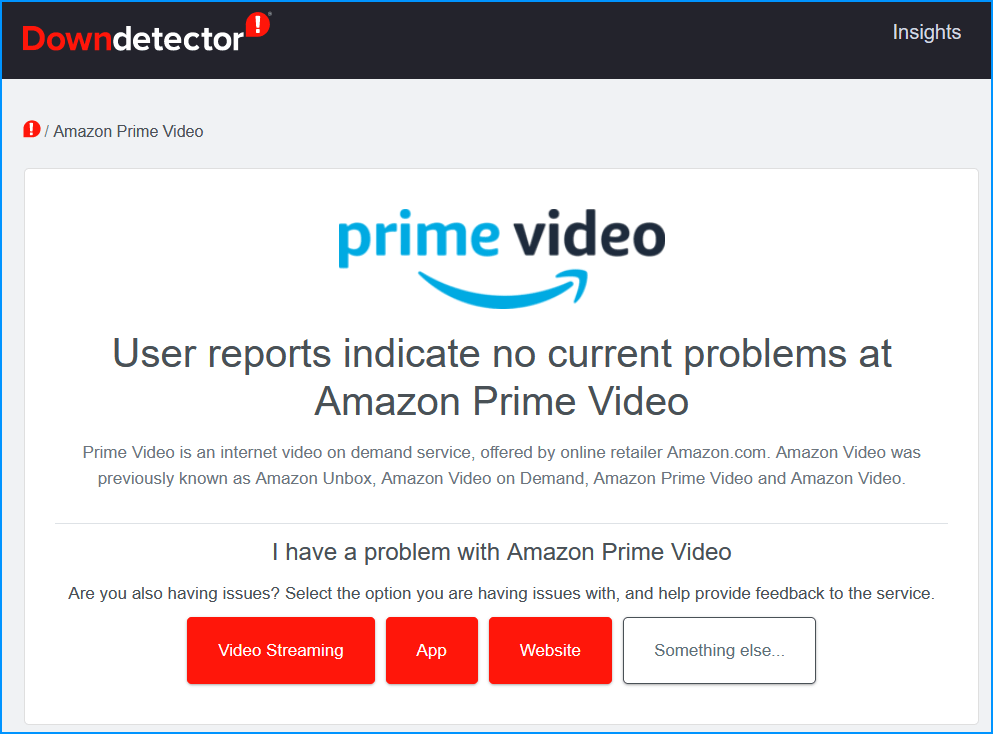
Use websites that monitor app and website status. Downdetector is a popular site for this. It shows live reports from users about problems. You can see if many people report Amazon app issues at once. This confirms an outage.
Signs Of An Outage
The app may fail to load or crash repeatedly. Buttons and features may not work. Pages may load very slowly or show error messages. These symptoms often mean a server problem. Check outage sites before trying other fixes.
What To Do During An Outage
Wait for Amazon to fix the problem. Avoid uninstalling or reinstalling the app right away. Restarting your device will not help if servers are down. Check outage updates regularly to know when service returns. Use the Amazon website on a browser to see if it works better.

Credit: developer.amazon.com
Restart Your Device
Restarting your device is a simple yet effective way to fix many Amazon app issues. It clears temporary glitches that may cause the app to freeze or crash. This quick step often restores smooth app performance without extra effort.
Powering off your phone or tablet and turning it back on resets the system. This process refreshes app functions and closes any background tasks that might interfere with Amazon. Restarting also helps your device apply updates properly.
How To Restart Your Device
Press and hold the power button on your device. Wait for the power options to appear. Tap “Restart” or “Reboot.” If no restart option shows, select “Power Off.” Then, press the power button again to turn it back on.
Benefits Of Restarting
Restarting frees up memory and stops apps running in the background. It removes minor bugs that cause crashes or slow loading. This step can fix connection problems between your device and Amazon servers.
When To Restart
Restart your device if the Amazon app freezes or won’t open. Try this after updating the app or your device’s software. Restart if the app behaves oddly or shows error messages.
Update The App
Keeping the Amazon app updated is essential for smooth performance and access to new features. Updates fix bugs that cause crashes or slow loading. They also improve security and compatibility with your device.
Regular updates prevent many common problems users face with the Amazon app. It is a simple step that often solves app errors without complicated troubleshooting. The update process is quick and easy on both Android and iOS devices.
How To Check For Amazon App Updates
Open your device’s app store. Search for “Amazon” in the search bar. Look for the Amazon app in the results. If an update is available, you will see an “Update” button. Tap it to start downloading the latest version.
Enable Automatic Updates
Automatic updates save you time and effort. Go to your device’s settings and find the app store preferences. Turn on the option to update apps automatically. This keeps the Amazon app current without manual checks.
Troubleshooting Update Issues
Sometimes updates fail to install. Check your internet connection to ensure it is stable. Free up storage space on your device if it is low. Restart your device to refresh system processes. Try updating the app again after these steps.
Force Stop The App
Force stopping the Amazon app can fix many common issues quickly. It shuts down the app completely, clearing any temporary glitches. This step helps when the app freezes or does not respond.
Force stop closes the app even if it is running in the background. After force stopping, you can reopen the app fresh. This often restores normal function without needing a full device restart.
How To Force Stop The Amazon App
Open your phone’s Settings and go to Apps or Applications. Find the Amazon app in the list. Tap on it to open the app info page. Look for the “Force Stop” button and tap it. Confirm if asked. The app will close immediately.
When To Use Force Stop
Use force stop when the Amazon app is frozen or slow. It helps if the app crashes repeatedly. Also try it if the app does not load content properly. Force stop can clear minor bugs that block normal use.
What Happens After Force Stopping
After force stopping, the app resets its current state. Background tasks stop instantly. The app uses less memory and processor power. Open the app again to start fresh. You may notice faster response and smoother performance.
Clear Cache And Data
Clearing cache and data is a simple way to fix many Amazon app problems. The app stores temporary files to load faster. Sometimes, these files get corrupted or outdated. This can cause the app to freeze, crash, or behave oddly.
Clearing the cache removes these temporary files without deleting your personal information. Clearing data resets the app to its original state. It deletes settings, login info, and saved preferences. This can solve deeper issues but requires logging in again.
What Is Cache And Data?
Cache stores temporary files to speed up the app. Data includes app settings and user information. Both help the app run smoothly but can cause problems if corrupted.
How To Clear Cache On Amazon App
Go to your phone’s Settings. Select Apps or Application Manager. Find and tap the Amazon app. Tap Storage. Then tap Clear Cache. This will remove temporary files but keep your account details.
How To Clear Data On Amazon App
Follow the same steps as clearing cache. Instead of Clear Cache, tap Clear Data or Clear Storage. This will erase all app data. You will need to sign in again after this step.
When To Clear Cache Vs Clear Data
Clear cache first to fix slow or unresponsive app. If problems continue, clear data to reset the app. Clearing data fixes deeper issues but removes saved settings.
Uninstall And Reinstall
Uninstalling and reinstalling the Amazon app can solve many common problems. This process removes corrupted files and resets the app to a fresh state.
It often fixes issues like freezing, crashing, or login errors. The steps are simple and work on both Android and iOS devices.
How To Uninstall The Amazon App
Find the Amazon app icon on your device. Press and hold it until options appear.
Select “Uninstall” or “Remove” to delete the app. Confirm your choice if prompted. This clears all app data from your device.
Reinstalling The Amazon App
Open your device’s app store, such as Google Play or Apple App Store. Search for “Amazon shopping.” Tap “Install” or “Get” to download the app again.
Wait for the download and installation to finish. Once complete, open the app and sign in with your account.
Benefits Of Uninstalling And Reinstalling
This method clears app errors caused by corrupted files. It updates the app to the latest version automatically.
Reinstalling also refreshes app settings and permissions. It can improve app speed and stability on your device.
Disable Vpn And Ad Blockers
VPNs and ad blockers can cause issues with the Amazon app. These tools change your internet connection or block some content. This can stop the app from working correctly. Disabling them helps the app connect and load pages smoothly.
Try turning off VPNs and ad blockers if the Amazon app acts slow or shows errors. This simple step often solves connection problems. It also prevents the app from blocking important features or ads needed for proper function.
What Does A Vpn Do To The Amazon App?
A VPN hides your real location by routing traffic through other servers. This can confuse Amazon’s system. The app might think you are somewhere else or block your access. Disabling the VPN lets the app connect directly to Amazon’s servers. This reduces errors and improves speed.
How Can Ad Blockers Affect Amazon?
Ad blockers stop some content from loading, including ads and scripts. Amazon uses these scripts for features and tracking orders. Blocking them can break parts of the app. Turning off ad blockers ensures all necessary data loads properly. This helps the app run without glitches.
Steps To Disable Vpn And Ad Blockers
Go to your phone’s settings or VPN app. Find the option to disconnect or turn off the VPN. Next, open your browser or app settings. Locate the ad blocker extension or app. Disable it temporarily while using Amazon. Restart the Amazon app after these changes.
Use Amazon Website
The Amazon app may sometimes face issues that stop it from working properly. In such cases, using the Amazon website is a simple and effective alternative. The website offers full access to shopping, orders, and account settings without needing the app.
Accessing Amazon through a web browser can help you continue shopping smoothly. It can also assist in troubleshooting app problems by verifying if the issue is with the app or your account.
Open Amazon Website In Browser
Use any web browser on your phone, tablet, or computer to visit www.amazon.com. The website loads quickly and works on all devices. It gives you the same features as the app, including searching for products and managing your orders.
Sign In To Your Amazon Account
Enter your email and password to sign in on the website. This step ensures you can view your orders, payment methods, and wish lists. Signing in also helps confirm that your account works fine outside the app.
Check Order Status And History
On the website, navigate to “Your Orders” to see the status of recent purchases. This section helps track packages or cancel orders if needed. It gives clear information about delivery dates and order details.
Manage Account Settings
The Amazon website allows easy access to account settings. You can update your address, payment options, and communication preferences. Managing settings online helps fix issues caused by outdated information in the app.
Use Website To Report Issues
If the app keeps crashing or showing errors, use the website’s help section. Search for solutions or contact Amazon support through chat or email. Reporting problems on the website can speed up assistance and troubleshooting.
Contact Amazon Support
Sometimes, troubleshooting steps do not solve the Amazon app issues. Contacting Amazon Support can provide direct help. They have tools and resources to fix problems quickly.
Amazon offers multiple ways to reach their support team. You can choose the best option based on your needs and convenience. Support agents are ready to assist with app errors, login problems, or order issues.
How To Reach Amazon Support
Visit the Amazon Help page on your web browser or app. Select the issue category to narrow down your problem. You can chat live with a representative, call, or send an email.
Live chat is fast and works well for common issues. Phone support connects you to an agent who can guide you step-by-step. Email support is good for less urgent problems.
What Information To Prepare
Have your Amazon account details ready before contacting support. Include your order number if your issue relates to a purchase. Describe the problem clearly and mention any error messages.
Providing detailed information helps agents understand your issue. This speeds up the troubleshooting and resolution process.
Tips For Effective Support Communication
Be polite and patient while talking to support staff. Follow their instructions carefully to avoid confusion. Take notes of any advice or reference numbers given.
If the first solution does not work, ask for alternative options. Keep track of your case for future reference if needed.
Amazon Appstore Changes
The Amazon Appstore has undergone several important changes recently. These changes affect how users access apps and use services linked to the store. Understanding these updates helps users adapt and avoid disruptions.
Amazon aims to focus its appstore experience on its own devices, shifting away from broader Android support. This shift impacts many users and the features they once relied on.
Discontinuation On Android
Amazon has stopped supporting the Appstore on most Android devices. Users can no longer download or update apps through the Amazon Appstore on these phones. This change means Android users must switch to other app stores for their downloads.
The Appstore continues to work only on Amazon Fire Tablets and Fire TV devices. These devices retain full access to Amazon’s app ecosystem without interruption.
Impact On Users
Android users who used the Amazon Appstore face several challenges. They must find alternative stores for app downloads and updates. Apps previously installed through the Amazon Appstore may not receive updates anymore.
This change may cause inconvenience, especially for users who preferred Amazon’s store for exclusive apps or deals. Users should consider backup options to keep their apps secure and up to date.
Amazon Coins Program End
The Amazon Coins program has officially ended. This program allowed users to buy digital coins to purchase apps and games at a discount. Unused coins were refunded to customers automatically.
With the program’s closure, users can no longer purchase or use Amazon Coins. This affects those who relied on coins for savings and promotions within the Amazon Appstore.
Amazon Appstore On Fire Devices
The Amazon Appstore is the main source for apps on Fire devices. These include Fire Tablets and Fire TV. It offers a wide range of apps designed for Fire OS. The store is easy to use and integrates well with the device features.
Sometimes, users face problems with the Amazon Appstore on these devices. Issues can range from apps not downloading to errors during updates. Knowing how to fix these problems helps keep your device running smoothly.
Common Amazon Appstore Issues On Fire Devices
Many users report slow downloads or apps that fail to install. Other problems include error messages or the store freezing. Network issues often cause these troubles. Sometimes, the device software needs an update to work well with the Appstore.
How To Clear Cache And Data On Fire Devices
Clearing the cache can fix many Appstore issues. Go to Settings, then Apps & Notifications. Find the Amazon Appstore and tap it. Choose Storage, then tap Clear Cache and Clear Data. This removes temporary files that may cause errors. After clearing, restart your device and try again.
Updating Fire Os For Better Appstore Performance
Amazon releases Fire OS updates to improve device stability. Check for updates by opening Settings and selecting Device Options. Tap System Updates and install any available updates. Keeping your Fire OS updated ensures the Appstore works without problems.
Reinstalling The Amazon Appstore On Fire Devices
If problems persist, reinstalling the Appstore may help. First, uninstall the Appstore from your device. Restart the device to clear memory. Then download and install the latest version from Amazon’s official website. This can fix corrupted files or faulty installations.
Credit: compassbank.us
Fixes For Shopping App Issues
Facing issues with your Amazon shopping app can be frustrating. Simple fixes often resolve common problems fast. These steps help restore smooth app performance for easy shopping.
Clearing the app’s cache removes temporary files that may cause glitches. Access your device settings, find the Amazon app, and clear cache. If issues persist, clear the app data too. This resets the app to its default state without deleting your account.
Restart Device
Restarting your device refreshes system resources and closes background apps. This often fixes minor bugs affecting the Amazon app. Turn off your phone, wait a few seconds, then power it back on. Open the app again to check if it works properly.
Reinstall The App
Uninstalling and reinstalling the Amazon app ensures you have the latest version. Remove the app from your device, then visit your app store. Download and install the app fresh. This step often solves issues caused by corrupted files or incomplete updates.
Check Status On Downdetector
Downdetector shows if Amazon’s servers have outages or problems. Visit the site to see real-time user reports. If many users report issues, the problem is likely server-side. Wait for Amazon to fix the issue and try the app later.
Frequently Asked Questions
What’s Wrong With The Amazon App Right Now?
The Amazon app may face issues due to server outages, outdated versions, or corrupted cache. Restart, update, clear cache, or reinstall the app. Disable VPNs if needed. Check Downdetector for outages and contact Amazon support if problems continue.
What Is Going On With The Amazon App?
The Amazon app may face issues due to outdated versions, cache corruption, or server outages. Clear cache, update, restart, or reinstall it. Check Downdetector for outages. Disable VPNs or ad blockers if problems persist. Contact Amazon support for unresolved issues.
How To Fix Amazon App Not Working?
Clear the Amazon app’s cache and data in settings. Update the app to the latest version. Restart your device. If problems continue, uninstall and reinstall the app. Disable VPNs or proxies if used. Check Downdetector for outages and contact Amazon support if needed.
What Has Happened To My Amazon App?
Your Amazon app may glitch due to outdated versions, cache issues, or server outages. Update, clear cache, restart, or reinstall it. Disable VPNs or contact Amazon support if problems persist.
Why Is My Amazon App Not Loading Properly?
The app may have temporary glitches or outdated files. Restart your device and update the app to the latest version.
Conclusion
Troubleshooting the Amazon app can save time and frustration. Start with simple steps like restarting your device or updating the app. Clearing cache and data often resolves many common issues quickly. If problems continue, try uninstalling and reinstalling the app.
Check for outages on sites like Downdetector to rule out server problems. Disabling VPNs or ad blockers may also help. When nothing else works, contacting Amazon support provides expert assistance. These easy fixes keep your shopping experience smooth and stress-free.