Is your Apple TV acting up right when you want to relax and enjoy your favorite show? You’re not alone.
Many users face issues like freezing screens, no signal, or the device not turning on. But before frustration takes over, there’s good news—you can often fix these problems quickly and easily. In this guide, you’ll discover simple troubleshooting steps that anyone can follow, no tech expertise needed.
Whether your Apple TV won’t respond, can’t connect to Wi-Fi, or shows a blank screen, keep reading to get your streaming back on track fast. Don’t miss out on these proven fixes that will save you time and hassle!

Credit: www.youtube.com
Power Issues
Power issues are common problems that prevent Apple TV from turning on or working properly. These issues can stem from loose connections, software glitches, or power supply faults. Fixing power problems usually involves checking hardware and restarting the device.
Follow these simple steps to troubleshoot Apple TV power issues and restore smooth operation quickly.
Check Power Connections
Start by inspecting the power cable and adapter. Make sure the power cord is firmly plugged into the Apple TV and the wall outlet. Check for any damage or frayed wires on the cable.
Try a different power outlet to rule out socket issues. Avoid using power strips or extension cords during testing. A direct connection often solves power problems.
Force Restart Apple Tv
A force restart can resolve minor software glitches causing power issues. For Apple TV with Siri Remote, press and hold the TV button and the On/Off button at the same time. Keep holding until the status light blinks rapidly.
For older remotes, press and hold the Menu and Home (or TV) buttons together until the light flashes. This action restarts the Apple TV without erasing data.
Power Cycle Method
Power cycling resets the device by cutting off power completely. Unplug the Apple TV power cord from the wall outlet. Wait for about 10 seconds to clear any residual power.
Plug the power cord back in and wait for the Apple TV to start up. This method often fixes frozen screens and startup failures. Repeat if necessary to ensure the issue is resolved.
Remote Problems
Remote problems can cause frustration while using Apple TV. The remote may stop responding or fail to control your device properly. Troubleshooting remote issues often resolves these problems quickly. Below are simple methods to fix remote problems and get your Apple TV working smoothly again.
Restart Using Siri Remote
Press and hold the TV button and the On/Off button at the same time. Keep holding until the status light blinks quickly. This action restarts the Apple TV using the Siri Remote. It helps clear minor glitches affecting the remote connection.
Restart With Older Remotes
For older Apple TV remotes, press and hold both the Menu and Home buttons. Hold them until the remote’s light flashes. This forces a restart of the remote and re-establishes the link with the Apple TV.
Replace Or Recharge Batteries
Check the battery level if the remote does not respond. Replace the batteries if they are old or weak. For Siri Remotes with a rechargeable battery, connect it to a power source using a Lightning cable. Charging the remote can restore its function.
Connectivity Troubles
Connectivity troubles can disrupt your Apple TV experience. Problems like slow streaming, no signal, or dropped connections often stem from network or hardware issues. Fixing these problems quickly helps you get back to watching your favorite shows without frustration.
Wi-fi Connection Fixes
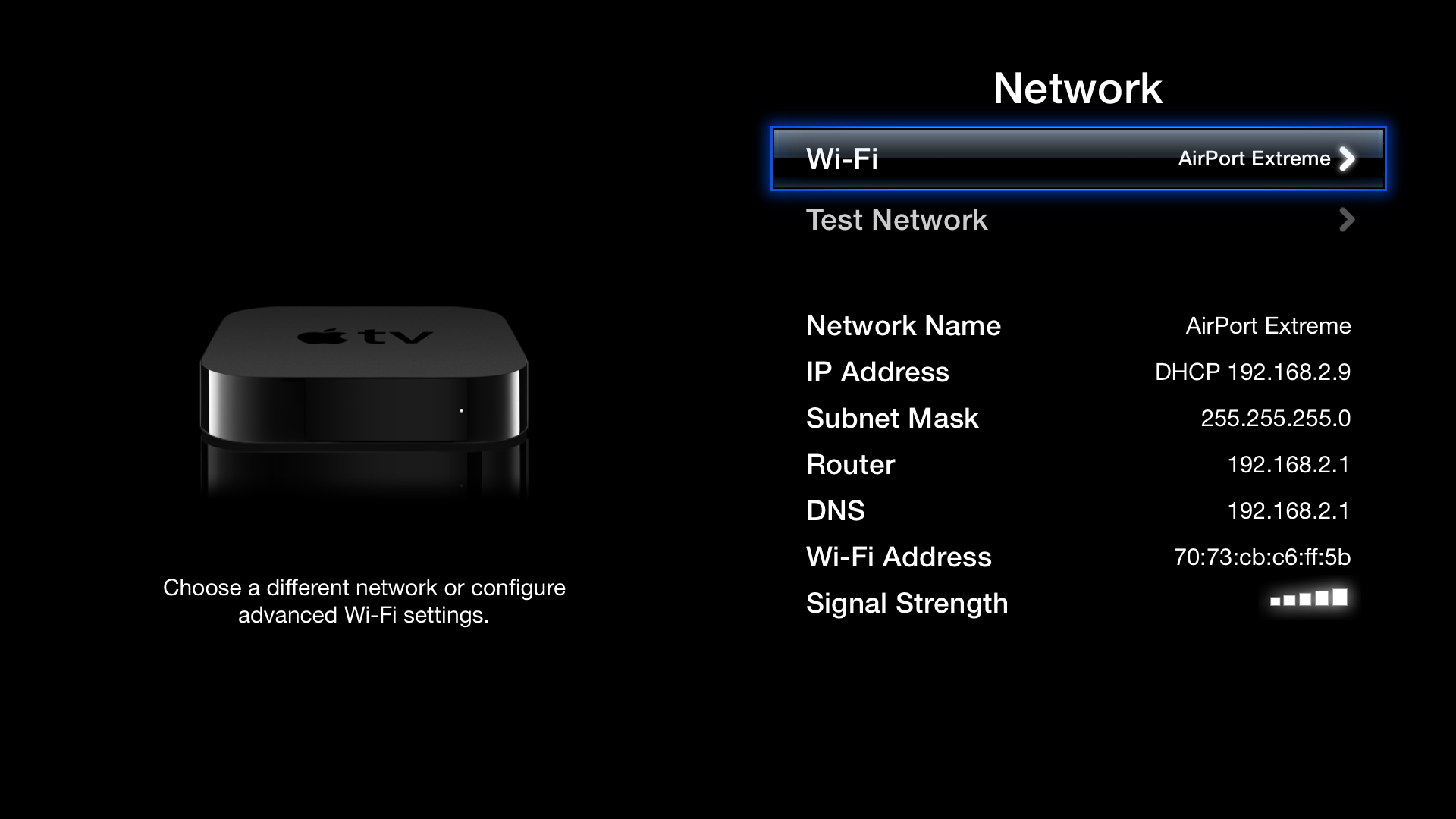
Check your Wi-Fi signal strength near the Apple TV. Move your router closer if the signal is weak. Restart your router and Apple TV to refresh the connection. Use 5 GHz Wi-Fi for faster speeds and less interference. Forget your Wi-Fi network on Apple TV, then reconnect by entering the password again. Update your Apple TV software to improve connectivity and performance.
Bypass Hdmi Switches
HDMI switches or AV receivers can cause signal issues. Connect your Apple TV directly to your TV’s HDMI port. This eliminates any interference from extra devices. Test your Apple TV with a different HDMI cable. A faulty cable can cause no video or sound problems. Direct connection helps identify if the switch or receiver is the problem.
Verify Tv Input Settings
Make sure your TV is set to the correct HDMI input. Use your TV remote to cycle through inputs until you see the Apple TV screen. Sometimes, the TV may be on a different input by mistake. Double-check input settings if the screen stays blank. Correct input selection is a simple fix for common connection errors.
Display And Resolution
Display and resolution issues can affect your Apple TV viewing experience. Incorrect settings or poor connections cause blurry or black screens. Fixing these problems improves picture clarity and color quality. Simple steps help you adjust the screen to fit your TV perfectly. Checking hardware and resetting settings often resolve display glitches quickly.
Adjust Screen Resolution
Go to Settings on your Apple TV home screen. Select Video and Audio, then Resolution. Choose a resolution that matches your TV’s supported formats. Use 1080p or 4K for the best quality. If the screen looks wrong, try different resolutions until the picture fits well. This step fixes blurry or stretched images.
Check Hdmi Cable Quality
Inspect your HDMI cable for damage or wear. Low-quality or old cables cause flickering and no signal. Use a high-speed HDMI cable rated for 4K if needed. Connect the cable firmly to both Apple TV and your TV. Try another HDMI port or cable to rule out hardware issues. A good cable ensures stable video and audio signals.
Reset Display Settings
Resetting display settings can clear configuration errors. Go to Settings, then System, and select Reset. Choose Reset Video Settings to restore defaults. The Apple TV will restart and apply standard display options. This fix helps if the picture is distorted or black. It does not delete your apps or data.
System Restarts And Resets
System restarts and resets solve many Apple TV problems fast. Restarting refreshes the device’s software. It clears temporary glitches and frees memory. Resets erase settings and return Apple TV to factory defaults. Use resets only if restarts fail to fix issues.
This section explains how to restart and reset your Apple TV safely. Follow these steps to fix freezing, lagging, or connection problems. Each method suits different situations and needs.
Restart Via Settings Menu
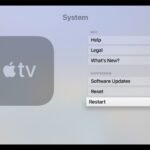
Start from the Apple TV Home Screen. Open Settings. Scroll to and select System. Choose Restart. The device will shut down and power back on automatically.
This method is easy and safe. It keeps your data and apps intact. Use it for basic troubleshooting or after installing updates.
Force Restart With Remote
Sometimes Apple TV does not respond to normal restart commands. Use the remote to force restart instead.
For Siri Remote (with TV button): Press and hold the TV button and the On/Off (or Menu) button together. Keep holding until the status light flashes rapidly.
For older remotes: Press and hold the Menu and Home/TV buttons simultaneously. Release once the light blinks.
This method forces Apple TV to reboot immediately. It helps if the screen is frozen or unresponsive.
Factory Reset Options
A factory reset erases all settings and data on your Apple TV. Use it only as a last resort.
Go to Settings > System > Reset. You will see two options:
- Reset: Resets Apple TV and keeps the latest software version.
- Reset and Update: Resets Apple TV and installs the newest software.
Choose the option that fits your needs. The reset process takes several minutes. After it finishes, set up Apple TV again as new.
:max_bytes(150000):strip_icc()/009_apple-tv-problems-and-solutions-4023203-5c5222d34cedfd0001ddb900.jpg)
Credit: www.lifewire.com
Audio Problems
Audio problems on Apple TV can spoil your viewing experience. No sound or distorted audio makes it hard to enjoy shows or movies. Many audio issues happen due to wrong settings, hardware trouble, or outdated software. Fixing these problems often takes simple steps that anyone can try.
Check Audio Output Settings
Start by checking your Apple TV’s audio output settings. Go to Settings, then choose Video and Audio. Look at the Audio Output option. Make sure it matches the device you are using, like your TV or a soundbar. Wrong settings can cause no sound or bad audio quality. Also, check if the volume is muted or too low.
Test With Different Audio Devices
Try using different speakers or headphones with your Apple TV. Connect your Apple TV to another TV or sound system. This helps find out if the problem is with your Apple TV or the audio device. If sound works on another device, your original speakers may need repair or replacement.
Update Software For Audio Fixes
Apple often releases updates to fix audio bugs. Go to Settings, then System, and select Software Updates. Check for new updates and install them. Updated software can improve sound performance and fix audio glitches. Keep your Apple TV software up to date for the best audio experience.
App And Streaming Issues
App and streaming issues can disrupt your Apple TV experience. Apps may freeze, crash, or fail to load content. Streaming might buffer endlessly or show poor video quality. These problems often stem from app glitches or network troubles. Simple steps can restore smooth streaming quickly.
Close And Reopen Apps
Apps can become unresponsive after extended use. Closing and reopening apps clears temporary bugs. To close an app, double-click the TV button on your remote. Swipe left or right to find the app, then swipe up to close it. Open the app again from the home screen. This refresh often fixes streaming errors.
Update Or Reinstall Apps
Outdated apps can cause playback problems. Check for app updates in the App Store. Open the App Store, select Purchased, then Updates. Install any available updates. If problems persist, delete the app and reinstall it. Press and hold the app icon, then select Delete. Download the app again from the App Store. This ensures the app runs with the latest fixes.
Check Internet Speed
Slow or unstable internet affects streaming quality. Test your internet speed using online tools on another device. Apple TV requires at least 5 Mbps for HD streaming. For 4K, speeds above 25 Mbps are ideal. Restart your router to improve connection. Move Apple TV closer to the router if possible. A strong internet connection ensures smooth app performance and video playback.
When To Get Support
Knowing when to get support for your Apple TV saves time and prevents frustration. Some problems need expert help beyond basic troubleshooting. Recognizing these signs helps you act quickly and avoid further issues.
Identify Hardware Problems
Hardware problems often cause persistent issues. Look for physical damage or unusual sounds. If the Apple TV does not power on, it may signal a hardware fault. Problems like unresponsive remote or no video output can also indicate hardware failure. Test cables and ports to rule out simple connection issues first.
Contact Apple Support
Contact Apple Support if basic fixes do not resolve the problem. Support can guide you through advanced troubleshooting steps. They can also diagnose issues remotely using diagnostic tools. Use official Apple channels like their website, app, or phone support for reliable help. Avoid third-party services to keep your warranty safe.
Warranty And Repair Options
Check your Apple TV warranty status before seeking repairs. Apple offers limited warranty coverage for hardware defects. If your device is under warranty, repairs or replacements may be free. Out-of-warranty repairs are available but may cost extra. Authorized service providers ensure genuine parts and quality service.
Credit: administrivia.com
Frequently Asked Questions
How Do I Reboot My Apple Tv?
To reboot your Apple TV, go to Settings > System > Restart. Or, press and hold the TV and Volume Down buttons on the remote until the status light blinks. Alternatively, unplug the power cord, wait a few seconds, and plug it back in to restart.
Why Is My Apple Tv Suddenly Not Working?
Check power and HDMI cables are secure. Restart Apple TV and your TV. Verify correct input source. Force restart using the remote if unresponsive. Adjust resolution settings if needed. Contact Apple Support if problems persist.
Is Apple Tv Having Technical Issues?
Apple TV may face occasional technical issues like freezing or connectivity problems. Restart your device and check cables. If problems persist, update software or contact Apple Support for help.
Can An Apple Tv Box Go Bad?
Yes, an Apple TV box can go bad due to hardware failure or power issues. Regular troubleshooting helps identify problems early.
How Do I Restart My Apple Tv Safely?
To restart Apple TV, go to Settings > System > Restart from the Home screen. This method safely reboots without losing data. It helps clear minor software glitches quickly.
Conclusion
Apple TV issues can disrupt your viewing experience. Start by checking cables and power connections. Restart your device using the remote or settings menu. Try adjusting the TV input and resolution if needed. Force restart helps when the Apple TV is unresponsive.
If problems continue, consider resetting to factory settings. These simple steps often fix common Apple TV problems. Stay patient and follow each fix carefully. Enjoy smooth streaming again with these easy troubleshooting tips.