
Is your Mac’s Bluetooth acting up right when you need it most? You’re not alone.
Whether your headphones won’t connect, your mouse keeps dropping the signal, or your keyboard just won’t pair, Bluetooth issues can be frustrating and slow down your workflow. But don’t worry—fixing Bluetooth problems on your Mac is easier than you think.
You’ll discover simple, step-by-step solutions that anyone can follow to get your Bluetooth devices working smoothly again. Ready to say goodbye to connection headaches? Keep reading and take control of your Mac’s Bluetooth now.

Credit: hideez.com
Common Mac Bluetooth Issues
Bluetooth issues on Mac can disrupt daily tasks and cause frustration. Understanding common problems helps in quick fixes. This section covers typical Bluetooth problems on Mac and their symptoms.
Connection Failures
Connection failures occur when your Mac cannot link with a Bluetooth device. Devices may not pair or stay connected. This issue often happens due to outdated software or interference from other gadgets. Restarting devices or updating macOS can help restore connections.
Device Not Discoverable
Sometimes your Mac fails to find Bluetooth devices nearby. This happens when the device is not in pairing mode or the Mac’s Bluetooth is off. Ensuring both devices are active and close to each other improves discoverability. Resetting Bluetooth settings may also solve this problem.
Audio Dropouts
Audio dropouts cause sound to cut in and out during playback. This issue affects headphones, speakers, and other audio devices. Interference from Wi-Fi or other wireless signals often causes this. Moving closer to your Mac or reducing nearby wireless devices can reduce dropouts.
Slow Response
Slow response means there is a delay between device actions and Mac reactions. For example, a Bluetooth keyboard may type with a lag. This delay can result from low battery or signal interference. Charging devices fully and removing obstacles helps improve response time.
Basic Fixes For Bluetooth
Bluetooth issues on a Mac can disrupt your daily tasks. Basic fixes often solve these problems quickly. These simple steps require no technical skills. Follow them to restore your Bluetooth connection fast.
Restart Mac And Devices
Restarting your Mac refreshes its system and clears temporary glitches. Turn off your Bluetooth devices and then power them back on. This simple reset can fix many connection problems. It helps refresh the communication between your Mac and devices.
Toggle Bluetooth Off And On
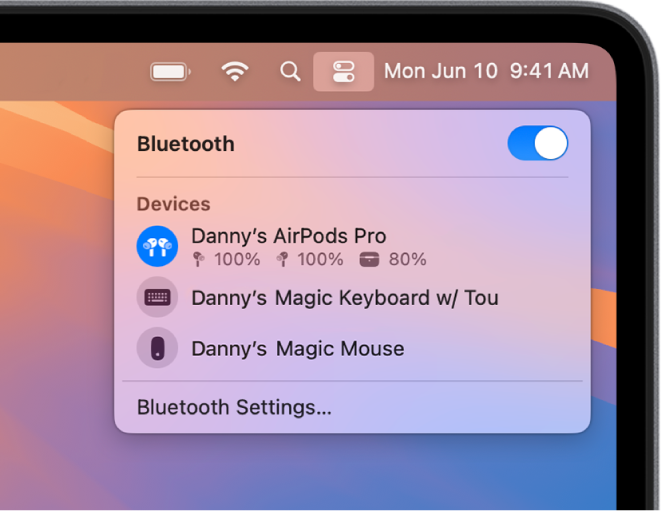
Switching Bluetooth off and on resets its settings temporarily. Click the Bluetooth icon in the menu bar to turn it off. Wait a few seconds, then turn it back on. This action refreshes the connection and often resolves minor issues.
Re-pair Bluetooth Devices
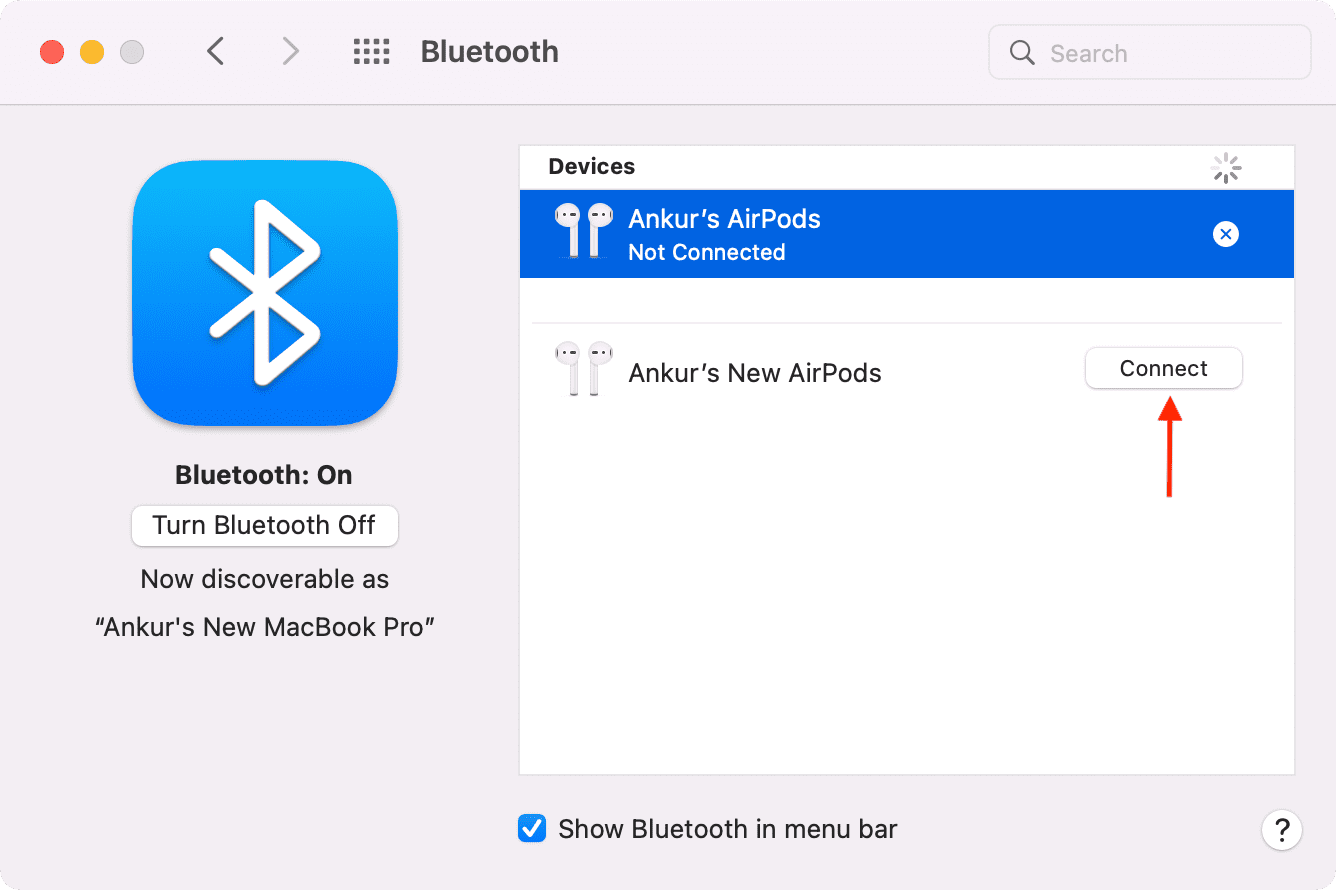
Remove the device from your Mac’s Bluetooth list first. Then put the device in pairing mode again. Search for the device on your Mac and connect it anew. Re-pairing solves problems caused by corrupted connections or settings.
Resetting Bluetooth Module
Resetting the Bluetooth module on your Mac can fix many connection problems. This method clears hidden issues and refreshes Bluetooth settings. It helps when devices fail to connect or keep dropping out.
The reset process is simple and safe. It does not delete your paired devices but resets the Bluetooth system software. Follow the steps below carefully to restore smooth Bluetooth operation.
Accessing Bluetooth Debug Menu
First, hold the Shift and Option keys together. While holding, click the Bluetooth icon in the menu bar. This action opens a special debug menu hidden from normal view.
In this menu, you will find options to reset or troubleshoot Bluetooth. It is designed for advanced fixes that regular settings do not offer.
Reset Steps
From the debug menu, select Reset the Bluetooth Module. Confirm your choice if prompted. This step clears the Bluetooth cache and resets the hardware interface.
Wait a few seconds for the system to complete the reset. During this time, Bluetooth devices may disconnect temporarily.
Restarting After Reset
After resetting, restart your Mac to apply changes fully. Click the Apple menu and choose Restart. This step ensures all Bluetooth services reload correctly.
Once your Mac boots up, test your Bluetooth devices again. They should connect more reliably and without errors.
Clearing Bluetooth Cache
Clearing the Bluetooth cache on your Mac can fix many connection problems. Over time, cached data may become corrupted. This corruption can cause your Mac to struggle with pairing or maintaining a stable Bluetooth connection.
Removing these old files forces your Mac to create fresh data. This often resolves glitches and improves device responsiveness. The process involves finding Bluetooth preferences, deleting cache files, and restarting the Bluetooth service.
Locating Bluetooth Preferences
Start by opening Finder on your Mac. Click the “Go” menu at the top of the screen. Select “Go to Folder” from the dropdown. Type /Library/Preferences/ and press Enter. Look for files starting with com.apple.Bluetooth. These hold your Bluetooth settings and cache data.
Deleting Cache Files
Carefully select the Bluetooth preference files. Drag them to the Trash or right-click and choose “Move to Trash.” This removes old cached data that may cause issues. Empty the Trash afterward to permanently delete these files. This step clears corrupted Bluetooth information.
Restarting Bluetooth Service
Open “System Preferences” and click on “Bluetooth.” Turn Bluetooth off by clicking the button. Wait a few seconds, then turn it back on. This restart refreshes the Bluetooth service and applies changes. Your Mac will rebuild fresh cache data automatically.
Managing Device Interference
Managing device interference is crucial for stable Bluetooth connections on your Mac. Wireless signals from other devices or networks can disrupt Bluetooth communication. This interference causes slow responses, dropouts, or failed pairings. Understanding how to identify and reduce interference improves your Mac’s Bluetooth performance.
Several strategies help manage interference. These include spotting sources of wireless noise, placing devices properly, and choosing the right wireless frequency. These steps create a cleaner signal path, boosting connection reliability and speed.
Identifying Wireless Interference
Interference often comes from other wireless devices like Wi-Fi routers, cordless phones, or microwaves. These devices share the same frequency bands as Bluetooth. Signs of interference include sudden disconnections or slow data transfer. Use a Wi-Fi scanner app to find crowded channels. Turn off nearby devices one by one to spot the source. Knowing the cause helps you take proper action.
Optimizing Device Placement
Keep your Bluetooth device and Mac close to each other. Distance weakens the signal and invites interference. Avoid placing devices near metal objects or thick walls. These materials block or reflect signals. Position your Mac on a clear desk area. Move other wireless gadgets away from your Mac’s Bluetooth antenna. Small changes in placement often solve many connection issues.
Using 2.4 Ghz Vs 5 Ghz
Bluetooth mainly uses the 2.4 GHz band, which is crowded. Wi-Fi also uses this band, causing interference. Using the 5 GHz Wi-Fi band reduces overlap with Bluetooth signals. Check your Wi-Fi router settings to switch bands. 5 GHz offers faster speeds and less interference but shorter range. Choosing the right band keeps Bluetooth signals cleaner and improves overall wireless performance.
Updating Macos And Firmware
Updating macOS and firmware plays a vital role in fixing Bluetooth issues on your Mac. These updates bring important fixes and improvements. They help keep your Bluetooth connection stable and fast. Without updates, your Mac or devices might face compatibility problems or bugs. Regular updates ensure smooth communication between your Mac and Bluetooth gadgets.
Checking For Macos Updates
Start by opening System Preferences on your Mac. Click on “Software Update” to see if any macOS updates are available. Updates often include bug fixes for Bluetooth. Installing the latest macOS version can solve many connection problems. Make sure your Mac is connected to the internet before checking. Restart your Mac after the update to apply changes fully.
Updating Bluetooth Device Firmware
Bluetooth devices like headphones or speakers have their own firmware. Firmware controls their internal software. Visit the device manufacturer’s website to find firmware updates. Follow the instructions carefully to update the device firmware. Updated firmware can fix bugs and improve Bluetooth performance. Keep your device charged during the update to avoid interruptions.
Compatibility Considerations
Not all Bluetooth devices work perfectly with every macOS version. Older devices may lack support for the latest updates. Check the device’s compatibility on the manufacturer’s site before updating macOS. Sometimes, updating macOS can cause older devices to disconnect. In such cases, consider using devices with updated firmware or newer models. Compatibility matters for stable and reliable Bluetooth connections.
Advanced Bluetooth Troubleshooting
Advanced Bluetooth troubleshooting on a Mac involves deeper system checks. These methods help find hidden issues beyond basic fixes. Use these steps to identify and solve complex Bluetooth problems effectively.
Using Safe Mode For Testing
Start your Mac in Safe Mode to test Bluetooth. Safe Mode disables third-party software that may cause conflicts. This step isolates the problem to see if it is software-related. Restart your Mac and hold the Shift key until you see the login screen. Try connecting Bluetooth devices in Safe Mode to check if the issue persists.
Resetting Nvram/pram
NVRAM and PRAM store Bluetooth and other settings on your Mac. Resetting them can fix Bluetooth glitches. Shut down your Mac. Turn it on and immediately press Option + Command + P + R keys. Hold them for about 20 seconds until the Mac restarts. This reset clears corrupted settings that may block Bluetooth connections.
Inspecting System Logs
System logs reveal detailed Bluetooth errors. Open the Console app from Utilities to view logs. Look for Bluetooth-related messages or warnings during connection attempts. These logs help pinpoint hardware or software failures. Use the information to decide if further repair or updates are needed.
Credit: www.dentalhousecr.com
Third-party Tools And Apps
Third-party tools and apps can help fix Bluetooth issues on your Mac. These utilities provide extra functions beyond basic settings. They make troubleshooting easier and faster. Using the right tool can quickly identify problems and clear errors. Many apps focus on cleaning, monitoring, or testing Bluetooth connections. Choosing a reliable app ensures your Mac’s Bluetooth works smoothly again.
Bluetooth Diagnostic Utilities
Bluetooth diagnostic utilities check your Mac for connection problems. They scan hardware and software for errors. These tools show detailed reports on device status. Some utilities can reset Bluetooth modules automatically. They help find hidden issues that standard Mac settings miss. Using these utilities saves time by pinpointing exact problems.
Cache Cleaning Tools
Cache cleaning tools remove old or corrupted Bluetooth data. Cache buildup can cause slow or dropped connections. These apps clear temporary files safely without harming your system. Regular cache cleaning can improve Bluetooth reliability. They often include options to clean other system caches too. Keeping the cache clean reduces common Bluetooth glitches.
Connection Monitoring Apps
Connection monitoring apps track Bluetooth device activity in real time. They alert you to signal drops or interference. These apps display connection strength and battery levels. Monitoring helps identify when and why a device disconnects. Some apps log connection history for deeper analysis. They are useful for troubleshooting ongoing Bluetooth problems.
Preventive Tips For Stable Bluetooth
Keeping Bluetooth stable on your Mac improves your daily workflow. Simple steps help avoid common connection problems. Preventive care ensures smooth and reliable Bluetooth performance.
Regular System Maintenance
Keep your Mac’s software up to date to fix bugs. Updates often include improvements for Bluetooth connectivity. Restart your Mac regularly to clear temporary glitches. Remove unused Bluetooth devices to reduce clutter and conflicts. Run system diagnostics to spot potential hardware issues early.
Avoiding Interference Sources
Place your Mac away from wireless routers and microwaves. Other wireless devices can block Bluetooth signals. Turn off other Bluetooth gadgets not in use. Avoid thick walls or metal objects between your Mac and devices. Use Bluetooth in open spaces for the best signal.
Proper Device Handling
Keep Bluetooth devices charged to prevent sudden disconnects. Pair devices one at a time to avoid confusion. Hold devices close to your Mac during setup and use. Store devices safely to avoid damage that affects connection. Regularly clean device contacts to ensure good signal transmission.
Credit: compassbank.us
Frequently Asked Questions
Why Is My Bluetooth Not Working On My Mac?
Bluetooth on your Mac may fail due to software glitches, outdated macOS, device interference, or corrupted Bluetooth settings. Restart your Mac and device, reset the Bluetooth module, unpair and re-pair devices, and check for updates to fix it.
How Do You Reset The Bluetooth On A Mac?
Hold Shift + Option keys, click the Bluetooth icon in the menu bar, select “Reset Bluetooth Module,” then restart your Mac.
How To Diagnose Bluetooth Problems?
Check if Bluetooth is enabled and the device is in pairing mode. Restart both devices and move them closer. Clear Bluetooth cache and update firmware to fix issues.
How Do I Reset The Bluetooth?
To reset Bluetooth, turn it off and on, restart devices, then forget and re-pair the device. For deeper resets, use network reset options in settings.
Why Is Bluetooth Not Working On My Mac?
Bluetooth may fail due to software bugs or interference. Restart your Mac and Bluetooth device to refresh connections. Also, check for wireless interference nearby.
Conclusion
Bluetooth issues on a Mac can be frustrating but fixable. Try simple steps like restarting your Mac and Bluetooth device first. Resetting the Bluetooth module often solves many connection problems. Unpair and pair devices again to refresh the link. Keep your Mac’s software updated to avoid compatibility issues.
Also, reduce interference by moving devices closer. These quick tips help keep your Bluetooth working smoothly. Stay patient and follow the steps carefully. Your Mac’s Bluetooth should work well again soon.



