Is your Bose SoundLink Mini acting up and leaving you frustrated? Whether it won’t turn on, won’t charge, or the sound keeps cutting out, you’re not alone—and you’re in the right place.
Your speaker is built to deliver amazing audio, but even the best tech can hit a snag. The good news? Many common issues have simple fixes that you can try right now. In this guide, you’ll discover easy troubleshooting steps to get your Bose SoundLink Mini back to playing your favorite tunes without a hitch.
Keep reading, and take control of your sound experience today!
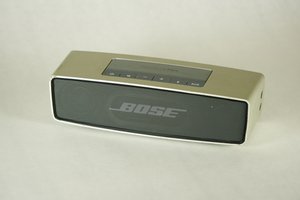
Credit: www.ifixit.com
Power Issues
Power issues are a common problem with the Bose SoundLink Mini speaker. Without power, the speaker will not turn on or charge properly. These issues can stem from simple causes like faulty outlets or damaged cables. A careful check of the power supply and battery status helps identify the problem quickly. Follow the steps below to troubleshoot and restore power to your speaker.
Check Wall Outlet And Adapter
Start by testing the wall outlet. Plug in a different device to confirm the outlet works. Use the original Bose adapter for charging. Third-party adapters may not deliver the right voltage. Inspect the adapter for any visible damage or loose connections. Replace the adapter if you find any signs of wear or malfunction.
Inspect Charging Cable And Contacts
Look closely at the charging cable. Check for cuts, bends, or frayed wires. Try using another compatible cable to charge the speaker. Clean the charging contacts on the speaker and charger with a dry cloth. Dirt or corrosion on the contacts can block the power flow. Avoid using liquids that could damage the speaker.
Battery Status Indicators
Check the battery status by pressing and holding the power button. Watch the LED light for color signals. A green light means the battery is fully charged. An amber or red light shows a low battery. No light might indicate a dead battery or power issue. Charge the speaker fully before testing again to ensure the battery has power.
Sound Problems
Sound problems with the Bose SoundLink Mini can be frustrating. The speaker may produce no sound, low sound, or distorted audio. Troubleshooting these issues involves simple steps. These steps help find the cause and fix it quickly. Follow the guide below to restore clear sound from your speaker.
Adjust Volume Levels
Check the volume on your Bose speaker first. Make sure it is not muted or set too low. Also, check the volume on the device connected to the speaker. Both need to be at a proper level for good sound. Increase the volume slowly to avoid distortion. Adjust until the sound is clear and loud enough.
Restart Devices
Turn off your Bose SoundLink Mini and the connected device. Wait for about 10 seconds. Then, turn both devices back on. Restarting clears temporary glitches that cause sound problems. This step often fixes audio issues quickly. Try playing music again to check if the sound returns to normal.
Test With Different Devices
Use another phone, tablet, or computer to connect to your speaker. This helps find out if the problem is with your original device. If the sound works with a different device, the issue lies with the first device. If there is still no sound, the problem is likely with the speaker. Testing with various devices narrows down the cause of sound problems.
Audio Interruptions
Audio interruptions can disrupt your listening experience with the Bose SoundLink Mini. These interruptions often cause the sound to cut out or stutter. Fixing this problem improves sound clarity and enjoyment. Troubleshooting audio interruptions is simple and quick.
Reset Using Mute Button
Press and hold the mute button for 10 seconds. The speaker will turn off and reset. This clears minor glitches causing audio cuts. Turn it back on and test the sound. Many users find this resets the connection and stops interruptions.
Clear Bluetooth Connections
Remove all paired devices from your speaker’s Bluetooth list. Also, clear the Bose SoundLink Mini from your phone or tablet’s Bluetooth menu. This stops connection conflicts. Then, pair your device again fresh. This step often resolves signal interruptions between devices.
Avoid Signal Interference
Keep the speaker away from other electronics like microwaves or Wi-Fi routers. These devices cause signal interference and audio breaks. Use the speaker in open spaces, not behind walls or metal objects. Strong Bluetooth signals reduce audio interruptions and improve sound quality.
Resetting The Speaker
Resetting the Bose SoundLink Mini speaker can fix many common problems. It clears temporary glitches and restores the speaker’s normal functions. This process is simple and safe. You will find easy steps to reset your speaker below. Follow them carefully to avoid errors. Resetting helps improve sound quality and Bluetooth connection.
Factory Reset Steps
First, turn on your Bose SoundLink Mini speaker. Press and hold the Mute button for about 10 seconds. The speaker will power off automatically. This confirms the factory reset is complete. When you turn it on again, all settings return to default. You must pair your devices again after this reset.
Using Bose Updater For Errors
Connect your speaker to a computer using a USB cable. Open the Bose Updater software on your computer. The updater will detect the speaker and check for any errors. Choose the option to clear errors if available. Wait until the process finishes, then disconnect your speaker. Charge it fully before using again.
When To Reset
Reset your speaker if it won’t turn on or charge properly. Try resetting if Bluetooth connection drops often or sound cuts out. Also reset after a software update if the speaker behaves strangely. If volume buttons stop working, a reset can help. Use resetting as a last step before contacting support or repair.
Battery And Adapter Concerns
The battery and power adapter are key to your Bose SoundLink Mini’s performance. Problems with either can stop the speaker from turning on or charging properly. Identifying battery or adapter issues early helps avoid bigger troubles.
Knowing the signs of a failing battery and how to test the power adapter can save time. Repair or replacement options are available if these parts no longer work well. This section helps you spot battery or adapter problems and guides you through simple checks.
Signs Of A Failing Battery
One sign is the speaker not holding a charge for long. It may turn off quickly even after a full charge. Another sign is the battery indicator flashing red or not lighting up. The speaker might shut down unexpectedly during use. Slow or no charging is also common when the battery weakens. If the speaker only works while plugged in, the battery likely needs attention.
Testing The Power Adapter
Check if the power adapter is the original Bose charger. Use a different wall outlet to rule out outlet issues. Inspect the cable for cuts, bends, or frayed ends. Try charging another device with the adapter to see if it works. Look at the charging port on the speaker for dirt or damage. Clean the contacts gently with a soft cloth or isopropyl alcohol. If the adapter heats up excessively or does not charge, it may be faulty.
Replacement And Repair Options
Bose offers battery replacements for the SoundLink Mini. You can buy a new battery from authorized dealers or online stores. Some repair shops specialize in speaker battery and adapter fixes. Replacing the battery often restores full charging and playtime. Use only official or compatible parts to avoid damage. If unsure, contact Bose support or a trusted technician for help. Proper repair extends your speaker’s life and keeps sound quality high.

Credit: www.youtube.com
Connectivity Troubles
Connectivity troubles with the Bose SoundLink Mini can disrupt your listening experience. These issues often involve Bluetooth pairing problems, device conflicts, or outdated software. Understanding how to tackle these common hurdles helps restore smooth wireless connections quickly.
Bluetooth connection failures usually stem from pairing errors or interference. Clearing old device links can improve performance by reducing conflicts. Keeping the speaker’s firmware updated ensures compatibility and fixes bugs that affect connectivity.
Bluetooth Pairing Tips
Turn on the Bose SoundLink Mini and enable Bluetooth on your device. Keep the speaker close to the device during pairing for a stronger signal. Press and hold the Bluetooth button on the speaker until the indicator blinks. Select “Bose SoundLink Mini” from your device’s Bluetooth menu. Wait for confirmation and test the connection by playing audio.
Removing Old Device Links
Old device links can block new connections. Clear the Bluetooth list on your SoundLink Mini by pressing and holding the Bluetooth button for about 10 seconds. The indicator light will flash, showing the list is erased. On your phone or tablet, remove the speaker from paired devices. Restart both devices and try pairing again.
Firmware Updates
Firmware updates fix bugs and improve connectivity. Connect your SoundLink Mini to a computer using a USB cable. Download and install the Bose Updater software from the official site. Follow the on-screen instructions to check for updates. Complete the update and restart the speaker. Updated firmware often resolves Bluetooth issues and boosts stability.
Common Error Lights
Understanding the common error lights on your Bose SoundLink Mini is key to quick troubleshooting. These lights signal the speaker’s status and any issues it might have. Recognizing these signals helps you fix problems fast and avoid further damage.
Interpreting Led Signals
The Bose SoundLink Mini uses LED lights to communicate. A solid green light means the speaker is fully charged and ready. A blinking white light shows the speaker is in pairing mode. Red or blinking red lights indicate a problem, often related to battery or charging issues. Understanding these signals helps you know what to do next.
Quick Fixes For Blinking Lights
If the light blinks red, try these steps. First, check the charging cable and power source. Replace any damaged cables. Clean the charging contacts on the speaker gently with a soft cloth. Reset the speaker by pressing the mute button for 10 seconds. These fixes often solve simple errors quickly.
When To Seek Professional Help
Some error lights mean the problem is more serious. If the red light stays on after trying fixes, the battery may be faulty. A persistent blinking red light could signal internal damage. Contact Bose support or a professional repair service. Avoid using the speaker until it is checked to prevent further harm.

Credit: www.amakenlb.com
Frequently Asked Questions
How To Reset Bose Soundlink Mini?
To reset your Bose SoundLink Mini, turn it on, then press and hold the Mute and Volume Down buttons together for 10 seconds until it powers off. Release the buttons, and the speaker will reset to factory settings.
How Do I Know If My Bose Soundlink Mini Needs A New Battery?
Check battery status by pressing and holding the power button. A green LED means full charge. Rapid red blinking indicates a failing battery. Poor battery life or inability to hold charge also signals replacement need.
What To Do If My Bose Soundlink Mini Won’t Turn On?
Check the power outlet and use the original adapter. Clean charging contacts with isopropyl alcohol. Reset the speaker by holding the mute button. Fully charge the battery. If it still won’t turn on, the battery or adapter may need replacement or service.
Why Is My Bose Speaker Suddenly Not Working?
Your Bose speaker may stop working due to power issues, connection problems, or software glitches. Check power source, cables, and volume. Restart both speaker and connected device. Reset the speaker if needed. Persistent issues might require battery replacement or professional service.
How Do I Reset My Bose Soundlink Mini Speaker?
To reset, turn on the speaker and press and hold the mute button for 10 seconds. The speaker will turn off and restart, clearing minor glitches.
Conclusion
Troubleshooting your Bose SoundLink Mini can be simple and quick. Start by checking power and connections carefully. Reset the speaker to clear common glitches. Test different devices to find the source of sound issues. Keep your charging contacts clean and use original adapters.
If problems persist, the battery or adapter might need replacement. Regular care helps keep your speaker working well. Stay patient and follow these steps for the best results.