
Is your Brother printer acting up just when you need it the most? Don’t worry—you’re not alone, and fixing it might be simpler than you think.
Whether your prints are blurry, the printer won’t connect, or you’re stuck with paper jams, this Brother Printer Troubleshooting Guide is here to help you solve those frustrating problems quickly. You’ll learn easy steps to get your printer back in action, from simple checks like restarting and cable connections to updating drivers and clearing print queues.
Stick with us, and by the end of this guide, you’ll feel confident tackling any Brother printer issue that comes your way. Let’s get your printer working smoothly again!
Basic Brother Printer Hardware Checks
Basic hardware checks are the first step to solve Brother printer issues. These checks identify simple problems that stop the printer from working. They do not need special tools or skills. Performing these steps saves time and avoids unnecessary repairs.
Start by ensuring the printer powers on correctly and restarts properly. Check all cables to confirm they are firmly connected. Low ink or toner levels can cause print failures. Paper jams often block the printing process. Error messages on the printer display guide the next steps.
Restart The Printer
Turn off the printer and wait 30 seconds. Then, turn it back on to reset internal parts. Restarting clears minor glitches and refreshes the device. This quick step often fixes connectivity or printing delays.
Check Cables And Connections
Inspect USB or Ethernet cables for damage or loose plugs. Confirm cables are connected to the right ports. For wireless models, check Wi-Fi signals and network settings. A poor connection stops print jobs from reaching the printer.
Inspect Ink And Toner Levels
Open the printer cover and look at ink or toner cartridges. Replace any that are empty or near empty. Low ink causes faded prints or no printing at all. Using genuine Brother cartridges ensures better print quality.
Clear Paper Jams
Open all printer doors and trays carefully. Remove any stuck paper without tearing it. Check inside the printer for small scraps blocking the rollers. Paper jams cause error messages and stop printing immediately.
Review Error Messages
Look at the printer’s display panel for error codes or warnings. Write down the exact message or code. Use the Brother printer manual or website to understand the error. This helps choose the correct fix quickly.
Brother Printer Troubleshooting: Software
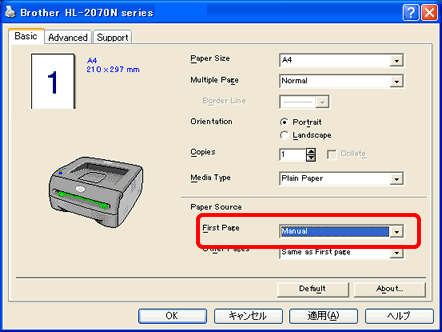
Software issues often cause Brother printer problems. These glitches stop printing or show errors. Fixing software problems usually takes a few simple steps. This guide explains common fixes for software troubles. Use these tips to get your printer working again fast.
Clear The Print Queue
Sometimes print jobs get stuck in the queue. This blocks new jobs from printing. Open the print queue on your computer. Cancel all pending print jobs to clear the queue. Restart the printer to refresh the connection. This often solves printing delays and errors.
Fix Printer Offline Status
Your Brother printer may show as offline even if it is on. Check the printer’s network or USB connection. On Windows, go to Devices and Printers. Right-click your Brother printer and select “Use Printer Online.” This change reconnects the printer to your computer.
Update Or Reinstall Drivers
Outdated or corrupt drivers cause many printer problems. Visit Brother’s official website to download the latest driver. Uninstall the current driver before installing the new one. Reinstalling drivers ensures your printer works smoothly with your system.
Run Windows Printer Troubleshooter
Windows includes a built-in troubleshooter for printers. Open Settings and select “Update & Security.” Choose “Troubleshoot” then “Printer.” Follow the on-screen instructions. The tool detects and fixes common issues automatically.
Manage Firewall And Antivirus Settings
Firewalls or antivirus software can block printer communication. Temporarily disable these programs to test printing. Add your Brother printer to the allowed list or exceptions. This step prevents security software from interrupting print jobs.
Advanced Solutions
Advanced solutions help fix tough Brother printer issues. These steps go beyond basic checks and quick fixes. They target deeper software and hardware problems. Follow each method carefully to improve your printer’s performance.
Reset The Print Spooler Service
The print spooler manages print jobs on your computer. Sometimes it can stop working. Resetting the spooler clears stuck jobs and refreshes the service. Open the Windows Services app, find “Print Spooler,” and stop it. Wait a few seconds, then start it again. This often resolves printing errors or delays.
Perform A Factory Reset
A factory reset restores your printer to original settings. It removes all custom configurations and errors. Check your Brother printer’s menu for “Reset” or “Factory Reset.” Follow the on-screen instructions carefully. This step helps if the printer has persistent errors or connectivity issues. Remember, you will lose saved settings after the reset.
Reinstall Printer Software
Removing and reinstalling the printer software fixes corrupted drivers. Uninstall the current Brother printer driver from your computer. Visit Brother’s official website to download the latest software version. Install the new driver and restart your computer. This process ensures the printer communicates well with your device. It can also solve recognition and printing problems.
Common Printer Issues
Brother printers are reliable but can face common issues that interrupt printing tasks. Understanding these problems helps you fix them quickly and keep your printer working smoothly. This section covers frequent issues and simple ways to solve them.
Paper Jams And How To Prevent Them
Paper jams are the most common problem with Brother printers. They happen when paper gets stuck inside the printer path. Remove jammed paper carefully to avoid damage.
Use clean, dry paper and avoid overloading the tray. Fan the paper stack before loading to prevent sheets from sticking together. Regularly check the paper rollers for dust and clean them gently with a soft cloth.
Resolving Connectivity Problems
Connectivity issues stop your printer from communicating with your computer or network. Check that cables are properly connected and not damaged. For wireless printers, ensure the printer and device are on the same Wi-Fi network.
Restart your router and printer to refresh connections. Update printer drivers to fix bugs. Disable firewall or antivirus temporarily to see if they block the printer connection.
Improving Print Quality
Print quality problems include faded prints, streaks, or blurry text. Check ink or toner levels and replace cartridges if low. Run the printer’s cleaning cycle to clear clogged nozzles.
Align the print head using the printer’s maintenance menu. Use the recommended paper type for best results. Avoid using wet or damaged paper.
Toner And Ink Recognition Errors
The printer may not recognize toner or ink cartridges, causing error messages. Remove the cartridge and reinstall it securely. Clean the cartridge contacts gently with a lint-free cloth.
Use genuine Brother cartridges to avoid compatibility issues. Reset the printer if the error persists. Updating the printer firmware can also help resolve recognition errors.
Maintenance Tips
Maintaining your Brother printer ensures smooth operation and extends its lifespan. Simple upkeep tasks prevent common issues and improve print quality. Regular maintenance saves time and avoids costly repairs.
Cleaning Printer Rollers
Dirt and dust on rollers cause paper jams and misfeeds. Gently clean rollers with a soft cloth dampened with water. Avoid harsh chemicals that can damage the rollers. Clean rollers every few months or when paper feeding slows.
Regular Driver Updates
Printer drivers link your computer to the printer. Outdated drivers cause printing errors and slow performance. Check the Brother website for the latest driver updates. Install updates regularly to keep your printer running well.
Routine Printer Restarts
Restarting the printer clears temporary errors and refreshes its system. Turn off the printer, wait 30 seconds, then turn it back on. Do this weekly to maintain optimal performance and reduce glitches.
Keeping Firmware Current
Firmware controls the printer’s internal functions. Updates fix bugs and add new features. Visit Brother’s support page to download firmware updates. Keeping firmware current helps prevent malfunctions and enhances printer stability.

Resources And Support
Access to reliable resources and support is vital for resolving Brother printer issues quickly. Various tools and services help users troubleshoot problems efficiently. This section highlights key support options.
Using Brother Support Website
The Brother support website offers manuals, drivers, and FAQs. Users can download software updates and user guides. It provides step-by-step instructions for common printer problems. The site is easy to navigate, with a search bar for quick access.
Accessing Online Help And Forums
Online forums connect users with others facing similar printer issues. These communities share solutions and tips. Official Brother forums feature expert advice and user experiences. Reading threads may reveal fixes not found in manuals.
Contacting Customer Service
Direct contact with Brother customer service helps with complex problems. Support is available via phone, email, or live chat. Representatives guide users through advanced troubleshooting steps. This service ensures personalized help and faster resolution.
Frequently Asked Questions
How To Fix Brother Printer Troubleshooting?
Restart the printer and check cables or Wi-Fi connections. Clear paper jams and verify ink or toner levels. Update or reinstall drivers, clear the print queue, and run the Windows troubleshooter. Disable firewall temporarily if needed. Perform a cold reset for persistent issues.
What Are The Common Problems With Brother Printers?
Common Brother printer problems include paper jams, low ink or toner, connectivity issues, outdated drivers, and print queue errors. Users often face printer offline status, error messages, and software conflicts blocking printing tasks. Regular maintenance and driver updates usually resolve these issues quickly.
What Are Three Possibilities That Might Cause A Printer Not To Print At All?
Three possibilities causing a printer not to print are: no power or connection, empty ink or toner, and paper jams.
How Do I Reset My Brother Printer?
To reset your Brother printer, turn it off, unplug it for 10 seconds, then plug it back in and power it on. For a factory reset, access the menu, select “Reset,” and follow on-screen instructions. Check your manual for model-specific steps.
How Do I Fix Brother Printer Not Responding?
Restart your printer and check all cable or Wi-Fi connections. Clear any paper jams and ensure ink or toner levels are sufficient. Update printer drivers and clear the print queue to resolve software issues.
Conclusion
Troubleshooting your Brother printer becomes easier with clear steps. Start by checking connections and supplies. Keep software updated and clear any print queues. Use built-in tools to find and fix common problems. Stay patient and follow each step carefully. Most issues resolve with simple fixes at home.
For tough problems, consider expert help. This guide aims to save your time and reduce printer stress. Keep it handy for quick reference anytime you face issues.




My printer is hooked up to my computer OK, but it won’t print anything for me. Does the print spooler setting have anything to do with it?
Yes, the print spooler setting can definitely cause this problem. If the print spooler service is stopped or stuck, your computer cannot send print jobs to the printer—even when the connection looks fine.
Try these steps:
After that, clear the print queue and try printing again.
Quick tip: If this issue keeps coming back, a stuck or corrupted print job may be causing it. Restarting both the printer and computer usually clears it completely.