
Is your internet suddenly slow, or is your connection dropping without warning? If you rely on your cable modem for smooth browsing, streaming, or working from home, these interruptions can be frustrating.
But before you call your provider or consider buying a new modem, there are simple steps you can take to fix common cable modem problems yourself. In this guide, you’ll learn how to quickly identify what’s wrong with your cable modem, understand what those blinking lights mean, and troubleshoot issues that could be slowing down your connection.
Stick with me, and you’ll save time, avoid stress, and get your internet back to running smoothly in no time. Ready to take control of your connection? Let’s dive into cable modem troubleshooting made easy.
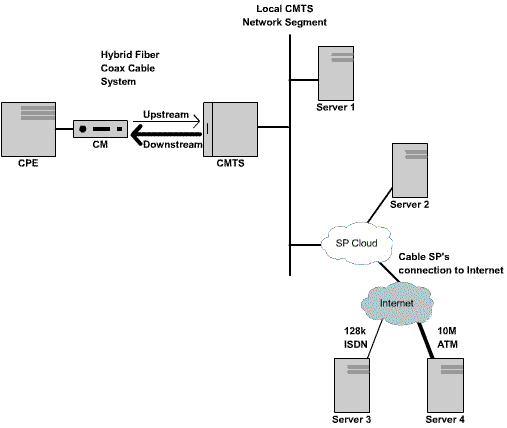
Credit: www.cisco.com
Common Modem Issues
Testing and diagnosing your cable modem is the first step to fix internet problems. This process helps find the root cause of slow speeds or connection drops. Testing shows if the issue lies with your modem, cables, or service provider.
Simple tools and checks can reveal many common modem problems. These methods save time and avoid unnecessary costs. They also help decide if the modem needs repair or replacement.
Using Speed Test Tools
Speed test tools measure your internet download and upload rates. Open a site like Speedtest.net and start the test. Compare the results to your plan’s promised speeds. Slow speeds indicate a problem with the modem or network.
Run tests at different times to spot consistent issues. If speeds vary widely, interference or signal problems may exist. Keep records of your test results for reference.
Checking For Channel Interference
Interference on cable channels lowers internet performance. Use your modem’s status page to view channel data. Look for noise levels and signal strength on each channel.
High noise or weak signals point to interference or poor wiring. Check cable connections for damage or loose fittings. Clean or replace cables if needed. Contact your provider if interference persists.
Confirming Modem Health
Modem health affects connection stability. Inspect the modem’s indicator lights. Solid green lights mean normal operation. Blinking or red lights signal errors or failures.
Restart the modem to clear minor glitches. If problems continue, reset the modem to factory settings. Persistent errors suggest hardware issues. Consider replacing the modem if it is old or damaged.

Credit: www.simplehelp.net
Modem Lights And Their Meaning
Knowing when to replace your cable modem saves time and frustration. Modems wear out or become outdated. Recognizing the right moment helps keep your internet fast and stable. This section guides you through key signs and choices for modem replacement.
Signs Of Hardware Failure
Frequent disconnections disrupt your online activities. Lights on the modem blinking red or not lighting up indicate problems. Overheating or strange noises also signal hardware failure. Slow internet speeds despite good service can mean the modem is failing. Testing with another device can confirm the issue.
Modem Lifespan Expectations
Most cable modems last between three to five years. Technology changes quickly, so older models may not support new internet speeds. Using an old modem can limit your connection quality. Regular updates from your internet provider may require newer hardware. Keeping track of your modem’s age helps decide when to replace it.
Choosing A New Modem
Select a modem compatible with your internet plan. Check for DOCSIS 3.1 support for faster speeds. Consider brands recommended by your internet provider. Look for modems with good reviews and warranty coverage. A well-chosen modem improves reliability and speed, making your internet experience better.
Basic Troubleshooting Steps
Preventive maintenance keeps your cable modem running smoothly. It reduces connection problems and extends device life. Simple steps help avoid common issues and save time.
Regular Cable Checks
Inspect cables often for wear or damage. Loose or frayed cables cause signal loss and slow internet. Ensure all connections are tight and clean. Replace any damaged cables immediately for stable performance.
Keeping Firmware Updated
Firmware controls your modem’s functions. Updates fix bugs and improve speed. Check for updates regularly through the modem’s settings page. Installing the latest firmware keeps your modem secure and efficient.
Avoiding Overheating
Overheating can damage your modem and cause dropouts. Place the modem in a cool, ventilated spot. Avoid stacking devices on top of it. Clean dust from vents to maintain good airflow and prevent overheating.
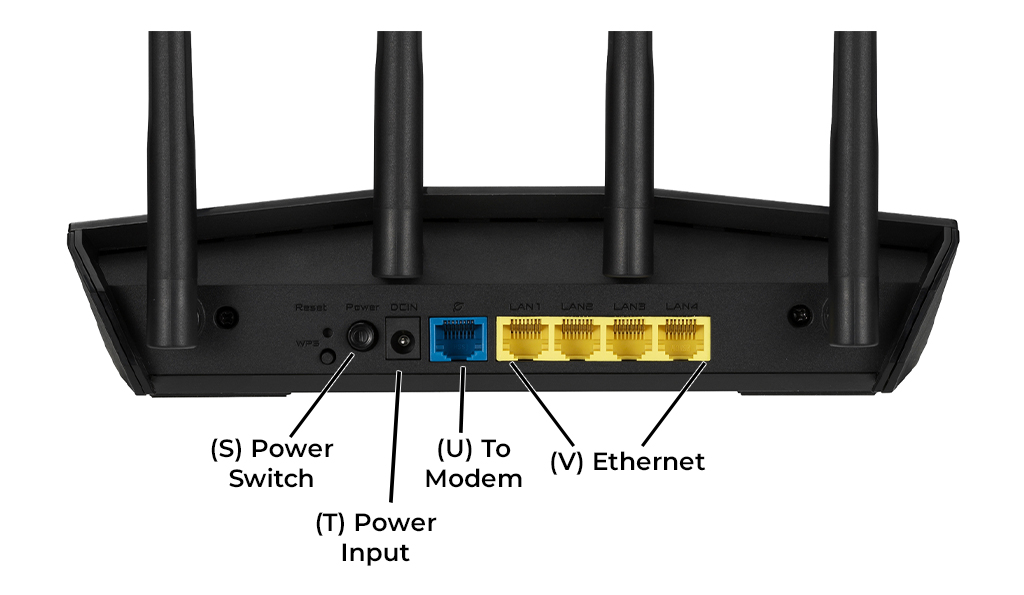
Credit: www.eaglezip.com
Frequently Asked Questions
How Do I Tell If My Cable Modem Is Bad?
Check for slow or no internet, frequent disconnections, or blinking red lights on your modem. Test speeds with Speedtest. net. Tighten all cable connections and reboot the modem. Persistent issues after these steps likely indicate a bad cable modem.
What Do The Lights Mean On A Cable Modem?
Cable modem lights indicate status: solid green means power is on; blinking lights show connection attempts; red signals errors or failure. Check cables and reboot modem for issues.
How To Troubleshoot A Cable Modem?
Check all cable connections for tightness. Restart the modem by unplugging power for 60 seconds. Verify indicator lights for errors. Test internet speed online. If issues persist, perform a factory reset or contact your ISP.
How Do I Reboot My Cable Modem?
Unplug your cable modem’s power cord. Wait 60 seconds. Plug it back in. Wait until all lights stabilize before using the internet.
How Do I Know If My Cable Modem Is Faulty?
Slow internet speeds and frequent disconnections often show modem issues. Test your speed using free tools like Speedtest. net to compare results. If problems persist, the modem might need replacement.
Conclusion
Troubleshooting your cable modem can restore your internet quickly. Start by checking all cable connections for tightness. Reboot your modem to refresh the connection. Watch the modem lights; they show important status information. Run a speed test to confirm your internet speed.
Replace the modem if problems persist after basic fixes. Keeping your modem updated helps avoid many common issues. Stay patient and follow these simple steps for better internet. Reliable connectivity is just a few checks away.



