
Are you having trouble accessing your CenturyLink email or noticing that messages aren’t coming through like they used to? You’re not alone.
Many CenturyLink users face common issues, especially with recent changes like the shift from the old @q. com addresses to the new @myctl. net domain. If your inbox feels stuck, your emails are missing, or you’re unsure how to update your settings, this guide is here to help you fix those problems quickly.
Keep reading to discover simple, step-by-step solutions that will get your CenturyLink email working smoothly again—no tech skills needed. Your email should work for you, not against you, and by the end of this article, it will.
Centurylink Email Changes
CenturyLink recently updated its email system to improve security and service quality. These changes affect many users with older email addresses. Understanding the update helps avoid disruptions and keeps email running smoothly.
The company is moving away from the older q.com domain. Users must switch to the new myctl.net domain to keep using their email accounts. This update involves some changes in login details and email settings.
Phasing Out Q.com Domain
CenturyLink is retiring the q.com email domain. This step improves security and modernizes email services. Users with q.com addresses must update their contact information.
Emails sent to q.com addresses may not be delivered after the phase-out. CenturyLink encourages users to switch quickly to avoid losing messages.
Mandatory Migration To Myctl.net
All users must migrate to the myctl.net domain. The migration keeps accounts active and secure. Your email address changes from username@q.com to username@myctl.net.
Log in to webmail using the new myctl.net address and your current password. Update your email client settings to reflect the new domain and server details.
Impact On Users
The change affects how users access and send email. Old q.com addresses will no longer work. Users must update contacts with their new myctl.net email.
There is no loss of old emails. All messages transfer to the new domain. Users need to adjust email apps and devices to avoid service interruption.
Updating Email Settings
Updating your CenturyLink email settings is essential after the recent domain change. This update ensures you keep receiving emails without interruption. The switch from @q.com to @myctl.net requires a few simple steps. Follow these steps to continue using your email smoothly.
Signing In With New Address
Use your new @myctl.net email address to log in at www.CenturyLink.net. Your password remains the same unless you changed it. Enter the full new email address in the username field. This update is mandatory to access your account online. Signing in with the old @q.com address will no longer work.
Configuring Email Clients
Update your email programs like Outlook or Thunderbird with the new address. Change your username to the new @myctl.net email. Check your server settings for IMAP, POP, and SMTP to match CenturyLink’s current requirements. These changes allow your email client to send and receive messages correctly. Without updating, you may face syncing or sending errors.
Notifying Contacts
Inform your friends, family, and colleagues about your new email address. Send a quick message from your new @myctl.net account. This step helps avoid missed emails from people still using your old address. Update your email signature to show the new address too. This small action ensures smooth communication during the transition.
Troubleshooting Email Delivery
Troubleshooting email delivery issues with CenturyLink can be straightforward. Emails sometimes fail to arrive due to simple settings or storage problems. Checking common causes helps restore smooth email flow quickly. Follow these steps to identify and fix delivery problems efficiently.
Checking Spam And Junk Folders
Emails may land in Spam or Junk folders by mistake. Open these folders regularly to find missing messages. Mark important emails as “Not Spam” to improve future delivery. This action trains the system to recognize trusted senders. Missing emails often appear in these folders first.
Managing Storage Space
Full inboxes block new messages from arriving. Delete old or unnecessary emails to free up space. Check your storage quota on CenturyLink’s webmail or email client. Keep enough free space to receive new emails without delay. A clean inbox prevents delivery failures.
Reviewing Filters And Blocked Senders
Email filters can redirect or delete incoming messages automatically. Review your filter settings to ensure no important emails are filtered out. Check the blocked senders list for any accidentally blocked contacts. Adjust or remove filters that cause email loss. This step prevents emails from being hidden.
Verifying Sync Settings
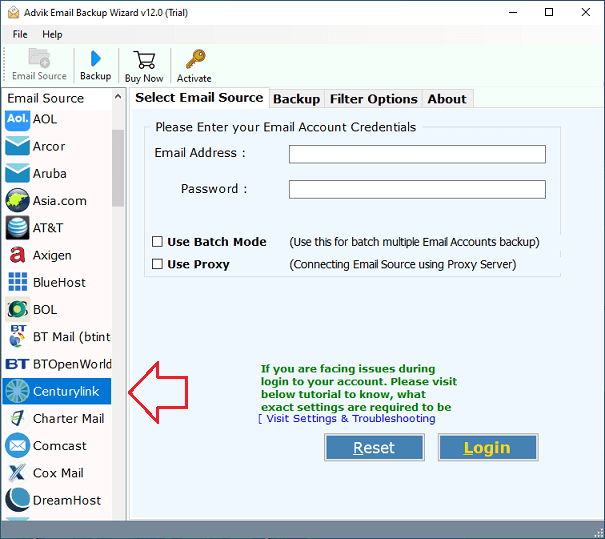
Sync problems between devices and servers stop emails from updating. Confirm your CenturyLink email account sync settings on all devices. Use IMAP settings for better synchronization than POP. Resync your account or remove and re-add it if needed. Proper sync ensures emails appear correctly everywhere.
Credit: www.adviksoft.com
Handling Sender Issues
Handling sender issues is vital to ensure smooth email communication with CenturyLink. Problems with sending or receiving emails often stem from incorrect contact settings or blocked senders. Fixing these issues helps prevent lost messages and improves email flow.
Adding Contacts
Adding trusted contacts prevents their emails from going to spam. Open your CenturyLink email and go to the contacts or address book section. Click on “Add Contact” and enter the sender’s name and email address. Save the contact to whitelist them.
This step ensures important emails arrive in your inbox. Regularly update your contact list to avoid missing messages.
Removing Blocked Senders
Blocked senders cause emails to be automatically deleted or sent to spam. To fix this, open your email settings and find the blocked senders or spam list. Review the list and select any contacts to unblock.
After unblocking, save your changes. This action allows emails from those senders to reach your inbox again.
Addressing General Email Problems
General email problems can interrupt your daily communication. Troubleshooting these issues step-by-step helps restore your CenturyLink email service quickly. This section covers basic checks and fixes to get your email working again.
Testing Internet Connection
Start by confirming your internet connection is active. Open a browser and visit any website to see if it loads. If the page does not load, restart your modem or router. Use a different device to check if the problem is device-specific. A stable internet connection is essential for email access and sending messages.
Using Webmail Access
Access your CenturyLink email through webmail at www.centurylink.net. This bypasses email clients like Outlook or Thunderbird. Logging in here tests if the problem is with your email account or the email app. If webmail works, your email settings or software may need adjustment.
Checking For Service Outages
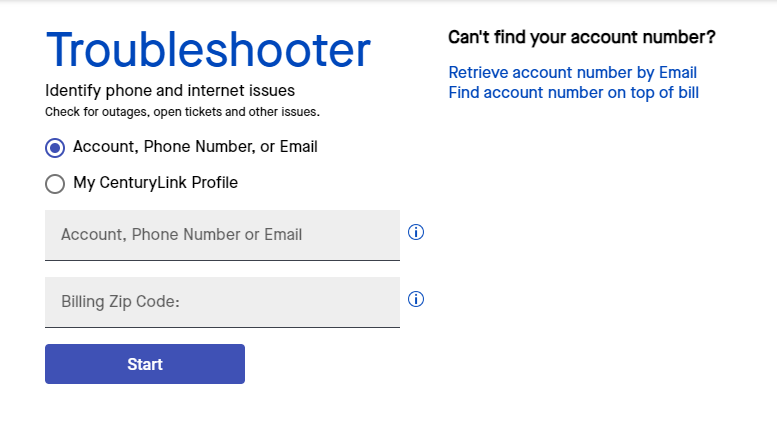
Check if CenturyLink is experiencing a service outage. Visit their official website or social media pages for announcements. Outages can cause email delays or failures. Knowing about outages helps avoid unnecessary troubleshooting on your end.
Resolving Browser Issues
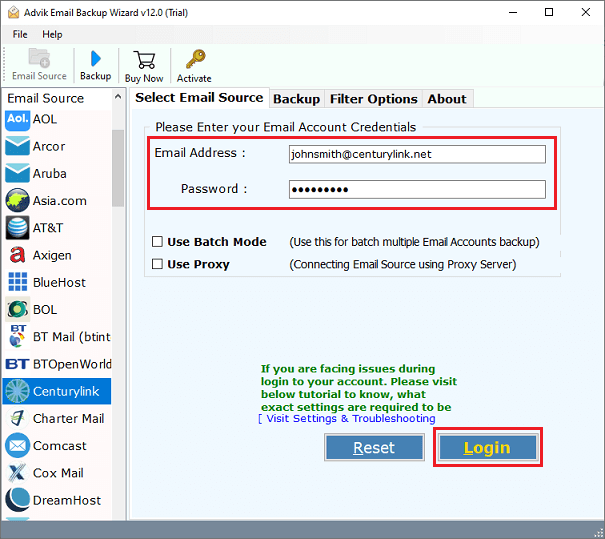
Clear your browser’s cache and cookies to fix loading problems. Disable browser extensions that might block scripts or pop-ups. Try using a different browser to see if the issue persists. Updated browsers improve security and compatibility with webmail.
Credit: www.adviksoft.com
Advanced Troubleshooting Tips
Advanced troubleshooting helps fix complex CenturyLink email issues. These tips go beyond basic checks. They focus on settings and account status. Understanding these areas improves email reliability and performance.
Inspecting Forwarding Settings
Email forwarding can cause delivery problems. Check if forwarding is active in your settings. Incorrect forwarding addresses may block or delay emails. Disable forwarding temporarily to test if emails arrive properly.
Make sure no loops exist in forwarding rules. Loops can cause email bounce backs. Remove any forwarding addresses you no longer use. Confirm the forwarding address is typed correctly to avoid errors.
Confirming Account Status
Your CenturyLink email might stop working due to account issues. Verify your account is active and in good standing. Check for any service suspensions or billing problems.
Log into your CenturyLink account portal. Look for alerts or messages about your email service. Update your billing information if needed to prevent interruptions.
Ensure you use the correct username and password. Reset your password if login fails repeatedly. Keeping your account active maintains smooth email access.
Resetting Centurylink Password
Resetting your CenturyLink password is a quick way to regain access to your email account. Password issues can happen to anyone. CenturyLink provides a simple process to reset your password and secure your account again.
Follow these steps carefully. You will be guided through verifying your identity and setting a new password. This helps keep your email safe from unauthorized access.
Using Forgot Password Feature
Start by visiting the CenturyLink login page. Click on the “Forgot Password” link below the sign-in fields. This feature allows you to begin the password reset process.
Enter your CenturyLink email address or username. Make sure the information matches your account details. Then submit the form to proceed.
Verification Methods
CenturyLink will ask you to verify your identity next. Common methods include sending a code to your recovery email or phone number. Choose the option that suits you best.
Enter the verification code you receive. This confirms you are the rightful account owner. If you do not get the code, check your spam folder or try the option again.
Completing Password Reset
After verification, create a new password. Use a strong mix of letters, numbers, and symbols. Avoid simple or easy-to-guess passwords.
Confirm the new password by typing it again. Submit the form to finalize the reset. You can now log in with your new password.
Contacting Centurylink Support
Contacting CenturyLink support is a key step in resolving email issues. Their team helps with login problems, email setup, and migration questions. Fast and clear communication improves your chances of a quick fix.
Knowing the right way to reach CenturyLink support saves time. Use official channels to get authentic help. Keep your account details ready to speed up the process.
How To Reach Centurylink Support
Call CenturyLink support by dialing their official phone number. This connects you to a live agent for real-time help. Support hours are usually posted on their website.
You can also use the online chat option on CenturyLink.net. Chat allows you to type your problem and get answers fast. It is helpful for quick questions or simple troubleshooting.
Sending an email to support is another way to get help. This method suits less urgent issues or if you want a written record. Expect replies within one or two business days.
Information To Prepare Before Contact
Have your CenturyLink email address and account number ready. Write down any error messages you see. Note the steps you took before the problem started.
Describe the device and email client you use, such as Outlook or Thunderbird. Mention recent changes like password updates or software installs. This information helps support diagnose the issue faster.
Tips For Effective Communication
Explain your problem clearly and simply. Use short sentences and avoid technical jargon. Stay calm and patient during the conversation.
Ask for clarification if you do not understand the instructions. Repeat the steps given by support to confirm you followed them right. Take notes of any reference numbers or advice provided.
Credit: www.centurylink.com
Frequently Asked Questions
What Has Happened To The Centurylink Email?
CenturyLink phased out the old @q. com email, requiring users to switch to @myctl. net. Login at CenturyLink. net with new credentials. Update email clients and notify contacts. Emails and data migrated securely. This change ensures improved security and service continuity.
Why Isn’t My Email Coming Through?
Emails may not arrive due to a full inbox, spam filters, sync issues, or provider outages. Check spam, storage, filters, and syncing on all devices. Send a test email and verify your internet connection. Update email client settings if needed, especially for CenturyLink’s @myctl.
net domain.
How Do I Reset My Centurylink Email?
Reset your CenturyLink email password by visiting the CenturyLink password reset page. Enter your email and follow the instructions sent to your recovery email or phone. Update your login credentials on all devices after resetting to ensure uninterrupted access.
How Do I Contact Centurylink Email Support?
Contact CenturyLink email support by visiting www. CenturyLink. net and accessing the help or support section. You can also call their customer service for direct assistance. Use the official website to find updated contact details and troubleshooting guides.
Why Is My Centurylink Email Not Receiving Messages?
A full inbox or incorrect spam filters often block incoming emails. Check storage space, spam folders, and email filters to fix this quickly.
Conclusion
Troubleshooting CenturyLink email can seem tricky but is manageable. Follow the key steps carefully to fix common issues. Keep your account updated with the new myctl. net address. Check spam folders and storage regularly to avoid missing emails. Update email client settings for smooth syncing.
Reach out to CenturyLink support if problems persist. Staying proactive helps maintain uninterrupted email service. Small changes often solve big problems. Stay patient and persistent while troubleshooting. Your email will work well again with these tips.



