
Is your Chromebook acting up when you need it most? Maybe it’s freezing, running slow, or won’t even turn on.
You’re not alone—and you don’t have to let these issues slow you down. With a few simple steps, you can troubleshoot your Chromebook like a pro and get it back to smooth sailing. Whether it’s a quick restart or a deeper fix like a factory reset, this guide will walk you through easy, clear solutions to common problems.
Keep reading, and you’ll be fixing your Chromebook with confidence in no time.
Basic Fixes
Basic fixes offer quick solutions to common Chromebook problems. These steps help resolve issues without technical skills. Start with simple actions to save time and avoid frustration.
Restart Your Chromebook
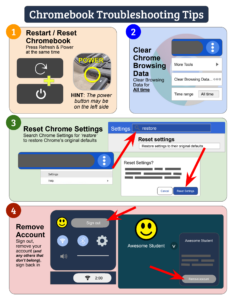
Restarting clears temporary glitches and frees up memory. Press the power button, select restart, or turn off and on again. This refreshes the system and often fixes minor errors.
Close Unnecessary Tabs And Apps
Too many open tabs and apps slow down your Chromebook. Close all tabs and apps you do not need. This improves performance and reduces crashes.
Check Internet Connection
Many Chromebook functions need a stable internet connection. Verify your Wi-Fi is connected and working. Restart your router if the connection is weak or lost.
Unplug External Devices
External devices sometimes cause conflicts or slowdowns. Remove USB drives, headphones, or other peripherals. Restart the Chromebook to see if the problem resolves.
Update Chromeos
Updates fix bugs and improve security on your Chromebook. Go to settings, find “About Chrome OS,” and check for updates. Install any available updates and restart your device.

Credit: www.teacherspayteachers.com
Performance Issues
Performance issues on a Chromebook can cause frustration and slow down your work. These problems may include slow loading times, apps freezing, or the system lagging. Finding the cause is important to improve speed and responsiveness. Several simple steps help fix common performance problems quickly.
Use Task Manager
Open the Task Manager by pressing Search + Esc. This tool shows all running apps and processes. Look for any that use too much memory or CPU. Select the problem app and click “End Process” to stop it. This frees up system resources and often speeds up the Chromebook.
Perform A Hard Reset
Press and hold Esc + Refresh + Power keys together. The screen will go black, and the Chromebook will restart. A hard reset clears temporary issues and refreshes hardware connections. It does not delete your files or settings. This step fixes many freezing and slow performance cases.
Clear Cache And Cookies
Open Chrome and click the three dots at the top right. Select “Settings,” then “Privacy and security.” Click on “Clear browsing data.” Choose “Cached images and files” and “Cookies and other site data.” Click “Clear data.” This removes old files that may slow down browsing and improve overall speed.
Disable Problematic Extensions
Extensions can sometimes cause slowdowns. Open Chrome and go to chrome://extensions/. Turn off or remove extensions you do not need or suspect are causing issues. Restart Chrome to see if performance improves. Disabling extensions reduces background tasks and speeds up your Chromebook.
Power And Startup Problems
Power and startup problems can stop your Chromebook from working properly. These issues often make the device fail to turn on or show a black screen. Quick checks and simple fixes can solve most power problems. Follow easy steps to get your Chromebook running again.
Check Power Adapter And Cable
Start by inspecting your power adapter and cable. Make sure the charger is plugged in tightly. Look for any visible damage on the cable or adapter. Try using a different power outlet. If possible, test with another charger made for Chromebooks. A faulty charger can stop your device from charging or turning on.
Use Hard Reset Combination
A hard reset can fix many startup glitches. Press and hold the Esc + Refresh keys, then press the Power button. Keep holding the first two keys until the Chromebook restarts. This clears temporary bugs and forces a reboot. It does not erase your files or settings. Try this if your Chromebook freezes or does not start normally.
Troubleshoot Black Screen
If the screen stays black, check the brightness level first. Press the brightness up key to increase it. Try plugging your Chromebook into an external display. This helps see if the screen is the problem. Hold the power button for 10 seconds to force shut down. Wait a moment, then power it on again. A black screen may also mean battery issues. Let the device charge for a while before restarting.

Credit: ileadschools.zohodesk.com
Major Repairs
Major repairs on a Chromebook often fix deep system issues. These repairs restore your device to a clean state. They erase all data, so back up important files first. Use major repair methods only if simple fixes fail. Two common solutions are Powerwashing and recovering ChromeOS with a USB drive.
Powerwash Your Chromebook
Powerwashing resets your Chromebook to factory settings. It removes all user data and settings. This step helps fix persistent bugs and performance problems. To Powerwash, open Settings and find the “Reset” section. Click “Powerwash” and follow on-screen prompts. The Chromebook will restart and erase all local data. Afterward, sign in again with your Google account. Powerwash often resolves software glitches and speed issues.
Recover Chromeos Using Usb Drive
Recovery restores ChromeOS if your Chromebook won’t start or loads incorrectly. You need a second computer and a USB drive or SD card. Visit the Chromebook Recovery Utility website to download the tool. Follow instructions to create a recovery media on your USB drive. Insert the USB into the broken Chromebook and enter recovery mode. The system will reinstall ChromeOS from the USB. This method fixes severe system errors and corrupted files. Recovery takes time but often saves your Chromebook from major failure.
Hardware Diagnostics
Hardware diagnostics help find problems with your Chromebook’s parts. These tests check components like battery, storage, and CPU. Running diagnostics can save time and effort by spotting issues early. They also tell you if parts need repair or replacement.
Run Built-in Diagnostics
Chromebooks have built-in tools to test hardware. Open the status tray at the bottom right of the screen. Click the gear icon to open Settings. Use the search bar and type “Diagnostics.” Select the Diagnostics app from the results. It runs checks on CPU, memory, battery, and storage. This quick test helps find hardware faults without extra software.
Identify Battery And Storage Issues
Battery problems cause short usage and slow charging. Diagnostics show battery health and charge cycles. Storage problems slow down your Chromebook or cause errors. The tool checks storage capacity and space used. Low space can cause crashes or slow performance. Watch for warnings about battery or storage in diagnostics results.
When To Contact Support
If diagnostics find serious hardware faults, contact support. Problems like failing battery or broken storage need professional help. Also, if your Chromebook does not respond after diagnostics, ask for service. Avoid opening or fixing hardware yourself. Certified technicians have the right tools and parts to fix your device safely.
Credit: home.lps.org
Frequently Asked Questions
How Do I Fix An Unresponsive Chromebook?
Restart your Chromebook first. Close unused apps and check your internet connection. Perform a hard reset by pressing Esc + Refresh + Power keys together. Update ChromeOS in Settings. If issues persist, use Powerwash (factory reset) or recover the OS via USB recovery.
Where Is The Reset Button On A Chromebook?
The reset button on a Chromebook isn’t physical. Press Esc + Refresh + Power keys together to hard reset it.
How Do I Run Diagnostics On My Chromebook?
Open the status tray at the bottom right. Select Settings, then search for “Diagnostics. ” Click Diagnostics to run hardware and battery tests on your Chromebook.
How To Bring A Chromebook Back To Life?
Press and hold Esc + Refresh + Power keys together to enter recovery mode. Restart the Chromebook. If issues persist, perform a Powerwash or reinstall ChromeOS using a recovery USB.
How Do I Fix An Unresponsive Chromebook?
Restart your Chromebook by holding the power button until it turns off. Then, turn it back on to refresh the system and clear temporary glitches.
Conclusion
Chromebook issues often resolve with simple steps like restarting. Closing unused apps helps speed up performance. Checking your internet connection ensures smooth browsing. Use the Task Manager to find and stop heavy apps. A hard reset can fix freezing or unresponsive screens.
Clearing cache and cookies improves overall speed. When problems persist, consider a factory reset or OS recovery. Staying patient and following these tips keeps your Chromebook running well. Troubleshooting becomes easier with practice and clear steps. Keep your device updated for the best experience.



