Is your Compustar car starter acting up when you need it most? Whether it won’t start, the remote isn’t responding, or you’re stuck in valet mode, these problems can be frustrating—especially when you’re in a hurry.
But before you call a technician or spend money on repairs, there are simple steps you can take to troubleshoot and fix common issues yourself. In this guide, you’ll discover easy-to-follow tips to get your Compustar remote starter back in working order quickly.
Keep reading, because the solution might be simpler than you think, and your car will thank you for it!
Common Issues
Compustar car starters bring great convenience but sometimes face issues. Knowing common problems helps you fix them fast. Troubleshooting saves time and avoids costly repairs. This section covers typical issues with Compustar starters. Each problem affects your remote start differently. Understanding these faults guides you to the right solution quickly.
Dead Remote Battery
A dead remote battery is a top cause of starter failure. The remote won’t send signals if the battery is weak or dead. Replace the battery with a fresh one to restore function. Use the correct battery type for your remote model. Test the remote after replacement to confirm it works well.
Faulty Hood Pin
The hood pin sensor prevents the car from starting with the hood open. A faulty hood pin stops the remote start from activating. Dirt or damage can cause the hood pin to fail. Clean the sensor and check for proper alignment. Replace the hood pin switch if cleaning does not help.
Coolant And Oil Pressure
Low coolant or oil pressure disables the remote start for safety. The system checks these levels before starting the engine. If pressure is too low, the starter will not engage. Check fluid levels and top them up as needed. Fix leaks or mechanical problems causing low pressure.
Check Engine Light Impact
The check engine light blocks remote start activation. The system detects engine issues and stops remote starting. Diagnose the cause of the check engine light using a scanner. Repair the problem to turn off the light. Once cleared, the remote start should work again.
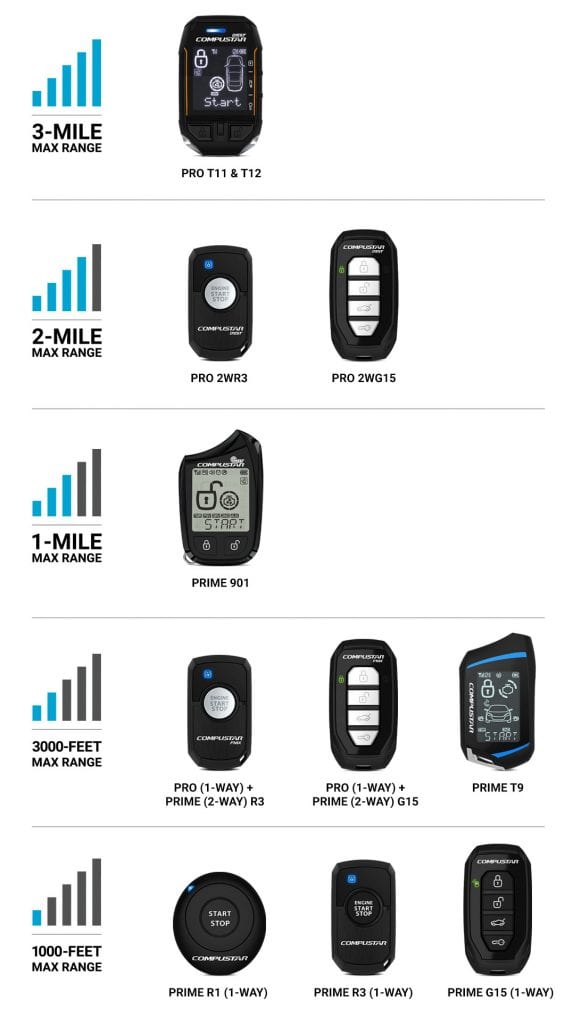
Credit: www.compustar.com
Basic Checks
Basic checks are the first step to fix your Compustar car starter issues. These simple steps help find common problems fast. A quick inspection can save time and money before calling a professional.
Start by looking at the car’s physical state and settings. These basic checks often reveal why the remote start fails. Follow these easy steps to troubleshoot your Compustar system.
Hood And Door Status
Ensure the hood is fully closed. The system will not start if the hood is open. Check all doors are shut properly. Open doors prevent the remote start from activating. This safety feature protects your vehicle.
Battery Health
Check your vehicle’s battery condition. A weak or dead battery stops the starter from working. Test the battery voltage with a multimeter. Replace the battery if it reads below 12 volts. Also, inspect the remote’s battery and replace it if needed.
Vehicle Security Settings
Verify the car’s security system is not blocking the starter. Some vehicles lock the starter when the alarm is set. Disable valet mode if active, as it can prevent remote start. Consult your owner’s manual for specific security settings related to Compustar.
Reset Methods
Resetting your Compustar car starter can fix many common issues quickly. Different reset methods suit various problems and system types. Understanding these methods helps restore your remote start system without professional help.
This section explains three main reset methods: Battery Reset, Key Cycle Reset, and Button Sequence Reset. Each method targets specific causes and offers simple steps to follow.
Battery Reset
The battery reset is the simplest way to refresh your Compustar system. Start by disconnecting the car battery’s negative terminal. Wait about 10 to 15 minutes to clear stored power. Reconnect the battery and test the remote starter again. This reset can fix minor glitches caused by power interruptions or system freezes.
Key Cycle Reset
The key cycle reset is common for factory-installed Compustar systems. Sit inside your car and close all doors. Insert the key and turn it to the “On” or accessory position without starting the engine. Hold it there for a few seconds, then turn the key off. Repeat this cycle two to three times. After the final turn off, press the lock button on your remote. This action helps the system resync with the remote, solving communication errors.
Button Sequence Reset
The button sequence reset applies to aftermarket Compustar units. Press a specific series of buttons on your remote in a set order. This sequence varies by model, so check your manual for details. Typically, it involves holding the lock and unlock buttons together for a few seconds. This reset clears remote programming errors and restores normal function. After completing the sequence, test the remote to confirm the reset worked.
Exiting Valet Mode
Exiting Valet Mode on your Compustar car starter is essential to regain full remote start functionality. Valet Mode temporarily disables remote start features to prevent unauthorized use. This mode activates during valet parking or service appointments. Knowing how to exit it quickly restores normal operation without hassle.
There are two main ways to exit Valet Mode: manual steps inside the vehicle or remote commands using your key fob. Both methods are straightforward and do not require special tools. Follow the instructions below based on your preference and situation.
Manual Steps
Start by sitting in the driver’s seat and closing all doors. Insert your key into the ignition but do not start the engine. Turn the key to the “On” position, where the dashboard lights come on.
Press and hold the valet switch or button, usually located under the dashboard or near the steering column. Hold it for about 5 seconds until the parking lights flash or a beep sounds. This signal confirms the system exited Valet Mode.
Turn the ignition off and remove the key. Test the remote start to ensure it works again. If the system stays in Valet Mode, repeat these steps carefully.
Remote Commands
Use your Compustar remote to exit Valet Mode without entering the vehicle. Press and hold the “Lock” button for about 3 seconds. Then, press the “Start” button once while still holding the “Lock” button.
Release both buttons after the parking lights flash or the horn chirps twice. This confirms the system has left Valet Mode. Wait a few seconds and press the “Start” button again to test the remote start.
If the remote command does not work, check the remote battery and try again. Remote commands offer convenience, especially if you cannot access the vehicle’s interior.
Programming Tips
Programming your Compustar car starter correctly ensures smooth operation and avoids common issues. Follow these key tips to program your system with ease. Proper programming saves time and improves remote start reliability.
Syncing Remotes
Syncing your remote with the car starter is crucial. Start by turning the car ignition to the “On” position without starting the engine. Press the lock button on the remote once. This action pairs the remote with the starter system. Repeat these steps if you have multiple remotes. Always check the user manual for exact timing and button presses.
Immobilizer Bypass
Many vehicles require an immobilizer bypass for remote start to work. This bypass disables the anti-theft system temporarily. Install the bypass module carefully according to the instructions. Incorrect installation can prevent the car from starting remotely. Test the bypass function before finishing the installation to ensure it works properly.
Antenna Checks
The remote antenna plays a vital role in signal reception. Inspect the antenna for damage or loose connections. Place the antenna in a high, clear location inside the vehicle. Avoid metal obstructions that block signals. A weak antenna signal can cause remote start failures or delayed responses.
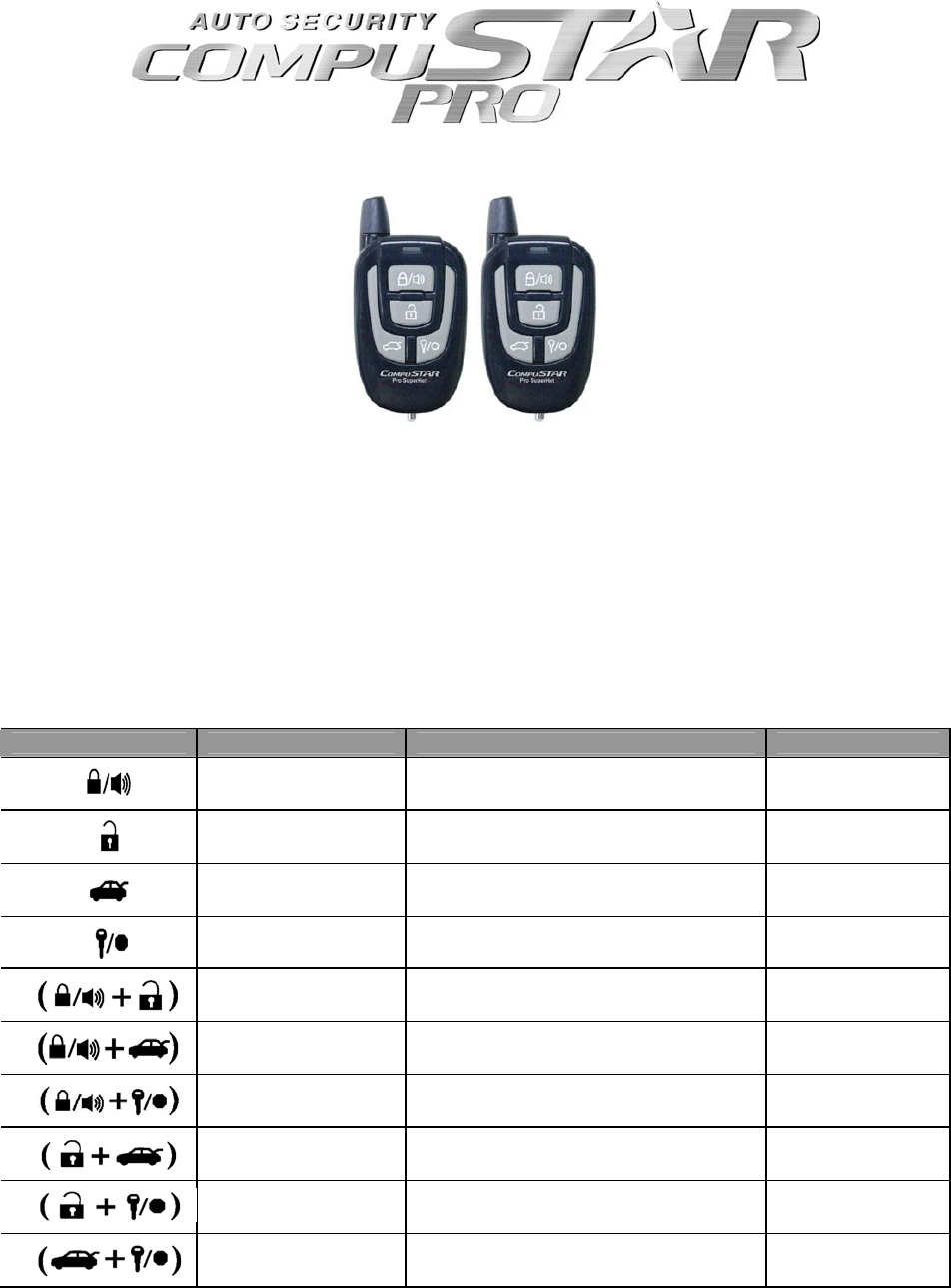
Credit: auto.manualsonline.com
Troubleshooting No-start
The Compustar car starter may sometimes fail to start your vehicle. Troubleshooting this no-start condition helps find the root cause quickly. Simple checks often fix the problem without professional help. Follow these steps to understand common issues and solutions.
Wiring Inspections
Check all wiring connections carefully. Loose or damaged wires can stop the starter from working. Look for frayed wires or corrosion around connectors. Secure any loose wires and clean corroded terminals. Proper wiring ensures the starter receives power correctly.
Fuse And Ground Issues
Inspect the fuses related to the starter system. A blown fuse will cut off power and prevent starting. Replace any faulty fuses with the correct type. Also, verify the ground connection is solid. A poor ground can cause the system to fail.
Security Module Reprogramming
The security module may block the starter if not synced properly. Reprogramming the module can restore normal function. Use the vehicle’s manual or contact a technician for reprogramming steps. This step resets the security system to accept the remote starter signal.
Handling Hold Mode
Handling the Hold Mode on your Compustar car starter is essential for smooth operation. This mode often appears when the system detects a potential issue. Understanding why the “Hold” display appears can help you fix the problem quickly. Resetting the system properly can also clear this mode and get your starter working again.
Reasons For Hold Display
The Hold display usually means the system is waiting. It may detect a safety concern or a system error. Common reasons include a low remote battery or a faulty hood pin switch. Sometimes, the starter thinks the engine is running or a door is open. These conditions stop the starter from activating for safety.
Another cause is interference or a weak signal between the remote and the car. If the remote’s antenna is blocked or damaged, the system shows Hold. An internal error in the starter’s control module can also trigger this mode. Checking these areas can help identify the root cause.
Reset Procedures
Resetting your Compustar starter can clear the Hold mode. Start by replacing the remote’s battery with a fresh one. This often solves communication problems. Next, perform a key cycle reset: Insert the key and turn it to the On position without starting the engine. Then turn it off and press the lock button on the remote.
For aftermarket systems, try a button sequence reset. Press and hold specific buttons on the remote following the user manual instructions. This resets the remote’s programming. If the problem persists, disconnect the car battery for a few minutes. Reconnect it to reset the entire system.
Always check that the hood is fully closed and doors are locked before trying to start. If the Hold mode still shows, consult the manual for model-specific steps. Resetting safely restores normal function and avoids damage to your starter or vehicle.
Preventive Maintenance
Preventive maintenance is essential for keeping your Compustar car starter running smoothly. Small care steps avoid major problems and extend the system’s life. Regular attention helps detect issues early and saves repair costs. Follow simple tips to maintain your car starter and enjoy reliable remote start every day.
Battery Replacement Tips
Check the battery regularly to ensure it has enough power. Replace old or weak batteries promptly to prevent start failures. Use the correct battery type recommended by Compustar. Clean battery terminals to avoid corrosion and poor connection. Store batteries in a cool, dry place when not in use. Test the battery voltage with a multimeter for accurate checks. Always dispose of old batteries properly to protect the environment.
Regular System Checks
Perform system checks at least once every few months. Inspect all wiring for signs of wear or damage. Verify that the hood pin and door sensors work correctly. Test the remote start function to confirm proper operation. Look for error codes or warning lights on the system. Keep the system firmware updated to improve performance. Regular checks reduce the risk of sudden failures and ensure safety.
Diy Fixes
Troubleshooting your Compustar car starter can save time and money. Many common issues have simple fixes you can do yourself. DIY fixes avoid costly repairs and get your starter working again fast.
Basic tools and clear instructions help solve most problems. Learning step-by-step methods builds confidence. Videos provide visual guidance to make tasks easier. These resources help you handle your Compustar starter with ease.
Step-by-step Guides
Follow simple steps to diagnose and fix starter problems. Begin by checking the remote battery and antenna connection. Confirm the hood pin switch is properly closed. Verify the car doors are locked and alarm is set. Reset the system by turning the ignition key on and off. Press the remote lock button to sync the starter. Test the remote start system after each step. Repeat or try other fixes if it still fails. Step-by-step guides reduce mistakes and speed up repairs.
Video Tutorials
Watch clear videos demonstrating common Compustar starter fixes. See how to reset your remote starter in real time. Learn to exit valet mode and restore normal function. Observe button sequences for factory and aftermarket resets. Visual aids make it easier to understand each action. Pause and replay videos to follow along at your pace. Video tutorials provide extra help beyond written guides. Use trusted channels for accurate and safe instructions.
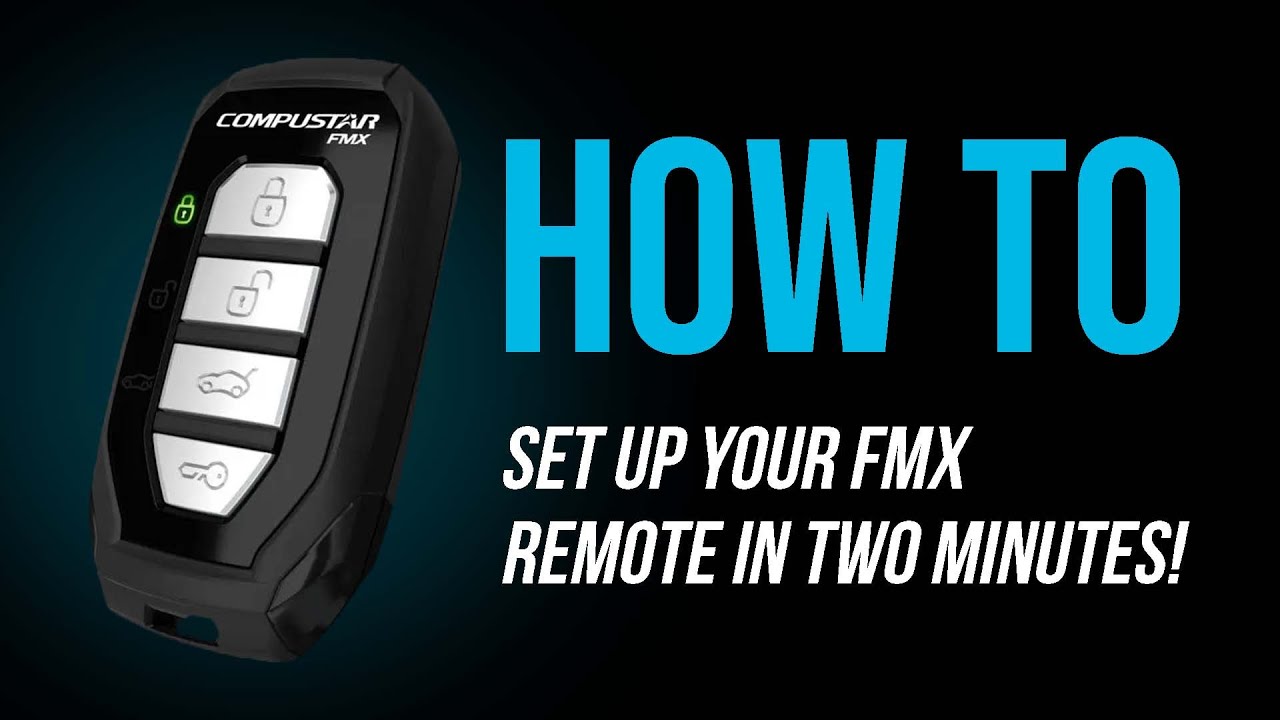
Credit: www.youtube.com
Frequently Asked Questions
What Are Common Remote Start Problems?
Common remote start problems include dead remote batteries, faulty hood pin switches, low coolant or oil pressure, blown fuses, and poor wiring connections.
How To Restart Compustar Remote Start?
To restart your Compustar remote start, turn the ignition to “On” without starting the engine. Press the remote’s lock button to sync. Ensure the hood is closed and doors are locked. Replace remote batteries if needed. Refer to your manual for specific reset steps.
How To Reset Autostart Remote Starter?
To reset an autostart remote starter, turn the key to “On” without starting the engine. Then press the remote’s lock button to sync. Ensure doors are locked, hood closed, and check the battery. Consult your vehicle manual for specific instructions.
How Do I Get My Compustar Out Of Hold Mode?
To exit Compustar hold mode, replace or recharge the remote batteries. Press and hold the lock button until the display resets. Ensure the vehicle’s hood is closed and doors are locked. Consult your manual for model-specific steps.
What Causes Compustar Car Starter Not To Respond?
A dead remote battery often causes no response from the starter. Faulty wiring or a blown fuse can also block the signal. Always check these first before deeper troubleshooting.
Conclusion
Troubleshooting your Compustar car starter can save time and money. Start by checking the remote battery and vehicle settings. Make sure the hood is closed and doors are locked. Reset the system using the key cycle or button sequence if needed.
Always consult your vehicle’s manual for exact steps. Simple checks often fix common issues quickly. Staying calm and following these tips helps keep your remote starter working well. Regular maintenance prevents many problems before they start. Keep your Compustar system reliable with easy, smart troubleshooting.