
Is your Dish Network remote acting up right when you need it most? You’re not alone.
A remote that won’t respond can turn your relaxing TV time into a frustrating experience. But before you think about buying a new one, there are simple fixes you can try yourself. Whether your remote won’t pair with your receiver, the buttons feel stuck, or it just won’t send a signal, this guide will help you troubleshoot and solve the most common issues step-by-step.
Keep reading to discover easy tips that will get your Dish Network remote working smoothly again—fast and hassle-free.
Common Remote Issues
Dish Network remotes can face various issues that stop them from working properly. These common problems affect how you control your TV and receiver. Understanding these issues helps you fix the remote quickly. Below are the most frequent remote control troubles and easy ways to spot them.
Battery Problems
Dead or weak batteries are the top cause of remote failure. The remote might not respond or work only sometimes. Check if the LED light on the remote turns on when you press a button. If it doesn’t, replace the batteries with fresh ones. Always insert batteries the right way to avoid connection issues. Using rechargeable batteries can save money over time.
Infrared Signal Failures
The remote sends commands using an infrared (IR) signal. If this signal is blocked or weak, your receiver won’t receive commands. Make sure there are no objects between the remote and the receiver. Dirt or dust on the IR sensor can also block the signal. Clean the sensor gently with a soft cloth. Test the remote by pointing it at a smartphone camera; the IR light should flash when you press buttons.
Button Malfunctions
Buttons can get stuck, unresponsive, or press multiple commands at once. This often happens due to dirt, spills, or wear over time. Cleaning under the buttons can help; remove the battery cover and gently clean around the buttons with a dry cloth. Avoid pressing buttons too hard or too fast. If the problem continues, the remote may need repair or replacement.

Credit: www.youtube.com
Basic Fixes
Basic fixes solve many common problems with your Dish Network remote control. These simple steps restore remote functions quickly. No need for technical skills or special tools.
Start with the easiest checks before trying advanced troubleshooting. Basic fixes focus on power issues and physical button problems. This helps your remote respond properly to commands.
Replacing And Aligning Batteries
Remove the remote’s back cover carefully. Take out old batteries and check their type. Insert new batteries matching the correct size and polarity.
Align the batteries so the positive (+) and negative (–) ends fit the markings inside. Poor contact stops the remote from working. Close the cover firmly after inserting batteries.
Cleaning Battery Contacts
Battery contacts can get dirty or corroded over time. Use a clean, dry cloth or a cotton swab to wipe contacts inside the battery compartment. Remove any dirt or residue gently.
For corrosion, lightly rub contacts with a pencil eraser or fine sandpaper. Clean contacts improve the electrical connection. This step helps restore power flow to the remote.
Checking For Stuck Buttons
Buttons can stick due to dirt or wear. Press each button several times to test if it moves freely. Look closely for any buttons that feel stuck or jammed.
Clean around buttons using a soft cloth slightly dampened with rubbing alcohol. Avoid excess liquid. Free-moving buttons ensure correct signals send from the remote.
Testing Remote Signal
Testing the remote signal is a key step in troubleshooting your Dish Network remote control. It helps to know if the remote sends the correct signals to the receiver. This process can identify whether the problem lies with the remote or the receiver itself.
Testing the signal is simple and does not need special tools. With a few easy steps, you can see if your remote is working properly or needs repair.
Using A Smartphone Camera
Most Dish Network remotes use infrared (IR) light to send signals. This light is invisible to the naked eye. A smartphone camera can help you see this IR light.
Point the remote at your smartphone camera lens. Press any button on the remote. Look at the screen through the camera app. If you see a flashing light, the remote is sending a signal.
No light means the remote may have dead batteries or a broken IR emitter. Replace the batteries and test again. If still no light, your remote might need repair or replacement.
Identifying Ir Emitter Problems
The IR emitter is the part of the remote that sends signals to the receiver. Dirt, damage, or wear can stop it from working well.
Check the front of the remote for dirt or dust. Clean it gently with a soft cloth. Avoid using water or harsh cleaners.
If cleaning does not help, the IR emitter might be damaged. You may notice the remote works only at a close range or at certain angles. This is a sign of a weak IR emitter.
In such cases, consider replacing the remote or contacting Dish Network support for help.
Credit: support.dish.com
Resetting The Remote
Resetting your Dish Network remote is a simple step to fix many common issues. This process helps clear minor glitches and reconnects the remote to the receiver. Resetting often restores normal function without complicated steps or extra tools.
Follow these easy steps to reset your remote properly. Removing and reinserting the batteries can refresh the remote’s internal system. Make sure to do this carefully for best results.
Removing Batteries Temporarily
Start by opening the battery compartment on the back of your remote. Take out all batteries carefully and place them aside. Wait for about 30 seconds to let the remote power down fully. This pause helps clear any temporary errors inside the remote.
Reinserting Batteries Correctly
Insert the batteries back into the remote with the correct polarity. Check the plus (+) and minus (–) signs inside the battery slot. Push the batteries gently until they fit snugly. Close the compartment securely to avoid loose connections. Testing the remote after this step will show if the reset worked.
Re-linking The Remote
Re-linking the Dish Network remote helps restore control over your receiver. This process reconnects the remote and fixes unresponsive issues. It ensures commands reach the receiver correctly. Follow simple steps to re-link your remote and enjoy smooth TV watching again.
Using The System Info Button
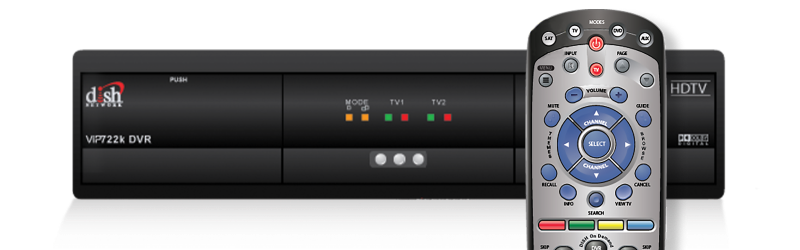
Start by pressing the System Info button on the front of your Dish receiver. This button displays important system details and begins the re-linking process.
Next, press the SAT button on your remote. You should hear three ascending tones, confirming the remote is linking to the receiver.
Finally, press the SAT button again to complete the pairing. The remote is now re-linked and ready to use.
Pairing With The Receiver
Remove the batteries from your remote first. Then, reinsert them correctly to reset the remote’s power.
Press the Menu button on the remote. Navigate to Settings > Remote Control on your TV screen.
Select the TV Pairing Wizard. Follow the on-screen steps, testing codes as requested. For example, use the Volume Up button to check the connection.
This method pairs the remote directly with your receiver and fixes most control issues.
Using On-screen Pairing Wizard
The On-Screen Pairing Wizard helps link your Dish Network remote to your receiver. This tool guides you through each step on your TV screen. It ensures your remote sends commands correctly. Using the wizard fixes many common remote control issues. Follow simple prompts to pair your remote and receiver easily.
Accessing Remote Settings
Start by pressing the Menu button on your remote. Navigate to the Settings option in the main menu. Select the Remote Control section next. Choose the TV Pairing Wizard to open the pairing tool. The wizard will appear on your TV screen to guide you. Follow the instructions carefully for best results.
Testing Remote Codes
The wizard asks you to test different remote codes. It shows you commands to try, such as Volume Up. Press the indicated buttons on your remote as prompted. If the remote responds correctly, confirm the code. If not, try the next code until one works. This process ensures your remote matches your device perfectly.
Power Cycling The Receiver
Power cycling the receiver is a simple but effective way to fix many Dish Network remote control issues. This process resets the receiver’s internal systems. It helps clear temporary glitches that block communication between the remote and receiver. Power cycling is often the first step in troubleshooting remote problems.
Unplugging And Reconnecting Power
Start by unplugging the power cord from the back of your Dish receiver. Leave it unplugged for about 30 seconds. This pause lets the receiver fully shut down and clears its memory. After 30 seconds, plug the power cord back in. Wait for the receiver to fully restart. This process refreshes the system and may restore normal remote control function.
Benefits Of Power Cycling
Power cycling fixes minor software bugs and connection errors. It helps if the receiver freezes or won’t respond to the remote. The process can restore the link between the remote and receiver. Power cycling uses no special tools and takes less than a minute. It often solves common remote control problems without needing extra help.
Programming The Remote
Programming the Dish Network remote is a key step to control your TV and receiver easily. It ensures the remote communicates well with your devices. Proper programming saves time and avoids frustration during viewing.
Follow simple steps to pair your remote with your TV or Hopper receiver. This allows you to use one remote for multiple devices. The process is quick and requires no special tools.
Pairing With Tv
Start by turning on your TV. Press the Menu button on your remote. Navigate to Settings and select Remote Control. Choose the TV Pairing Wizard.
Follow the on-screen instructions to test codes. Press buttons like Volume Up to check if the TV responds. If it works, save the code. If not, try another code from the list.
This process connects your remote with your TV for volume and power control. It also reduces the need for multiple remotes on your coffee table.
Pairing With Hopper Receiver
Make sure the Hopper receiver is powered on. Press the System Info button on the receiver. Then press the SAT button on your remote twice. You should hear three ascending tones.
Press the CANCEL or Back button to finish pairing. Your remote now controls the Hopper receiver commands smoothly.
If pairing fails, try removing and reinserting the batteries. Then repeat the steps. This simple reset often fixes connection issues.
Advanced Troubleshooting
Advanced troubleshooting can help fix stubborn Dish Network remote control issues. This level digs deeper than basic fixes. It targets hidden problems that stop your remote from working well. Follow these steps carefully to restore full control over your Dish receiver.
Checking For Corroded Contacts
Corroded contacts inside the remote can block signals. Open the battery compartment and remove the batteries. Look closely at the metal contacts. If you see rust or greenish buildup, clean it gently. Use a cotton swab dipped in a little vinegar or rubbing alcohol. Dry the contacts fully before reinserting batteries. This simple step often solves unresponsive remote issues.
Dealing With Replacement Remote Issues
Replacement remotes sometimes face pairing problems. First, ensure the remote has fresh batteries installed correctly. Next, re-link the remote to the Dish receiver. Press the System Info button on the receiver. Then press the SAT button on the remote twice. Listen for three ascending tones. If you do not hear tones, repeat the steps carefully. Using the Dish on-screen pairing wizard can help select the right codes. Follow the instructions and test buttons like Volume Up to confirm pairing success.

Credit: viscommproducts.com
Frequently Asked Questions
How Do You Reset The Dish Remote?
To reset the DISH remote, remove and reinsert the batteries correctly. Press the System Info button on the receiver, then press the SAT button on the remote twice. Finish by pressing CANCEL or Back. Use the TV Pairing Wizard in Settings for further pairing steps.
Why Is My Remote Not Working Even With New Batteries?
Your remote may not work due to incorrect battery placement, dirty contacts, stuck buttons, or a faulty infrared sensor. Clean contacts, check battery alignment, test the IR signal with a phone camera, and reset the remote or receiver to fix the issue.
Why Is My Dish Remote Not Responding To The Tv?
Your DISH remote may not respond due to dead or misaligned batteries, unpaired remote, or blocked infrared signals. Reinsert batteries correctly, reset the remote, and re-pair it with your receiver using the TV Pairing Wizard in settings. Clean the remote’s IR sensor and receiver sensor for proper communication.
What Do You Do If Your Tv Isn’t Responding To The Remote?
Remove and reinsert batteries correctly. Clean battery contacts and check for stuck buttons. Use a smartphone camera to test the remote’s IR signal. Reset the remote by re-linking it to the receiver via the System Info and SAT buttons. Power cycle the receiver if needed.
How Do I Reset My Dish Network Remote Control?
To reset, remove the batteries and wait 30 seconds before reinserting them. This clears temporary glitches and often restores normal function.
Conclusion
Troubles with your Dish Network remote can feel frustrating. Start by checking the batteries and their placement. Re-link the remote to the receiver using the System Info and SAT buttons. Use the on-screen pairing wizard to test different codes. Power cycling the receiver often fixes many issues.
Clean the battery contacts if the remote still won’t work. Following these simple steps usually solves most remote control problems. Keep patience and try each fix carefully. Your remote should work smoothly again soon.



