Is your DSL router acting up and leaving you frustrated with slow or no internet? You’re not alone, and the good news is—you don’t always need to call a technician to fix it.
With some simple steps, you can troubleshoot your DSL router and get your connection back up and running quickly. In this guide, you’ll discover easy-to-follow tips that help you identify the problem, understand what those blinking lights mean, and solve common issues without any hassle.
Keep reading, and take control of your internet connection today!

Credit: www.routexp.com
Common Dsl Router Issues
DSL routers often face common issues that disrupt internet access and performance. Understanding these problems helps you fix them quickly. This section highlights frequent DSL router problems and simple steps to identify them.
Connection Drops
Connection drops happen when the internet cuts out unexpectedly. This issue can be caused by loose cables or interference on the phone line. Frequent drops may also result from outdated firmware or hardware problems. Restarting the router often restores the connection temporarily. Checking cable connections and updating firmware can reduce drops.
Slow Internet Speeds
Slow speeds make browsing and streaming difficult. Causes include network congestion, poor signal quality, or distance from the DSL exchange. Too many devices using the network can also slow down the connection. Running a speed test helps identify if the speed matches your plan. Limiting devices and moving the router to a central spot can improve speeds.
No Internet Access
No internet access means the router is on but cannot connect online. This may occur due to incorrect settings or service outages. Power cycling the modem and router often resolves the issue. Checking with your internet service provider confirms if there is an outage. Resetting the router to factory settings can fix configuration errors.
Led Light Indicators
LED lights on a DSL router show its status. A green light usually means the connection is active and working. A yellow light may indicate the connection is initializing or inactive. A red light signals a failed connection or offline status. Understanding these signals helps identify router problems quickly.
Credit: www.broadbandsearch.net
Basic Troubleshooting Steps
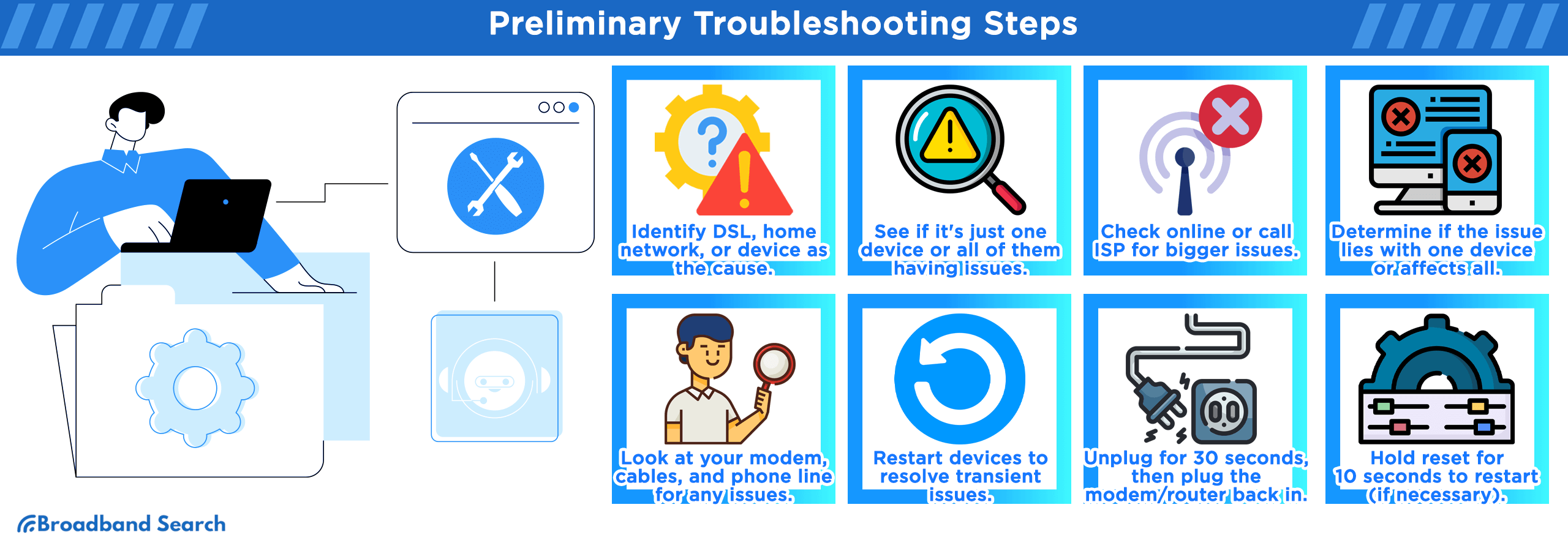
Troubleshooting your DSL router starts with simple checks anyone can do. These basic steps often fix common problems quickly. Follow each step carefully to restore your internet connection.
Power Cycling The Router
Turn off your DSL router and unplug it from the power source. Wait for about 30 seconds. Plug it back in and turn it on. This process refreshes the router’s connection to your internet service.
Power cycling can clear minor glitches and improve performance. It resets the internal memory and forces the router to reconnect.
Checking Cable Connections
Ensure all cables are firmly plugged in. Check the DSL cable, power cable, and Ethernet cables for any loose ends or damage. A loose or damaged cable often causes connection drops.
Replace any broken cables with new ones. Proper connections help maintain a strong signal and stable internet.
Restarting Modem And Router
Turn off both your modem and router. Wait for one minute before turning the modem back on first. After the modem fully powers up, turn on the router.
This step helps both devices sync properly with your internet provider. It can fix slow speeds or no internet issues.
Inspecting Filters And Phone Lines
Check all phone line filters connected to your DSL setup. Make sure filters are correctly installed on each phone jack sharing the line. Dirty or faulty filters affect DSL signals.
Also, inspect the phone lines for cuts or damage. Faulty lines can cause connection interruptions and poor internet quality.
Advanced Fixes
Advanced fixes for DSL router issues help solve deeper connection problems. These steps require more attention but often restore stable internet. Follow these methods carefully to improve your DSL performance and reduce downtime.
Resetting Router Settings
Resetting your router clears all custom settings. It returns the device to factory defaults. This can fix misconfigurations causing connection issues. Use a pin to press the reset button for 10 seconds. Wait for the router to reboot fully before reconnecting.
Firmware Updates
Router manufacturers release firmware updates to fix bugs. Updating firmware improves device stability and security. Visit your router’s admin page to check the current firmware version. Download and install the latest update from the official website. Do not turn off the router during this process.
Changing Wi-fi Channels
Wireless interference can slow down or drop your connection. Changing the Wi-Fi channel reduces interference from nearby networks. Access your router’s settings and select a less crowded channel. Channels 1, 6, and 11 are often best for 2.4 GHz Wi-Fi. Test different channels to find the strongest signal.
Adjusting Dsl Modulation Settings
DSL modulation controls how your router communicates with the internet line. Changing modulation settings can improve connection speed and stability. Common modes include G.DMT, ADSL2+, and VDSL2. Check your ISP’s recommended settings and adjust accordingly in the router menu. Save changes and reboot to apply new settings.
Improving Router Placement
Improving your DSL router placement can boost your internet speed and reduce connection drops. The right spot helps the signal travel smoothly through your home. Small changes in placement make a big difference for your network’s strength and reliability.
Avoiding Interference
Keep your router away from devices that cause interference. Microwaves, cordless phones, and baby monitors can weaken Wi-Fi signals. Metal objects and thick walls also block wireless signals. Place the router in an open area to prevent signal loss.
Optimal Location Tips
Position the router near the center of your home. This helps the signal reach all rooms evenly. Raise the router off the floor, like on a shelf or table. Avoid placing it inside cabinets or behind large furniture. These spots reduce signal strength.
Using Range Extenders
Range extenders help cover large or multi-floor homes. They pick up your router’s signal and boost it further. Place extenders where the signal is still strong but near weak areas. This fills dead zones and improves overall Wi-Fi coverage.
When To Contact Your Isp
Knowing when to contact your Internet Service Provider (ISP) is key during DSL router troubleshooting. Some problems require expert help beyond basic fixes. This section guides you on recognizing such moments.
Line Faults And Service Outages
Persistent disconnections may signal a line fault. Your DSL line could be damaged or unstable. Service outages affect many users in your area. Check your ISP’s outage map or status page first. If the problem matches an outage, wait for your ISP to restore service. For line faults, only your ISP can fix the physical connection.
Dsl Signal Issues
Weak or lost DSL signals often cause slow or no internet. Your router may show a flashing DSL light or no connection at all. Resetting the router might help briefly. If the signal stays weak, contact your ISP. They can test the line quality remotely and send a technician if needed. Avoid trying complex repairs yourself on the phone line.
Requesting Technical Support
Use your ISP’s technical support when all basic troubleshooting fails. Keep details ready: error messages, router light status, and steps you tried. This info speeds diagnosis and solutions. Support may guide you through advanced steps or schedule a repair visit. Stay calm and clear when describing the problem for best help.
Credit: www.asus.com
Preventive Maintenance Tips
Preventive maintenance keeps your DSL router running smoothly. Small, regular efforts avoid big problems. It ensures stable internet and faster speeds. Follow simple steps to reduce downtime and fix issues early.
Regular Firmware Checks
Check your router’s firmware often. Firmware updates fix bugs and improve security. Visit the router’s settings page to find update options. Installing updates helps your device work better. Set a reminder to check at least once a month.
Cleaning Equipment
Dust and dirt can cause router problems. Clean the router and cables gently with a soft cloth. Avoid using water or harsh cleaners. Keep the router in a dry, ventilated place. Clean equipment prevents overheating and connection drops.
Monitoring Network Performance
Watch your internet speed and connection stability. Use simple apps or tools to test your network. Note any slowdowns or disconnections. Early detection helps you fix problems before they worsen. Track performance weekly to maintain a strong signal.
Frequently Asked Questions
How To Fix Dsl Internet Connection?
Check all cables and filters for secure connections. Restart your DSL modem and router. Inspect phone lines for damage. Test with another modem if possible. Contact your ISP to verify outages or line faults. Regularly clean or replace filters to maintain stability.
What Do All The Lights Mean On A Router?
Router lights indicate status: green means online and connected, yellow shows inactive or disabled, red signals connection failure or offline.
What Are Common Router Problems?
Common router problems include slow speeds, frequent disconnections, overheating, outdated firmware, poor placement, and loose cables causing unstable Wi-Fi.
What To Do When Dsl Is Not Working?
Check all cables for secure connections. Restart your modem and router to reset the connection. Test with another DSL modem if possible. Contact your ISP to report outages or line faults. Clean or replace filters regularly for stable DSL performance.
What Causes A Dsl Router To Lose Internet Connection?
A loose or damaged cable often causes connection loss. Power cycling the modem can help restore the link quickly.
Conclusion
Troubleshooting your DSL router can fix many common internet problems. Start by checking all cables and connections. Restart your modem and router to refresh the network. Look at the router’s lights to understand its status. Keep your device’s software updated for better performance.
If issues continue, contact your internet provider for help. Regular care and simple steps can keep your DSL connection stable and fast. Don’t let small problems stop your online activities. Stay patient and follow these tips to improve your internet experience.