
Is your Eufy camera acting up when you need it most? Whether it’s dropping offline, missing important motion alerts, or struggling to load videos, these problems can leave you feeling frustrated and vulnerable.
But don’t worry—you’re not alone, and most issues have simple fixes you can try right now. In this guide, you’ll discover easy troubleshooting steps that will help get your Eufy camera back online and working smoothly. Stick with me, and by the end, you’ll have the confidence to solve common glitches quickly—so your home stays secure without the hassle.
Let’s dive in and fix your Eufy camera today!
Eufy Camera Connectivity Drops Issue
Connectivity drops are a common problem with Eufy cameras. These interruptions affect live viewing and video recording. Users often find their cameras disconnect without warning. Understanding why these drops happen can help maintain a stable connection. This section explains the causes and solutions for connectivity issues.
Causes Of Disconnects
Weak Wi-Fi signals often cause camera disconnects. Distance from the router and obstacles like walls reduce signal strength. Interference from other devices may also disrupt connection. Software bugs in the camera or app can lead to random drops. Power issues, such as unstable adapters, might cause the camera to restart. Identifying the cause helps in fixing the problem quickly.
Reconnecting Cameras
Restart the camera by unplugging and plugging it back in. Check the app to see if the camera appears online. If not, remove the camera from the app and add it again. Resetting the camera to factory settings can solve persistent issues. Follow the user manual for reset instructions. Reconnecting often restores normal function and avoids data loss.
Improving Wi-fi Signal
Place the camera closer to the Wi-Fi router. Avoid thick walls and metal objects between them. Use a Wi-Fi extender to boost signal range if needed. Change the router’s channel to reduce interference. Update your router’s firmware for better performance. Stronger Wi-Fi signals help maintain a stable camera connection and reduce drops.
Eufy Camera App Performance Issue
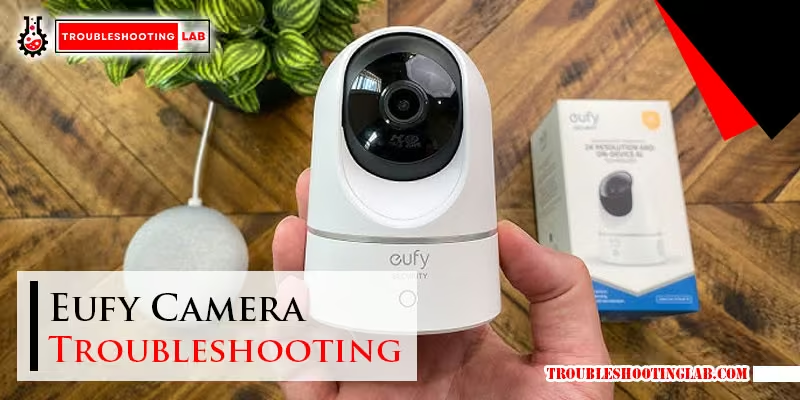
The performance of the Eufy app plays a key role in managing your security cameras. A smooth app experience ensures you can check live feeds, review recordings, and receive alerts without delay. Many users face issues that disrupt these functions. Understanding common app performance problems helps in quick troubleshooting and better use of your Eufy system.
Slow Loading Issues
Slow loading in the Eufy app can cause frustration. The app may take too long to open or load video feeds. This problem often happens due to poor internet connection or app overload. Clearing the app cache or restarting your phone can improve speed. Also, check for app updates to fix bugs that cause slowdowns.
Failed Video Playback
Videos may fail to play or freeze during playback. This usually relates to weak Wi-Fi or server problems. Make sure your camera and phone have stable internet. Restart the app and camera to refresh connections. Sometimes, uninstalling and reinstalling the app solves playback errors. Confirm your phone’s software is up to date for best results.
Missing Offline Alerts
Missing offline alerts means you won’t know if your camera loses connection. This issue risks missing important security events. Check your app settings to ensure alerts are enabled. Keep your app updated for the latest features and bug fixes. Rebooting your camera can restore alert functions. Staying alert to offline status helps keep your property safe.
Eufy Camera Motion Detection Problem
Motion detection is a key feature of Eufy cameras. It helps you know when something moves in the camera’s view. This feature keeps your home safe and alerts you to activity. Sometimes, motion detection may not work as expected. False alerts or missed detections can happen. Understanding how motion detection works can help fix these issues quickly.
False Alerts Reasons
False alerts occur when the camera detects motion but no real threat exists. Common causes include moving trees, shadows, or passing cars. Animals like cats and dogs can also trigger alerts. Weather changes such as wind or rain may cause false notifications. Electrical interference or bugs on the lens can affect detection too.
Adjusting Sensitivity
Adjusting the motion sensitivity helps reduce false alerts. Lower sensitivity stops small movements from triggering alerts. Higher sensitivity catches even slight motion but may cause more false alarms. Find a balance by testing different levels in the app. Change settings based on the camera’s location and environment. Regularly check and adjust sensitivity for best results.
Mounting Tips
Proper mounting improves motion detection accuracy. Place the camera where it has a clear view of the area. Avoid pointing it at busy roads or moving trees. Mount the camera at eye level or higher for better detection. Keep the lens clean to prevent false alerts. Secure the camera to avoid shaking or movement that triggers alerts.
Eufy Camera Recording Problems
Recording problems with your Eufy camera can cause frustration and gaps in security coverage. These issues affect how well your camera captures and saves important moments. Resolving them quickly helps maintain reliable surveillance and peace of mind.
Common recording problems include missed events, abrupt recording cutoffs, and SD card errors. Each problem requires specific steps to fix and prevent future occurrences.
Missed Events
Missed events happen when the camera does not record motion or activity. This can occur due to incorrect motion sensitivity settings or connectivity issues. Check the motion detection zone and adjust sensitivity to capture all movements. Make sure your camera has a strong Wi-Fi signal to avoid delays in recording.
Restart your camera and app regularly to refresh settings. Keep the firmware updated to fix bugs that cause missed recordings.
Recording Cutoffs
Recording cutoffs happen when videos stop suddenly before the event ends. This may be caused by power interruptions or storage problems. Ensure your camera has a stable power source without fluctuations. Avoid using low-quality power adapters.
Check available storage space on your SD card or cloud account. Full storage can cause recordings to stop early. Clear old videos or increase storage capacity to prevent cutoffs.
Sd Card Errors
SD card errors can prevent your camera from saving videos properly. Common errors include corrupted files or unreadable cards. Format the SD card using the Eufy app to fix corruption. Use high-quality SD cards recommended by Eufy for best performance.
Replace damaged or old SD cards to avoid frequent errors. Safely eject cards before removing them from the camera to protect data integrity.
Eufy Camera Security Concerns
Security concerns rank high among users troubleshooting Eufy cameras. These concerns focus on protecting your privacy and data. Eufy cameras store sensitive information that requires strong safeguards. Any weakness could expose your home to risks. Understanding these concerns helps you better secure your devices and data.
Unauthorized Access Risks
Unauthorized access happens when someone enters your camera system without permission. This can lead to spying or theft of personal data. Weak passwords or outdated firmware often cause these breaches. Always use strong, unique passwords for your Eufy account. Regularly update the camera firmware to patch security holes. Enable two-factor authentication if available. These steps reduce the chance of hacking.
Biometric Data Issues
Eufy cameras may use facial recognition for smart alerts. This involves collecting biometric data like facial features. Storing biometric data raises privacy questions. If this data leaks, it can be misused or stolen. Check if your camera encrypts biometric data properly. Review the privacy policy to know how data is handled. Limit sharing of biometric data within the app settings. Protect your biometric information as carefully as passwords.
Eufy Camera Firmware Bugs
Firmware bugs can cause many problems with your Eufy camera. These bugs are errors in the camera’s software. They may lead to issues like freezing, poor video quality, or failure to record. Firmware bugs often appear after updates or over time as new problems surface.
Understanding firmware bugs helps in fixing your camera faster. You can avoid frustration by knowing common issues and how to manage updates properly. Keeping your camera’s firmware stable is key to smooth operation.
Common Firmware Issues
Many users report their Eufy cameras freezing or restarting unexpectedly. Video might drop frames or show poor quality. Some cameras fail to record motion events or stop recording after a short time. Notifications may arrive late or not at all. These problems often link to firmware bugs.
Firmware bugs can also cause connectivity problems. The camera may lose connection to Wi-Fi or the app frequently. Sometimes, the camera’s settings reset without warning. These common issues disrupt security and reduce trust in the system.
Managing Updates
Firmware updates fix bugs but can also cause new ones. Always check update notes before installing. Avoid updating during critical times if possible. Backup settings and data if the option exists.
After updating, monitor your camera closely for new issues. If problems arise, try restarting the camera or rolling back to a previous firmware version. Contact Eufy support if bugs persist. Regular checks ensure your camera runs on the best software version available.
Quick Eufy Camera Troubleshooting
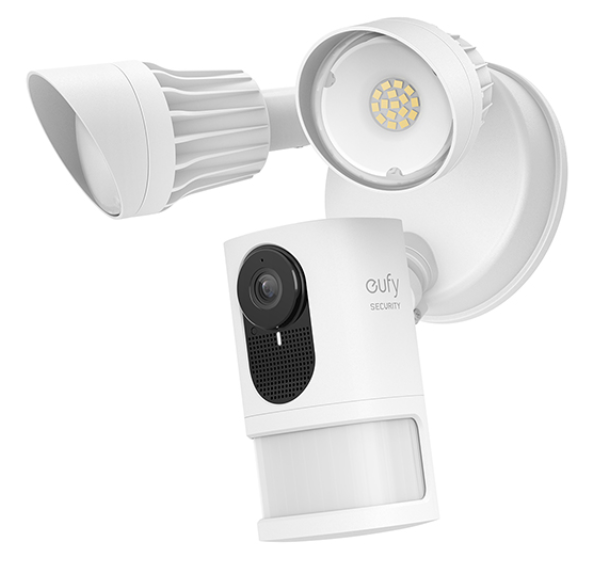
Quick fixes can solve many common Eufy camera issues fast. These simple steps help restore your camera’s function without technical hassle. Try these tips before seeking further support.
Power Cycling Devices
Turn off your Eufy camera and unplug it from the power source. Wait about 30 seconds. Plug it back in and turn it on. This resets the camera and clears temporary glitches. Power cycling often fixes connection and streaming problems quickly.
Adjusting Camera Settings
Open the Eufy app and check camera settings. Lower motion sensitivity to reduce false alerts. Adjust recording schedules to match your routine. Make sure notifications are enabled. Proper settings improve detection accuracy and overall performance.
Updating Firmware
Check for firmware updates in the Eufy app regularly. Updates fix bugs and add new features. Connect your camera to Wi-Fi and follow prompts to install updates. Keeping firmware current ensures the camera runs smoothly and securely.
Optimizing Signal Strength
Place your camera closer to the Wi-Fi router for a stronger signal. Remove obstacles like walls or metal objects. Use a Wi-Fi extender if needed. Strong signals improve live streaming and reduce disconnections. A steady connection keeps your camera reliable.
Frequently Asked Questions
What Are The Common Issues With Eufy?
Common Eufy issues include connectivity drops, delayed notifications, app slowdowns, false motion alerts, missed recordings, SD card corruption, firmware bugs, and past security concerns.
How Do I Get My Eufy Security Camera Back Online?
Restart your Eufy camera and HomeBase. Check Wi-Fi strength and reconnect devices. Update firmware via the Eufy app. Adjust camera settings if needed. Ensure power supply is stable. This usually restores your camera’s online status quickly.
Why Is My Eufy Camera Not Working?
Your Eufy camera may not work due to poor Wi-Fi, outdated firmware, power issues, or corrupted SD cards. Restart devices, update firmware, check settings, and improve signal strength to fix common problems.
How Do You Reboot The Eufy Camera?
To reboot your Eufy camera, unplug its power cable. Wait 10 seconds, then reconnect the power to restart the device.
Why Is My Eufy Camera Not Connecting To Wi-fi?
Poor Wi-Fi signal or incorrect password often causes connection issues. Restart your router and camera, then reconnect using the app. Ensure the camera is within range of your Wi-Fi network.
Conclusion
Troubleshooting your Eufy camera can improve its performance and reliability. Start with checking your internet connection and app updates. Adjust motion sensitivity to reduce false alerts. Regularly inspect your SD card for errors. Keep your camera’s firmware current to avoid bugs.
These simple steps help maintain smooth operation. Persistent issues might need professional support. Stay patient and methodical while fixing problems. Your Eufy camera can work well with proper care and attention.



