
Are you facing issues with Five9 that slow down your work or disrupt your customer interactions? Whether it’s login troubles, audio glitches, or unexpected crashes, these problems can feel frustrating and confusing.
But don’t worry—understanding the common causes and quick fixes can save you time and stress. In this guide, you’ll discover practical troubleshooting steps tailored for Five9, helping you get back on track smoothly and confidently. Keep reading to unlock simple solutions that make your Five9 experience seamless again.

Credit: www.youtube.com
Common Issues
Common issues with Five9 often disrupt smooth communication. These problems can affect call quality, access, and software performance. Recognizing the typical challenges helps resolve them faster. Below are some frequent problems users face while using Five9.
No Sound Or Audio Problems
Audio issues occur when sound devices are not configured correctly. Check if the headset or speakers are connected properly. Ensure the default playback and recording devices are set right in your computer’s sound settings. Try different USB ports or plug the headset directly into the device. Sometimes, restarting the softphone or computer fixes audio glitches.
Login Failures
Login failures happen due to incorrect credentials or locked accounts. Verify your username and password carefully before trying again. Clear browser cache and cookies to avoid session conflicts. For Single Sign-On (SSO), ensure SAML certificates and URLs match perfectly. Expired tokens can also block access, so check their validity. Logging out and closing all browsers before retrying helps sometimes.
Application Crashes And Freezes
Crashes and freezes may be caused by browser issues or corrupted files. Close all browsers and restart your device to clear temporary errors. Clear your browser cache and cookies to remove outdated data. Reinstalling the Five9 softphone often restores stability. Monitor system resources and avoid running many heavy applications simultaneously.
Softphone Launch Errors
Softphone launch errors can stop you from starting Five9. Open the Task Manager to check if any Five9 processes are running. End those processes and try launching again. Launch the softphone manually from the Start Menu if it fails to start automatically. Adding the softphone to your startup programs ensures it launches after reboot. Check for software updates or conflicts with other applications.
Basic Fixes
Basic fixes are the first step in resolving common Five9 issues. These simple actions often solve problems quickly. They save time and avoid complex troubleshooting.
Try these easy steps before moving to advanced solutions. They help restore normal function fast.
Restart And Relaunch
Restart your computer to clear temporary glitches. Close the Five9 application completely. Relaunch it to refresh the connection and settings. This step often fixes loading or freezing problems.
Clear Browser Cache
Five9 runs in a browser. Cached files can cause errors or outdated data. Clear your browser cache and cookies to fix these issues. This makes the application load fresh content and run smoothly.
Check Device Connections
Verify all hardware is properly connected. Check your headset, microphone, and headset cables. Use different USB ports if needed. Loose or faulty connections cause audio and performance problems.
Reset Password And Account Access
Login errors may happen due to wrong passwords or locked accounts. Use the password reset option to create a new password. Contact your admin if your account is locked or access is denied. This step restores your access quickly.
Browser Troubleshooting
Browser issues can affect your Five9 experience. Troubleshooting browser problems helps keep your calls and chats running smoothly. This section explains simple checks to fix common issues. Follow these steps to improve browser performance with Five9.
Use Developer Tools
Open your browser’s developer tools to find errors. Press F12 or right-click and select “Inspect”. Go to the “Console” tab to see error messages. Check the “Network” tab to monitor data loading. This helps spot broken scripts or slow responses.
Inspect Websocket Connections
Five9 uses WebSocket for real-time communication. In developer tools, select the “Network” tab and filter for “WS” or WebSocket. Verify the connection is open and active. Closed or failed connections cause delays or dropped calls. Refresh the page if WebSocket fails.
Disable Conflicting Extensions
Browser extensions can block Five9 features. Turn off extensions one by one to find the culprit. Ad blockers and privacy tools often interfere. Use the browser’s incognito mode to test without extensions. Disable or remove problematic add-ons to restore full function.
Verify Secure Https Connection
Five9 requires a secure HTTPS connection for safety and full access. Check the browser address bar for “https://” and a lock icon. Non-secure connections cause errors and block features. Reload the page using HTTPS if needed.

Credit: community.five9.com
Network And Security Checks
Network and security checks form a key step in troubleshooting Five9 issues. They ensure your system communicates correctly and stays protected. Regular checks avoid interruptions and secure data exchange.
Verify Internet Access
Start by confirming your internet connection is stable and fast. Five9 requires a secure HTTPS connection to work properly. Use a browser to visit secure websites and verify no interruptions occur. Disable VPNs or proxies that might block access. Test connection speed to meet Five9’s minimum requirements.
Check Saml Certificates And Tokens
SAML certificates authenticate users for Single Sign-On in Five9. Ensure the certificate is valid and not expired. Compare the certificate from your identity provider with the one stored in Five9. Tokens must be current to avoid login failures. Replace expired certificates immediately to restore access.
Validate Entity Ids And Urls
Entity IDs must match exactly between your identity provider and Five9 settings. URLs for login and logout need to be correct and reachable. Wrong URLs cause authentication errors. Double-check spelling and protocol (http vs https). Update URLs if your identity provider changes them.
Update Security Settings
Review firewall and antivirus rules to allow Five9 traffic. Open necessary ports and whitelist Five9 domains. Disable security features that block WebSocket connections used by Five9. Keep all security software up to date. Apply patches to avoid conflicts with Five9 operations.
Advanced Solutions
Advanced solutions in Five9 troubleshooting help fix complex issues. These steps dig deeper into technical problems. They require careful attention and clear data collection. Following these methods improves the chances of a quick fix. Understanding how to collect and share detailed information is key.
Collect And Analyze Logs
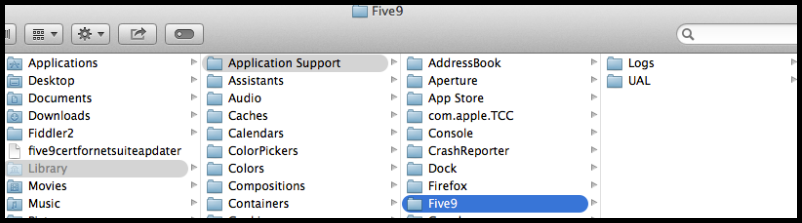
Logs hold important clues about system errors. Collect logs from the Five9 application and your device. Look for error codes and unusual messages. Use log analysis tools to spot patterns. Share these logs with support teams for faster help.
Capture Crash Dumps
Crash dumps capture the state of the system during a failure. Enable crash dump collection in your system settings. Save the files immediately after a crash happens. These files provide developers with data to find the root cause. Attach crash dumps when contacting support.
Reinstall Softphone Application
Reinstalling the softphone can fix corrupted files or bad settings. Uninstall the current version completely. Download the latest installer from the official Five9 website. Install the app fresh and restart your computer. This step often resolves hidden software conflicts.
Contact Support With Error Details
Provide clear error details when reaching out for help. Include logs, crash dumps, and error messages. Describe the steps you took before the issue started. The more exact information you share, the faster support can assist. Keep communication simple and to the point.
Credit: ithelp.alliant.edu
Frequently Asked Questions
Why Is My Five9 Cannot Login?
Your Five9 login may fail due to incorrect username or password, account lock, expired SSO token, or browser issues. Check credentials, reset password, clear cache, and verify network connection. Contact your administrator if problems persist.
Does Five9 Record Your Screen?
Five9 records voice, screen, and digital channel interactions for quality management. It captures agent screens during calls for compliance and training purposes.
What Browser Is Recommended For Five9?
Google Chrome is the recommended browser for Five9. It ensures optimal performance, compatibility, and security for the platform.
How To Update Five9 Softphone?
To update Five9 softphone, close the app, download the latest version from the official site, and install it. Restart your computer.
What Causes Five9 Login Problems And How To Fix Them?
Login issues often occur due to incorrect passwords or expired tokens. Clear your browser cache, close all tabs, and try logging in again. For SSO, verify SAML certificates and URLs match correctly.
Conclusion
Troubleshooting Five9 can feel challenging but gets easier with practice. Check common issues first, like audio settings and login errors. Use browser tools to spot connection problems quickly. Keep error logs handy to help support teams assist you faster. Restart devices and clear caches to fix many glitches.
Stay patient and follow step-by-step guides for best results. Consistent troubleshooting keeps your Five9 system running smoothly. This approach saves time and reduces frustration in daily use.



