
Is your Garmin device acting up when you need it most? Whether it’s a GPS that won’t lock, a smartwatch that won’t sync, or connectivity issues that interrupt your flow, these problems can be frustrating.
But don’t worry—you’re not alone, and most Garmin troubles have simple fixes. In this guide, you’ll discover easy-to-follow solutions to get your device back on track quickly. Keep reading, and you’ll learn exactly how to troubleshoot your Garmin so it works flawlessly every time you need it.
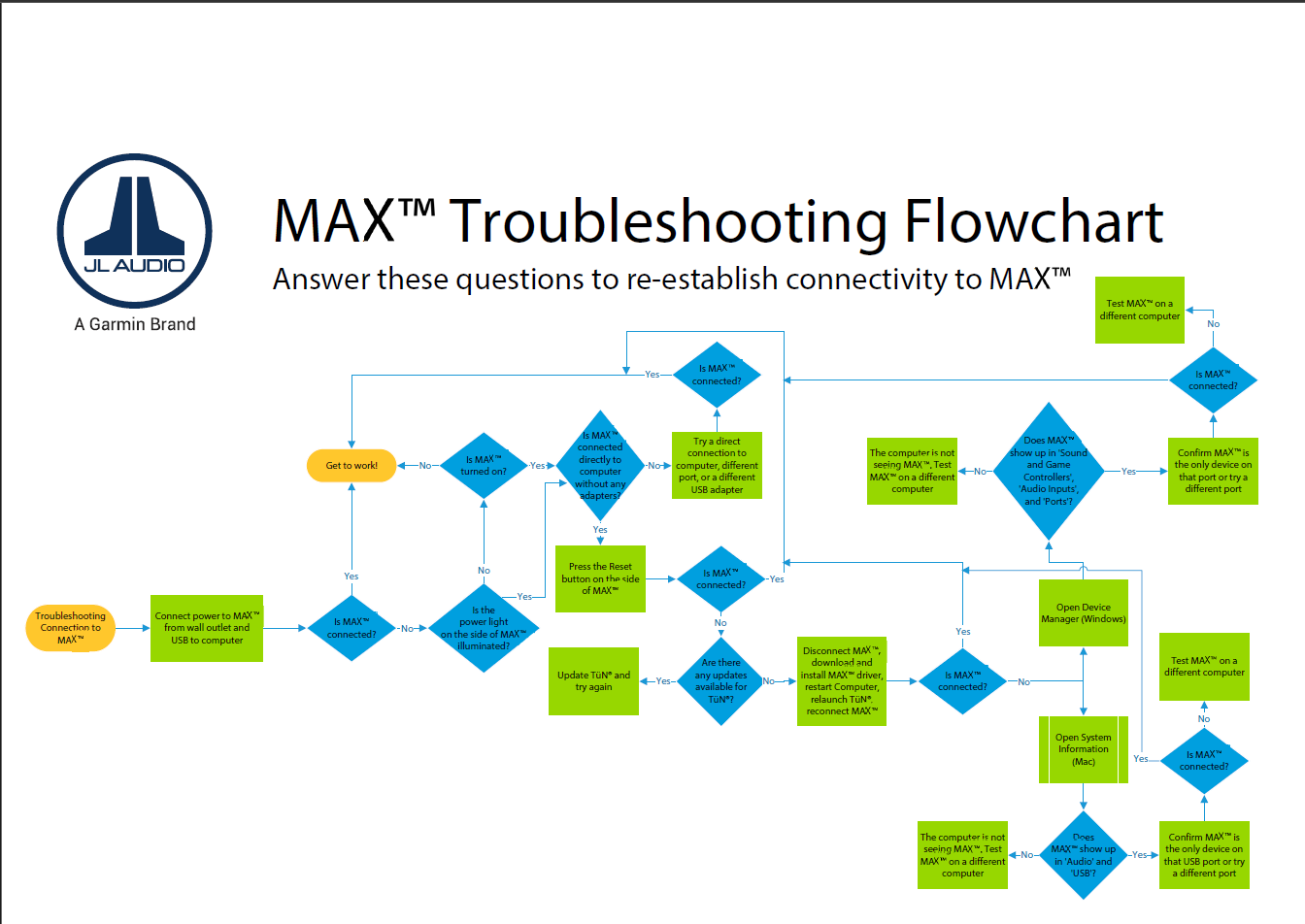
Credit: support.garmin.com
Device Restart Tips
Sync and connectivity issues can disrupt your Garmin device’s performance. These problems often affect data transfer and device updates. Understanding basic fixes can save time and improve your experience. Below are key steps to solve common sync and connection troubles.
Bluetooth Pairing Fixes
Start by turning Bluetooth off and on again on both devices. Remove your Garmin device from your phone’s Bluetooth list. Restart both your Garmin device and smartphone. Re-pair the devices following the Garmin app instructions. Ensure both devices are close to each other during pairing. Clear the Garmin app cache if pairing still fails.
Troubleshooting Wi-fi Issues
Check your Wi-Fi connection strength and stability. Restart your router and Garmin device to refresh the connection. Verify that your Garmin device is within range of the Wi-Fi network. Remove and re-add the Wi-Fi network on your Garmin device. Make sure your Garmin device software is up to date for compatibility.
Garmin Connect App Solutions
Update the Garmin Connect app to the latest version. Log out and log back into your Garmin Connect account. Clear the app data or reinstall the app if syncing fails. Check app permissions to ensure it can access Bluetooth and Wi-Fi. Sync manually by opening the app and pulling down the screen to refresh.
Credit: www.faborit.com
Sync And Connectivity
GPS accuracy issues can disrupt your Garmin device’s performance. These problems cause incorrect positioning or slow location updates. Poor GPS accuracy affects navigation, tracking, and fitness data. Understanding how to fix these issues improves your device’s reliability.
Improving Satellite Signal
Clear skies help your Garmin device find satellites faster. Avoid tall buildings, dense trees, or heavy cloud cover. Stay outdoors in open areas for the best signal. Moving slowly during startup lets the device lock on better. Keep your Garmin’s software updated for improved satellite connections.
Resetting Gps Data
Resetting GPS data can fix many location problems. This clears outdated satellite information stored in your device. Find the GPS reset option in your Garmin’s settings menu. After reset, your device downloads fresh satellite data. This process usually improves accuracy within minutes.
Handling Location Errors
Location errors may occur due to software glitches or hardware issues. Restart your Garmin device to refresh its system. Check for firmware updates and install them promptly. If errors persist, perform a factory reset to restore default settings. Contact Garmin support for further help if needed.
Gps Accuracy Issues
Battery and charging are key parts of your Garmin device’s performance. Poor battery life or charging issues can stop your device from working when needed. Understanding how to extend battery life, solve charging problems, and calibrate the battery helps keep your Garmin running smoothly.
Extending Battery Life
Lower screen brightness to save power. Turn off Bluetooth and Wi-Fi if not in use. Use power-saving mode during long activities. Close apps running in the background. Avoid extreme temperatures as they drain battery faster. Update device software to improve battery efficiency.
Charging Problems
Check the charging cable for damage or dirt. Use the original charger for best results. Make sure charging contacts on the device are clean. Try different power sources like a wall outlet or USB port. Restart the device if it does not charge. Replace the battery if it no longer holds a charge.
Battery Calibration Tips
Fully charge the battery before first use. Let the battery drain completely once in a while. Recharge the battery to 100% after full drain. Avoid partial charging cycles frequently. Calibrating helps improve battery life estimates. Follow these steps every few months for accuracy.
Battery And Charging
Keeping your Garmin device updated ensures smooth performance and access to new features. Software updates fix bugs, improve security, and enhance usability. Regular updates help avoid errors and compatibility issues with apps and devices.
Understanding how to manage updates can save time and prevent frustration. Learn how to manually update, handle update problems, and roll back firmware if needed. These steps keep your Garmin running reliably.
Manual Update Process
Connect your Garmin device to a computer using the USB cable. Open Garmin Express software on your computer. If you do not have Garmin Express, download and install it from Garmin’s website.
Garmin Express will detect your device and check for updates. Click “Install” to start the update process. Wait until the update finishes and do not disconnect the device. Restart your Garmin after the update completes.
Dealing With Update Failures
Sometimes updates fail due to connection problems or low battery. Ensure your device has at least 50% battery before starting an update. Use a reliable USB cable and avoid using USB hubs.
Restart both your Garmin device and the computer. Try the update again using Garmin Express. If the update still fails, clear the cache in Garmin Express or reinstall the software. Resetting your Garmin device can also help.
Firmware Rollback Options
Firmware rollback allows you to return to a previous software version. This option is useful if a new update causes problems. Garmin does not officially support rollback, but some tools and methods exist online.
Proceed with caution when rolling back firmware. Use only trusted sources and follow instructions carefully. Backup your data before starting the rollback process to avoid data loss.
Software Updates
Display and screen issues are common problems for Garmin device users. These issues affect how you view maps, data, and menus. They can disrupt your experience and make navigation difficult.
Understanding simple fixes can help you restore your Garmin screen quickly. This guide covers solutions for frozen screens, brightness problems, and touchscreen calibration. Follow these steps to improve your device’s display performance.
Frozen Screen Solutions
A frozen screen stops your Garmin from responding. Press and hold the power button for 10 seconds. This forces the device to restart. If this does not work, try removing the battery if possible. Wait a few seconds before reinserting it. Restart the device to check if the screen works properly.
Keep your Garmin’s software updated. Outdated software can cause freezing issues. Connect your device to a computer and use Garmin Express to update the system. Regular updates fix bugs and improve screen performance.
Brightness And Color Fixes
Low brightness makes the screen hard to read in sunlight. Increase brightness in settings for better visibility. Access the display menu and adjust brightness manually. Auto-brightness may not always work well outdoors.
Color issues can make the screen look dull or strange. Reset the display settings to default to fix color problems. Sometimes, a simple restart helps restore normal colors. Avoid exposing the device to extreme heat or cold, which can affect screen colors.
Touchscreen Calibration
Unresponsive or inaccurate touchscreens need calibration. Open the settings menu and find the touchscreen calibration option. Follow the on-screen instructions to complete the process. Calibration improves touch accuracy and responsiveness.
If calibration does not help, clean the screen with a soft cloth. Dirt or grease can interfere with touch sensitivity. Avoid using harsh chemicals that might damage the screen. Keep the screen dry and free from scratches for the best touch experience.
App Integration
Managing your Garmin device’s data is crucial for smooth operation and preserving your activity history. Proper data management ensures your device runs efficiently and your workouts stay safe. This section covers essential tips to handle your Garmin data effectively.
Recovering Lost Activities
Sometimes, activities might disappear from your device or app. Check if the activity is saved in Garmin Connect’s cloud. Sync your device with the Garmin Connect app to restore missing data. If syncing fails, try restarting both your device and phone. Use Garmin Express on your computer for deeper recovery options.
Exporting And Backing Up Data
Backing up your data prevents permanent loss. Export activities from Garmin Connect to your computer regularly. You can save files in formats like GPX or TCX for easy access. Use Garmin Express to download all activity data. Keep backups on an external drive or cloud storage for safety.
Clearing Memory
Garmin devices store many files that can fill memory quickly. Clear old activities or unnecessary files to free up space. Use the device settings to delete unwanted data safely. Regular memory cleaning helps your Garmin work faster and avoid crashes. Always back up important data before clearing memory.
Display And Screen Issues
Garmin devices often display error messages to alert users about issues. Understanding these messages helps fix problems quickly. Many errors are common and easy to resolve. Knowing what each error means can save time and frustration. This section explains common Garmin error messages and how to handle them effectively.
Interpreting Error Codes
Error codes provide clues about device problems. Each code points to a specific issue. For example, “GPS signal lost” means the device cannot find satellites. “Battery low” shows the device needs charging soon. Reading the exact error code helps find the right solution fast. Always check the Garmin manual or support site for code definitions.
Quick Fixes For Frequent Alerts
Many Garmin errors clear with simple steps. Restart the device to reset temporary glitches. Ensure the device software is up to date. Check battery levels and charge if low. For GPS errors, move to an open area outside. Clear app cache or reinstall the Garmin Connect app if sync fails. These fixes solve most common alerts quickly.
When To Contact Support
Contact Garmin support if errors persist after basic fixes. Complex issues may need expert help. Problems like device freezing, software crashes, or hardware faults require professional assistance. Keep your device model and error codes ready before contacting support. This helps the team provide faster, accurate solutions.

Credit: www.youtube.com
Frequently Asked Questions
How Do I Reboot My Garmin?
Press and hold the power button for 15 seconds until the Garmin turns off. Release and press the button again to restart.
Is There An Issue With Garmin Today?
Garmin services may experience occasional disruptions. Check Garmin’s official status page or support for updates and troubleshooting tips. Restart your device and app to resolve common issues quickly.
How Do I Troubleshoot My Garmin?
Restart your Garmin device and phone. Forget and re-pair the device via Bluetooth. Update the Garmin app and firmware. Check Garmin Support for specific issues.
Is There A Reset Button On A Garmin Gps?
Garmin GPS devices do not have a dedicated reset button. To reset, press and hold the power button until the device restarts or use the settings menu to perform a factory reset.
How Do I Reboot My Garmin Device Safely?
Press and hold the power button until the screen turns off. Wait a few seconds, then press the button again to turn it on. This resets the device without data loss.
Conclusion
Troubleshooting your Garmin device can be simple with the right steps. Restarting or resetting often solves many common problems. Always check connections and update your software regularly. Use Garmin’s official support site for detailed guides and help. Staying patient and following clear instructions helps you fix issues faster.
Keep your device in good condition to avoid future troubles. Troubleshooting helps you enjoy your Garmin without interruptions.



