
Is your Google Wifi acting up just when you need it most? Slow speeds, dropped connections, or trouble setting it up can quickly turn your online experience into a frustrating puzzle.
But don’t worry—you’re not alone, and fixing these issues is easier than you think. In this guide, you’ll discover simple, step-by-step troubleshooting tips that anyone can follow to get your Google Wifi back on track fast. Ready to boost your internet and say goodbye to connection headaches?
Keep reading, and let’s solve your Google Wifi problems together.

Credit: opcionesadministrativas.com
Common Google Wifi Issues
Google Wifi is popular for its easy setup and reliable connection. Still, users face some common issues. These problems can disrupt your internet and reduce your network’s performance. Knowing these issues helps you fix them fast. Below are some frequent Google Wifi problems and what they mean.
Connection Drops
Connection drops happen when your device loses Wi-Fi signal suddenly. This issue may occur due to interference or distance from the Wifi point. Walls and furniture can block signals, causing unstable connections. Restarting your Google Wifi often restores the connection. Moving closer to the Wifi point helps keep a steady signal.
Slow Speeds
Slow speeds make streaming and browsing frustrating. Many devices using the network at once can slow it down. Background apps may also use bandwidth without your knowledge. Check if your Google Wifi is placed in an open area. Restarting the router can clear temporary glitches. Limit connected devices to improve speed.
No Internet Access
No internet access means your devices connect to Wifi but cannot reach the web. This problem can happen if your modem is off or not working. Check all cables and power on your modem and router. Sometimes, your internet service provider may have an outage. Resetting Google Wifi or contacting your provider may be necessary.
Device Not Connecting
Devices sometimes fail to connect to Google Wifi at all. This can happen if the Wifi password is incorrect or the device is too far. Restart your device and try connecting again. Forget the network on your device and reconnect with the correct password. Updating your device’s software can also solve compatibility issues.
Basic Fixes
Basic fixes solve many common Google Wifi issues quickly. These simple steps help restore your internet connection. Most problems stem from minor glitches or loose connections. Start with easy checks before trying advanced solutions.
Restarting Devices
Restart your Google Wifi router and modem. Unplug the power cables from both devices. Wait for 30 seconds to clear temporary faults. Plug them back in and wait for lights to stabilize. This refreshes the network and often fixes connection problems.
Checking Cables And Connections
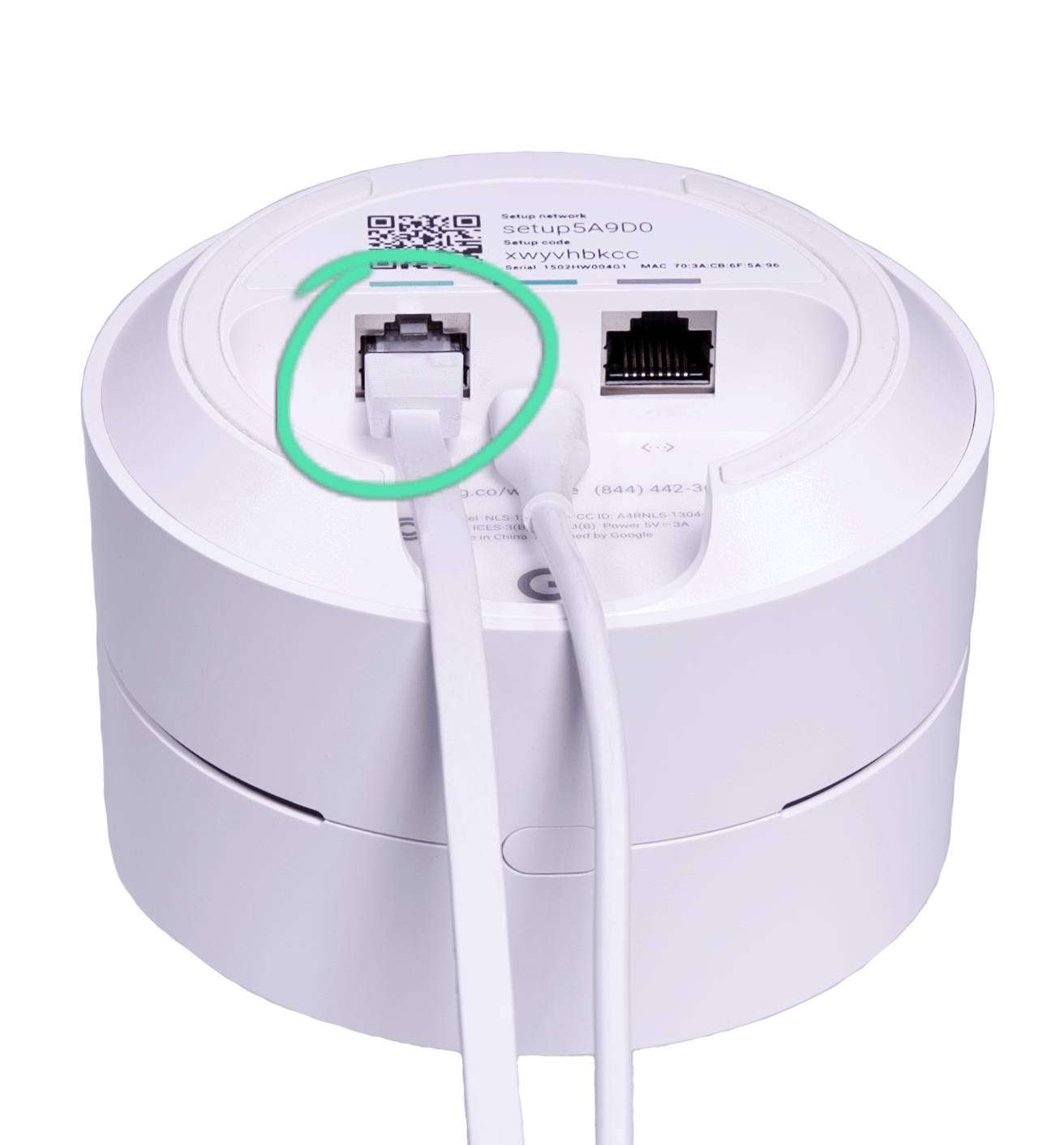
Inspect all cables connecting your modem and Wifi points. Ensure Ethernet cables are secure and not damaged. Loose or broken cables cause signal loss or slow speeds. Replace any worn cables to maintain strong connections. Confirm power adapters are properly plugged in too.
Verifying Network Status In App
Open the Google Wifi app on your smartphone. Check the network status shown on the home screen. The app displays if your Wifi is online or offline. Use the app’s troubleshooting tool to find specific issues. Follow on-screen prompts to resolve detected problems.
Advanced Troubleshooting
Advanced troubleshooting helps solve tricky Google Wifi issues. Basic fixes may fail sometimes. This section covers deeper steps to restore your network’s performance. Follow these techniques carefully for better results.
Factory Resetting Google Wifi
Factory reset restores your Google Wifi to original settings. It removes all custom changes and fixes persistent bugs. Use this method when other fixes do not work.
To reset, press and hold the reset button on the Wifi point for about 10 seconds. The device light will flash, then turn solid blue. This means the reset is complete. You must set up your network again after this.
Updating Firmware
Firmware updates improve device stability and add new features. Old firmware can cause connection problems or slow speeds. Check your Google Wifi app for available updates.
Open the app, tap Settings, then Network & General. Select Wifi points and look for firmware version. If an update is available, follow the on-screen instructions to install it. Keep your devices updated to avoid issues.
Adjusting Network Settings
Network settings control how your Google Wifi connects to the internet. Sometimes changing these settings fixes connection drops or slow speeds. Consider adjusting DNS, IP, or channel settings.
Access these options in the Google Wifi app under Network & General. Change DNS servers to public options like Google DNS (8.8.8.8). Switch wireless channels to avoid interference. Use static IP addresses for better stability.
Improving Wifi Performance
Improving the performance of your Google Wifi is key to a smooth internet experience. Simple steps can help you get stronger signals and faster connections. Small changes in setup make big differences in coverage and speed.
Optimal Placement Of Wifi Points
Place your Wifi points in open areas, away from walls. Avoid corners and floors, which block signals. Keep points visible to each other for better connection. Spread points evenly across your home for full coverage. High locations work best to send signals far.
Reducing Interference
Keep Wifi points away from other electronics like microwaves and cordless phones. These devices cause signal interruptions. Use 5 GHz band for less crowded channels if possible. Remove metal objects near Wifi points that can block signals. Turn off unused devices that may cause interference.
Using Mesh Network Features
Enable mesh features to let points share data smoothly. Mesh allows devices to connect to the strongest point automatically. Check the Google Wifi app for network health and updates. Use the app to test speeds and find weak spots. Let the system balance traffic for better overall speed.
Troubleshooting Specific Problems
Troubleshooting specific problems with Google Wifi can help restore your connection quickly. Each issue has its own cause and solution. This guide covers common errors and fixes. Follow the steps carefully to get your network running smoothly again.
Fixing Blue Light Errors
A solid or blinking blue light on Google Wifi means it is starting up or updating. If the blue light stays on too long, the device may be stuck. Unplug your Google Wifi for 30 seconds. Plug it back in and wait for the light to change. If the problem continues, try a factory reset using the Google Wifi app.
Resolving Modem Connection Issues
Connection problems often come from the modem. First, power off your modem and Google Wifi points. Wait 60 seconds, then power on the modem. After the modem fully starts, power on Google Wifi. Check if the internet connection returns. If not, verify cables are secure. Contact your internet service provider if the modem has no signal.
Handling Multiple Device Conflicts
Too many devices on one Google Wifi point can cause slow speeds or drops. Limit the number of connected devices if possible. Restart your Google Wifi to clear conflicts. Use the Google Wifi app to check device activity. Separate devices across different Wifi points for better load balance. This reduces conflicts and improves connection quality.
Credit: www.assurasoftware.com
Using The Google Home App
The Google Home app is essential for managing your Google Wifi network. It offers simple tools to check and fix common problems. You do not need technical skills to use these features. The app lets you control your network from your phone. It helps keep your internet fast and stable. Below are key tasks you can do with the app.
Running Mesh Tests
Mesh tests check the connection between your Wifi points. Open the Google Home app and select your Wifi network. Tap on the device you want to test. Choose the option to run a mesh test. The app will measure signal strength and speed. It shows if any point has weak connection. Use results to move or adjust your Wifi points for better coverage.
Restarting Network
Restarting your network can fix many internet problems. In the Google Home app, go to your Wifi settings. Find the option to restart the network. Tap it to reboot all Wifi points and the router. This process clears temporary issues. It refreshes your connection and improves speed. Restarting is quick and does not erase settings.
Managing Wifi Points
The app lets you add, remove, or rename Wifi points easily. Go to the Wifi settings in the app. Tap on the list of Wifi points in your network. Select any point to see details or change its name. You can also remove a point if needed. Adding new points improves coverage in large areas. Managing points helps keep your network organized and strong.
When To Contact Support
Knowing the right time to contact support is key when troubleshooting Google Wifi. Some issues may resolve with simple steps. Others need expert help. This section guides you on when to reach out for support.
Identifying Persistent Issues
Notice if the problem repeats after basic fixes. Persistent slow speeds or constant disconnections signal a deeper issue. Problems like device setup errors or network outages also need help. Track how often the issue occurs. This helps decide if you need support.
Gathering Diagnostic Information
Collect details about the problem before calling support. Note error messages and affected devices. Check signal strength and placement of Wifi points. Use the Google Wifi app to run network tests. This information speeds up the help process.
Accessing Google Support Resources
Google offers many support tools online. Visit the official help center for guides and FAQs. Use the Google Wifi app to chat with support or schedule a call. Community forums can also provide useful tips from other users.

Credit: www.reddit.com
Frequently Asked Questions
How Do I Reboot My Google Wifi?
To reboot your Google Wifi, unplug its power cable, wait 10 seconds, then plug it back in. The device will restart automatically.
Why Is My Internet Not Working On Google?
Your internet may not work on Google due to modem or router issues, incorrect network settings, or service outages. Restart your modem and Google Wifi device. Check cables and network status in the Google Home app. Update firmware and contact your internet provider if problems persist.
How Do I Reset The Wi-fi On My Google Device?
Open the Google Wifi app, go to Settings > Network and general > Wifi point(s). Tap Factory reset. The device will flash blue, then solid blue.
Why Is My Google Fi Not Connecting?
Google Fi may not connect due to network outages, SIM issues, or incorrect settings. Restart your device and check coverage. Verify your account status and update the Google Fi app. Ensure your phone supports Google Fi and has the latest software installed.
How Do I Reboot My Google Wifi Device?
Reboot your Google Wifi by unplugging it from power for 30 seconds. Then, plug it back in and wait for it to restart fully. This often fixes many common issues.
Conclusion
Troubleshooting Google Wifi can seem tricky at first. Simple steps often fix most issues quickly. Restart your modem and Wifi devices to reset connections. Use the Google Wifi app for easy network checks. Keep your firmware updated for smooth performance.
Remember, patience helps when solving tech problems. With these tips, your network should run better soon. Stay calm and follow the steps carefully. Reliable Wifi makes life easier every day.



