Is your Hewlett Packard printer acting up right when you need it most? You’re not alone.
Printer problems can be frustrating and slow down your work or personal projects. But don’t worry—fixing your HP printer might be easier than you think. You’ll discover simple and effective troubleshooting tips that anyone can follow. Whether your printer won’t print, shows error messages, or has connectivity issues, you’ll learn how to solve these problems quickly.
Keep reading to get your printer back on track without stress or extra costs.
Printer Won’t Print
When your Hewlett Packard printer won’t print, it can be frustrating. The printer may seem ready but does not respond. Many simple issues cause this problem. Checking a few things can often fix it quickly.
Check Printer Connections
First, ensure the printer is properly connected to your computer. Check the USB or Ethernet cable is secure. For wireless printers, confirm the printer is on the correct Wi-Fi network. Loose or wrong connections stop printing tasks.
Clear Print Queue
A stuck print job can block new ones. Open the print queue on your computer. Cancel all pending jobs and clear the list. This step often frees the printer to start printing again.
Restart Printer And Computer
Turn off the printer and computer. Wait for about 30 seconds. Turn both devices back on. Restarting can fix many minor software glitches that stop printing.

Credit: www.youtube.com
Paper Jams
Paper jams are one of the most common issues with Hewlett Packard printers. They stop the printing process and cause frustration. Knowing how to fix paper jams quickly can save time and effort. This guide helps you troubleshoot paper jams step by step.
Locate And Remove Jammed Paper
First, turn off the printer and unplug it. Open all covers and trays carefully. Look inside for any stuck paper pieces. Gently pull the jammed paper out in the direction of the paper path. Avoid tearing the paper to prevent leftover scraps. Check all access points, including the rear and paper output area.
Inspect Paper Tray And Rollers
Remove the paper tray and check for damaged or bent paper. Make sure the paper is loaded correctly and not overfilled. Look at the rollers for dust, dirt, or wear. Clean rollers using a soft cloth dampened with water. Clean rollers help the printer feed paper smoothly and reduce jams.
Prevent Future Jams
Use good quality paper that matches printer specifications. Fan the paper stack before loading to avoid stuck sheets. Keep the paper tray clean and avoid overloading it. Regularly clean the printer rollers and inside areas. Store paper in a dry place to prevent moisture damage. These steps reduce paper jams and keep your printer working well.
Poor Print Quality
Poor print quality can ruin your documents. Blurry, streaky, or faded prints waste paper and ink. Fixing these issues helps save resources and time. Several simple steps can improve your Hewlett Packard printer’s output quickly. Let’s explore key solutions to get sharp and clear prints again.
Clean Print Heads
Dirty print heads cause streaks and faded colors. Ink dries on the nozzles and blocks ink flow. Use the printer’s cleaning tool to clear the heads. Run the cleaning cycle from the printer menu. Repeat if print quality does not improve after one try.
Replace Low Ink Cartridges
Low ink cartridges make prints light and patchy. Check ink levels through your printer software. Replace any cartridges that show low or empty status. Use original HP ink for best results. New cartridges restore color vibrancy and sharpness.
Adjust Print Settings
Incorrect print settings affect output quality. Set the paper type to match your paper. Choose a higher print quality or resolution in settings. Avoid draft mode for important documents. Proper settings help the printer use ink correctly for clear prints.
Wireless Connectivity Issues
Wireless connectivity issues with Hewlett Packard printers can cause frustration. The printer may fail to connect or lose connection frequently. This disrupts printing tasks and wastes time.
Understanding simple steps can fix most wireless problems quickly. Follow these easy methods to restore the connection and print without hassle.
Verify Network Connection
Check if the printer is connected to the correct Wi-Fi network. Ensure the network name matches your home or office Wi-Fi. Verify the signal strength. Weak signals can cause drops in connection. Restart the router to refresh the network. Confirm other devices connect to the same Wi-Fi without issues.
Reset Wireless Settings
Resetting wireless settings clears old network data. This helps the printer find the Wi-Fi again. Access the printer’s control panel or settings menu. Select the option to reset network or wireless settings. After reset, reconnect the printer to the Wi-Fi by entering the password. This often resolves hidden connection errors.
Update Printer Firmware
Outdated firmware can cause wireless problems. Check for the latest firmware update on the HP support site. Use the printer’s software or control panel to install updates. Updated firmware improves stability and fixes bugs. Keep the printer software current to avoid future issues.
Printer Offline Errors
Printer offline errors stop your HP printer from working properly. The computer shows the printer as offline even though it is on and connected. This issue can happen due to many reasons like connection problems or software glitches. Fixing it is often simple and quick.
Try the following steps to get your printer back online and ready to print.
Set Printer As Default
Go to the Control Panel on your computer. Click on “Devices and Printers.” Find your HP printer in the list. Right-click on it and select “Set as default printer.” This tells your computer to send print jobs to this printer first. It helps avoid offline errors caused by wrong printer selection.
Restart Print Spooler Service
The print spooler manages print jobs sent to your printer. Sometimes, it can freeze or stop working. To fix this, open the Run dialog by pressing Win + R. Type “services.msc” and press Enter. Scroll down to “Print Spooler.” Right-click and choose “Restart.” This refreshes the service and clears errors.
Check For Driver Updates
Outdated drivers cause many printer problems. Visit the official HP website and find your printer model. Download the latest driver available. Install it on your computer. Updated drivers improve communication between your PC and printer. This reduces offline errors and improves printing speed.
Credit: www.compandsave.com
Slow Printing Speed
Slow printing speed can disrupt your workflow and waste time. It often happens due to high print quality settings or many tasks running on your computer. Fixing this issue can make your printer faster and more efficient.
Reduce Print Quality
Lowering the print quality helps speed up printing. High quality uses more ink and takes longer. Choose a standard or draft option in your printer settings. This change makes the printer work less hard.
Print In Draft Mode
Draft mode prints faster by using less ink. It creates lighter and quicker prints. Select draft mode from the printer preferences before printing. This mode is best for simple documents or notes.
Limit Background Tasks
Close extra programs running on your computer. Background tasks slow down the printer’s communication. Fewer tasks mean faster data transfer to the printer. Check your task manager and stop unneeded applications.
Error Messages And Codes
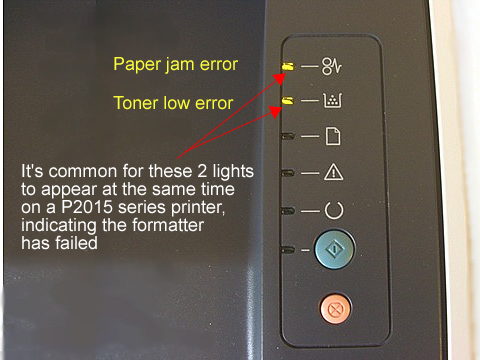
Hewlett Packard printers often show error messages and codes. These messages tell you what is wrong with the printer. Understanding these codes can help fix problems faster. They guide you on what steps to take next. This section explains how to read error codes and solve issues.
Identify Common Error Codes
HP printers display many error codes. Some are simple, like paper jams or low ink. Others might need more attention, such as hardware faults. Common codes include 50.4 (printhead issue) and 79.00 (firmware error). Knowing these helps you act quickly. Check your printer screen or control panel for the exact code.
Perform Factory Reset
Resetting the printer can clear many errors. It returns the device to its original settings. To reset, turn off the printer first. Hold the power button for 10 seconds. Turn it on again. This step clears minor software glitches. Remember, a reset will erase custom settings. Save any important configurations before resetting.
Contact Hp Support
If errors persist, contact HP support for help. They have tools to diagnose deeper issues. Prepare your printer model and error code before calling. Support staff guide you through advanced fixes. Sometimes, repair or replacement might be necessary. HP support ensures your printer works smoothly again.
Credit: www.printertechs.com
Frequently Asked Questions
How To Fix Common Hewlett Packard Printer Errors?
Restart the printer and check all cable connections. Clear any paper jams and update the printer driver. These steps solve most common issues quickly.
Why Is My Hp Printer Not Printing Wirelessly?
Check if the printer and device connect to the same Wi-Fi network. Restart the router and printer to refresh the connection. Ensure wireless printing is enabled in printer settings.
How Do I Resolve Hp Printer Paper Jam Problems?
Turn off the printer and gently remove jammed paper. Check inside for small torn pieces and clear them out. Use the correct paper size and load it properly.
What Causes Hp Printer Ink Cartridge Errors?
Dirty or misaligned cartridges often cause errors. Clean the cartridge contacts and reinstall them firmly. Replace empty or expired cartridges for best results.
How Can I Update My Hp Printer Software Easily?
Visit the official HP website or use the HP Smart app. Download and install the latest printer drivers and firmware updates. This keeps the printer running smoothly and fixes bugs.
Conclusion
Hewlett Packard printer problems can be fixed with simple steps. Check connections and restart your device first. Clean the print heads and update the drivers. Use the HP troubleshooting tool for quick help. Regular maintenance keeps your printer working well.
These tips save time and avoid frustration. Keep this guide handy for any printer issues. Your HP printer will work smoothly again. Troubleshooting becomes easier with patience and care. Stay calm and follow the steps carefully. Printing should be quick and hassle-free.