Is your Honeywell Home Pro Series thermostat acting up when you need it most? You’re not alone.
Many users face issues like unresponsive screens, inaccurate temperature readings, or Wi-Fi connection problems that disrupt comfort and peace of mind. But don’t worry—this guide is here to help you quickly identify common problems and walk you through simple fixes you can try right now.
Whether your thermostat won’t turn on, the HVAC system runs nonstop, or your smart features won’t connect, understanding what’s going wrong and how to troubleshoot it can save you time and stress. Keep reading to regain full control of your home’s climate with easy, step-by-step solutions tailored just for you.
Credit: docs.honeywellhome.com
Common Issues
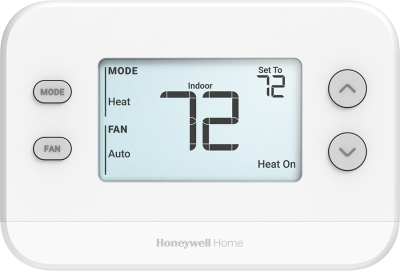
Honeywell Home Pro Series thermostats are reliable but can face issues. Common problems often disrupt comfort and control in your home. Identifying these issues helps solve them quickly. Below are frequent problems users face with this series.
Unresponsive Screens
The screen may stop responding or go blank. Dead batteries often cause this problem. Check and replace batteries first. Loose wiring or a tripped breaker can also lead to this issue. Sometimes, a blown fuse inside the thermostat causes the screen to fail. Resetting the device might help restore the display.
Inaccurate Temperature
Temperature readings may not match the actual room condition. Dust on sensors can cause false readings. Poor thermostat placement, like near sunlight or vents, affects accuracy. Sensor failure is another reason for incorrect temperature. Cleaning the sensor area or moving the thermostat can improve readings.
Hvac Not Cycling Properly
The heating or cooling system may run constantly or cycle too often. Incorrect thermostat settings, such as wrong mode selection, cause this. Loose or corroded wiring, especially the common ‘C’ wire, affects system cycling. A safety switch triggered by an open furnace door can stop proper cycling. Checking these factors often resolves the problem.
Wi-fi Connectivity Problems
Smart models may lose connection to the Wi-Fi network. Entering the wrong password causes connection failures. The thermostat placed too far from the router weakens the signal. Temporary network glitches might need a reset of your router or thermostat. Ensuring strong Wi-Fi coverage helps maintain stable connections.

Credit: www.breezeresidency.com
Basic Fixes
Basic fixes for Honeywell Home Pro Series issues often solve common problems quickly. These steps do not require special tools or skills. Regular maintenance prevents bigger troubles later. Following these simple fixes helps keep your thermostat working well.
Replacing Batteries
Old batteries cause blank or unresponsive screens. Open the thermostat cover carefully. Remove the old batteries and dispose of them properly. Insert fresh batteries matching the required size. Close the cover and check if the screen turns on. Replace batteries every year to avoid power issues.
Checking Circuit Breakers
A tripped circuit breaker cuts power to the thermostat. Locate your electrical panel and find the breaker for HVAC. Look for a switch in the “off” position or between “on” and “off.” Flip it fully off, then back on to reset. Check the thermostat to see if it powers up. Circuit breakers may trip during storms or power surges.
Securing Wiring Connections
Loose wiring causes intermittent operation or no response. Turn off power to the HVAC system to avoid shocks. Remove the thermostat from the wall plate gently. Inspect the wires for loose or corroded connections. Tighten any loose wire nuts or terminal screws. Reattach the thermostat and restore power. Secure wiring ensures consistent signals between thermostat and HVAC.
Cleaning Sensors
Dirty sensors give wrong temperature readings. Dust and debris build up over time. Use a soft brush or cloth to clean sensor areas gently. Avoid using water or cleaning liquids. Keep sensors free from obstructions like curtains or furniture. Clean sensors improve temperature accuracy and system efficiency.
Reset Options
Reset options play a key role in fixing many Honeywell Home Pro Series issues. They help clear errors and restore normal function quickly. Different reset types serve different purposes. Some fix minor glitches without losing settings, while others erase all data for a fresh start.
Knowing which reset to use saves time and prevents unnecessary data loss. The steps are simple and can be done without professional help. This section covers soft, hard, and factory reset methods. Follow each carefully to troubleshoot your device effectively.
Soft Reset Procedures
A soft reset reboots the thermostat without deleting settings. It clears temporary bugs affecting performance. To perform a soft reset, press and hold the system button for about 5 seconds. Release the button when the screen goes blank. The device restarts automatically and should work smoothly.
This method is safe and quick. It is ideal for minor freezes or unresponsive touchscreens. Soft resets do not affect your saved schedules or preferences.
Hard Reset Steps
A hard reset restores the thermostat to default mode but keeps user preferences intact. It fixes deeper software issues that a soft reset cannot resolve. To hard reset, remove the thermostat from its wall plate. Wait 30 seconds before reinserting it.
Alternatively, turn off the circuit breaker powering the HVAC system for 60 seconds. Turn it back on and check the thermostat. Hard resets refresh the system without deleting Wi-Fi or temperature settings.
Factory Reset Guide
A factory reset erases all personal settings and returns the device to original factory conditions. Use this only if other resets fail to fix the problem. To start, open the menu and navigate to “Advanced Setup”.
Scroll to find the “Reset” option and select it. Confirm the choice to begin the reset. The thermostat will restart and display the initial setup screen.
After a factory reset, you must re-enter Wi-Fi details, schedules, and preferences. This step resolves complex errors or corrupted configurations.

Credit: www.breezeresidency.com
Advanced Troubleshooting
Advanced troubleshooting for the Honeywell Home Pro Series involves deeper checks beyond basic fixes. This helps identify hidden issues affecting performance. It requires careful inspection and precise adjustments. Follow these steps carefully to avoid damage or errors.
Inspecting Wiring And Fuses
Start by turning off the power to your thermostat and HVAC system. Open the thermostat cover and check all wire connections. Look for loose, frayed, or corroded wires. Ensure each wire is firmly attached to the correct terminal. Next, locate the fuse on the control board or inside the thermostat. Use a multimeter to test the fuse for continuity. Replace any blown fuse with one of the same rating. Proper wiring and fuse condition are essential for system operation.
Verifying System Settings
Access the advanced settings menu on your Honeywell Pro Series thermostat. Check that the system mode matches your HVAC setup, such as heat, cool, or auto. Confirm the temperature settings are within the correct range. Review the fan settings to ensure they match your preferences. Reset settings to default if you suspect errors. Accurate settings help the system work efficiently and prevent unwanted cycles.
Checking Safety Switches
Locate the safety switches in your HVAC system, such as the furnace door switch or pressure switch. These switches prevent the system from running under unsafe conditions. Inspect each switch for proper placement and operation. Test switches with a multimeter to confirm they open and close correctly. Replace any faulty safety switches immediately. Ensuring safety switch function prevents damage and keeps your system safe.
Wi-fi Setup Tips
Setting up Wi-Fi on your Honeywell Home Pro Series thermostat can sometimes be tricky. Simple steps often fix common connection problems. These tips help you connect quickly and keep the signal stable.
Password And Router Checks
Confirm your Wi-Fi password is correct and case-sensitive. Enter it carefully during setup to avoid errors. Verify your router supports 2.4 GHz networks, as many Honeywell devices do not work well with 5 GHz only. Check if your router has MAC address filtering enabled. If so, add your thermostat’s MAC address to the allowed list. Restart your router to clear temporary issues that block connections.
Network Resets
Resetting your network on the thermostat often solves connection problems. Navigate to the network settings menu and select the reset option. This clears old network data and forces a fresh connection attempt. Power cycle your thermostat by turning it off and on after the reset. Sometimes, resetting the router alongside the thermostat improves syncing between devices.
Improving Signal Strength
Place your thermostat where the Wi-Fi signal is strong and steady. Avoid walls, metal objects, and appliances that block or weaken signals. Use a Wi-Fi extender if your router is far from the thermostat. Keep other wireless devices away to reduce interference. Strong signal strength ensures reliable communication and smoother operation of your thermostat.
When To Call Experts
Knowing when to call experts for Honeywell Home Pro Series troubleshooting saves time and prevents damage. Some issues need professional care beyond simple fixes. Calling a technician ensures your system works safely and efficiently.
Persistent Problems After Fixes
If your thermostat keeps acting up after trying fixes, it may need expert help. Repeated errors can mean internal faults or wiring issues. Professionals can diagnose hidden problems quickly and fix them correctly.
Hvac Unit Issues
Problems with your HVAC unit often affect thermostat performance. Strange noises, no heating or cooling, or frequent cycling signal deeper issues. Experts can inspect and repair HVAC components safely, protecting your home comfort.
Handling Low-voltage Wiring
Low-voltage wiring connects your thermostat to the HVAC system. Incorrect wiring can cause malfunctions or system failure. Handling these wires requires skill and caution. Hiring a professional prevents electrical hazards and ensures proper connections.
Frequently Asked Questions
How To Restart Honeywell Pro Series Thermostat?
To restart a Honeywell Pro Series thermostat, go to Menu, select Advanced Setup, then choose Reset. Confirm to reboot. Alternatively, cut power at the breaker for 30 seconds, then restore it to perform a hard reset. This clears minor glitches and restarts the device.
What Are Common Honeywell Thermostat Problems?
Common Honeywell thermostat problems include unresponsive screens, inaccurate temperature readings, HVAC not turning on/off properly, and Wi-Fi connectivity issues. Causes often involve dead batteries, loose wiring, tripped breakers, or incorrect settings. Basic fixes include replacing batteries, checking breakers, and securing wires.
How Do I Fix An Unresponsive Thermostat Honeywell?
Check and replace thermostat batteries. Reset the circuit breaker for HVAC power. Inspect and secure all wiring connections. Verify correct system settings. Perform a soft or hard reset via the menu or breaker. Call a professional if issues persist after these steps.
Why Is My Pro Thermostat Not Kicking On?
Your Pro thermostat may not kick on due to dead batteries, tripped breakers, loose wiring, or incorrect settings. Check power, replace batteries, verify settings, and ensure wiring is secure. Reset the thermostat to clear glitches. Contact a professional if issues continue or wiring seems faulty.
What Causes Honeywell Pro Series Thermostat To Be Unresponsive?
A dead battery or tripped breaker often causes unresponsiveness. Loose wiring or a blown fuse can also stop the thermostat from working. Checking power sources is the first step in troubleshooting.
Conclusion
Troubleshooting Honeywell Home Pro Series devices can solve many common issues. Simple checks like battery replacement and wiring inspection often restore normal function. Resetting the thermostat may fix temporary glitches quickly. For persistent problems, reviewing system settings helps identify errors.
If the device still acts up, contacting a professional is wise. Keeping your thermostat in good shape ensures comfortable home temperatures. Stay patient and methodical when diagnosing issues. Small steps often lead to big improvements.