
Is your HP 3830 printer acting up right when you need it most? You’re not alone.
Whether it’s paper jams, connection issues, or unexpected error lights, these common problems can disrupt your workflow and cause frustration. But don’t worry—this guide will help you quickly identify and fix the most frequent HP 3830 issues. By the end, you’ll have simple, step-by-step solutions to get your printer back to perfect working order.
Ready to save time and avoid costly repairs? Let’s dive into effective HP 3830 troubleshooting tips designed just for you.

Credit: support.hp.com
Common Hp 3830 Issues
The HP 3830 printer is popular for home and office use. Many users face common problems that slow down their work. Understanding these issues helps fix them quickly. This saves time and avoids frustration. Below are some frequent problems with the HP 3830.
Paper Jam Problems
Paper jams happen when sheets get stuck inside the printer. This stops printing immediately. Causes include wrinkled paper, too much paper loaded, or using the wrong paper type. Check the input tray and remove any stuck sheets gently. Clean the rollers to avoid future jams. Regularly using quality paper reduces jams.
Ink Cartridge Errors
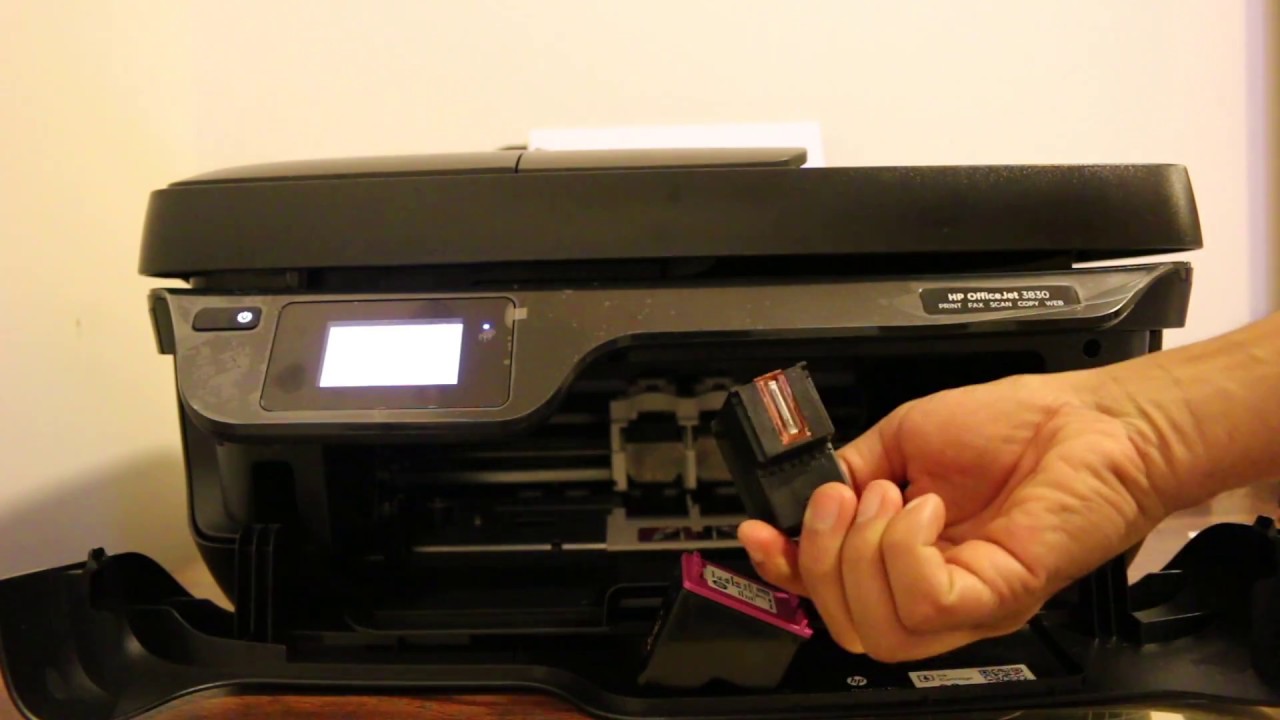
The printer may show errors related to ink cartridges. This happens if cartridges are empty, damaged, or not installed correctly. Remove and reinsert cartridges carefully. Clean the contacts to ensure good connection. Use only genuine HP cartridges for best results. Replace cartridges when ink runs low to avoid print quality issues.
Connectivity Challenges
The HP 3830 can connect via Wi-Fi or USB. Sometimes, the printer fails to connect to the network or computer. Restart the printer and router to reset connections. Check that the printer is on the same Wi-Fi network as your device. Update printer drivers to fix compatibility problems. Using stable internet improves connectivity.
Printer Not Responding
The printer may stop responding and not print any document. This can happen due to software glitches or communication errors. Restart the printer and the computer. Check the print queue and clear any stuck jobs. Reinstall the printer drivers if needed. Keeping software updated prevents this issue.
Blinking Lights Explained
Blinking lights on the HP 3830 indicate different problems. A blinking power light may mean the printer is warming up or has an error. Blinking ink or paper lights signal cartridge or paper jams. Refer to the printer manual for exact blinking patterns. Resolving the cause stops the blinking and restores normal function.
Basic Printer Maintenance
Basic printer maintenance keeps your HP 3830 running smoothly. It helps avoid common printing issues and extends printer life. Regular care ensures better print quality and fewer jams. Follow simple steps to maintain your printer effectively.
Cleaning Paper Pick Rollers
Paper pick rollers pull paper into the printer. Dirt or dust on rollers causes paper jams and feeding problems. Clean rollers with a soft, lint-free cloth dampened with water. Gently rotate rollers while wiping to remove residue. Let rollers dry completely before use.
Checking Paper Quality
Use only good quality paper in your HP 3830. Poor paper causes jams and print errors. Avoid wrinkled, damp, or torn sheets. Store paper in a dry place to keep it fresh. Choose paper that matches printer specifications for best results.
Reloading Paper Correctly
Load paper properly to prevent feeding problems. Align sheets neatly and do not overfill the tray. Adjust paper guides to fit the paper size snugly. Make sure the paper stack is flat and not bent. Proper loading helps smooth printing and fewer errors.
Driver And Software Fixes
Driver and software issues often cause HP 3830 printer problems. Fixing these can restore proper printer function quickly. Many errors result from outdated or corrupted drivers and software. Simple steps like uninstalling old drivers, reinstalling software, and resetting printer settings help resolve issues. These methods require no special skills and save time.
Uninstalling Old Drivers
Start by removing old printer drivers from your computer. Old drivers may conflict with new updates and cause errors. Open the Control Panel and go to “Programs and Features.” Find the HP 3830 driver and select “Uninstall.” Follow the prompts to complete the removal. Restart your computer after uninstalling to clear any leftover files.
Reinstalling Printer Software
Download the latest software for the HP 3830 from the official HP website. Choose the correct version for your operating system. Run the installer and follow the on-screen instructions carefully. This process installs fresh drivers and software files. Reinstalling fixes corrupted files that stop the printer from working well.
Resetting Printer Settings
Resetting the HP 3830 printer settings can fix configuration errors. On the printer’s control panel, open the “Setup” menu. Look for “Restore Defaults” or “Reset Settings.” Select it and confirm the action. This resets all settings to factory defaults. It removes incorrect settings that may block printing tasks.
Credit: www.youtube.com
Power And Connection Checks
Power and connection problems often cause HP 3830 printer issues. Checking these basics can solve many common errors quickly. Start by confirming the printer has power and is properly connected to your device or network. Small steps here save time and prevent frustration.
Disconnecting And Reconnecting Cables
Unplug all cables connected to your HP 3830 printer. This includes the power cord and any USB or Ethernet cables. Wait for about 30 seconds before plugging them back in. Secure all cables firmly to their ports. Loose connections often cause the printer to stop working.
Restarting The Printer
Turn off the printer using the power button. Wait for 10 seconds before switching it back on. Restarting refreshes the printer’s system and clears temporary errors. Avoid unplugging the printer directly without turning it off first.
Verifying Network Connections
Check if your printer is connected to the correct Wi-Fi network. Use the printer’s control panel to view network settings. Ensure your computer or mobile device is on the same network. A stable internet connection helps the printer communicate smoothly with your devices.
Advanced Troubleshooting Steps
Advanced troubleshooting steps help solve complex HP 3830 printer problems. These steps go beyond basic fixes. They focus on deeper issues that may cause printer errors or malfunctions.
Following these steps carefully can save time and avoid unnecessary repairs. Each method targets specific problems and improves printer performance.
Performing A Hard Reset
Start by turning off the printer completely. Unplug the power cord from the outlet. Wait at least 60 seconds to clear the printer memory. Plug the power cord back in and turn the printer on. This reset can fix many hardware and software glitches.
A hard reset clears temporary errors and refreshes the printer system. It is a simple step before trying more complex solutions.
Using Hp Print And Scan Doctor
Download and run the HP Print and Scan Doctor tool from HP’s official website. This software scans your printer for issues automatically. It checks connections, driver problems, and print queue errors.
The tool also offers guided steps to fix detected problems. It works well for common errors and saves time troubleshooting manually.
When To Contact Support
Contact HP support if advanced steps do not fix the printer issue. Persistent errors, hardware failures, or parts replacement needs require professional help.
Provide clear details about the problem and steps already tried. This helps support agents assist you quickly and accurately.

Credit: printertales.com
Frequently Asked Questions
How To Reset Hp Officejet 3830 Printer?
To reset the HP Officejet 3830, turn off the printer and unplug the power cord. Wait 60 seconds, plug it back in, and turn the printer on. This performs a hard reset and clears temporary errors.
What Is The Common Problem Of An Hp Printer?
Common HP printer problems include paper jams, driver issues, ink cartridge errors, and connectivity failures. Regular maintenance helps prevent these.
Is There A Reset Button On Hp Printers?
Most HP printers do not have a dedicated reset button. Use the printer’s menu or power cycle to reset it.
What Does Blinking White Light On An Hp Printer Mean?
A blinking white light on an HP printer indicates it is starting up or processing a print job. Check paper and connections.
What Causes Hp 3830 Printer Paper Jams?
Paper jams happen when paper is wrinkled, torn, or loaded incorrectly. Using the wrong paper type can also cause jams. Always load paper neatly and check for damaged sheets.
Conclusion
Troubleshooting the HP 3830 printer can save you time and stress. Start with simple checks like paper alignment and cartridge status. Restarting the printer often resolves minor glitches quickly. Keep your printer drivers updated for smooth operation. Cleaning the rollers helps prevent paper jams.
If problems persist, reset the printer settings before seeking expert help. Regular maintenance keeps your printer working well. Remember, small steps can fix most common issues easily. Stay patient and follow each step carefully for best results.



