Is your HP laptop battery draining too fast or not charging properly? You’re not alone.
Many HP users face frustrating battery issues that disrupt their work and daily routine. But before you rush to buy a new battery, there are simple troubleshooting steps you can try that might save your battery’s life and your money.
In this guide, you’ll learn how to spot the key signs of a failing HP battery, what causes these problems, and easy fixes you can do yourself. Keep reading to take control of your laptop’s battery health and avoid unexpected shutdowns or slow performance. Your HP laptop deserves to run at its best—and you deserve peace of mind.
Credit: support.hp.com
Signs Of A Failing Hp Battery
A failing HP battery shows clear signs that help identify problems early. Recognizing these signs helps avoid sudden shutdowns and data loss. Batteries lose capacity over time, causing issues that affect laptop use. Check for unusual behavior to know if your battery needs attention.
Rapid Battery Drain
The battery loses charge very fast after a full charge. Your laptop may last only minutes unplugged. This rapid drain means the battery cannot hold power well.
Slow Or No Charging
The battery takes a long time to charge or stops charging. Plugging in the charger does not increase battery percentage. This issue often points to a worn-out or damaged battery.
Unexpected Shutdowns
The laptop turns off suddenly without warning. It happens even when the battery icon shows remaining power. Such shutdowns can cause data loss and indicate battery failure.
Overheating Issues
The battery or laptop bottom feels very hot during use. Excessive heat can harm battery health and reduce lifespan. Overheating may also cause the device to slow down or shut off.
Inaccurate Battery Readings
The battery icon shows wrong percentages or jumps suddenly. For example, it drops from 50% to 10% in seconds. This problem means the battery sensor or battery itself is faulty.
Physical Swelling
The battery or laptop casing looks swollen or bulged. Swelling is a serious issue caused by internal battery damage. Stop using the laptop and replace the battery immediately.
Performance Throttling
The laptop slows down when running on battery power. It may work fine when plugged in but lag on battery. This throttling helps save power but shows battery weakness.
Battery Indicator Lights
Flashing or unusual battery lights on your laptop signal problems. Different blink patterns may indicate battery errors or failure. Check your HP manual for specific light codes.
Common Causes Of Battery Problems
Understanding the common causes of battery problems helps to keep your HP laptop running longer. Batteries can fail or lose capacity due to several everyday factors. Recognizing these causes can help you avoid frequent battery issues.
Lack Of Maintenance
Ignoring battery care reduces its lifespan. Dust and debris can block ventilation, causing overheating. Not updating battery drivers can also create charging problems. Regular cleaning and software updates keep the battery healthy.
Frequent Short Trips
Turning the laptop on and off frequently harms the battery. Short trips do not allow full charge cycles. This practice wears out battery cells faster. Longer use between charges improves battery durability.
Extreme Temperatures
Heat and cold affect battery performance. High temperatures cause the battery to overheat and degrade quickly. Cold can reduce the battery’s ability to hold a charge. Keep your laptop in moderate temperatures for best results.
Battery Overloading
Using too many applications at once drains the battery fast. Charging the battery continuously without breaks stresses the cells. Overloading reduces battery capacity and causes faster wear. Manage your laptop’s workload to prevent this issue.
Aging Battery Cells
Batteries have a limited lifespan, usually a few years. Over time, cells lose the ability to hold a full charge. An old battery will drain quickly and charge slowly. Replacing the battery is often necessary after long use.
Using Hp Diagnostic Tools
HP diagnostic tools help identify battery problems quickly. These tools run tests and provide clear reports. Using them saves time and avoids guesswork. They guide you on the next steps for repair or replacement.
These built-in tools work with most HP laptops. They check battery health, charge cycles, and performance. The results help you understand if the battery needs service or replacement.
Running Hp Battery Check
Start the HP Battery Check from the HP Support Assistant. It runs a quick test to check battery condition. The test shows if the battery is working well or not. It also detects if the battery needs to be replaced. This tool provides easy-to-read results for all users.
Interpreting Failure Id Codes
Failure ID codes appear if the battery test finds an issue. These codes help technicians know the exact problem. You can note these codes and share them with HP support. Each code points to a specific battery fault or error. Understanding these codes speeds up troubleshooting and repair.
Checking Battery Status In Hp Support Assistant
HP Support Assistant shows battery status in a simple dashboard. It displays battery health, charge level, and cycle count. You can see alerts if the battery needs attention. The tool also suggests actions to improve battery life. Checking here helps you keep your battery in good shape.
Credit: www.youtube.com
Basic Battery Fixes
Basic battery fixes can resolve many common HP battery issues quickly. These simple steps help restore battery performance without special tools. Follow these easy methods to improve your laptop’s battery life and reliability.
Performing A Hard Reset
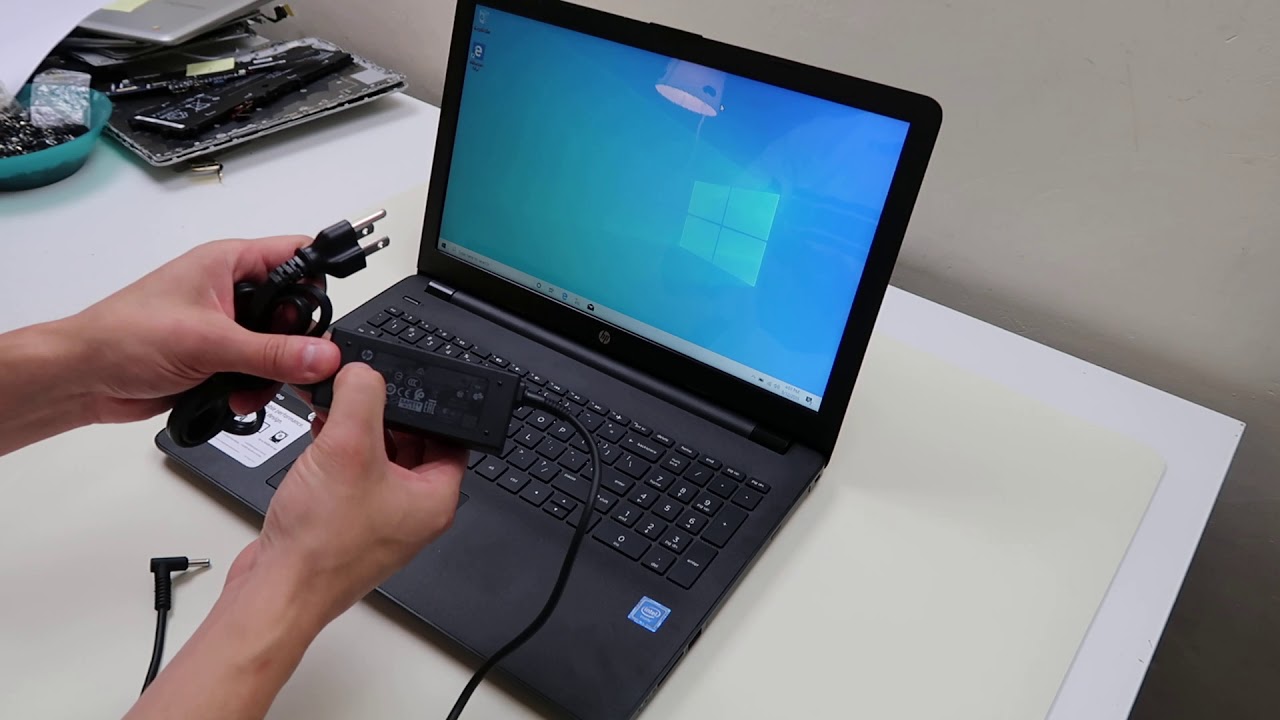
Start by shutting down your HP laptop completely. Unplug the power adapter and remove the battery if it is removable. Press and hold the power button for 15 seconds to drain residual power. Reinsert the battery and connect the charger. Turn on your laptop to check if the battery works better.
Calibrating The Battery
Battery calibration helps the system show accurate charge levels. Charge your laptop fully to 100%. Then, unplug the charger and use the laptop on battery power until it shuts down automatically. After that, recharge the battery to 100% again without interruption. This process resets the battery sensor for better readings.
Discharging The Battery Fully
Allowing the battery to drain completely can fix certain charging problems. Use your laptop on battery power alone until it turns off by itself. Avoid plugging in the charger during this process. Once off, charge the battery fully to 100% before turning the laptop back on. This step helps refresh the battery’s capacity.
Advanced Troubleshooting Steps
Advanced troubleshooting steps help fix complex HP battery problems. These steps go beyond basic checks and require careful attention. Follow each method closely to improve your laptop’s battery performance. The process includes updating software, adjusting settings, and identifying software conflicts that affect battery life.
Updating Bios And Drivers
BIOS and drivers control hardware functions, including battery management. Outdated BIOS or drivers may cause battery errors and reduce battery life. Visit HP’s official website to download the latest BIOS and driver updates for your model. Install updates carefully and restart your laptop to apply changes. This step often resolves charging issues and improves battery stability.
Adjusting Power Settings
Power settings affect how your laptop uses battery power. Open the power options in your control panel. Set the power plan to “Balanced” or “Power Saver” to extend battery life. Disable unnecessary background apps that consume power. Lower screen brightness and reduce sleep time to save battery. Adjusting these settings can make your battery last longer and work better.
Checking For Software Conflicts
Some programs can interfere with battery management. Run a clean boot to start Windows with minimal software. This helps identify if a program causes battery drain or charging problems. Disable or uninstall suspicious software. Also, scan for malware that might affect system performance. Fixing software conflicts often stops unexpected shutdowns and improves battery health.
When To Replace The Battery
Knowing when to replace your HP laptop battery can save you from sudden shutdowns and performance drops. Batteries wear out over time and lose their ability to hold a charge. Replacing the battery restores your laptop’s mobility and reliability. Watch for signs like quick draining, slow charging, or unexpected shutdowns. These hints show your battery may need a replacement soon.
Confirming Battery Failure
Start by checking the battery status through the HP Support Assistant. This tool gives detailed battery health reports. Look for warnings or error messages about battery wear. Another method is to run a battery test in BIOS or use Windows power diagnostics. Observe if the battery drains quickly or does not charge fully. Physical signs like swelling or overheating also confirm failure. If the battery only works when plugged in, it likely needs replacement.
Choosing A Genuine Hp Battery
Use only original HP batteries made for your laptop model. Genuine batteries ensure safety and optimal performance. Third-party batteries may cause damage or fail sooner. Buy from authorized HP sellers or the official HP store. Check battery specifications to match your laptop’s requirements. Genuine batteries come with a warranty and support from HP. Avoid very cheap options that lack quality assurance.
Safe Battery Replacement Tips
Turn off your laptop and unplug it before removing the battery. Work on a clean, flat surface with good lighting. Use proper tools designed for laptop battery removal. Avoid bending or puncturing the battery as it can be dangerous. Dispose of the old battery at a certified recycling center. After installing the new battery, charge it fully before first use. Follow HP’s instructions closely to prevent damage or injury.
Preventing Future Battery Issues
Preventing future battery issues is key to extending your HP laptop’s lifespan. Proper care and good habits keep your battery healthy. Simple steps can avoid many common battery problems. Focus on regular checks and mindful usage. This helps maintain reliable performance and saves you from unexpected shutdowns.
Regular Maintenance Practices
Check your battery health often using HP Support Assistant. Remove dust and debris from battery contacts carefully. Keep your laptop’s software updated for better battery management. Avoid letting your battery drain completely before charging. Perform occasional battery calibration to keep readings accurate.
Optimal Charging Habits
Charge your laptop before the battery gets too low. Unplug the charger once the battery reaches 100%. Avoid overcharging by not leaving the laptop plugged in all day. Use only the original or certified charger for your HP laptop. Charging in short bursts can help reduce battery wear.
Avoiding Extreme Conditions
Keep your laptop away from very hot or cold environments. Avoid direct sunlight or places near heaters. Use your laptop on a hard, flat surface to prevent overheating. Store your laptop in a cool, dry place when not in use. Extreme temperatures can damage battery cells and reduce lifespan.

Credit: www.hp.com
Frequently Asked Questions
How To Reset Hp Laptop Battery?
To reset an HP laptop battery, shut down the laptop and unplug the charger. Remove the battery if removable. Press and hold the power button for 15 seconds. Reinsert the battery and plug in the charger. Turn on the laptop to complete the reset process.
What Are The Three Main Causes Of Battery Failure?
The three main causes of battery failure are lack of regular maintenance, frequent short trips, and exposure to extreme temperatures.
What Are The Signs Of A Failing Hp Laptop Battery?
Signs of a failing HP laptop battery include rapid power drain, slow or no charging, unexpected shutdowns, overheating, inaccurate battery readings, physical swelling, and blinking battery indicator lights. The laptop may only work when plugged in or show error messages prompting battery replacement.
How To Revive An Hp Laptop Battery?
To revive an HP laptop battery, fully charge it, then perform a hard reset by unplugging and holding the power button for 15 seconds. Calibrate the battery using HP Support Assistant. If issues persist, run HP diagnostics and consider battery replacement.
How Can I Check If My Hp Battery Is Failing?
Look for signs like rapid battery drain, slow charging, or unexpected shutdowns. Overheating or a swollen battery are also key indicators. Use HP Support Assistant to run a battery check.
Conclusion
Troubleshooting your HP battery helps keep your laptop running longer. Simple steps like checking battery health and calibrating can solve many issues. Watch for signs like quick draining or overheating to act early. Regular care improves battery life and laptop performance.
Don’t ignore warning signs to avoid sudden shutdowns. With basic troubleshooting, you can often fix problems yourself. Stay patient and follow clear instructions for best results. A healthy battery means more reliable use every day.