
If you own an HP OfficeJet 3830, you know how frustrating it can be when your printer suddenly stops working properly. Maybe your prints come out streaky, the printer won’t connect to Wi-Fi, or you’re stuck with a paper jam that just won’t clear.
Don’t worry—you’re not alone, and most problems have simple fixes. This guide will help you troubleshoot the most common HP OfficeJet 3830 issues step-by-step. By following easy tips and tricks, you’ll save time, avoid extra expenses, and get back to printing with confidence.
Keep reading to discover how to solve your printer troubles quickly and effectively.

Credit: support.hp.com
Common Issues
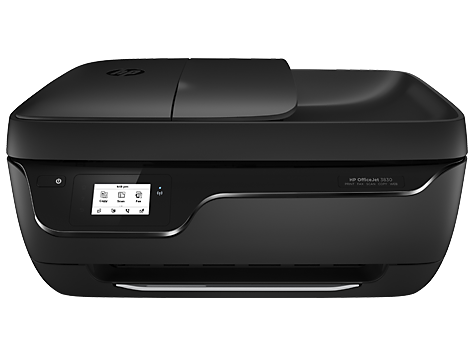
The HP Officejet 3830 is a reliable printer, but users may face some common problems. These issues can disrupt printing tasks and cause frustration. Understanding these problems helps in quick fixes and smooth operation.
This section covers frequent issues with the HP Officejet 3830. It explains causes and simple solutions for each problem.
Paper Jams
Paper jams happen when paper gets stuck inside the printer. This stops printing and shows an error message. Causes include misaligned paper, too much paper loaded, or damaged sheets.
Remove jammed paper gently from all access points. Check paper trays for proper loading. Avoid using torn or curled paper. Clean paper sensors if needed.
Connection Problems
The printer may not connect to Wi-Fi or show as offline. Loose cables, network issues, or incorrect settings cause connection failures. Restart the printer and your device to refresh connections.
Verify the printer is on the correct network. Try reconnecting via USB if Wi-Fi fails. Running the HP “Diagnose & Fix” tool often resolves connection errors.
Print Quality
Printouts may show streaks, faded colors, or uneven text. Low ink, dirty printheads, or wrong paper settings cause poor print quality. Check ink levels and replace cartridges if low.
Clean the printhead using the printer’s maintenance menu or HP app. Use the right paper type and size in settings. Genuine HP ink improves print results.
Ink And Toner
Low ink warnings and smudged prints indicate ink or toner problems. Old or empty cartridges affect print performance. Cartridge leaks can also cause print defects.
Replace cartridges promptly to avoid damage. Inspect cartridges for leaks or damage before installing. Clean printheads regularly to prevent clogs and maintain quality.
Credit: support.hp.com
Paper Jam Fixes
Paper jams disrupt printing and waste time. Fixing jams quickly helps keep your HP Officejet 3830 running smoothly. This section explains simple steps to clear paper jams. Follow these tips to avoid repeated problems and enjoy hassle-free printing.
Removing Jammed Paper
Turn off the printer before removing jammed paper. Open all access doors carefully. Gently pull out stuck paper using both hands. Avoid tearing paper inside the printer. Check the input and output trays for scraps. Close all doors firmly before turning the printer back on.
Checking Paper Sensors
Paper sensors detect jams and stop printing. Clean the sensors with a soft, dry cloth. Remove dust or small paper pieces blocking sensors. Ensure sensors are not damaged or misaligned. Test the printer after cleaning to confirm sensors work well.
Proper Paper Loading
Use clean, flat paper without folds or wrinkles. Load paper correctly into the input tray. Align paper edges and do not overfill the tray. Adjust paper guides to fit the paper size snugly. Avoid mixing different paper types in the tray. Proper loading reduces paper jams significantly.
Connection Fixes
Connection problems often stop the HP Officejet 3830 from working properly. Fixing these connection issues quickly restores printing tasks. This section covers simple and clear solutions to common connection troubles. Follow these easy steps to get your printer back online and ready.
Offline Printer Solutions
Check if your printer shows as offline on your computer. Restart both the printer and your computer. Make sure the printer is set as the default device. Open your printer queue and clear any stuck print jobs. Use the HP Print and Scan Doctor tool for automatic fixes.
Wi-fi Troubleshooting
Confirm your printer is connected to the correct Wi-Fi network. Restart your router to refresh the connection. Move the printer closer to the router to improve signal strength. Re-enter your Wi-Fi password on the printer’s control panel. Use the printer’s wireless setup wizard to reconnect if needed.
Usb Port Checks
Unplug and replug the USB cable connecting your printer to the computer. Try using a different USB port to rule out port issues. Use a different USB cable if possible. Avoid using USB hubs or extension cords. Ensure the cable is firmly connected to both devices.
Print Quality Fixes
Print quality issues can disrupt your work and waste ink. Fixing these problems improves your printer’s output and saves resources. The Hp Officejet 3830 offers easy ways to enhance print quality. Follow these steps to get clear, sharp prints every time.
Cleaning Printheads
Dirty printheads cause streaks and faded colors. Use the printer’s cleaning function found in the settings menu. Run the cleaning cycle once or twice. Avoid manual cleaning unless instructed, as it can damage the printheads. Regular cleaning keeps your prints sharp and consistent.
Checking Ink Levels
Low ink leads to poor print quality. Check ink levels from the printer display or HP software. Replace cartridges that are empty or near empty. Keep spare cartridges ready to avoid interruptions. Full ink tanks ensure vibrant colors and smooth printing.
Using Genuine Supplies
Non-genuine ink or cartridges may cause errors or poor results. Use only HP original supplies for the best performance. Genuine supplies match printer specifications perfectly. This helps avoid clogging and color problems. It also protects your printer’s lifespan.
Adjusting Paper Settings
Wrong paper settings cause smudges and misaligned prints. Select the right paper type and size in the printer’s settings before printing. Use recommended paper for your print job. Proper settings improve ink absorption and print clarity. Always load paper correctly in the tray.
Ink And Toner Solutions
Ink and toner issues often cause poor print quality on the HP Officejet 3830. Solving these problems helps maintain sharp, clear prints. Proper care and timely replacement keep your printer running smoothly. This section covers basic ink and toner solutions for common troubles.
Replacing Cartridges
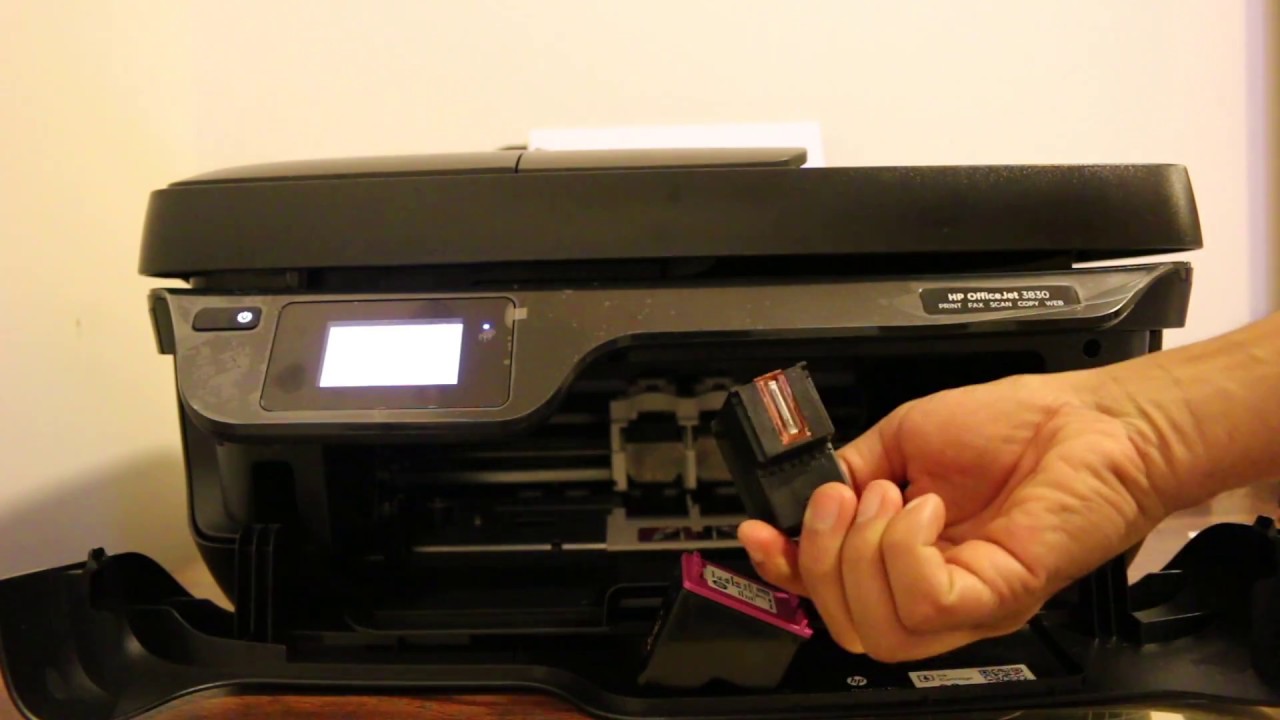
Check ink levels regularly to avoid low ink errors. Open the cartridge access door gently. Remove old cartridges by pressing the release tab. Insert new cartridges firmly until they click in place. Use genuine HP cartridges for best results. After replacing, run a test print to confirm proper installation.
Cleaning Printheads
Clogged printheads cause streaks and faded prints. Use the printer’s built-in cleaning tool from the settings menu. Run the cleaning cycle once or twice as needed. Avoid manual cleaning unless instructed, to prevent damage. Regular cleaning improves ink flow and print quality.
Checking For Leaks
Leaks can cause smudges or ink stains on paper. Inspect cartridges for cracks or damaged seals. Remove cartridges and check for ink spills inside the printer. Wipe any ink residue with a lint-free cloth. Replace any leaking cartridges promptly to protect the printer.
Software And Driver Fixes
Software and driver issues often cause printing problems with the HP Officejet 3830. Keeping the software and drivers up to date ensures smooth communication between your computer and printer. Simple fixes in this area can solve many common errors quickly. This section covers easy steps to update drivers, use the HP Smart app, and fix spooler errors.
Updating Drivers
Outdated drivers cause printing delays or errors. Visit the official HP website to download the latest Officejet 3830 drivers. Choose the correct operating system version before downloading. Run the installer and follow on-screen instructions to complete the update. Restart your computer and printer after installation. Updated drivers improve compatibility and fix bugs.
Using Hp Smart App
The HP Smart app simplifies printer management. Download it from your device’s app store. Open the app and add your Officejet 3830 printer. Use the app to check ink levels, print test pages, and scan documents. The app also detects software issues and suggests fixes. It can run diagnostics and update printer software automatically.
Resolving Spooler Errors
Print spooler errors stop documents from printing properly. Open the Services app on your computer and find “Print Spooler.” Right-click and select “Restart” to refresh the service. If errors persist, clear the spooler folder by deleting files in C:\Windows\System32\spool\PRINTERS. Restart the spooler service again. This resets the printing queue and often fixes stuck jobs.
Resetting The Printer
Resetting the HP Officejet 3830 printer can solve many common problems. It clears errors and restores default settings. This step is useful when the printer does not respond or behaves strangely. There are several ways to reset the device. Choose the method that fits your situation best.
Factory Reset Steps
Turn on the printer and wait until it is idle. Open the Setup menu on the printer’s control panel. Find and select the “Restore Factory Defaults” option. Confirm your choice to start the reset process. The printer will reboot automatically. After reboot, check if the issue is fixed.
Button Combination Methods
Turn off the printer. Press and hold the Power button and Cancel button together. While holding, press the Resume button three times. Release all buttons at once. The printer will power off and then restart. This method resets some settings without a full factory reset.
Using Hp Smart App For Reset
Open the HP Smart app on your phone or computer. Select your HP Officejet 3830 printer. Go to the printer settings or tools menu. Look for the option to reset or restore defaults. Follow the on-screen instructions to complete the reset. The app provides a simple way to reset remotely.
General Maintenance
General maintenance is essential for keeping your HP Officejet 3830 running smoothly. Regular care helps prevent common issues and extends the printer’s lifespan. Simple steps can maintain print quality and reduce downtime. Following basic maintenance routines saves time and avoids frustration.
Power Cycling Devices
Power cycling resets your printer and clears temporary glitches. Turn off the printer and unplug it from the power source. Wait for about 60 seconds before plugging it back in. Turn the printer on and check if the issue is resolved. This quick step can fix many common problems.
Regular Cleaning
Cleaning your printer prevents dust and ink buildup. Use a soft, lint-free cloth to wipe the exterior. Open the printer and gently clean the paper feed rollers. Remove any debris or dust inside the printer. Clean the printhead through the printer’s software or control panel. Regular cleaning ensures better print quality and fewer jams.
Firmware Updates
Firmware updates improve printer performance and add fixes. Check HP’s website or use the HP Smart app to find updates. Download and install the latest firmware for your Officejet 3830. Keeping firmware updated helps avoid bugs and improves connectivity. Update regularly for best results.
Credit: www.youtube.com
Frequently Asked Questions
What Is The Common Problem Of An Hp Printer?
Common HP printer problems include paper jams, connectivity issues, poor print quality, and low or clogged ink/toner cartridges.
Is There A Reset Button On Hp Officejet 3830?
The HP Officejet 3830 has no dedicated reset button. Reset using button combos or the Setup menu’s Restore Factory Defaults.
Is There A Reset Button On Hp Printers?
HP printers don’t have a single reset button. Resetting uses button combos or menu options, like Power, Cancel, and Wireless buttons. You can also restore factory defaults via the Setup or Maintenance menu. Reset steps vary by model and reset type (Wi-Fi or full factory reset).
Why Will My Hp Officejet 3830 Not Print?
Your HP Officejet 3830 may not print due to paper jams, low ink, offline status, outdated drivers, or connectivity issues. Restart the printer, check ink levels, clear jams, ensure network connection, and update drivers using the HP Smart app or “Diagnose & Fix” tool.
How To Fix Hp Officejet 3830 Paper Jam Errors?
Clear jammed paper gently from trays and inside the printer. Check sensors and reload paper correctly. Avoid overloading the paper tray to prevent jams.
Conclusion
Troubleshooting the HP Officejet 3830 can be simple with clear steps. Check connections, ink levels, and paper loading first. Use the HP Smart app for quick fixes and updates. Regular cleaning and proper maintenance keep the printer working well. Stay patient and follow each step carefully.
This approach helps solve common problems fast. Your printer will be ready to print smoothly again.



