
Are you frustrated because your HP printer won’t recognize the ink cartridge or keeps showing error messages? You’re not alone.
Many users face common ink cartridge problems that stop their printer from working properly, causing delays and wasted paper. But don’t worry—you can fix these issues quickly with simple steps. You’ll learn easy and effective troubleshooting tips to get your HP printer back to printing smoothly.
Whether it’s a cartridge error, clogged printhead, or firmware glitch, you’ll find clear solutions that anyone can follow. Keep reading to take control of your printer problems and save time and money!
Common Ink Cartridge Errors
Ink cartridge errors are a frequent issue for HP printer users. These errors disrupt printing and cause frustration. Understanding common problems helps fix them quickly. Below are typical ink cartridge errors and simple ways to address them.
Low Ink Messages
Printers often show low ink warnings even with ink left inside. This happens when the cartridge chip misreads ink levels. Sometimes, shaking the cartridge gently can help redistribute ink. Reinstalling the cartridge properly also clears false warnings. Ignoring these messages may lead to poor print quality or stopped printing.
Cartridge Not Recognized
Your HP printer may not recognize a new cartridge. This can occur if the cartridge is not genuine or incorrectly installed. Dirt or dried ink on cartridge contacts blocks communication with the printer. Cleaning the contacts with a soft cloth can fix this. Also, remove and reinsert the cartridge firmly to ensure good connection.
Printing Issues After Cartridge Change
Problems often start right after replacing an ink cartridge. Prints may come out streaked, faded, or with missing colors. The cartridge might have air bubbles or clogged nozzles. Running the printer’s cleaning cycle often restores print quality. Restart the printer if problems continue. Checking for protective tape on the cartridge is important before installation.
Basic Troubleshooting Steps
Basic troubleshooting steps help fix common ink cartridge problems in HP printers. These steps are simple and fast. They often solve errors without needing expert help.
Try these steps first before calling support. They clear minor issues that block printing. Follow each step carefully for best results.
Power Reset Procedure
Turn on the printer. Unplug the power cord from the wall and printer. Wait 60 seconds to let the printer reset. Plug the power cord back into the wall first, then the printer. Turn the printer on. This clears temporary glitches and refreshes the system.
Reseat And Clean Cartridges
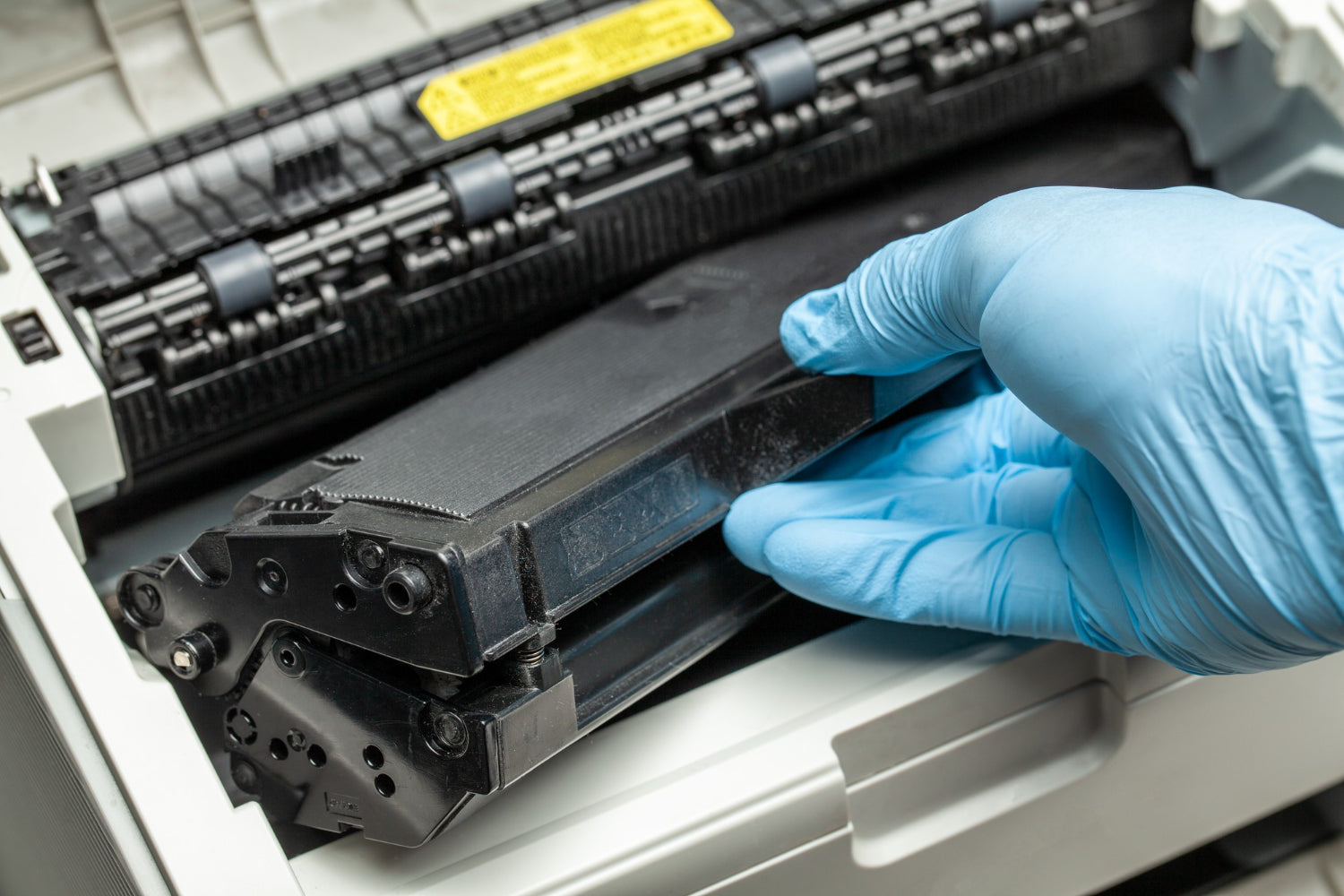
Open the printer cover. Remove the ink cartridges carefully. Check for protective tape and remove it. Use a soft, lint-free cloth to clean cartridge contacts. Place cartridges back firmly into their slots. Close the cover and try printing. This fixes connection issues between cartridges and printer.
Run Alignment Utility
Access the printer’s control panel or software on your computer. Find the option for printer maintenance or tools. Select the “Align Printer” or “Print Alignment Page” option. Follow the on-screen instructions to complete alignment. Proper alignment improves print quality and cartridge performance.
Handling Cartridge Compatibility
Handling cartridge compatibility is key for smooth printing with your HP printer. Using the right ink cartridge ensures your device works well. Incorrect cartridges can cause errors and poor print quality. Follow these simple steps to handle cartridge compatibility and keep your printer running smoothly.
Verify Cartridge Model
Check the cartridge model before installing it. Use cartridges that match your printer model exactly. Look at the printer manual or official HP website for the correct cartridge number. Using the wrong model causes errors or no printing at all. Always buy genuine or compatible cartridges approved for your printer.
Remove Protective Tape
New cartridges have protective tape covering the ink nozzles or contacts. Remove this tape carefully before installation. Leaving the tape on blocks ink flow and stops the printer from recognizing the cartridge. Peel the tape off gently without touching the copper contacts. This simple step avoids many cartridge issues.
Replace Faulty Cartridges
Cartridges can fail due to age or damage. Replace any cartridge that causes error messages or poor prints. Avoid refilling old cartridges as they may leak or clog. Use new cartridges for best results. After replacing, run a print test to check quality and printer response.

Credit: www.youtube.com
Fixing Printhead Problems
Fixing printhead problems is essential for clear and consistent printing. The printhead controls how ink moves onto the paper. When it has issues, print quality drops or printing stops. This section guides you through simple steps to resolve common printhead problems.
Cleaning Printhead
Cleaning the printhead removes blockages and improves ink flow. Use the printer’s built-in cleaning tool found in the settings menu. Run the cleaning cycle once or twice for best results. For stubborn clogs, gently wipe the printhead with a lint-free cloth and distilled water. Avoid touching the nozzles directly to prevent damage.
Dealing With Dried Ink
Dried ink causes streaks and missing colors on prints. Remove the ink cartridges and soak the printhead in warm water for a few minutes. This softens the dried ink and helps clear blockages. Dry the printhead completely before reinstalling it. Regular printing keeps ink flowing and prevents drying.
Print Quality Checks
Perform print quality checks after cleaning or fixing the printhead. Print a test page from the printer menu. Look for missing lines, streaks, or faded colors. If issues persist, repeat cleaning or check ink levels. Consistent checks ensure your printer works at its best every time.
Updating Printer Firmware
Updating your HP printer firmware keeps your device running smoothly. Firmware controls how your printer works. New updates fix bugs and improve performance. Regular updates help prevent ink cartridge issues and improve compatibility with new cartridges.
Check Firmware Version
First, find out your current firmware version. On the printer control panel, open the setup or settings menu. Look for “Printer Information” or “About Printer.” The firmware version is listed there. Write it down to compare with the latest version.
Update Via Hp Smart App
Use the HP Smart app for easy updates. Connect your printer to the app on your smartphone or computer. In the app, find the “Printer Update” or “Firmware Update” option. Follow the on-screen instructions to download and install the latest firmware. Make sure your printer stays on during the update.
Benefits Of Firmware Updates
Firmware updates fix bugs that cause ink cartridge errors. They improve printer speed and print quality. Updates also add support for new cartridges and reduce error messages. Keeping firmware current helps your printer last longer and work better.

Credit: www.youtube.com
Resetting Ink Cartridge Chips
Resetting ink cartridge chips can help solve common printing errors. These chips store information about ink levels and cartridge status. Sometimes, the chip may fail or show incorrect data. Resetting the chip lets the printer recognize the cartridge as new. This process can extend cartridge life and avoid error messages.
Resetting involves removing the cartridge, using a chip resetter, and reinstalling the cartridge. Each step must be done carefully to avoid damage. Follow the instructions below to reset the ink cartridge chip safely and effectively.
Removing The Cartridge
Turn on the printer and open the cartridge access door. Wait for the carriage to stop moving. Gently press down on the cartridge to release it. Carefully pull the cartridge straight out. Avoid touching the copper contacts or nozzles. Place the cartridge on a clean surface.
Using A Chip Resetter
Obtain a compatible chip resetter for your HP cartridge model. Align the chip on the cartridge with the resetter contacts. Hold the cartridge firmly against the resetter. Press the reset button or follow the device instructions. Wait until the resetter signals completion. This clears the chip data, making the cartridge appear new.
Reinstalling And Testing
Slide the cartridge back into its slot. Press gently until it clicks in place. Close the cartridge access door. Turn the printer on if it was off. Print a test page to check ink levels and functionality. The printer should now recognize the cartridge without errors.
Overriding Cartridge Errors
Ink cartridge errors can stop your HP printer from working. These errors appear when the printer does not recognize the ink cartridge. Overriding cartridge errors lets you keep printing without delays. This guide will help you fix these errors quickly and simply.
Accessing Printer Settings
Start by turning on your HP printer. Use the control panel or touchscreen to open the main menu. Look for the “Settings” option and select it. This menu holds important tools to manage your printer. Accessing settings is the first step to fix cartridge issues.
Navigating Printer Maintenance
Inside the settings menu, find “Printer Maintenance” or “Tools.” This section lets you run cleaning cycles and check ink levels. Use these tools to clear blockages or errors in the cartridge. Maintenance options help your printer work smoothly again.
Accepting Web Service Terms
Some HP printers require you to accept web service terms to override errors. Find the “Printer Update” or “Web Services” section in settings. Read the terms carefully, then accept them. This step allows the printer to update and fix cartridge problems automatically.
Credit: inkandrolls.com.au
Driver And Software Solutions
Driver and software problems often cause ink cartridge errors on HP printers. These issues stop the printer from recognizing the cartridge. Fixing them can restore smooth printing. Below are simple steps to handle driver and software problems effectively.
Restarting Printer And Computer
Turn off your printer and computer. Wait for 30 seconds. Power them back on. This refreshes the connection between devices. Restarting can clear temporary glitches in the system. It is the easiest way to fix many printer errors.
Updating Printer Drivers
Outdated drivers cause communication problems with the printer. Visit the HP official website or use the HP Support Assistant tool. Download and install the latest drivers for your printer model. Updated drivers improve compatibility and fix bugs. This step ensures your printer works well with your computer.
Reinstalling Printer Software
Uninstall the current printer software from your computer. Restart the computer after removal. Download the latest printer software from HP’s website. Install the software carefully following the instructions. Reinstalling clears corrupted files that block printer functions. This method often resolves ink cartridge detection issues.
Frequently Asked Questions
Why Is My Hp Printer Not Recognizing The Ink Cartridge?
Your HP printer may not recognize the ink cartridge due to improper installation, protective tape on the cartridge, or dirty contacts. Use compatible cartridges, clean contacts gently, reinstall securely, and restart the printer. Replace faulty cartridges if the issue continues.
How To Reset Hp Printer Ink Cartridge?
Remove the ink cartridge from the printer. Use a compatible chip resetter on the cartridge chip. Follow the resetter’s instructions. Reinstall the cartridge securely. Power on the printer and check the ink level to confirm reset success.
How To Override Hp Ink Cartridge Error?
To override an HP ink cartridge error, access printer settings, select printer maintenance, then update the printer. Accept the web service terms. Also, power reset the printer, clean cartridge contacts, and reinstall cartridges securely. Replace faulty or incompatible cartridges to resolve persistent errors.
Why Is My Hp Printer Not Working After Changing Ink Cartridges?
Your HP printer may not work after changing ink cartridges due to improper seating, leftover protective tape, or incompatible cartridges. Clean contacts, reinstall cartridges securely, restart the printer, and update drivers to fix the issue. Replace faulty cartridges if problems persist.
Why Does My Hp Printer Not Recognize The Ink Cartridge?
The printer may show errors if the cartridge is not installed correctly. Clean the cartridge contacts and reinstall it firmly. Updating or reinstalling the printer driver can also help.
Conclusion
Troubleshooting HP ink cartridge issues can feel frustrating but is often simple. Check cartridge placement and clean contacts carefully. Restarting the printer helps refresh its system. Updating drivers can solve recognition problems fast. Following these steps improves printing quality and reduces errors.
Keep cartridges and printer clean to avoid future trouble. Small fixes often restore your printer’s full function quickly. Stay patient, and your HP printer will print smoothly again.



