Is your HP printer acting up right when you need it most? Whether it’s stubborn paper jams, faded prints, or connection issues that leave you frustrated, you’re not alone.
These common problems can disrupt your workflow and drain your patience. But here’s the good news: many HP printer issues are easier to fix than you think. In this guide, you’ll discover simple, step-by-step troubleshooting tips that put you back in control.
From clearing jams to restoring sharp print quality and fixing connectivity hiccups, you’ll learn practical solutions that save time and money. Ready to turn your printer headaches into hassle-free printing? Let’s dive in and get your HP printer working smoothly again.

Credit: www.hp.com
Common Hp Printer Issues
HP printers are popular for their reliability and quality. Yet, users often face common issues. These problems can disrupt printing tasks and cause frustration. Understanding these issues helps solve them quickly. This section covers frequent HP printer problems and easy fixes.
Paper Jams
Paper jams stop printing and cause errors. They happen when paper is loaded incorrectly or is damaged. Remove jammed paper gently from all areas. Check paper trays for proper loading. Avoid overfilling trays. Clean paper sensors if needed. Using the right paper type reduces jams.
Connection Problems
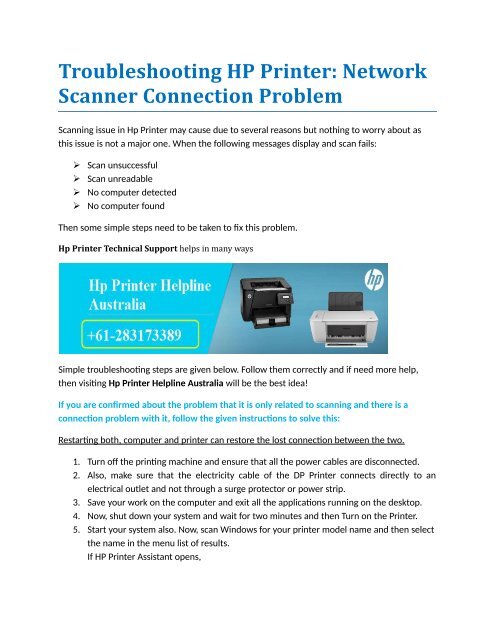
Connection issues cause printers to appear offline. This can be due to Wi-Fi or cable problems. Restart the printer and computer. Check if cables are securely connected. Confirm the printer is on the correct network. Try a different USB port if using a wired connection. Run HP’s “Diagnose & Fix” tool for help.
Print Quality Problems
Print quality issues include streaks, faded prints, or wrong colors. These may result from low ink or dirty printheads. Check ink or toner levels regularly. Clean printheads using printer settings or HP apps. Inspect cartridges for damage or leaks. Use the correct paper type and size. Genuine HP supplies improve print results.
Ink And Toner Issues
Ink and toner problems cause smearing or empty cartridge warnings. Replace cartridges if ink is low or expired. Clean printheads to prevent clogs. Check cartridges for damage or leaks before installing. Always use compatible HP ink or toner for best performance. Proper storage of cartridges extends their life.
Fixing Paper Jams
Paper jams disrupt printing and waste time. Fixing them quickly helps keep your HP printer working smoothly. This section guides you through simple steps to clear jams and prevent them.
Removing Jammed Paper
Turn off the printer before starting. Open all access doors and trays. Gently pull out the stuck paper. Pull slowly to avoid tearing. Check inside the printer for small pieces. Remove any scraps carefully to prevent future jams.
Checking Paper Sensors
Paper sensors detect paper movement inside the printer. Dust or debris can block these sensors. Clean sensors with a soft, dry cloth. Avoid touching sensor lenses directly. Clear any obstructions that may stop sensors from working properly.
Proper Paper Loading
Use the right paper type and size. Fan the paper stack to avoid sticking. Align paper edges before placing them in trays. Do not overload the tray beyond its limit. Adjust paper guides to fit the paper snugly. Proper loading reduces the chance of jams and keeps printing smooth.
Resolving Connectivity Problems
Connectivity problems often stop your HP printer from working. These issues block printing tasks and cause frustration. Fixing them quickly restores your printer’s function. This guide helps solve common connection troubles step-by-step.
Offline Printer Errors
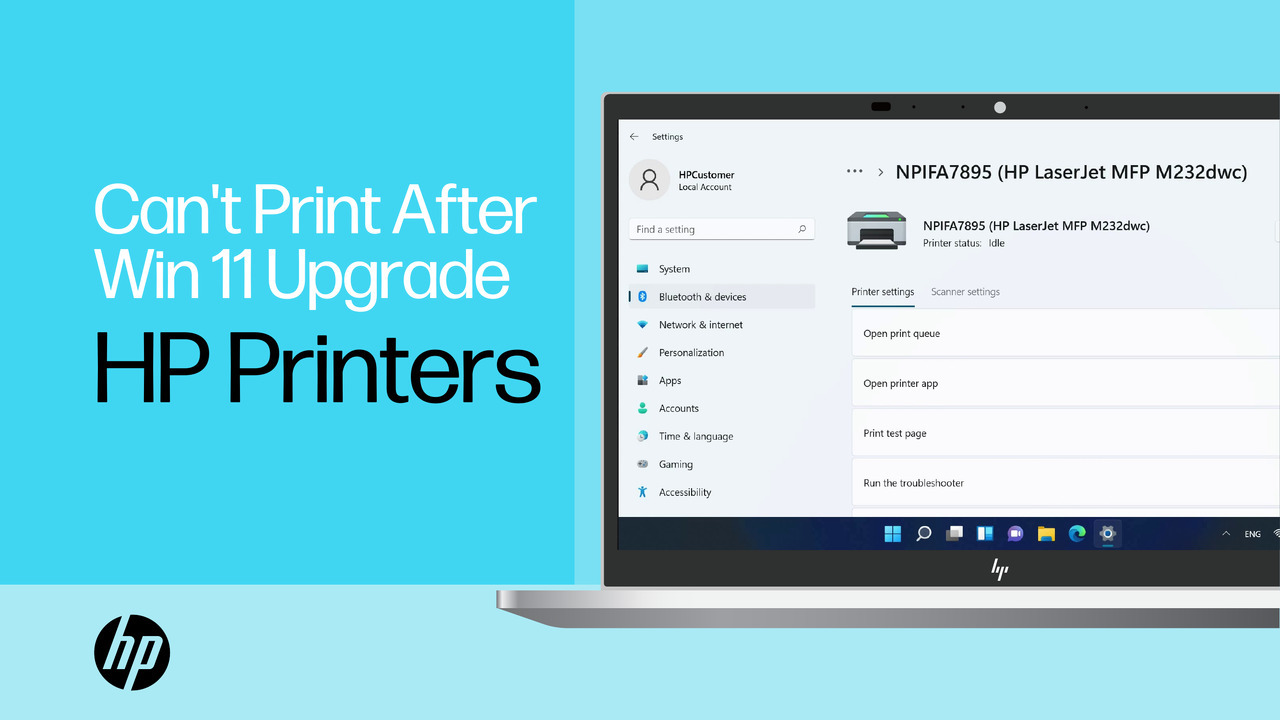
Your printer may show as offline even when turned on. This error means your computer cannot find the printer on the network. Restart both the printer and your computer first. Check the printer’s display for any error messages. Ensure the printer is set as the default device in your computer’s settings. Clear the print queue to remove stuck jobs. Run the HP Print and Scan Doctor tool to detect issues automatically.
Wi-fi Connection Issues
Wireless problems stop your printer from connecting to your router. Confirm the printer is within Wi-Fi range and no obstacles block the signal. Reboot your router and printer to refresh connections. Verify the printer connects to the correct Wi-Fi network name (SSID). Enter the Wi-Fi password carefully if required. Update the printer’s firmware to fix bugs. Use the HP Smart app to help reconnect your printer easily.
Usb And Network Checks
Wired connections need careful checking to work properly. Inspect the USB cable for damage and try a different port on your computer. Use a high-quality cable to avoid signal loss. For network printers, check Ethernet cables and switches. Confirm network settings match your printer’s IP address. Disable any VPNs or firewalls that may block the printer. Testing another computer with the same setup can rule out device-specific problems.
Credit: support.hp.com
Improving Print Quality
Improving print quality is key to getting clear and sharp documents from your HP printer. Poor print quality can waste ink and paper. It also delays your work. Simple steps can fix many print issues. These include cleaning printheads, checking ink or toner, and setting the right paper type. Follow these tips to make your prints look their best every time.
Cleaning Printheads
Printheads can clog over time. This causes streaks or missing lines in prints. Clean the printheads regularly to keep prints clear. Use the printer’s built-in cleaning tool. This can be found in the printer settings or HP software. Run the cleaning cycle once or twice. Avoid opening the printer and cleaning manually unless instructed. Proper cleaning restores ink flow and improves print quality.
Checking Ink And Toner Levels
Low ink or toner causes faded or light prints. Check levels often to avoid poor print results. Use the printer display or HP app to see current ink or toner status. Replace cartridges that are empty or near empty. Always use genuine HP ink and toner for best results. This ensures smooth printing and avoids damage to the printer.
Using Correct Paper Settings
Paper type affects how ink or toner sticks to the page. Set the correct paper type in the printer settings. Choose options like plain paper, photo paper, or labels depending on your paper. Incorrect settings lead to smudges, streaks, or slow drying. Also, select the right paper size. Match it exactly with the paper loaded in the tray. Proper paper settings improve print clarity and color accuracy.
Handling Ink And Toner
Handling ink and toner correctly is key to keeping your HP printer working well. Proper care of these supplies helps avoid print problems and keeps colors sharp. Knowing how to replace cartridges, spot damage, and use genuine products saves time and money. Follow simple steps to maintain your printer’s performance and print quality.
Replacing Cartridges
Replace cartridges when ink or toner runs low. Open the printer cover and remove the old cartridge carefully. Insert the new cartridge firmly until it clicks. Close the cover and run a test print. This keeps prints clear and prevents damage from empty cartridges.
Detecting Cartridge Damage
Check cartridges for cracks, leaks, or dried ink. Damaged cartridges cause streaks and poor print quality. Remove the cartridge and inspect it under good light. Replace any cartridge showing damage to avoid printer jams or ink spills. Clean contacts gently before reinstalling.
Using Genuine Hp Supplies
Use only genuine HP ink and toner cartridges. Non-genuine supplies may cause errors or damage your printer. Genuine cartridges ensure the best print quality and longer printer life. They also work smoothly with your HP printer’s software and settings. Avoid refilled or counterfeit cartridges for reliable results.
Credit: www.yumpu.com
Software And Driver Tips
Software and driver issues often cause HP printer problems. Keeping drivers up to date ensures smooth printer operation. Using the right tools can help identify and fix software glitches. Addressing spooler errors improves printing reliability. These tips make troubleshooting easier and faster.
Updating Drivers
Visit the official HP website to download the latest drivers. Choose your printer model and operating system carefully. Updated drivers fix bugs and add new features. Install drivers by following the on-screen instructions. Restart your computer after installation for best results.
Using Hp Diagnose & Fix Tool
The HP Diagnose & Fix tool scans your printer for issues. It detects problems with connection, print quality, and hardware. Download the tool from HP’s support page. Run the tool and follow its guidance to repair errors. This tool saves time by automating troubleshooting steps.
Resolving Spooler Errors
Spooler errors block print jobs from processing properly. Open the Services app on your computer. Find the Print Spooler service and stop it. Clear the spooler folder by deleting all files inside. Restart the Print Spooler service to resume printing. This method fixes common printing delays and errors.
General Maintenance
General maintenance keeps your HP printer running smoothly. Regular care prevents common issues and extends device life. Simple steps help avoid costly repairs and downtime. Follow these key tasks to maintain your printer’s performance.
Power Cycling Devices
Power cycling means turning your printer off and on again. This resets the internal memory and clears minor errors. Always turn off the printer first, wait 30 seconds, then turn it back on. Power cycling also applies to your computer and router if you use wireless printing. This step solves many connectivity and printing problems quickly.
Firmware Updates
Firmware is the software inside your printer. HP releases updates to fix bugs and improve features. Check for updates regularly through the printer’s control panel or HP software. Installing updates keeps your printer secure and compatible with your devices. Avoid skipping updates to prevent unexpected errors or slow performance.
Regular Cleaning
Cleaning your printer removes dust and ink buildup that cause jams and poor print quality. Use a soft cloth and avoid harsh chemicals. Clean the paper feed rollers, printhead, and cartridge contacts gently. Regular cleaning ensures smooth paper feeding and sharp prints. Follow the cleaning instructions in your printer manual for best results.
Troubleshooting Printer Lights
Printer lights often signal specific issues with your HP printer. Understanding these lights helps you fix problems fast. Lights may blink or show colors like red, green, or orange. Each pattern means something different. Knowing how to read them saves time and frustration. This guide explains common printer light alerts and easy fixes.
Interpreting Ink Alerts
Ink alert lights warn about low or empty cartridges. A blinking orange light usually means ink is low. A solid red light often shows a cartridge error. This error could be a wrong cartridge or one that is not installed properly.
Check cartridge levels using the printer software or display. Replace cartridges that are empty or damaged. Clean cartridge contacts gently to ensure good connection. Using original HP ink helps prevent errors and improves print quality.
Resetting The Printer
Resetting the printer can clear many light errors. First, turn off the printer and unplug it from the power source. Wait for about 60 seconds. Plug the printer back in and turn it on.
This process clears memory and resets hardware. It often stops blinking lights and resolves minor issues. If problems continue, try a full factory reset through printer settings or consult the user manual. Resetting is a simple step to refresh your printer’s system.
Frequently Asked Questions
What Is The Common Problem Of An Hp Printer?
Common HP printer problems include paper jams, connection errors, poor print quality, and low or clogged ink cartridges.
What Do The Flashing Lights On My Hp Printer Mean?
Flashing lights on your HP printer indicate issues like low ink, cartridge errors, paper jams, or connectivity problems. Check ink levels, cartridge compatibility, paper loading, and network connections to resolve the alerts quickly. Use the HP Smart app for guided troubleshooting and fixes.
Where Is The Reset Button On An Hp Printer?
The reset button on an HP printer is usually inside the printer’s control panel or accessible via the power button. Some models lack a dedicated reset button and require a power cycle to reset. Check your printer manual for exact location and reset instructions.
Why Is My Hp Printer Connected But Not Printing?
Your HP printer may connect but not print due to driver issues, low ink, paper jams, or network problems. Restart devices, check ink levels, clear jams, and update drivers. Use HP’s “Diagnose & Fix” tool for troubleshooting.
What Causes Hp Printer Connection Problems And How To Fix Them?
Connection issues often arise from Wi-Fi or cable problems. Restart the printer and router, check cables, and reconnect to the correct network. Using HP’s Diagnose & Fix tool can also help resolve these errors.
Conclusion
Troubleshooting HP printers becomes easier with simple, clear steps. Check connections and paper loading first. Keep ink and toner levels in mind. Clean printheads regularly to avoid streaks or faded prints. Update drivers to ensure smooth operation. Use HP’s diagnostic tools for quick fixes.
Small actions often solve common printer issues fast. Stay patient and follow these tips for better printing. Your HP printer can work well with basic care and attention.