
Are your iMessages suddenly not sending or showing up as green texts instead of blue? It’s frustrating when your favorite way to chat with friends and family starts acting up.
You rely on iMessage for quick, secure, and seamless conversations, so when it stops working, you want answers fast. The good news is, most iMessage glitches are easy to fix once you know what to check and how to troubleshoot.
You’ll discover simple steps you can take right now to get your iMessage back on track—whether it’s a connection problem, settings issue, or something else. Keep reading and regain control over your messaging experience today.
Common Imessage Issues
iMessage is a popular messaging service used by millions. It often works flawlessly but can face issues. Common problems may disrupt your messaging experience. Understanding these issues helps you fix them quickly. Below are some frequent iMessage troubles and how they appear.
Imessage Not Sending
Sometimes iMessages do not send at all. The message may show a red exclamation mark or say “Not Delivered.” This can happen due to poor internet or server problems. Restarting your device often helps. Check your Wi-Fi or cellular connection. Also, ensure iMessage is enabled in Settings.
Messages Sending As Green Texts
iMessages usually appear in blue bubbles. Green bubbles mean the message was sent as a regular SMS. This happens if the recipient uses a non-Apple device or iMessage is off. Network issues may also cause this. Confirm your contact’s device and settings. Switching Airplane Mode on and off can restore iMessage.
Problems With Specific Contacts
Issues may occur with only one or a few contacts. Messages might not send or receive properly. First, check you have the correct phone number or email. Deleting old conversation threads can help. Also, verify the contact is not blocked. Both you and your contact should toggle iMessage off and on. Signing out and back into Apple ID may fix syncing problems.

Basic Fixes
Basic fixes solve most iMessage issues quickly. These steps reset core functions and check essential settings. Follow them before trying advanced troubleshooting.
Restart Imessage And Facetime
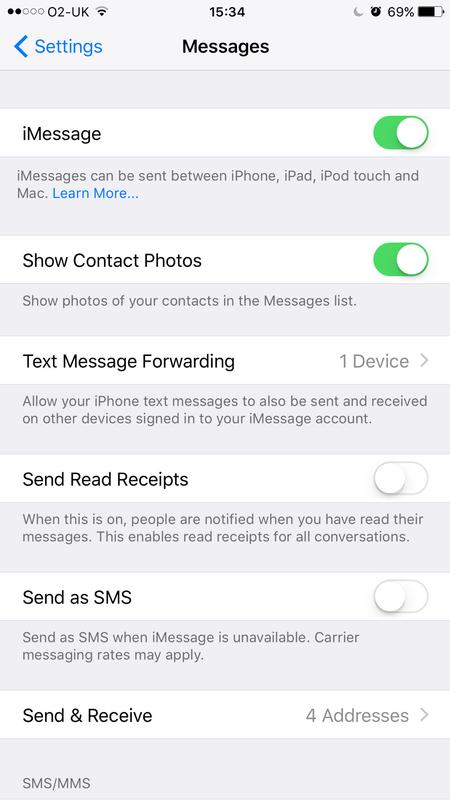
Turn off iMessage and FaceTime in Settings. Wait a few seconds. Restart your iPhone. Turn iMessage and FaceTime back on. This refresh often clears temporary glitches.
Check Apple System Status
Visit Apple’s System Status page online. Look for any outages or maintenance affecting iMessage. If Apple services are down, wait until they fix the problem. Your iMessage will work again automatically.
Verify Contact Details
Open a conversation with the contact. Tap their name or number at the top. Make sure the blue iMessage icon appears next to their info. If not, they may not use iMessage or have changed their details. Correct contact info ensures messages send properly.
Troubleshooting Contact Issues
Contact issues can disrupt your iMessage experience. Messages may not send or appear in blue bubbles. These problems often stem from incorrect contact information or blocked numbers. Fixing them involves a few simple checks and adjustments. Follow these steps to resolve contact-related iMessage troubles quickly.
Delete And Restart Conversation
Deleting the current message thread can clear hidden glitches. Open the Messages app and swipe left on the conversation. Tap “Delete” to remove the chat. Then, start a new message by tapping the compose icon. Enter the contact’s phone number or email carefully. This refresh helps iMessage recognize the contact properly.
Check Blocked Contacts List
Blocked contacts cannot send or receive iMessages. To check, open Settings and tap Messages. Scroll to “Blocked Contacts” and review the list. If your contact is on this list, swipe left and tap “Unblock.” After unblocking, try sending a message again. This often fixes the issue immediately.
Confirm Contact’s Imessage Settings
Sometimes the problem is on the other side. Ask your contact to check their iMessage settings. They should go to Settings > Messages and ensure iMessage is turned on. They must be signed in with their Apple ID. Also, verify their “Send & Receive” addresses include the correct phone number or email. This ensures messages route properly between devices.

Advanced Troubleshooting
Knowing the right moment to contact Apple Support can save time and frustration. Some iMessage issues need expert help beyond basic troubleshooting. Recognizing these situations helps you get the right support fast.
Account-level Issues
Problems with your Apple ID often cause iMessage to fail. Issues like account lockouts or verification errors require Apple’s direct assistance. Support can check your account status and fix sign-in problems. They also help if your Apple ID has been compromised. These problems usually cannot be solved by simple resets or device restarts.
Persistent Problems Despite Fixes
Sometimes, iMessage troubles continue even after trying all usual fixes. Restarting your device, toggling iMessage off and on, or resetting network settings may not work. Persistent bugs or software glitches might be behind the issue. Apple Support can run diagnostics and suggest advanced solutions. They can also guide you through reinstalling iOS or replacing hardware if needed.
Frequently Asked Questions
Why Is My Imessage Not Working?
IMessage may not work due to network issues, incorrect contact info, or disabled iMessage settings. Restart your device, toggle iMessage off/on, and check your Apple ID and network settings. Verify the recipient uses iMessage and isn’t blocked. Visit Apple’s System Status page to check for outages.
How Do I Reboot My Imessage?
To reboot iMessage, go to Settings, turn off iMessage and FaceTime. Restart your iPhone. Then, turn iMessage and FaceTime back on.
Why Is My Imessage Not Working For One Person?
Your iMessage may fail for one person due to incorrect contact info, blocked status, or their iMessage settings. Delete the chat, verify their details, and restart devices. Toggle iMessage and FaceTime off/on, sign out/in of Apple ID, and reset network settings to fix the issue.
Why Are My Imessages Sending As Green Texts?
IMessages send as green texts when your message uses SMS instead of iMessage. This happens if the recipient isn’t using Apple devices, iMessage is off, or there’s no internet connection. Check your network and ensure iMessage is enabled in Settings to fix this.
Why Is My Imessage Not Sending Messages?
IMessage may not send if you have no internet or Apple server issues. Check your Wi-Fi or cellular connection first. Restarting your device often fixes this problem quickly.
Conclusion
IMessage problems can be fixed with simple steps. Restart your device and check your settings first. Make sure you use the correct contact info. Turning iMessage off and on often helps. Signing out and back into Apple ID can solve issues.
Deleting old message threads may clear glitches. Always check if your internet connection works. These tips help keep your messages flowing smoothly. Stay patient and try each step carefully. Troubleshooting iMessage becomes easier with practice. Keep your device updated for the best experience.



