
Is your iPad screen acting up—flickering, unresponsive, or even completely black? You’re not alone, and the good news is many common iPad display problems have simple fixes.
Whether your screen won’t respond to touch, won’t turn on, or shows strange lines, you don’t have to panic or rush to a repair shop right away. In this guide, you’ll discover easy, step-by-step troubleshooting tips that anyone can follow.
By the end, you’ll know exactly what to do to get your iPad display working smoothly again. Keep reading to regain control of your device without the stress.
Common Ipad Screen Issues
iPad screens sometimes show problems that stop normal use. Knowing common screen issues helps fix them fast. Most problems come from hardware or software faults. Understanding these issues saves time and effort.
Black Screen And Unresponsiveness
A black screen often means the iPad is frozen or off. Sometimes the device does not respond to touch or button presses. This issue can happen after a software crash or battery drain. A forced restart usually resolves this problem. Hold the Home and Power buttons until the Apple logo appears. If the screen stays black, the battery or screen may need repair.
Touchscreen Not Working
The touchscreen may stop responding or react slowly. Dirt, moisture, or screen damage often cause this. Restart the iPad and clean the screen carefully. Removing any connected accessories can help. If the problem continues, recalibrating or updating the software might fix it. Persistent touch issues could mean a hardware failure.
Screen Flickering And Lines
Flickering screens or visible lines disrupt viewing and use. This can result from loose connections inside the iPad. Software bugs or outdated apps also cause flickering. Closing apps and updating iOS can stop flickering. Physical damage to the screen or connectors needs professional repair.
Color And Display Distortions
Colors may look faded, inverted, or strange on the display. Display distortions can include spots, shadows, or blurred areas. Incorrect settings or software glitches often cause these changes. Adjusting brightness and color settings helps in many cases. Hardware damage from drops or water causes lasting distortions and requires screen replacement.

Credit: discussions.apple.com
Basic Quick Fixes
Basic quick fixes can solve many common iPad display issues. These simple steps help restore screen function fast. They require no special tools and work for most users. Try these easy methods before seeking professional help.
Force Restarting Your Ipad
Force restarting resets the iPad’s system without deleting data. It can fix frozen or unresponsive screens.
For iPads with a Home button, press and hold the Home and Power buttons together. Keep holding until the Apple logo appears. For newer models, quickly press volume up, then volume down. Next, press and hold the Power button until the logo shows.
Cleaning Screen And Removing Accessories
Dirt, oils, or screen protectors may cause touch issues. Clean your screen gently with a soft, dry cloth. Avoid using liquids directly on the screen.
Remove any accessories like cases or external keyboards. These can interfere with screen responsiveness. Test the screen after cleaning and removing accessories to see if it improves.
Closing Problematic Apps
Some apps may cause the screen to freeze or lag. Close apps that act up to free system resources.
Swipe up from the bottom and pause in the middle of the screen. Swipe left or right to find the app causing trouble. Swipe the app off the screen to close it. Restart the app to check if the problem persists.
Turning Off Auto-brightness
Auto-brightness can cause flickering or dimming issues. Turning it off lets you control the screen brightness manually.
Open Settings, then tap Display & Brightness. Find the Auto-Brightness option and toggle it off. Adjust the brightness slider to a comfortable level. This may stabilize your screen brightness and reduce flickering.
Adjusting Settings
Adjusting settings can solve many iPad display problems quickly. Simple tweaks often restore screen clarity and responsiveness. This step is easy and does not require any tools. Start by exploring the built-in options designed for better display control. These settings help fix brightness, color, and touch issues. Follow the tips below to improve your iPad screen performance.
Checking Visual And Accessibility Settings
Open the Settings app and tap on “Display & Brightness.” Check if brightness is set correctly. Turn off Auto-Brightness for consistent lighting. Next, visit “Accessibility” in Settings. Review options like “Reduce White Point” and “Increase Contrast.” These may affect how the screen looks. Disable any unwanted filters or zoom features. These adjustments can fix dim or blurry screens.
Updating Ipados Software
Software updates often include display fixes. Go to Settings and select “General.” Tap “Software Update” to check for new versions. Download and install any available updates. Updated software improves screen responsiveness and stability. It also patches bugs causing display glitches. Keeping your iPadOS current is key to smooth display operation.
Resetting Display Settings
Resetting display settings restores defaults without deleting data. Navigate to Settings and tap “General.” Select “Reset” and then “Reset All Settings.” This clears customized display options causing issues. Your apps and files stay safe during this process. After the reset, adjust the display settings again as needed. This step often fixes persistent screen problems.
Credit: milaaj.ae
Advanced Troubleshooting
Advanced troubleshooting helps solve tough iPad display problems. It goes beyond basic steps like restarting. These methods fix issues like unresponsive screens or black displays. Follow the instructions carefully for best results.
Using Recovery Mode
Recovery mode helps restore your iPad if it won’t start properly. Connect your iPad to a computer using a USB cable. Open iTunes or Finder on the computer. Follow model-specific steps to enter recovery mode.
For iPads with a Home button, press and hold Home and the top button. Keep holding until the recovery mode screen appears. For newer models, press and release volume up, then volume down. Press and hold the top button until recovery mode shows.
Choose “Update” first to reinstall iOS without erasing data. If that fails, select “Restore” to erase and reset the device. Recovery mode can fix severe software glitches affecting the display.
Disconnecting External Devices
External devices can cause screen issues by interfering with the iPad. Remove all connected accessories like keyboards, chargers, or docks. Power off the iPad and disconnect each device one by one.
Turn the iPad back on after removing all peripherals. Check if the display works normally. If the problem stops, reconnect devices one at a time. This helps identify which device causes the conflict.
Removing Cases And Screen Protectors
Cases and screen protectors can block sensors or press on the screen incorrectly. Take off any case or cover carefully. Peel off screen protectors that may affect touch sensitivity.
After removal, test the display again. Sometimes pressure from a tight case or a poorly fitted protector causes screen glitches. Using the iPad without these can restore proper display function.
When To Seek Repair
Knowing when to seek repair for your iPad display saves time and money. Minor glitches often fix with simple resets or updates. Persistent issues suggest hardware problems needing professional help. Acting early prevents further damage and restores your device’s function quickly.
Screen Replacement Indicators
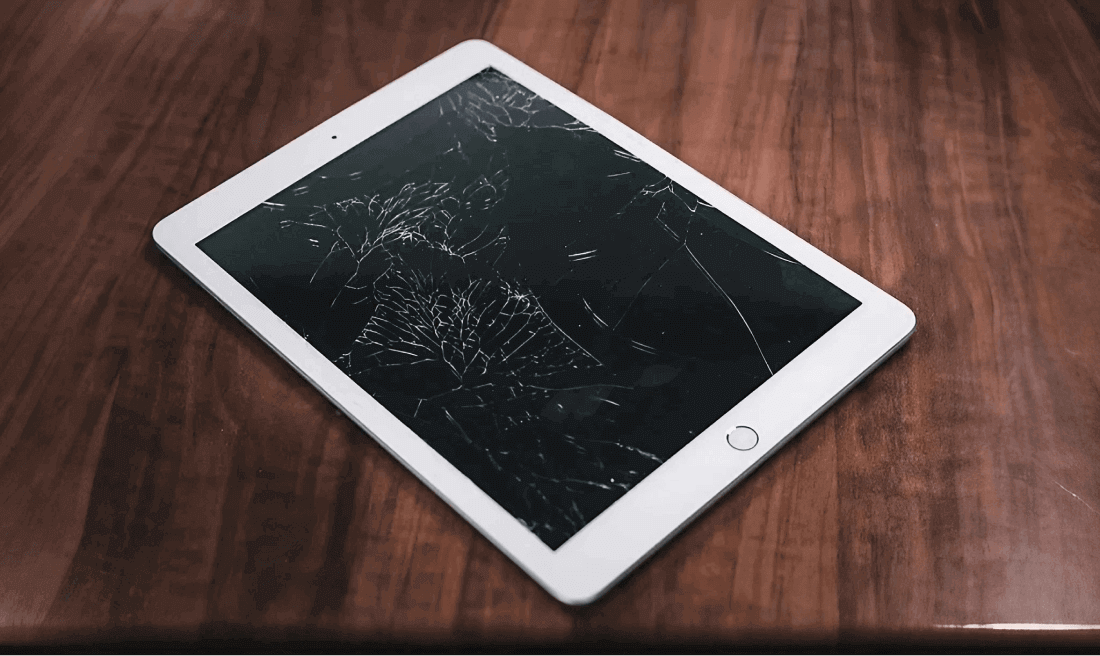
Cracks or deep scratches on the screen show need for replacement. Unresponsive touch areas that don’t improve after restarting also warn of damage. Flickering or distorted images hint at underlying screen failure. These signs mean the display cannot repair with software fixes alone.
Backlight And Hardware Problems
Dimming or uneven brightness signals backlight issues inside the iPad. Black or blank screens with sound show hardware faults beyond the display. Physical impacts can loosen internal parts causing these problems. These cases require opening the device to diagnose and fix the root cause.
Authorized Service Options
Apple-certified repair centers use genuine parts for iPad fixes. They ensure proper repair quality and maintain device warranty. Local authorized shops provide safe service with trained technicians. Choosing official service avoids risks linked to cheap or unverified repairs.
Credit: www.reddit.com
Frequently Asked Questions
How To Fix Ipad Display Problem?
Restart your iPad and update its software. Turn off Auto-Brightness and close faulty apps. Clean the screen and remove accessories. If problems persist, consider screen repair or replacement.
What To Do When The Ipad Screen Is Not Responding To Touch?
Force restart your iPad by pressing specific buttons based on your model. Clean the screen and remove accessories. Update iPadOS. If unresponsive, seek professional repair.
How To Reset Ipad Screen Display?
To reset your iPad screen display, quickly press and release the volume up button, then the volume down button. Next, hold the top button until the Apple logo appears. This force restarts the iPad and resolves screen issues like freezing or unresponsiveness.
Why Is My Ipad Screen Acting Weird?
Your iPad screen may act weird due to software glitches, dirt, moisture, faulty apps, or hardware issues. Restart and clean it.
How Do I Fix A Black Ipad Screen That Won’t Turn On?
Try a force restart by pressing volume up, volume down, then hold the top button. Wait for the Apple logo to appear. If it still won’t turn on, check the charger or visit a service center.
Conclusion
Troubles with your iPad display can feel frustrating. Simple steps often solve common screen issues. Restart your device to refresh its system. Check settings like brightness and app behavior. Keep your screen clean from dirt and moisture. Update your iPad’s software regularly for best performance.
If problems persist, consider professional repair options. Staying patient and following these tips helps restore your iPad’s display quickly. Remember, small fixes can make a big difference.



