Is your iPad suddenly refusing to connect to Wi-Fi, leaving you frustrated and offline? You’re not alone, and the good news is that most Wi-Fi problems can be fixed quickly with a few simple steps.
Whether your iPad won’t join your network, keeps dropping the connection, or just feels slow, this guide is here to help you regain fast and reliable Wi-Fi access. You’ll learn easy troubleshooting tips that anyone can follow—no tech expertise needed.
Keep reading, and you’ll discover how to solve your iPad Wi-Fi issues today, so you can get back to streaming, browsing, and working without interruptions.
Credit: shopkeep-support.lightspeedhq.com
Common Ipad Wi-fi Issues
Resetting network settings is a useful step to fix iPad Wi-Fi problems. It clears saved networks and resets Wi-Fi configurations. This process often solves connection errors caused by corrupted settings. The iPad restores default network preferences after the reset.
This fix is simple and fast. It can resolve issues that other methods do not fix. Understanding what resets and what stays helps prepare for this step.
How To Reset Network Settings
Open the Settings app on your iPad. Scroll down and tap General. Find and tap Transfer or Reset iPad. Choose Reset from the menu. Then select Reset Network Settings. Enter your passcode if asked. Confirm the reset by tapping Reset Network Settings again.
Your iPad will restart automatically. After restarting, Wi-Fi and network settings return to default. You need to reconnect to Wi-Fi networks manually.
What Resets And What Remains
Resetting network settings deletes all saved Wi-Fi networks and passwords. It also removes VPN and APN settings. Bluetooth connections are erased too. Cellular settings reset to default where applicable.
Personal data like photos, apps, and files stay safe. Your iPad’s system and app settings remain unchanged. Only network-related data clears to fix conflicts and errors.
This reset helps clear hidden glitches blocking Wi-Fi connections. It gives your iPad a fresh network start without affecting other data.

Credit: support.apple.com
Basic Troubleshooting Steps
Software updates play a key role in fixing iPad Wi-Fi problems. Apple releases updates to improve iPadOS stability and network compatibility. Keeping your iPad and router updated ensures smooth Wi-Fi connections. Outdated software can cause connection drops and slow speeds. Regular updates help avoid these issues and improve security.
Checking for updates on both the iPad and router is essential. These updates often fix bugs that affect Wi-Fi performance. Compatibility between your iPadOS version and router firmware can also impact connectivity. Ensuring both are current helps maintain a stable and fast Wi-Fi link.
Checking For Ipados Updates
Open the Settings app on your iPad. Tap on General, then choose Software Update. Your iPad will check for available updates. If an update is found, tap Download and Install. Make sure your iPad is connected to Wi-Fi and has enough battery life. Installing the latest iPadOS version can resolve many Wi-Fi issues. It also adds new features and security patches.
Router Firmware Updates
Access your router’s settings through its web interface. You can find the IP address on the router label or manual. Log in with your username and password. Look for the Firmware Update section. Download and install any available updates. Updated firmware improves router performance and compatibility with devices. It can fix bugs that cause Wi-Fi drops or slow speeds. Restart your router after updating to apply changes.
Resetting Network Settings
Adjusting advanced settings on your iPad can solve many Wi-Fi connection problems. These settings are hidden deeper in the iPad’s network options. Changing them carefully often fixes tricky issues.
Sometimes the iPad’s default settings cause conflicts with your Wi-Fi router. Small tweaks like disabling Private Wi-Fi Address or changing DNS settings improve connectivity. Also, incorrect date and time settings can block Wi-Fi access.
Disabling Private Wi-fi Address
Your iPad uses a Private Wi-Fi Address to increase privacy. This address changes the device’s identity on each network. Some routers block these addresses, causing connection failures.
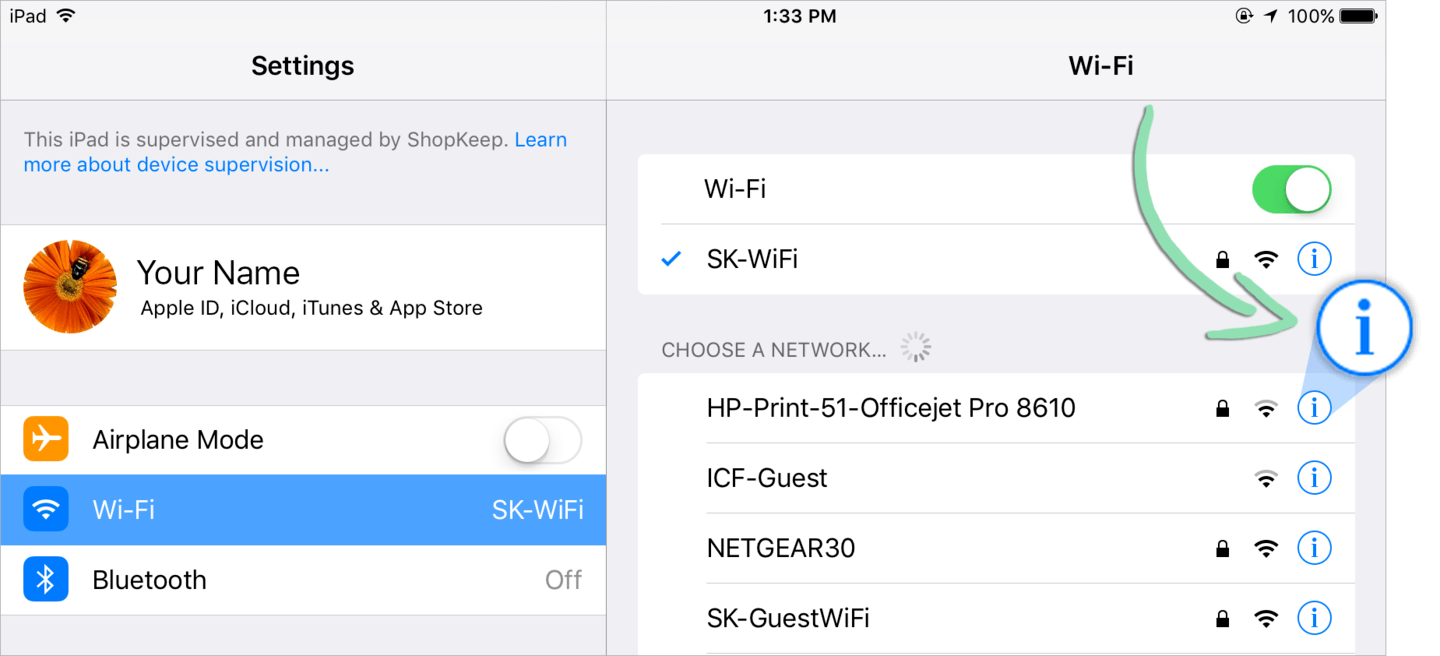
Turn off Private Wi-Fi Address for your network to test if it improves connection. Go to Settings > Wi-Fi, tap the “i” next to your network, then toggle off Private Address. Reconnect to your Wi-Fi and check if the issue resolves.
Modifying Dns Settings
DNS translates website names into IP addresses. Your default DNS may be slow or unresponsive. Changing DNS to a public server can speed up connections and fix loading errors.
Open Settings > Wi-Fi, tap the “i” near your network. Scroll to DNS, tap Configure DNS, switch to Manual, and add new DNS servers like 8.8.8.8 or 1.1.1.1. Save changes and try reconnecting your iPad.
Changing Date And Time Settings
Incorrect date and time confuse your iPad’s security checks. This can block Wi-Fi networks that require correct time for authentication.
Go to Settings > General > Date & Time. Enable Set Automatically if off. If on, toggle it off, then set the correct date and time manually. Restart your iPad and reconnect to Wi-Fi to test.

Credit: support.revelsystems.com
Software Updates And Compatibility
VPNs and security apps often protect your iPad’s internet connection. They create secure tunnels and block harmful traffic. Sometimes, these protections conflict with your Wi-Fi network. The result: your iPad may not connect properly or may have slow internet speeds. Understanding and managing these conflicts helps restore smooth Wi-Fi access.
Disabling Vpn Temporarily
Turn off your VPN app to check its effect on Wi-Fi. Open Settings and go to VPN. Switch the VPN off for a short time. Try connecting to Wi-Fi again. If the connection improves, the VPN might be causing the problem. You can switch the VPN back on after testing. Use this method to identify VPN-related issues quickly.
Checking Security Apps Impact
Security apps can block or limit Wi-Fi access. Look for apps that scan traffic or filter content. Temporarily disable these apps from their settings or remove them. Test your Wi-Fi connection after disabling. If Wi-Fi works better, adjust the app’s settings or update it. This step ensures your security apps do not interfere with network access.
Frequently Asked Questions
Why Is My Ipad Suddenly Not Connecting To Wi-fi?
Your iPad may not connect to Wi-Fi due to glitches, outdated iPadOS, router issues, or incorrect network settings. Restart the iPad and router, forget and rejoin the network, or reset network settings to fix it. Disable VPNs and check date/time settings if problems persist.
Why Is My Tablet Not Connecting To Wi-fi But Other Devices Will?
Your tablet may have network settings conflicts or software glitches. Restart the tablet and router, forget and reconnect to Wi-Fi, or reset network settings to fix this. Check for software updates and disable VPNs or Private Wi-Fi Address if enabled.
How To Reset Ipad Wi-fi Network?
Go to Settings > General > Transfer or Reset iPad > Reset > Reset Network Settings. This clears Wi-Fi passwords and restarts your iPad. Reconnect to your Wi-Fi network after the reboot.
Why Am I Suddenly Unable To Connect To My Wi-fi?
Sudden Wi-Fi connection issues often result from glitches, router faults, or settings conflicts. Restart your iPad and router, forget and reconnect to the network, reset network settings, update iPadOS, disable VPNs, or toggle Private Wi-Fi Address off. Check router firmware and ISP status if problems persist.
Why Is My Ipad Not Connecting To Wi-fi Suddenly?
IPad Wi-Fi issues often happen due to temporary glitches or router problems. Restarting both your iPad and router usually helps fix this issue quickly.
Conclusion
Fixing iPad Wi-Fi problems takes patience and simple steps. Restart your device and router first. Forget and reconnect to your Wi-Fi network. Move closer to the router for a stronger signal. Reset network settings if issues continue. Keep your iPad updated to the latest iPadOS version.
Turn off VPNs or security apps that might block connections. Adjust settings like Private Wi-Fi Address if needed. These tips often restore your Wi-Fi quickly and easily. Stay calm and try each step one by one. Your iPad will connect smoothly again soon.