
Is your iPhone’s Bluetooth acting up just when you need it most? Whether your device won’t pair, keeps disconnecting, or simply won’t turn on, these issues can be frustrating and disrupt your daily routine.
But don’t worry—help is right here. In this guide, you’ll discover simple and effective troubleshooting steps to get your iPhone’s Bluetooth working smoothly again. By following these easy tips, you’ll save time, avoid unnecessary stress, and enjoy seamless wireless connections once more.
Keep reading to unlock quick fixes that anyone can do, even if you’re not tech-savvy!

Credit: arcphysics.net
Basic Bluetooth Fixes
Basic Bluetooth fixes solve many common iPhone connection problems quickly. These steps are simple and do not require technical skills. Trying these first often restores Bluetooth function fast.
Follow each step carefully. Each action refreshes the Bluetooth system in different ways. This can clear glitches and improve device pairing and connection.
Toggle Bluetooth Off And On
Start by turning Bluetooth off, then on again. Open the Settings app and select Bluetooth. Tap the switch to turn it off. Wait a few seconds, then turn it back on. This resets the Bluetooth radio and can fix small bugs.
Restart Your Iphone
Restarting your iPhone refreshes all its systems, including Bluetooth. Press and hold the power button until the slide to power off appears. Slide to turn off. After the screen goes dark, hold the power button again to turn it back on. This can clear temporary software issues.
Check Accessory Charge And Proximity
Make sure your Bluetooth accessory has enough battery. Low power can cause connection problems. Also, keep your iPhone close to the accessory. Too much distance or obstacles can block the Bluetooth signal and cause dropouts.
Ensure Accessory Isn’t Connected Elsewhere
Bluetooth devices connect to only one device at a time. Check if your accessory is linked to another phone or tablet. Disconnect it from other devices before pairing with your iPhone. This step avoids connection conflicts and helps pairing succeed.
Resetting Bluetooth Connections
Resetting Bluetooth connections on your iPhone often solves many common issues. It clears glitches and refreshes the link between your phone and devices. This process can help with devices that won’t pair or keep disconnecting. Below are simple steps to reset your Bluetooth connections effectively.
Forget And Re-pair Devices
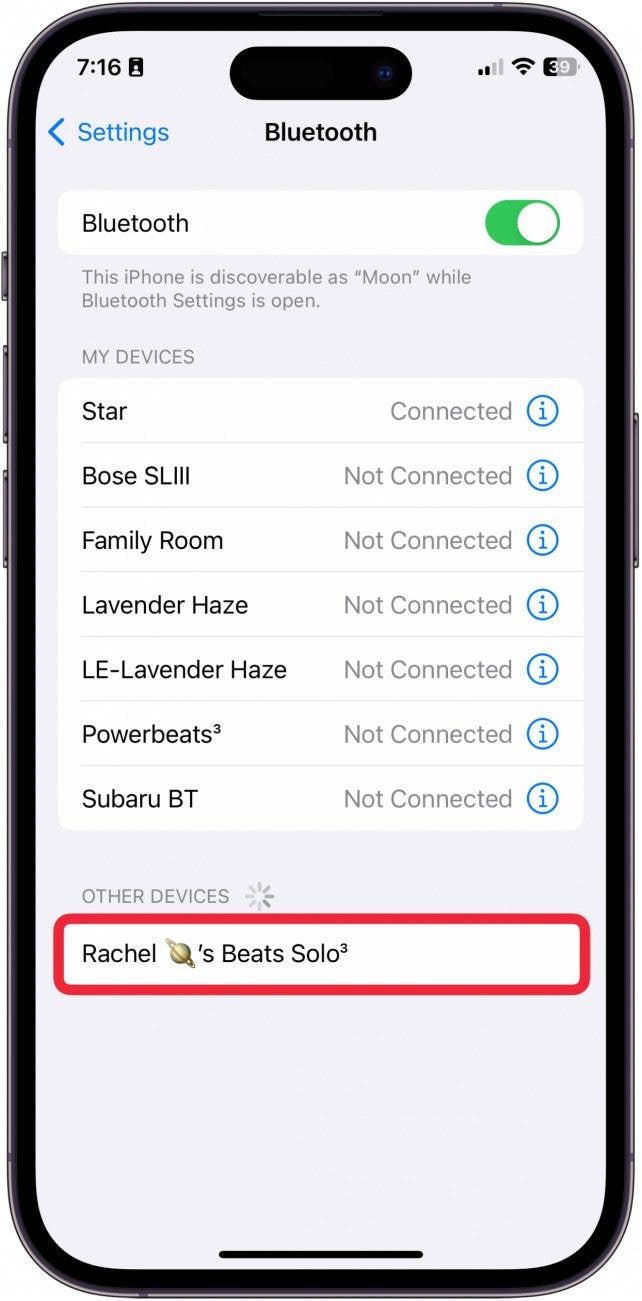
Start by forgetting the problem device in your Bluetooth settings. Go to Settings > Bluetooth and find the device. Tap the (i) icon next to it, then select “Forget This Device.” Confirm the action.
Next, put the device into pairing mode. Reconnect it to your iPhone like a new device. This step often fixes pairing errors and connection drops.
Reset Network Settings
This option resets all network connections on your iPhone, including Bluetooth. Open Settings > General > Transfer or Reset iPhone > Reset > Reset Network Settings.
Enter your passcode if asked. Your phone will restart. This clears all saved Wi-Fi passwords and Bluetooth pairings, so you must reconnect devices and Wi-Fi networks afterward.
Toggle Airplane Mode
Turn on Airplane Mode to quickly reset wireless connections. Swipe down to open Control Center. Tap the airplane icon to enable Airplane Mode.
Wait 10 seconds, then tap the icon again to turn it off. This refreshes Bluetooth and other wireless signals, often fixing minor problems fast.
Full Iphone Restart
Restarting your iPhone can clear temporary bugs affecting Bluetooth. Hold the power button until “slide to power off” appears. Slide to turn off your phone.
Wait about 30 seconds, then hold the power button again to turn it on. This simple step helps many users fix Bluetooth issues without complex changes.
Dealing With App Permissions
App permissions play a crucial role in how Bluetooth functions on your iPhone. Sometimes, Bluetooth issues arise because apps lack the right permissions. Checking and managing these permissions can resolve many common connectivity problems. This section guides you through reviewing and adjusting app permissions to ensure smooth Bluetooth operation.
Review Bluetooth Permissions
Open the Settings app and scroll down to find the app list. Select each app that uses Bluetooth. Check if the Bluetooth permission is enabled for that app. If it is off, turn it on to allow Bluetooth access. Some apps need this permission to connect with devices properly. Denying access can stop Bluetooth from working as expected.
Adjust Privacy Settings
Go to Settings and tap on Privacy. Find the Bluetooth option and tap it. Here, you see a list of apps requesting Bluetooth access. Toggle the switch next to each app to grant or revoke permission. Adjusting these settings can fix issues caused by blocked Bluetooth access. Keep permissions only for apps you trust and use often with Bluetooth devices.
Credit: www.iphonelife.com
Advanced Troubleshooting
Advanced troubleshooting helps fix tough iPhone Bluetooth problems. Basic steps may fail if issues run deep. This section explores deeper fixes. These tips improve Bluetooth reliability and connection quality.
Update Ios Software
Keeping your iPhone’s software up to date is vital. Apple often releases fixes for Bluetooth bugs. Go to Settings > General > Software Update. Download and install any available updates. Updated software improves device compatibility and performance.
Check For Interference
Bluetooth signals can suffer from interference. Other wireless devices, microwaves, or walls may block signals. Move closer to the device you want to connect. Turn off other electronics that use wireless signals. Clear line of sight often fixes connection issues.
Test With Different Accessories
Sometimes the problem lies with your accessory, not the iPhone. Try pairing your iPhone with another Bluetooth device. Check if the original accessory works with another phone or tablet. This helps identify whether the issue is with the iPhone or the accessory.
Preventing Future Issues
Preventing future Bluetooth issues on your iPhone keeps your devices connected smoothly. Small habits can save time and avoid frustration. Follow simple steps to maintain a strong Bluetooth connection every day.
Keep Devices Updated
Always install the latest iPhone software updates. Apple improves Bluetooth features and fixes bugs regularly. Updates help your iPhone work well with other devices. Also, update connected Bluetooth gadgets if possible. This ensures better compatibility and fewer connection problems.
Regularly Restart Devices
Turn your iPhone off and on every day or two. Restarting clears temporary glitches affecting Bluetooth. Also, restart Bluetooth accessories to refresh their connection. This simple action helps prevent many common connection issues. A quick restart often solves problems before they start.
Manage Bluetooth Connections
Keep your Bluetooth list clean by removing unused devices. Too many connections can confuse your iPhone. Go to Settings, tap Bluetooth, then “Forget” devices you no longer use. Only keep devices you connect with regularly. This makes pairing faster and more reliable.

Credit: www.businessinsider.com
Frequently Asked Questions
How To Reset Bluetooth In Iphone?
To reset Bluetooth on iPhone, toggle Bluetooth off and on in Settings. Restart your iPhone. For deeper reset, go to Settings > General > Reset > Reset Network Settings. This clears all Bluetooth and Wi-Fi connections without deleting personal data.
Then re-pair your devices.
Why Is My Bluetooth Not Working On My Iphone?
Bluetooth may not work on your iPhone due to software glitches, outdated iOS, device interference, or incorrect pairing. Toggle Bluetooth off and on, restart your iPhone, forget and re-pair devices, check app permissions, and update iOS. Reset Network Settings if issues persist.
How Do I Fix The Bluetooth Pairing Problem?
Toggle Bluetooth off and on in Settings. Restart your iPhone and the accessory. Forget the device, then re-pair it. Ensure devices are close and charged. Update iOS or reset Network Settings if problems persist.
How Do You Clear The Bluetooth Cache On Your Iphone?
To clear Bluetooth cache on your iPhone, go to Settings > Bluetooth. Tap the (i) icon next to the device, then select “Forget This Device. ” Confirm and reconnect the device. For a full reset, go to Settings > General > Transfer or Reset iPhone > Reset > Reset Network Settings.
How Do I Reset Bluetooth On My Iphone?
You can reset Bluetooth by toggling it off and on in Settings or Control Center. For a full reset, use Reset Network Settings in Settings > General. This clears all Bluetooth and Wi-Fi connections but keeps your personal data.
Conclusion
Bluetooth troubles on iPhone can be annoying but fixable. Start with simple steps like toggling Bluetooth off and on. Restart your iPhone and the device you want to connect. Forget old devices and try pairing again. Reset network settings if problems stay.
Keep devices close and charged during connection. These tips help solve most Bluetooth issues quickly. Stay patient and follow each step carefully. Your iPhone’s Bluetooth should work smoothly soon.



