
Is your iPhone refusing to charge just when you need it most? It’s frustrating, isn’t it?
You plug it in, but the battery icon won’t budge or your phone shows it’s connected but the percentage stays the same. Before you panic or rush to buy a new charger, there are simple, effective steps you can try to get your iPhone charging properly again.
In this guide, you’ll discover easy troubleshooting tips that anyone can do—no tech skills needed. From cleaning your charging port to checking for software glitches, you’ll learn exactly what to do to fix common charging problems quickly. Keep reading, because your iPhone’s battery life might be just a few simple fixes away from working perfectly again.
Common Charging Issues
Charging problems can be frustrating for iPhone users. They stop your phone from powering up properly. Many common issues cause these problems. Understanding them helps fix your iPhone quickly. Here are some typical charging troubles and their causes.
Faulty Cables And Adapters
Damaged cables or adapters often prevent proper charging. Worn-out wires or bent connectors stop the flow of power. Non-certified chargers may not work well with your iPhone. Using genuine or Apple-certified accessories ensures safe and steady charging. Always check your cable and adapter for visible damage.
Dirty Charging Port
Dust, lint, or debris can block the charging port. This stops the charger from connecting correctly. Small particles build up over time inside the port. Cleaning gently with a toothpick or compressed air can help. Be careful to avoid damaging the port pins.
Software Glitches
Sometimes software errors affect charging. Your iPhone may not recognize the charger due to bugs. Restarting the phone often resolves this issue. Keeping iOS updated fixes bugs and improves charging performance. Check for updates regularly in your phone settings.
Liquid Damage
Exposure to water or moisture can harm the charging system. Liquid can cause corrosion or short circuits inside the port. If your iPhone got wet, charging problems may appear soon after. Avoid charging a wet phone and let it dry completely first. Liquid damage often requires professional repair.
Quick Fixes To Try
iPhone charging problems can feel frustrating. Quick fixes can often solve them fast. These simple steps require no special tools or skills. Try them first before seeking professional help. They cover common issues like dirt, software glitches, or faulty cables. Follow each step carefully to bring your iPhone back to life.
Clean The Charging Port
Dust and lint can block your iPhone’s charging port. Use a toothpick or compressed air to clear it gently. Avoid sharp or metal objects that can damage the port. Cleaning improves the connection between the charger and phone. Check the port under good light to see if it looks dirty.
Force Restart Your Iphone
A force restart can fix minor software glitches that stop charging. For older iPhone models, hold the Home button and the Side or Top button together. Keep holding until the Apple logo appears on the screen. This action does not erase your data but refreshes the system. Try charging again after the phone restarts.
Check And Replace Cables
Inspect your charging cable and adapter for damage like frayed wires or bent pins. Faulty cables can stop your iPhone from charging properly. Use an Apple-certified cable and adapter for best results. If possible, test with a different known-good cable and adapter. Replacing bad accessories often solves charging issues.
Use Different Power Sources
Try plugging your iPhone into another power outlet or a USB port on your computer. Some outlets or power strips may not supply enough power. Charging from a computer USB port can help identify if the wall socket is the problem. Avoid using low-quality adapters or chargers from unknown brands.
Advanced Troubleshooting
Advanced troubleshooting helps fix complex iPhone charging problems. These steps go beyond basic checks.
They address software issues, hardware damage, and alternative charging methods. Follow each carefully.
Update Ios Software
iOS updates often fix bugs that affect charging. Connect your iPhone to Wi-Fi and power.
Go to Settings > General > Software Update. Download and install any available update.
Updating can improve battery management and charging performance.
Try Wireless Charging
Wireless charging bypasses the lightning port and avoids port issues. Use a MagSafe or Qi charger.
Place your iPhone on the charger and check if it starts charging. This confirms port-related problems.
Wireless charging is convenient and reduces wear on the charging port.
Inspect For Moisture Or Damage
Look inside the charging port with a flashlight. Check for dust, lint, or moisture.
Liquid or debris can block charging or cause short circuits. Dry the port gently if wet.
Also, examine the charging cable and adapter for frayed wires or bent pins. Replace if damaged.
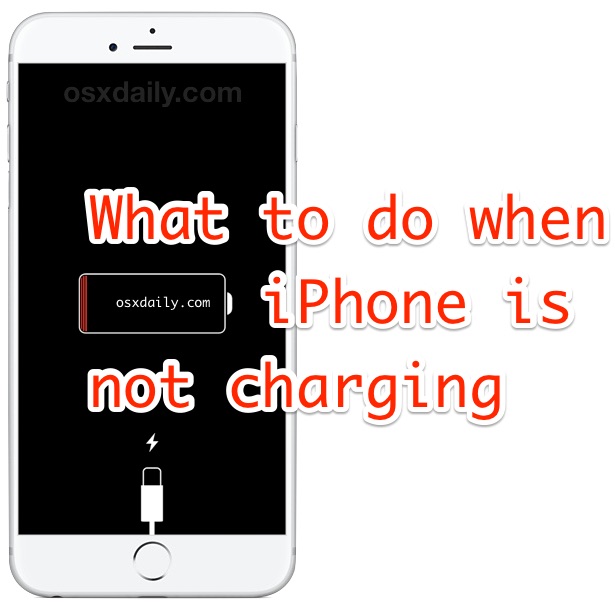
Credit: osxdaily.com
Cleaning The Charging Port
Cleaning the charging port can solve many iPhone charging problems. Dust, lint, and debris often block the connection. This makes your iPhone charge slowly or not at all. A clean port helps ensure a strong connection between your charger and phone. It also prevents damage to the charging pins. Follow simple steps to clean the port safely and effectively.
Tools And Materials Needed
- A wooden or plastic toothpick
- A can of compressed air
- A soft brush (optional)
- A flashlight or good light source
- Isopropyl alcohol (70% or less, optional)
- A clean, dry cloth
Step-by-step Cleaning Guide
- Turn off your iPhone before cleaning.
- Use the flashlight to look inside the charging port.
- Gently remove visible dust and lint with the toothpick.
- Do not push too hard to avoid damaging pins.
- Spray compressed air briefly into the port to blow out debris.
- If needed, lightly dampen the brush with isopropyl alcohol.
- Carefully clean inside the port with the brush.
- Let the port dry completely before turning on your phone.
- Wipe the outside of the port with a dry cloth.
Safety Tips
- Always turn off your iPhone before cleaning.
- Do not use metal tools to avoid short circuits.
- Avoid using water or strong liquids inside the port.
- Do not force anything inside the port.
- Keep compressed air cans upright to avoid moisture spray.
- Work in a clean, well-lit area.
- Be gentle to prevent damage to delicate parts.
When To Seek Professional Help
Knowing when to seek professional help for iPhone charging issues can save time and prevent further damage. Some problems need expert tools and skills to fix. Trying to repair hardware yourself might void your warranty or worsen the issue. Understanding clear signs of hardware failure helps you decide when to visit a technician.
Identifying Hardware Issues
Hardware problems often show clear signs. Your iPhone may not charge despite using different cables and adapters. The charging port might look damaged or dirty beyond simple cleaning. The device may heat up unusually or shut down suddenly while charging. Physical damage, like drops or liquid spills, often causes hardware faults. If software fixes fail, hardware issues are likely.
Authorized Service Options
Apple stores and authorized service providers offer reliable repairs. They use genuine parts and follow Apple’s repair standards. Avoid unauthorized repair shops to keep your warranty intact. You can book a repair appointment online or visit an Apple Store. Authorized services provide a repair warranty for peace of mind. They also offer battery replacement and charging port repairs.
Data Backup Recommendations
Backing up your data before repair is essential. Use iCloud or iTunes to save contacts, photos, and apps. This ensures your information stays safe during repair. If the phone is still partially working, start the backup process immediately. A backup protects your data from accidental loss or reset. Keep backups updated regularly, not just before repairs.

Credit: www.wikihow.com

Credit: www.youtube.com
Frequently Asked Questions
Why Is My Iphone Plugged In But Not Charging?
Your iPhone may not charge due to a dirty port, faulty cable, damaged adapter, software glitch, or outlet issue. Clean the port gently, try a different charger and outlet, force restart the device, update iOS, or use wireless charging to fix common problems.
What Are Common Iphone Charging Problems?
Common iPhone charging problems include faulty cables or adapters, dirty charging ports, software glitches, and liquid or physical damage.
How Do I Clean My Iphone Charging Port?
Power off your iPhone first. Use a wooden toothpick or soft brush to gently remove dust and lint from the charging port. Avoid metal tools or moisture to prevent damage.
What Do I Do If My Phone Charger Is Plugged In But Not Charging?
Unplug and clean the charging port gently to remove debris. Check the cable and adapter for damage. Try a different outlet or cable. Restart your phone or update iOS. Use wireless charging if available. Seek professional help if the problem persists or the port is damaged.
Why Is My Iphone Plugged In But Not Charging?
Your iPhone may have dust or lint blocking the port. Also, a faulty cable or adapter can stop charging. Try cleaning the port and testing with a different charger.
Conclusion
Troubles with iPhone charging can be frustrating but fixable. Start by cleaning the port and checking your cables. Try a force restart to reset your device’s system. Use a different outlet or wireless charger to rule out power issues. Keep your iOS updated for smooth performance.
Watch for signs of liquid or physical damage. When problems persist, seek professional help to avoid further harm. Following these steps helps keep your iPhone charging properly and saves you time. Simple fixes often solve the issue quickly. Stay patient and methodical for the best results.



