
Are your emails suddenly not showing up on your iPhone? It’s frustrating when your Mail app stops working just when you need it most.
But don’t worry—you’re not alone, and the fix might be easier than you think. Whether emails aren’t syncing, notifications aren’t popping up, or messages just won’t load, this guide will walk you through simple steps to get your iPhone Mail back on track.
You’ll learn quick checks and deeper fixes that anyone can follow, even if you’re not tech-savvy. Keep reading to regain control over your inbox and never miss an important message again.
Credit: www.hostinger.com
Common Causes
Experiencing issues with the iPhone Mail app can disrupt daily communication. Understanding common causes helps solve these problems faster. Several factors often block emails from arriving or sending correctly.
These causes include incorrect settings, connectivity problems, a full mailbox, and temporary glitches. Identifying the exact reason guides effective troubleshooting steps.
Incorrect Settings
Incorrect mail settings often stop emails from syncing properly. Fetch settings control how often your phone checks for new mail. If disabled, new emails won’t appear automatically.
Notification settings also impact alerts for new messages. If notifications are off, you might miss important emails. Account syncing must be enabled too. Without it, the Mail app cannot update your inbox.
Connectivity Issues
Internet connection is vital for mail delivery. Without Wi-Fi or cellular data, the Mail app cannot send or receive messages. Network problems cause delays or failures in syncing emails.
Airplane mode or weak signals can also block connectivity. Checking the network status helps ensure a smooth mail experience.
Full Mailbox
A full mailbox prevents new emails from arriving. Email providers limit storage space. When the limit is reached, the server rejects incoming mail.
Regularly deleting old emails or emptying the trash frees up space. This action helps restore normal mail flow on the iPhone.
Temporary Glitches
Software glitches may cause the Mail app to freeze or stop working. These glitches happen after updates or prolonged app use.
Restarting the iPhone often clears temporary issues. Pulling down in the Mail app refreshes the inbox manually. These simple steps fix most minor glitches.
Credit: xneelo.co.za
Quick Fixes
Quick fixes can solve many common iPhone Mail problems fast. These simple steps often restore email function without complex changes. Try these easy tips before moving to advanced solutions.
Check Internet Connection
Emails need an internet connection to arrive on your iPhone. Check if Wi-Fi or cellular data is active. Open Settings and verify the connection status. Without internet, Mail cannot sync new messages.
Restart Iphone
Restarting your iPhone clears temporary glitches. Press and hold the power button, then slide to turn off. Wait a few seconds and power it back on. This refresh can fix many mail syncing issues.
Pull To Refresh Mail
Manually refresh your inbox to fetch new emails. Open the Mail app and drag the message list down. Release to trigger the app to check for new mail. This forces the app to update instantly.
Verify Storage Space
Low storage can stop Mail from working properly. Go to Settings > General > iPhone Storage to check available space. Delete unused apps or files if storage is nearly full. More space helps Mail function correctly.
Mail Settings Check
Checking your mail settings is crucial when emails do not arrive on your iPhone. Incorrect settings can block new messages or delay syncing. This section guides you through key settings that affect mail delivery and notifications. Adjusting these options often resolves common mail issues quickly.
Fetch And Sync Options
Fetch controls how often your iPhone checks for new mail. It can be set to automatically push new messages or fetch them at set intervals. Push delivers emails instantly but uses more battery. Fetch can be set to every 15, 30, or 60 minutes, or manually. Choose a setting that balances battery life and timely updates.
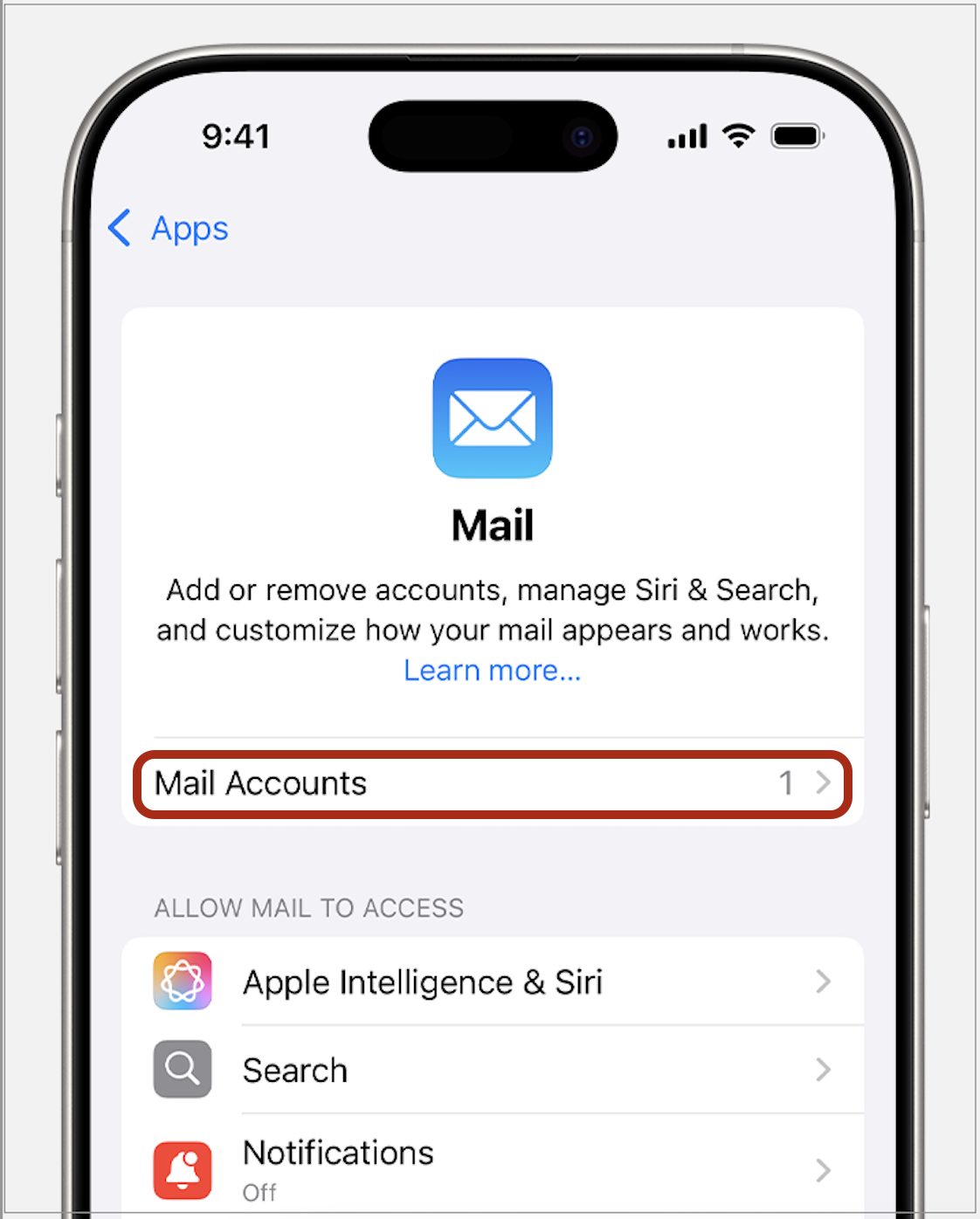
Sync options determine how much mail your iPhone stores. You can sync emails from the last day, week, or month. Syncing fewer emails saves space but limits offline access. Adjust these settings in Settings > Mail > Accounts > Fetch New Data.
Notification Preferences
Notifications alert you when new emails arrive. Check that notifications are enabled for your Mail app. Go to Settings > Notifications > Mail. Ensure “Allow Notifications” is on. Choose alert styles like banners, sounds, or badges to suit your needs. Notifications must be set per account if you use multiple email addresses.
Turn on sounds and vibration to avoid missing important emails. Also, check if Do Not Disturb mode or Focus settings might block mail alerts.
Account Sync Status
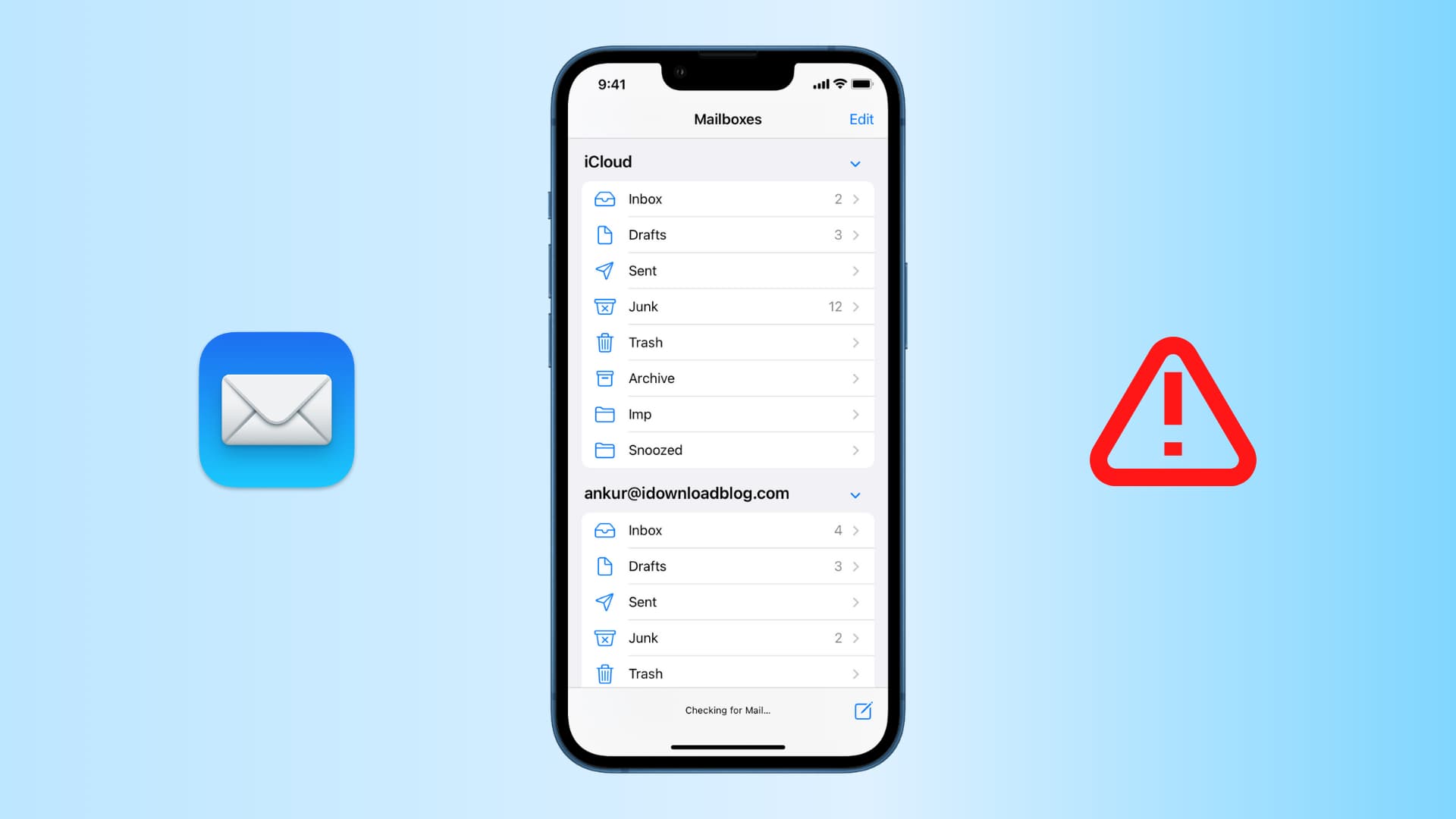
Verify your email account is properly syncing. Open Settings > Mail > Accounts and select your account. Make sure the “Mail” toggle is enabled. If syncing is off, your iPhone won’t download new messages.
Check the account status for errors or warnings. Sometimes, password changes or server issues cause sync failures. Removing and re-adding the account can often fix these problems.
Credit: www.idownloadblog.com
Advanced Troubleshooting
Advanced troubleshooting helps fix deeper iPhone Mail problems. These steps go beyond basic checks. They target issues with account setup, server status, and software updates. Follow each method carefully for best results.
Remove And Re-add Account
Removing and re-adding your email account resets its connection. Go to Settings > Mail > Accounts. Select the problematic account, then tap Delete Account. After deletion, add the account again by tapping Add Account. This refreshes sync settings and clears errors.
Verify Email Provider Status
Sometimes email servers have outages or delays. Check your email provider’s status page online. Look for reports about downtime or maintenance. Logging into your email on a web browser confirms if messages are arriving. Knowing provider status avoids unnecessary phone fixes.
Update Ios Version
Keeping iOS updated improves Mail app performance. Go to Settings > General > Software Update. Download and install any available updates. Updates fix bugs that may block email syncing or notifications. An updated iPhone runs Mail more smoothly and securely.
Frequently Asked Questions
Why Am I Suddenly Not Getting Mail On My Iphone?
Sudden iPhone mail issues often stem from poor internet, incorrect fetch settings, or a full mailbox. Restart your phone, check Mail > Accounts, enable notifications, refresh the inbox, and re-add your email account to fix the problem quickly.
Why Are My Emails Suddenly Not Coming Through?
Emails may stop coming through due to full inboxes, incorrect settings, poor internet, filters, or temporary service issues. Check your connection, storage, spam folder, and email app settings. Refresh the app, restart your device, or re-add your account to fix syncing problems.
How To Fix The Mail Server On Iphone?
Check your internet connection and ensure Mail sync is enabled in Settings > Mail > Accounts. Restart your iPhone and refresh the Mail app by pulling down the inbox. Delete and re-add your email account if issues persist. Update iOS to the latest version for better Mail performance.
How Do I Get My Iphone Email Back To Normal?
Check your internet connection and ensure Mail notifications are on. Restart your iPhone and pull down to refresh Mail. Verify storage space and Mail account settings. Remove and re-add your email account if needed. Update iOS for best performance.
Why Is My Iphone Mail Not Receiving New Emails?
Your iPhone Mail may stop receiving emails due to incorrect settings or poor internet. Check your Wi-Fi or cellular data and ensure Mail syncing is enabled. Restarting the phone can also help fix minor glitches.
Conclusion
IPhone mail issues can disrupt your daily routine. Simple steps often fix common problems fast. Always check your internet connection and mail settings first. Restarting your device refreshes the system and clears minor glitches. Removing and re-adding your email account can restore syncing.
Keep your iOS updated to avoid compatibility issues. Regularly monitor storage to prevent a full mailbox. Following these tips helps keep your mail running smoothly. Stay patient and methodical to solve email troubles yourself.



