Is your iPhone screen acting up right when you need it most? A frozen display, unresponsive touch, or sudden black screen can throw off your day and leave you frustrated.
But don’t panic—many common iPhone screen issues can be fixed quickly with simple steps you can do yourself. In this guide, you’ll discover easy and effective troubleshooting tips that get your iPhone screen working smoothly again. Whether your screen won’t respond to touch or seems stuck, keep reading to regain control and avoid costly repairs.
Your iPhone’s touchscreen is about to become reliable once more.
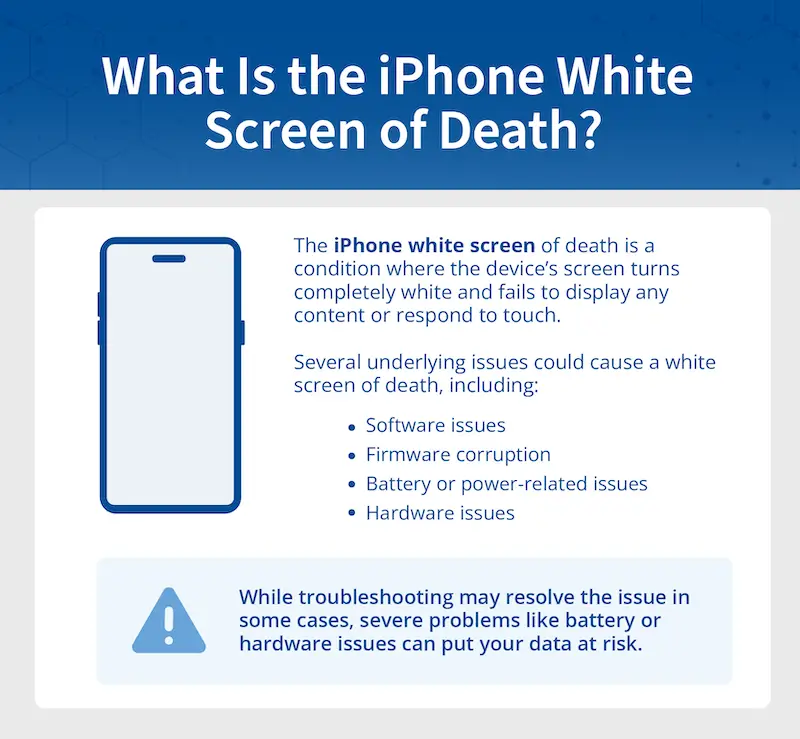
Credit: www.securedatarecovery.com
Force Restart
Force restart is a simple way to fix an unresponsive iPhone screen. It forces the device to reboot without erasing any data. This method often clears minor software glitches that block the screen from working properly.
Performing a force restart can save time and avoid the need for professional repair. It works on various iPhone models and is a helpful first step in troubleshooting screen issues.
Step-by-step Guide
- Press and quickly release the Volume Up button.
- Press and quickly release the Volume Down button.
- Press and hold the Side button until the Apple logo appears.
Do not release the Side button when you see “slide to power off.” Keep holding until the logo shows. Your iPhone will then restart and may respond normally.
Why It Works
Force restart interrupts all current processes on your iPhone. It clears temporary bugs causing the screen to freeze or lag.
The method resets the phone’s system without deleting any files or settings. This fresh start often restores touch functionality quickly.
It is different from a normal restart because it forces the device off, even if it is unresponsive.
Credit: www.diyfixtool.com
Basic Checks
The iPhone touchscreen lets you interact with your device smoothly. Gestures make tasks faster and easier. Knowing these gestures helps troubleshoot screen issues. You can try simple moves to test if the screen responds well.
Touchscreen gestures include tapping, swiping, and pinching. These actions control apps and text editing. If gestures do not work, the screen may be unresponsive. Testing common gestures can help find the problem.
Copy, Paste, And Cut
Copy, paste, and cut are basic text actions. Tap and hold on text to select it. Use the blue handles to adjust the selection area. Tap “Copy” to save the text to the clipboard. Tap “Cut” to remove and save the text. Tap “Paste” to insert copied text somewhere else.
These gestures help check touchscreen accuracy. If tap and hold does not work, the screen may be faulty. Try copying and pasting in different apps to confirm.
Undo And Redo
Undo and redo fix mistakes quickly. Shake your iPhone to bring up the Undo menu. Tap “Undo” to reverse the last action. Shake again and tap “Redo” to restore it. This gesture tests the accelerometer and touchscreen.
You can also use three-finger swipe left to undo and swipe right to redo. These gestures must respond instantly. If not, the screen or software might have issues.
Accessibility Gestures
Accessibility gestures help users with special needs. Examples include three-finger tap, swipe, and drag. You can enable these in Settings under Accessibility. These gestures assist with text editing and navigation.
Testing these gestures can show if the touchscreen senses multi-touch correctly. If multi-touch does not respond, hardware or software problems may exist. Try enabling and using these gestures to check your screen’s health.
Software Updates
Hardware problems can cause your iPhone screen to stop working properly. These issues often result from physical damage, like drops or impacts. Faulty hardware parts inside the phone may also cause the screen to freeze or become unresponsive. Signs of hardware problems include a cracked screen, flickering display, or no display at all. These problems usually need professional repair.
Trying to fix hardware issues on your own might cause more damage. It is best to know when to get expert help. Apple offers support services to diagnose and repair hardware faults quickly and safely.
When To Contact Support
Contact support if your screen is cracked, flickers, or shows no image. Also, reach out when touch does not respond after restarting the phone. Avoid trying complex fixes yourself, which might worsen the damage. Hardware problems need professional tools and parts to fix correctly. Apple Support can guide you on the next steps to take.
Booking A Genius Bar Appointment
Booking a Genius Bar appointment is a simple way to get hardware help. Visit the Apple Support website or use the Apple Support app to schedule. Choose your nearest Apple Store and pick a convenient time. The Genius Bar technicians will check your iPhone and suggest repairs. They can replace screens or fix other hardware issues on the spot or send it for repair.

Credit: www.youtube.com
Frequently Asked Questions
How To Fix Unresponsive Touch Screen On Iphone?
Force restart your iPhone by pressing Volume Up, Volume Down, then holding the Side button until the Apple logo appears. Clean the screen, remove cases, disconnect accessories, and update iOS. If unresponsive, reset settings or contact Apple Support for hardware repair.
What Is The 3 Finger Trick On Iphone?
The 3-finger trick on iPhone lets you quickly undo or redo typing by tapping with three fingers. Pinch three fingers to copy, spread three fingers to paste. It enhances text editing with easy multi-touch gestures for faster control.
How To Troubleshoot An Iphone Screen?
Force restart your iPhone by pressing Volume Up, Volume Down, then holding the Side button until the Apple logo appears. Clean the screen and remove the case. Disconnect accessories and update iOS in Settings. If the screen stays unresponsive, contact Apple Support for hardware repair.
Why Has My Iphone Screen Gone Weird?
Your iPhone screen may act weird due to software glitches, dirt, damaged connectors, or hardware issues. Restart, clean, update iOS. If problems persist, seek professional repair.
How Do I Fix An Unresponsive Iphone Screen?
Force restart your iPhone by pressing Volume Up, then Volume Down, and holding the Side button. Clean the screen and remove any case or accessories. Check for iOS updates or contact Apple Support if the problem continues.
Conclusion
Troubles with your iPhone screen can feel frustrating. Try simple fixes first, like force restarting your device. Cleaning the screen and removing cases often helps. Keep your iOS updated for better performance. If problems continue, resetting settings might solve software issues.
Persistent issues may need professional help from Apple Support. Taking these steps can save time and avoid extra costs. Stay calm and follow the guide carefully. Your iPhone screen can work smoothly again.