Is your iPhone suddenly silent when it should be ringing or playing music? Sound issues can be frustrating, especially when you rely on your phone every day.
But don’t worry—you’re not alone, and most sound problems have simple fixes you can try right now. Whether you can’t hear calls, notifications, or media sounds, this guide will walk you through easy steps to get your iPhone’s audio back to normal.
Keep reading, and you’ll learn how to troubleshoot common issues, check your settings, and know when it’s time to get expert help. Your iPhone sound should work perfectly—and we’re here to make sure it does.

Credit: www.youtube.com
Check Volume And Sound Settings
Sound issues on an iPhone often start with simple settings. Checking volume and sound settings helps find the problem fast. These settings control how loud calls, alerts, and media play. Adjusting them can restore your iPhone’s sound quickly.
Adjust Ringer And Media Volume
Use the side buttons to raise the ringer volume. This controls call and alert sounds. Then, open Control Center by swiping down from the top-right corner. Slide the media volume bar to increase music or video sound. Make sure both volumes are not muted or set too low.
Disable Do Not Disturb Mode
Do Not Disturb silences calls and alerts. Swipe down to open Control Center. Look for the crescent moon icon. If it is highlighted, tap it to turn off Do Not Disturb. This allows sounds and notifications to come through again.
Turn Off Bluetooth Connections
Bluetooth can send sound to wireless devices. Open Control Center and find the Bluetooth icon. Tap it to disable Bluetooth. This stops audio from routing to headphones or speakers that are not nearby. Check if the sound returns to your iPhone speaker.
Restart And Test Audio
Restarting your iPhone and testing the audio are simple steps that often fix sound issues quickly. This process helps clear minor software glitches that may block sound. A quick reboot refreshes the system and restores normal audio functions. Testing sound in various apps shows if the problem is with the device or a specific app.
Reboot Your Iphone
Press and hold the power button until the slide to power off appears. Slide to turn off your iPhone. Wait about 30 seconds. Hold the power button again until the Apple logo shows. This restart clears temporary bugs that may affect sound. After reboot, check if the sound works better.
Test Sound In Different Apps
Open apps like Music, YouTube, or a voice recorder. Play audio in each app to check sound output. Testing multiple apps helps find if the issue is app-specific. If sound works in some apps but not others, update or reinstall the problematic app. If no apps play sound, the issue may be with your iPhone hardware or settings.
Inspect Physical Components
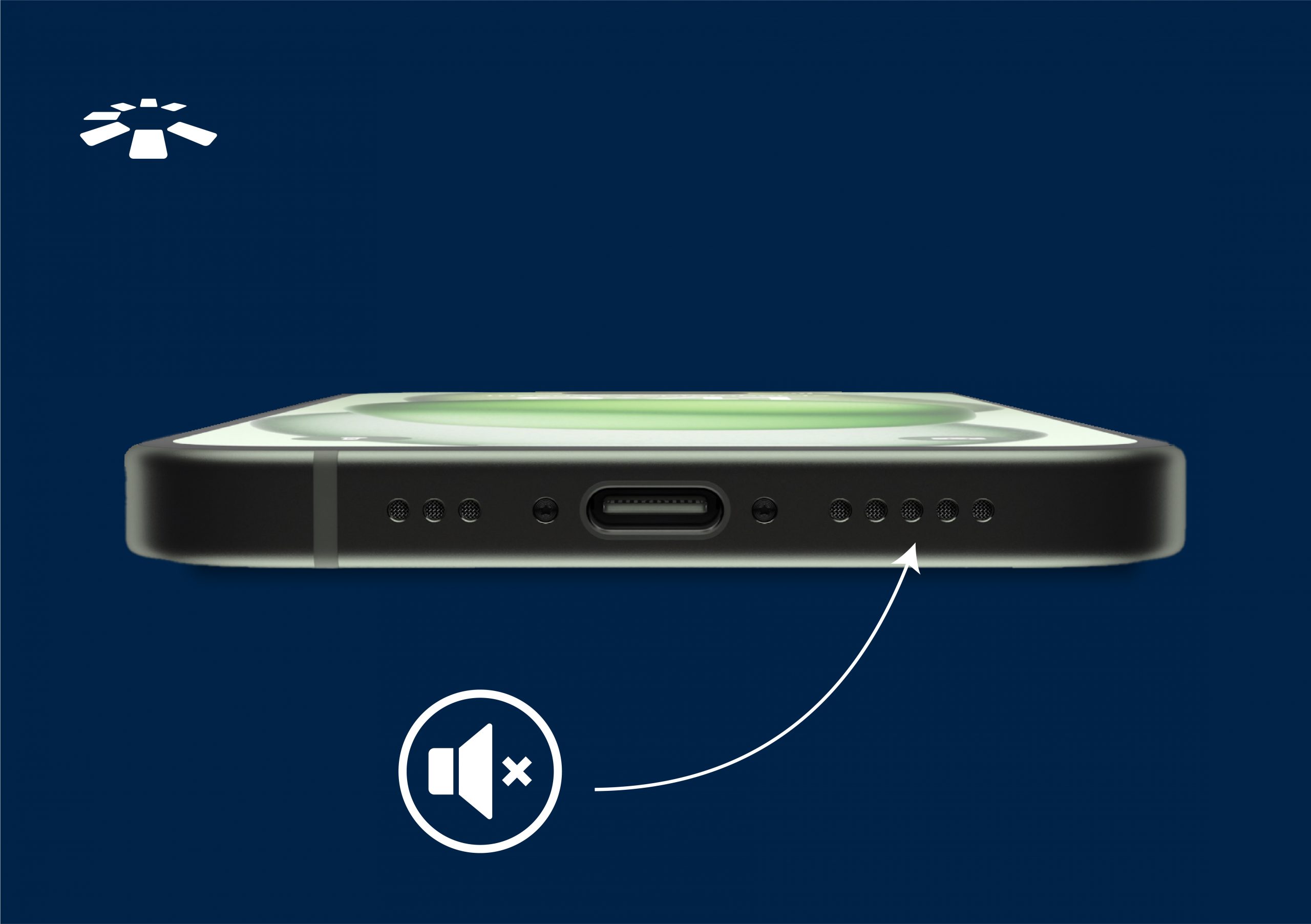
Inspecting the physical parts of your iPhone is important for sound troubleshooting. Dirt, dust, or cases can block sound from the speakers. Checking these parts helps find simple fixes. Start with the speaker grills and earpiece. Then, look at your phone case. Small problems here often cause sound issues.
Clean Speaker Grills And Earpiece
Speaker grills and the earpiece can collect dust and dirt. This buildup stops sound from coming out clearly. Use a soft brush or a dry cloth to clean these areas. Avoid using water or liquids to prevent damage. Gently wipe the grills and earpiece to remove any debris. This simple step can restore clear sound quickly.
Remove Obstructive Phone Cases
Some phone cases cover or block speaker openings. Thick or poorly designed cases reduce sound volume. Take off your phone case and test the sound again. If the sound improves, the case may be the problem. Choose a case that does not block the speakers. This helps keep your iPhone sound clear and loud.

Credit: duncanhearing.com
Address Call Audio Issues
Call audio problems on an iPhone can disrupt your conversations. These issues often stem from simple settings or connection glitches. Addressing them quickly improves your call experience.
This section guides you through easy steps to fix call audio troubles. Follow each tip to hear callers clearly again.
Increase Volume During Calls
During a call, press the volume up button on the side of your iPhone. This raises the call volume instantly. Sometimes, the call volume is set too low by mistake. Check the screen for the volume indicator to see the level. Adjust until the sound is loud enough but not distorted.
Adjust Call Audio Routing
iPhone can send call sound to different devices. It may send audio to Bluetooth, speaker, or the earpiece. Go to Settings > Accessibility > Touch > Call Audio Routing. Set it to “Automatic” to let the iPhone decide. You can also choose “Speaker” or “Bluetooth Headset” manually. This fixes sound routing problems during calls.
Check Bluetooth During Calls
Bluetooth devices can interfere with call sound. Sometimes audio routes to a headset or speaker you are not using. Turn off Bluetooth from Control Center or Settings before making a call. This stops your iPhone from sending sound to other devices. If you use Bluetooth headphones, make sure they are connected and working properly. Reconnect or reset the device if needed.
Manage Software Settings
Managing software settings plays a crucial role in fixing iPhone sound issues. Sometimes, the phone might think headphones are connected even when they are not. Other times, outdated software causes sound problems. Adjusting these settings can restore normal audio quickly.
Start by checking for any stuck modes or incorrect settings. Next, keep your iPhone updated to avoid bugs affecting sound. These simple steps often resolve many audio troubles without professional help.
Check For ‘wired Headphone’ Mode
Sometimes, the iPhone thinks wired headphones are plugged in. This blocks sound from the speakers. To fix this, open the Settings app and go to Sound settings. Look for a message like “Audio Will Play On” or a similar option. Make sure it shows “This Device” instead of “Wired Headphones.”
If the phone stays stuck in headphone mode, try plugging and unplugging headphones several times. Restarting the phone can also help reset the audio output. This step often clears false headphone detection and restores speaker sound.
Update Ios To Latest Version
Running the latest iOS version improves system performance and fixes bugs. Apple regularly releases updates that solve known sound problems. To check for updates, open Settings, tap General, then Software Update.
Download and install any available updates. Keep your iPhone connected to Wi-Fi and power during this process. Updating the software ensures your phone runs smoothly and reduces sound glitches caused by outdated code.
Credit: cardtonic.com
Advanced Troubleshooting
Advanced troubleshooting helps solve tough iPhone sound issues. It digs deeper than basic fixes. These steps find hidden problems causing no sound. Using safe mode tests if apps cause trouble. Factory reset clears all settings and data. Only try reset if other methods fail. These techniques can restore your iPhone’s sound quickly.
Use Safe Mode To Isolate Apps
Safe mode disables third-party apps temporarily. This helps check if an app blocks sound. To enter safe mode, turn off your iPhone. Then press and hold the volume up button while turning it on. Release the button when the Apple logo appears.
In safe mode, test the sound by playing music or calls. If sound works, an app causes the issue. Restart your iPhone normally to exit safe mode. Remove or update recently installed apps one by one. This finds the app stopping your sound.
Perform Factory Reset As Last Resort
Factory reset wipes all settings and data from your iPhone. It restores the device to original factory conditions. Use this only when all other fixes fail. Back up your important data before resetting.
Go to Settings > General > Reset > Erase All Content and Settings. Enter your passcode and confirm the reset. Your iPhone will restart and erase all data. Set up your iPhone as new afterward. This often fixes deep software problems causing sound issues.
When To Seek Professional Help
Knowing when to seek professional help for iPhone sound issues saves time and prevents further damage. Some problems need expert diagnosis and repair. Trying to fix hardware faults alone can worsen the issue.
Early professional intervention often restores sound quickly. Professionals use tools and methods not available to users. They can identify hidden problems affecting your iPhone’s sound system.
Identify Hardware Damage
Hardware damage causes many sound problems. Cracked speakers, liquid exposure, or dropped phones often cause this. Signs include distorted sound or no sound at all. Physical damage may also affect buttons controlling volume or mute functions.
Check your iPhone for visible damage. Look for dents, cracks, or corrosion near speaker areas. If damage exists, avoid further attempts to fix sound yourself. Hardware repairs require special parts and skills.
Contact Apple Support
Apple Support offers reliable help for sound problems. Their technicians can guide through troubleshooting steps. They also provide repair options under warranty or paid service.
Use Apple Support for complex issues or hardware faults. Visit Apple’s official website or use the Support app. Scheduling a Genius Bar appointment at an Apple Store is possible. Apple-certified repairs ensure quality and protect your device.
Frequently Asked Questions
How Do I Fix The Sound Problem On My Iphone?
Check volume and mute switch, disable Do Not Disturb, disconnect Bluetooth, and restart your iPhone. Clean speaker grills gently. Update iOS if needed. If sound issues persist, contact Apple Support for service.
Why Does My Phone Suddenly Have No Sound?
Your phone may have no sound due to muted volume, enabled Do Not Disturb, active Bluetooth, dirty speakers, or a software glitch. Check and adjust these settings, clean the speaker, restart your device, and update the software to restore sound.
Why Can’t I Hear The Other Person On Call On My Iphone?
Clean the earpiece, remove case blockages, increase call volume, and disable Bluetooth. Restart your iPhone and update iOS if needed. Check speaker settings and contact Apple Support if the issue persists.
How To Reset Sound Settings On Iphone?
Open Settings, tap General, then Reset. Choose “Reset All Settings” to restore sound settings without deleting data.
Why Is My Iphone Sound Not Working During Calls?
Your iPhone may have a blocked speaker or wrong audio output. Check if Bluetooth is on or if Do Not Disturb is active. Also, clean the speaker grills gently.
Conclusion
Sound problems on your iPhone can be frustrating. Start by checking volume and settings. Make sure Do Not Disturb is off and Bluetooth is disconnected. Restart your phone to fix minor glitches. Clean the speaker gently if needed. Update your iOS to the latest version.
If issues continue, check for stuck headphone mode. Contact Apple Support only when these steps fail. Simple checks often restore your iPhone’s sound quickly. Stay calm and follow each step carefully. Your iPhone sound should work well again soon.