
Is your iPhone refusing to connect to Wi-Fi when every other device works just fine? It’s frustrating, isn’t it?
You rely on your iPhone for so much—streaming, browsing, messaging—and when Wi-Fi acts up, it feels like your world slows down. But don’t worry, you’re not alone, and fixing this issue might be easier than you think. In this guide, you’ll discover simple, effective steps to troubleshoot your iPhone’s Wi-Fi problems quickly.
By the time you finish reading, you’ll know exactly how to get your connection back and keep it strong. Ready to take control of your Wi-Fi woes? Let’s dive in.
Common Wifi Issues On Iphone
Many iPhone users face common Wi-Fi problems daily. These issues can interrupt browsing, streaming, and app use. Understanding these problems helps in quick fixes. Below are some frequent Wi-Fi troubles on iPhones.
Connection Drops
Connection drops happen when Wi-Fi cuts out suddenly. This issue can appear in certain locations or all the time. Weak signals or interference may cause this problem. Router settings or outdated software can also trigger drops. Restarting the router and iPhone often helps restore connection.
Slow Speeds
Slow Wi-Fi speeds make loading websites and apps frustrating. This problem can be due to many devices using the same network. Distance from the router can also slow down the speed. Background apps on the iPhone might use bandwidth unknowingly. Checking network usage and moving closer to the router can improve speeds.
Wifi Not Showing
Sometimes, iPhones do not list available Wi-Fi networks. This problem can occur if Wi-Fi is turned off or in Airplane Mode. Network settings or software glitches might hide networks too. Restarting the phone or resetting network settings often brings back the network list. Ensuring the router is broadcasting helps as well.
No Internet Access
An iPhone may connect to Wi-Fi but show no internet access. This means the phone talks to the router but can’t reach the internet. Router issues or internet service problems often cause this. Checking other devices on the same network shows if the problem is local. Restarting the router or contacting the internet provider can fix this.

Credit: support.apple.com
Quick Wifi Fixes
Quick Wifi Fixes help resolve common iPhone connection problems fast. These simple steps often restore your internet without complex changes. Follow these tips to get your wifi working again within minutes.
Toggle Wifi And Airplane Mode
Turn off your iPhone’s Wifi from the Control Center. Wait a few seconds and turn it back on. Next, enable Airplane Mode for about 10 seconds and then disable it. This refreshes your network settings and clears minor glitches.
Forget And Reconnect To Network
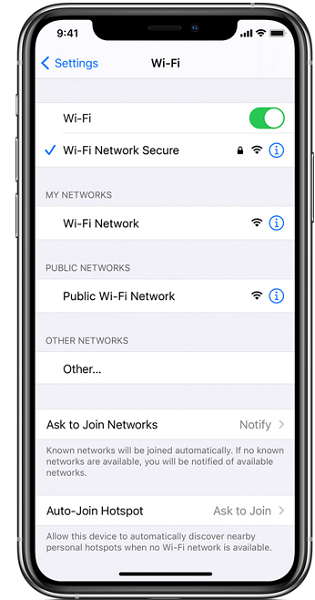
Open Settings and select Wifi. Tap the network you want to fix. Choose “Forget This Network” to remove saved data. Now reconnect by selecting the network and entering the password. This solves password errors and connection bugs.
Remove Phone Case Interference
Some cases block Wifi signals, especially those with metal parts. Remove your iPhone case and check the connection again. If the signal improves, consider using a different case or none at all to avoid interference.
Restart Iphone And Router
Press and hold the side button to restart your iPhone. Power off your router by unplugging it, wait 30 seconds, then plug it back in. Restarting both devices often fixes network conflicts and restores a strong Wifi connection.
Software Updates And Settings
Software updates and settings often fix common Wi-Fi problems on iPhones. Keeping your device updated ensures it runs smoothly and stays compatible with networks. Sometimes, incorrect settings cause connection issues. Adjusting these settings can restore your Wi-Fi quickly. Below are simple steps to troubleshoot Wi-Fi problems using software updates and settings.
Update Ios To Latest Version
Updating iOS fixes bugs that block Wi-Fi connections. Go to Settings > General > Software Update. Download and install any available updates. This keeps your iPhone secure and improves network performance.
Reset Network Settings
Resetting network settings clears saved Wi-Fi networks and passwords. It also resets cellular and VPN settings. Go to Settings > General > Reset > Reset Network Settings. After this, reconnect to Wi-Fi by entering your password again.
Set Date And Time Automatically
Incorrect date and time can cause Wi-Fi errors. Set your iPhone to update date and time automatically. Find this in Settings > General > Date & Time. Enable “Set Automatically” for the best results.
Disable Vpn And Proxies
VPNs and proxies can block Wi-Fi access. Disable them temporarily to check if they cause issues. Go to Settings > VPN and turn off any active connections. Also, check Settings > Wi-Fi > your network > Configure Proxy and set it to “Off.”

Credit: support.apple.com
Router And Network Checks
Checking your router and network settings is key to fixing iPhone Wi-Fi problems. Sometimes, the issue lies not with your iPhone but with the router itself or the network setup. Simple checks can improve your connection and speed up troubleshooting.
Start by ensuring the router works well with your iPhone. Adjusting router settings may help if connection issues persist. Testing different networks confirms if the problem is with your router or the phone.
Check Router Compatibility
Make sure your router supports common Wi-Fi standards like 802.11n or 802.11ac. Older routers may not work well with newer iPhones. Visit your router’s manual or website to confirm compatibility. Updating router firmware can also fix bugs and improve performance.
Change Router Channel
Wi-Fi channels can get crowded, causing interference and slow speeds. Log into your router’s settings and try switching to a less crowded channel. Channels 1, 6, and 11 are best for 2.4 GHz networks. For 5 GHz networks, select a channel with low interference.
Verify Router Security Settings
Check if your router uses WPA2 or WPA3 security protocols. Older protocols like WEP can cause connection issues. Ensure your Wi-Fi password is correct and not changed recently. Disable MAC filtering or add your iPhone’s MAC address to the allowed list.
Test With Different Wifi Network
Try connecting your iPhone to a different Wi-Fi network, like a friend’s or public hotspot. If it connects smoothly, the issue likely lies with your home router or network. If problems persist on multiple networks, the issue may be with your iPhone.
Advanced Troubleshooting
Advanced troubleshooting helps solve tough iPhone Wi-Fi problems. Basic steps may not fix deeper issues. This section covers serious methods to restore Wi-Fi function. Follow these carefully for better results.
Factory Reset Iphone
Factory reset erases all data and settings from your iPhone. It can fix software bugs causing Wi-Fi issues. Back up your data before starting. Go to Settings > General > Reset > Erase All Content and Settings. After the reset, set up your iPhone as new. Check if Wi-Fi connects properly now.
Check For Hardware Issues
Hardware problems can stop Wi-Fi from working. Antenna damage or loose connections inside the iPhone are common causes. Physical damage like drops or water exposure increases risk. Test Wi-Fi in different locations. If problems persist, hardware might be faulty. Avoid opening the iPhone yourself. Seek professional help for diagnosis and repair.
Contact Apple Support
Apple Support offers expert help for iPhone Wi-Fi troubles. They can guide you through advanced fixes. Visit an Apple Store or authorized service provider if needed. Apple may repair or replace faulty parts under warranty. Use online chat or phone support for quick answers. Professional assistance ensures safe and effective repair.
Credit: www.mobitrix.com
Frequently Asked Questions
Why Is My Iphone Having Problems With Wi-fi?
Your iPhone may face Wi-Fi issues due to outdated iOS, router problems, interference, or network settings errors. Restart your device and router, update iOS, toggle Wi-Fi, forget and reconnect to the network. Persistent problems might need Apple Support to check hardware faults.
Why Is Wi-fi Not Working On My Phone But Working On Other Devices?
Wi-Fi may fail on your phone due to outdated software, network settings issues, or interference. Restart devices, update software, forget and reconnect to the network, and disable Airplane Mode to fix this. Removing phone cases blocking signals can also help.
How To Fix Wifi Network On Iphone?
Update iOS, restart iPhone and router, toggle Wi-Fi off/on, forget and reconnect to the network. Reset network settings if needed.
Why Am I Suddenly Unable To Connect To My Wi-fi?
Sudden Wi-Fi disconnection may result from router issues, software glitches, or interference. Restart your device and router, update software, and reconnect to the network. If problems persist, reset network settings or check for hardware faults.
Why Is My Iphone Not Connecting To Wi-fi?
Your iPhone may have a software glitch or wrong password saved. Restart your phone and router, then reconnect to the Wi-Fi network.
Conclusion
Troubleshooting iPhone Wi-Fi issues can be simple with the right steps. Start by restarting your iPhone and router. Toggle Wi-Fi and Airplane Mode to refresh connections. Forget the network and reconnect with the password. Removing phone cases may help improve signal strength.
Keep your iPhone’s software updated for better performance. Reset network settings if problems continue. If none of these work, contacting Apple Support might be necessary. Staying patient and following these tips can restore your Wi-Fi quickly and easily.



