
Is your laptop screen acting up just when you need it most? A flickering, blank, or unresponsive display can instantly disrupt your work or entertainment.
But before you panic or rush to a repair shop, there’s good news: many common laptop display problems can be fixed with simple troubleshooting steps you can do yourself. In this guide, you’ll discover easy-to-follow tips to identify what’s causing your screen issues and how to solve them quickly.
Whether your screen goes black, shows strange colors, or just won’t wake up, you’ll gain the confidence to tackle these problems head-on—and get your laptop back to perfect working order. Keep reading, and take control of your laptop’s display today!
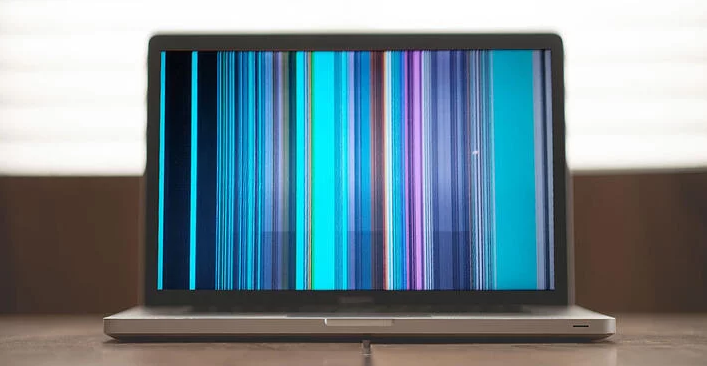
Credit: onsitego.com
Common Laptop Display Issues
Many laptop users face display problems that interrupt their work. These issues vary from simple glitches to serious hardware faults. Understanding common laptop display problems helps in quick diagnosis and repair. Below are frequent display issues and their basic signs.
Black Or Blank Screen
The screen stays black or blank even though the laptop is on. This may mean the screen is not receiving power or signal. Loose cables, faulty backlight, or graphics card issues often cause this. Sometimes, a simple restart or connecting to an external monitor helps identify the cause.
Screen Flickering
The screen blinks or flickers randomly. This problem may happen due to outdated display drivers or incorrect refresh rate. A loose video cable or hardware failure can also cause flickering. Updating drivers and checking connections often fix this issue.
Dim Or Unresponsive Display
The display is too dark or does not respond to brightness controls. This may result from a broken backlight or faulty brightness sensor. Software bugs or power settings can also make the screen dim. Adjusting settings or replacing hardware might be necessary.
Distorted Or Blurry Images
Images and text appear unclear or warped on the screen. This often happens because of incorrect screen resolution or damaged graphics drivers. Physical damage to the screen or cable problems can also distort images. Setting the correct resolution and updating drivers usually improve clarity.

Credit: www.reddit.com
Basic Troubleshooting Steps
Troubles with a laptop display can be frustrating. Basic troubleshooting steps often fix common problems quickly. Follow these simple methods to identify and solve display issues. No special tools needed. Just patience and careful checking.
Perform A Hard Reset
Turn off your laptop completely. Disconnect the power cable and remove the battery if possible. Press and hold the power button for 15 seconds. This clears residual power and resets hardware. Reinsert the battery and plug in the power. Turn on the laptop to see if the display works.
Check Power And Connections
Ensure the power adapter is connected firmly to the laptop and outlet. Check the charging light to confirm power supply. Examine the screen’s connection to the laptop body for any loose cables. Sometimes, a loose cable causes the screen to stay black or flicker. Gently press around the edges of the screen to secure connections.
Use External Monitor
Connect your laptop to an external monitor or TV using HDMI or VGA cable. This test shows if the laptop’s graphic card and system work properly. If the external display works, the laptop screen or its connection may be faulty. If no display on the external monitor, the problem might be inside the laptop’s hardware or software.
Adjust Brightness And Display Settings
Check if the screen brightness is too low or turned off. Use the keyboard brightness keys to increase brightness. Open display settings on your laptop and ensure the correct display output is selected. Sometimes, the laptop may be set to project only to an external screen. Change settings to show on the laptop screen as well.
Driver And Software Fixes
Driver and software issues often cause laptop display problems. Faulty or outdated display drivers can lead to flickering, black screens, or resolution errors. Fixing these problems usually involves updating or resetting drivers and running built-in tools. These steps help restore proper screen function without advanced repairs.
Most laptops rely on graphics drivers to communicate between the operating system and the display hardware. When these drivers become corrupted or outdated, display errors occur. Troubleshooting starts with checking driver status and ensuring the system software is current. Simple shortcuts and automatic tools can quickly resolve common issues.
Update Or Roll Back Display Drivers
Open Device Manager by right-clicking the Start button and selecting it. Expand the Display adapters section to see your graphics device. Right-click the device and choose Update driver to search for newer versions online.
If a recent update caused problems, select Properties instead. Go to the Driver tab and click Roll Back Driver. This restores the previous version and often fixes display glitches caused by updates.
Reset Graphics Driver Shortcut
Press Windows + Ctrl + Shift + B keys together. The screen will flicker briefly and you may hear a beep. This shortcut resets the graphics driver without restarting the laptop. Use it to quickly clear display freezes or glitches.
Run Windows Display Troubleshooter
Open Settings and navigate to Update & Security > Troubleshoot. Select Additional troubleshooters, then find and run the Video Playback or Display troubleshooter. This tool scans for common display problems and applies automatic fixes.
Check For System Updates
Go to Settings > Update & Security > Windows Update. Click Check for updates to download and install any available system patches. These updates often include improved drivers and fixes that enhance display stability.

Credit: www.youtube.com
Hardware Checks
Hardware issues often cause laptop display problems. Checking physical components helps spot faults quickly. Start with simple inspections before complex fixes. This approach saves time and avoids unnecessary repairs.
Inspect Display Cables And Connectors
Loose or damaged cables can stop the screen from showing images. Open the laptop carefully and check all display cables. Make sure connectors fit tightly and show no signs of wear. Clean any dust or dirt from connectors to improve contact. Replace cables if you find visible damage or corrosion.
Reseat Or Replace Ram
Faulty RAM can cause screen flickering or black screens. Remove the RAM sticks gently from their slots. Clean the contacts and place them back firmly. If problems continue, try using a different RAM stick. Test one stick at a time to find the faulty one. This step often fixes display issues related to memory errors.
Disconnect And Reconnect Internal Battery
Resetting the internal battery can clear minor hardware glitches. Power off the laptop and open the back cover. Disconnect the internal battery carefully and wait a few minutes. Reconnect the battery and close the cover. Turn on the laptop to check if the display works. This simple reset can resolve power and display problems.
Test With External Display Devices
Connecting an external monitor helps identify if the laptop screen is faulty. Use an HDMI or VGA cable to link the laptop to another screen. If the external display works fine, the laptop screen or its cables may be damaged. No image on both screens suggests a deeper hardware or graphics card issue. This test narrows down the problem source effectively.
Advanced Solutions
Advanced solutions help fix stubborn laptop display issues. These methods go beyond simple checks and address deeper system settings. Follow each step carefully to improve your screen’s performance and stability.
Disconnect Cmos Battery
Removing the CMOS battery resets the BIOS settings. Turn off your laptop and unplug all cables. Open the back panel to find the small round battery on the motherboard. Gently remove it and wait for five minutes. Reinsert the battery and close the panel. Power on your laptop and check the display.
Disable Windows Desktop Manager
Windows Desktop Manager controls visual effects on your screen. Sometimes, it causes flickering or display lag. Press Ctrl + Shift + Esc to open Task Manager. Find “Desktop Window Manager” under Processes. Right-click it and select “End Task.” Observe if the display improves. This step is temporary and resets on reboot.
Adjust Refresh Rate Settings
Refresh rate affects how often your screen updates per second. Set it correctly to avoid flickering or black screen issues. Right-click on the desktop and choose “Display settings.” Scroll down and click “Advanced display settings.” Select the right monitor and open “Display adapter properties.” Under the Monitor tab, adjust the refresh rate to match your screen’s native rate.
Perform A Clean Boot
A clean boot starts Windows with only essential drivers and programs. It helps find if apps cause display problems. Press Windows + R, type msconfig, and hit Enter. In the System Configuration window, go to the Services tab. Check “Hide all Microsoft services,” then click “Disable all.” Next, open the Startup tab and click “Open Task Manager.” Disable all startup items. Restart your laptop and watch for display changes.
Preventive Tips
Preventing laptop display issues improves your device’s performance and saves repair costs. Simple habits protect the screen and keep it working well for years. Follow easy steps to avoid common problems.
Regular Driver Updates
Keep your laptop’s display drivers up to date. Updated drivers fix bugs and improve screen performance. Check for updates through your laptop’s settings or the manufacturer’s website. Installing updates regularly prevents glitches and flickering.
Avoid Physical Damage
Handle your laptop with care to prevent screen damage. Avoid dropping or pressing hard on the display. Use a protective case when carrying your laptop. Keep liquids and sharp objects away from the screen to prevent cracks and stains.
Maintain Proper Ventilation
Ensure your laptop has good airflow to prevent overheating. Overheating can harm the display and other components. Use your laptop on flat surfaces and avoid blocking vents. Clean dust from vents and fans regularly to keep air flowing freely.
Backup Important Data
Save important files regularly to avoid data loss during display issues. Use cloud storage or external drives for backups. Backups help you recover data if the screen stops working or your laptop needs repair. Regular backups reduce stress and keep your work safe.
Frequently Asked Questions
How To Fix Laptop Display Problem?
Restart your laptop and check power connections. Update or reinstall display drivers. Adjust screen brightness and resolution. Connect to an external monitor to test hardware. Inspect cables and screen for damage. Run Windows troubleshooter and perform a system reset if needed.
How Do I Reset A Laptop Display?
Press Windows + Ctrl + Shift + B to reset the laptop’s graphics driver. The screen will flicker or beep if successful.
How To Fix Laptop Display Glitching?
Update your graphics driver and Windows OS. Adjust screen refresh rate. Check and secure display cables. Disable Windows Desktop Manager. Run Windows troubleshooter and perform a clean boot to fix laptop display glitching.
How To Troubleshoot Display Problems?
Check power and cable connections first. Restart the device and update display drivers. Adjust screen brightness and resolution. Test with an external monitor. Run built-in display troubleshooters to identify issues quickly.
How Do I Fix A Black Laptop Screen Issue?
Check if the laptop is powered on and charged. Connect to an external monitor to test display output. Restart the laptop and perform a hard reset by holding the power button for 10 seconds.
Conclusion
Troubleshooting laptop display problems can save time and money. Start with simple checks like power and cable connections. Use basic resets to fix minor glitches quickly. Testing with an external monitor helps identify screen issues. Regularly update your display drivers for smooth performance.
Follow these easy steps to keep your laptop screen working well. Staying calm and methodical makes troubleshooting easier. Keep this guide handy for future display problems.



