
Is your LCD display acting up and leaving you frustrated? You’re not alone.
Whether your screen is flickering, dim, or not showing anything at all, these problems can disrupt your work or entertainment in an instant. But don’t panic—most LCD issues have simple fixes that you can try yourself. In this guide, you’ll discover easy, step-by-step troubleshooting tips to get your display back to perfect condition quickly.
Keep reading, and you’ll learn how to spot common problems, test your screen, and apply effective solutions that save you time and money. Your clear, bright LCD screen is just a few steps away!
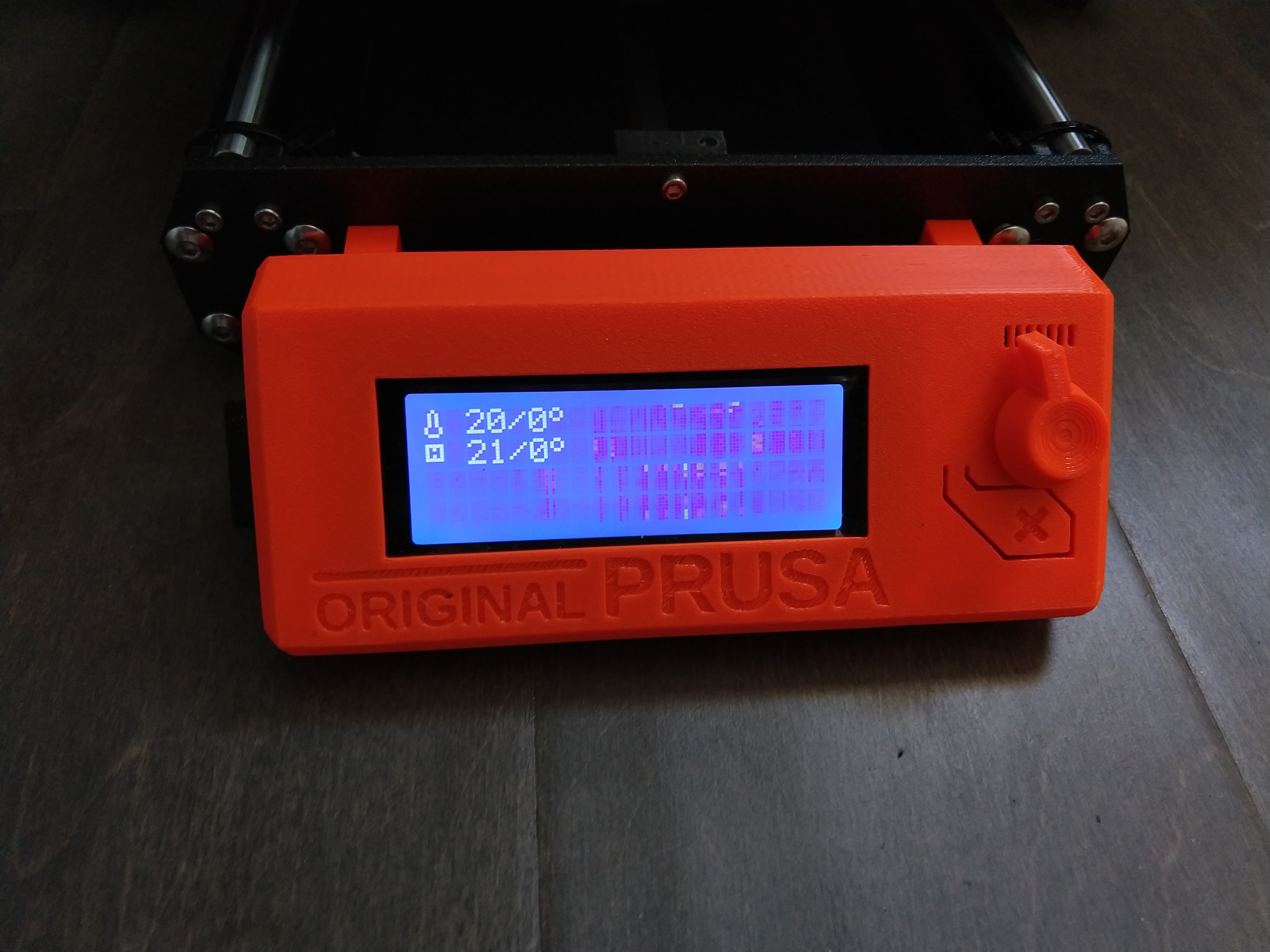
Credit: forum.prusa3d.com
Common Lcd Issues
LCD displays are common in many devices but often face problems. Knowing common issues helps with quick fixes and better device care. Below are typical problems users encounter and signs to spot them early.
Black Screen Problems
A black screen means no image shows on the display. This may happen if the screen is off or the device has no power. Loose cables or a broken connection inside the device often cause this. Sometimes the backlight fails, making the screen look completely black. Testing with a flashlight can reveal faint images if the backlight is the issue.
Flickering And Dim Displays
Flickering shows as rapid screen brightness changes or blinking. It may come from a poor connection or a failing backlight inverter. Dim screens often mean the backlight is weak or damaged. Checking power supply and cable connections can help find the cause. Replacing the backlight or inverter usually fixes this problem.
Color Distortion And Lines
Color distortion appears as strange colors or uneven brightness on the screen. Horizontal or vertical lines may cross the display. These issues often result from damaged LCD panels or loose ribbon cables. Screen pressure or physical damage can also cause color problems. Repair or replacement of the screen or cable is often necessary.
Backlight Failures
The backlight lights up the LCD screen so you can see the image. When it fails, the screen may appear dark even if the device is on. Common causes include broken backlight bulbs or faulty power circuits. Checking the backlight fuse and inverter helps diagnose the problem. Repairing or replacing these parts restores screen visibility.
Initial Checks
Before diving into complex fixes, perform some initial checks on your LCD display. These checks often identify common problems quickly. They save time and effort by ruling out simple issues first.
Start with basic steps to ensure the display has power, proper connections, and correct settings. Also, consider the environment around the display. These factors can affect its performance.
Power Supply Verification
Check if the LCD display is plugged into a working power outlet. Look for any loose power cables or damaged plugs. Confirm the power indicator light on the display is on. If the light is off, the display might not be receiving power. Try using a different power source or cable to rule out power issues.
Cable And Connection Inspection
Inspect all video cables connected to the LCD display. Loose or damaged cables often cause display problems. Ensure cables like HDMI, VGA, or DVI are firmly plugged in. Swap cables if possible to test if the cable is the issue. Also, check for bent pins or dirt in the connectors that might block signals.
Input Source Settings
Verify the LCD display is set to the correct input source. Use the display’s menu or remote control to select the right input, such as HDMI 1 or VGA. Sometimes the display shows a blank screen if the wrong input is selected. Testing with another device can confirm if the input source is causing the problem.
Environmental Factors
Consider the environment where the LCD display is placed. Excessive heat or cold can affect the screen’s function. High humidity or direct sunlight may cause screen dimming or discoloration. Keep the display in a dry, shaded, and well-ventilated area. Avoid placing it near heaters or windows to extend its life.
Backlight Troubleshooting
The backlight is essential for LCD displays to show clear images. Without a working backlight, the screen looks dark or very dim. Troubleshooting backlight problems helps identify if the issue is simple or needs part replacement.
Follow these steps to check and fix backlight issues on your LCD display.
Flashlight Test For Backlight
Shine a bright flashlight directly onto the LCD screen in a dark room. Look closely for faint images or text under the light. If you see the display content, the backlight is not working but the LCD panel still functions. This test helps confirm a backlight failure instead of a total screen problem.
Inspecting Backlight Inverter
The backlight inverter powers the light source in the screen. Check the inverter for loose wires or visible damage. Use a multimeter to test if the inverter outputs the correct voltage. A faulty inverter often causes the backlight to flicker or stay off. Replace the inverter if testing shows no power output.
Replacing Backlight Components
Backlight parts include the inverter and the light source such as CCFL tubes or LEDs. Remove the screen carefully to access these parts. Replace broken or worn components with exact matches. After replacement, test the display to ensure the backlight works properly. Proper handling prevents further damage to the LCD panel.
Signal And Display Testing
Signal and display testing is a key step in fixing LCD display problems. It helps find the cause of issues like no image, flickering, or wrong colors. Testing checks the video source, display settings, and hardware signals. This process narrows down the problem and guides the repair steps. Clear and simple tests give quick answers. Follow these steps to test the signal and display effectively.
Testing Video Signal Sources
Start by checking the device sending the video signal. Make sure it is powered on and connected firmly. Swap cables or ports to rule out faulty wires. Test with a different device, like a DVD player or computer, to see if the problem persists. This step isolates whether the issue is with the signal source or the LCD itself. A missing or weak signal often causes a blank or flickering screen.
Resetting Display Settings
Reset the display settings to default values. Use the on-screen menu or buttons on the monitor to find the reset option. This fixes wrong input selection and wrong resolutions. Incorrect settings can cause no image or distorted pictures. Resetting clears custom settings that might block the display from working properly. It is a quick way to restore normal function.
Using Diagnostic Tools
Diagnostic tools help check the LCD’s hardware and signal quality. Use built-in test patterns or software to display solid colors or grids. This reveals dead pixels, color issues, or flickering. Some monitors have self-test modes activated by unplugging the video cable. External tools can measure signal strength and timing. These diagnostics find faults that are invisible during normal use.
Hardware Repair Tips
Hardware issues often cause LCD display problems. Fixing them early can save time and money. This section offers simple repair tips for LCD hardware faults. Following these steps helps restore your screen’s normal function quickly.
Checking For Loose Connections
Loose connections are a common cause of LCD display issues. Start by unplugging the device and opening its case carefully. Check all cable connections between the display and the motherboard. Press each connector firmly to ensure a secure fit. Look for any damaged pins or connectors. Re-seat cables that seem loose. Sometimes, dust or dirt can block connections. Use a soft brush or compressed air to clean the connectors gently.
Repairing Or Replacing Cables
Cables can wear out or break over time. Inspect all display cables for signs of damage like cuts or frays. Twisted or bent cables may cause signal loss or flickering. If you find damaged cables, replace them with new ones of the exact type and length. Use original or high-quality replacements for best results. When handling cables, avoid pulling or bending sharply. Proper cable management prevents future issues and keeps connections stable.
Screen Replacement Guidelines
Screen replacement requires careful handling and the right tools. First, identify the exact model of your LCD panel. Purchase a compatible replacement screen from a reliable supplier. Power off the device and disconnect all cables before starting. Remove the bezel or frame gently to avoid cracks. Unscrew and detach the faulty screen carefully. Attach the new screen by reversing the removal steps. Test the new screen before fully reassembling the device. Take your time to avoid damaging delicate parts.

Credit: leoguarbikes.com
Preventive Measures
Taking preventive measures helps extend the life of your LCD display. It reduces the chances of common issues and costly repairs. Proper care keeps the screen clear and responsive. Following simple steps protects your display from damage and malfunction.
Protecting From Heat And Humidity
Heat and moisture harm LCD screens quickly. Avoid placing your display near heaters or direct sunlight. Keep the device in a cool, dry space. Use air conditioning or dehumidifiers if the room is very humid. Protecting your screen from these conditions prevents color fading and screen warping.
Avoiding Physical Damage
LCD screens are fragile and need gentle handling. Do not press hard or hit the screen. Use a sturdy case or cover during transport. Avoid stacking heavy items on top of the display. Keeping the display safe from bumps and drops prevents cracks and dead pixels.
Proper Cleaning Techniques
Clean your LCD screen carefully to avoid scratches. Use a soft, lint-free cloth, like microfiber. Avoid paper towels or abrasive materials. Dampen the cloth lightly with water or a screen cleaner. Do not spray liquid directly on the screen. Wipe gently in circular motions to remove dust and smudges.
When To Seek Professional Help
Knowing when to seek professional help is key in LCD display troubleshooting. Some problems look simple but can hide serious issues. Acting quickly avoids further damage and higher repair costs. Recognizing the right moment to contact experts saves time and frustration. The following sections explain how to identify complex failures, explore warranty and support options, and select trusted repair services.
Identifying Complex Failures
Complex failures often involve no display or flickering images. Faulty backlights or damaged circuits cause these issues. Physical damage like cracks or liquid spills requires expert care. If basic checks fail, such as power and cable tests, the problem is likely complex. Unusual noises or burning smells also signal serious faults. Professionals have tools and skills to diagnose these problems accurately.
Warranty And Support Options
Check your device’s warranty before attempting repairs. Many manufacturers offer free repairs within warranty periods. Extended support plans may cover additional services. Contact customer support to learn about your options. Avoid opening the device if it voids the warranty. Authorized service centers ensure safe and reliable repairs. Using warranty services can save money and guarantee quality work.
Choosing Repair Services
Pick repair services with good reviews and certified technicians. Local repair shops offer quick turnaround times. Authorized centers use original parts and follow strict standards. Ask about repair warranties and cost estimates upfront. Avoid services that promise very low prices but lack transparency. A reliable service balances cost, speed, and quality. Clear communication helps you understand the repair process and timeline.
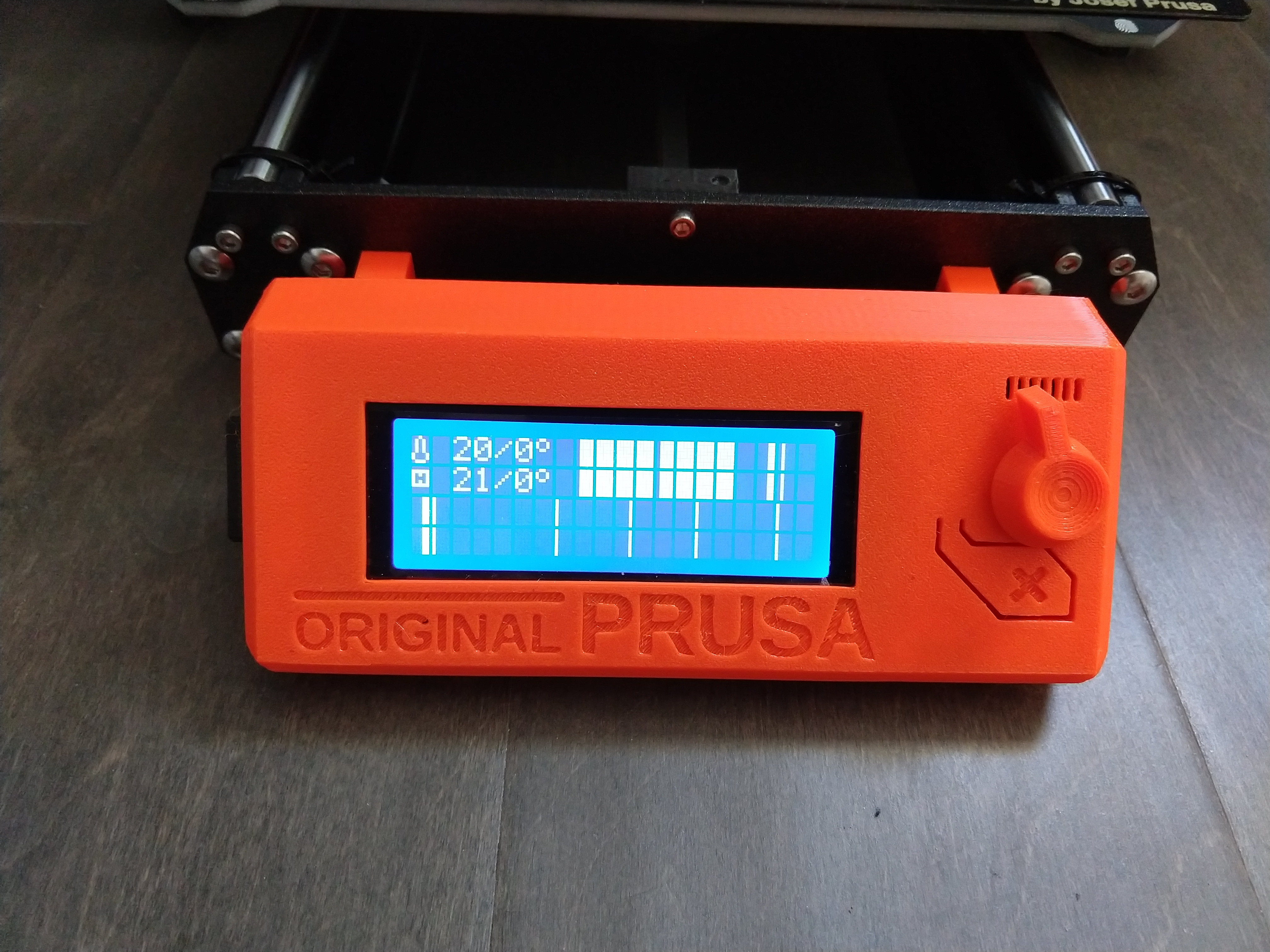
Credit: forum.prusa3d.com
Frequently Asked Questions
How To Troubleshoot An Lcd Display?
Check power connections and input source. Inspect for backlight issues by shining a flashlight on the screen. Test with another device or cable. Restart the display and device. Look for loose cables or damaged components to identify common LCD problems.
Why Is My Lcd Not Displaying Anything?
Your LCD might not display due to power issues, loose connections, wrong input settings, or a faulty backlight. Check cables, power source, and input selection to troubleshoot.
How To Check If An Lcd Display Is Working Or Not?
Shine a flashlight on the LCD screen to see faint images. Check power, connections, and input source. Look for flickering or dimness.
What Causes Lcd Displays To Fail?
LCD displays fail due to extreme temperatures, humidity, UV exposure, backlight issues, loose connections, and power supply problems.
Why Is My Lcd Display Not Showing Any Image?
Check if the power cable and video source are properly connected. Sometimes, the screen is on but no signal is sent. Also, verify the monitor input settings.
Conclusion
Troubleshooting an LCD display becomes easier with clear steps. Check all connections and power sources first. Inspect the screen carefully for flickers or dim areas. Test with different devices to isolate the issue. Sometimes, simple resets or adjustments fix common problems.
Keep your device clean and avoid harsh environments. Regular care helps your LCD last longer. With patience, most display issues can be resolved quickly. Follow these tips to maintain a clear, working screen.



