
Is your LED TV acting up when you least expect it? Maybe the screen goes black, the picture is distorted, or the sound is out of sync.
These problems can be frustrating, especially when you rely on your TV for entertainment and relaxation. But don’t worry—you don’t have to be a tech expert to fix common LED TV issues. In this guide, you’ll discover simple, step-by-step troubleshooting tips that you can try right now to bring your TV back to life.
Keep reading to learn how to solve your LED TV problems quickly and easily, so you can get back to enjoying your favorite shows without delay.

Credit: www.dreamstime.com
Common Led Tv Issues
LED TVs bring vibrant images and clear sound to living rooms worldwide. Despite their popularity, these TVs face common problems that can disrupt your viewing experience. Knowing these issues helps you troubleshoot quickly and save on repair costs.
This section covers frequent LED TV problems. It explains causes and signs of each issue. Simple checks and fixes can often restore your TV’s function.
Picture Problems
Picture issues include no image, flickering, or distorted colors. A blank screen might mean a loose cable or input error. Flickering can occur due to weak signal or screen damage. Colors may look dull if settings change or the backlight fails. Checking connections and adjusting settings often solves these problems.
Audio Issues
Audio troubles range from no sound to static or low volume. These can result from incorrect mute settings or faulty speakers. Audio delay happens if the TV’s sound sync is off. Using headphones or external speakers helps test if the problem is internal. Resetting audio settings usually fixes minor faults.
Power Failures
Power failures cause the TV not to turn on or shut off unexpectedly. This might be due to a bad power source or internal component failure. Unplugging the TV for a few minutes can reset it. If problems continue, check the power cord and fuse. Professional repair may be needed for hardware faults.
Connectivity Errors
Connectivity errors affect internet and device connections. Wi-Fi may drop or refuse to connect. HDMI or USB ports might not recognize devices. These issues can arise from outdated firmware or dirty ports. Restarting the router and cleaning ports improves connection. Updating the TV software often restores proper function.
Quick Power Reset
A quick power reset is a simple way to fix many LED TV problems fast. It clears temporary glitches and restarts your TV’s system. This process often solves issues like frozen screens, no picture, or unresponsive menus. It takes just a few minutes but can save a trip to the repair shop.
Unplugging Method
Start by turning off your LED TV. Then unplug the power cord from the wall outlet. Wait for about 2 to 5 minutes. This pause lets the TV’s internal circuits fully power down. After the wait, plug the TV back in. Turn it on and check if the problem is gone.
Processor Reboot Benefits
The power reset reboots the TV’s processor. It works like restarting a computer or smartphone. This reboot clears memory bugs and stops software crashes. It helps fix black screens and frozen displays. The reset does not erase your settings or apps. Your picture, sound, and network setup stay safe.
When To Use Reset
Use a quick power reset when your TV is unresponsive. It helps if the screen stays black or the remote won’t work. Try it if apps freeze or the TV won’t connect to Wi-Fi. This reset is a good first step before deeper troubleshooting. Repeat the reset if problems return after a few hours.
Fixing Black Screen
A black screen on your LED TV means no picture shows up. The sound might still work, or the TV might be completely off. This issue can happen for many reasons. Some problems are easy to fix at home. Others may need professional help.
Start by checking simple things. Then move to more detailed steps. This way, you can find the cause and fix it quickly. Follow the steps below to fix your LED TV black screen.
Check Power Supply
Make sure your TV is plugged in properly. Check the power cord and wall outlet. Try another outlet to rule out power issues. Look for any loose or damaged cables. If the TV has a power light, see if it is on.
Sometimes, the power board inside can fail. This part controls power flow to the TV. If you hear a clicking sound or no sound at all, the power board might be faulty. In this case, replacing the power board may be needed.
Inspect Internal Components
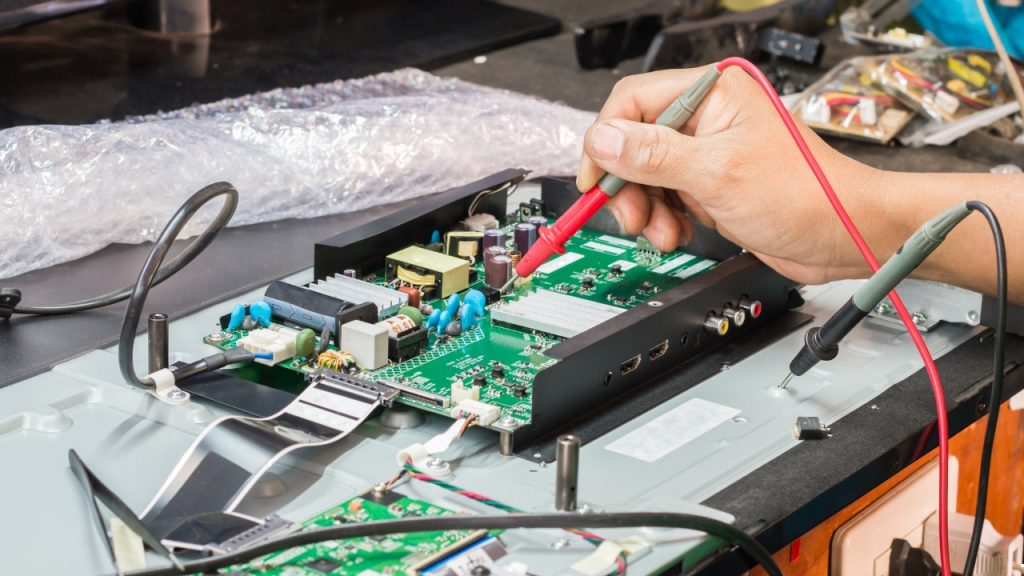
Unplug the TV before opening it. Look inside for any visible damage. Check for burned or swollen parts on the circuit boards. Pay attention to capacitors, as they often cause problems.
Also, check the main board and connections. Loose or damaged cables inside can cause a black screen. If you see burnt marks or smell burning, stop and get professional help. Handling internal parts can be risky.
Perform Cold Boot
Turn off the TV and unplug it from the wall. Wait for at least 5 minutes. This step helps reset the internal processor and memory. Plug the TV back in and turn it on.
A cold boot can clear minor software glitches that cause black screens. It does not erase your settings or apps. This quick reset often restores the display without extra work.
Credit: shop.haierindia.com
Resolving Audio Delays
Audio delays on LED TVs disrupt the viewing experience. This issue causes sound to lag behind the picture. Fixing these delays helps sync audio and video perfectly. The following tips provide simple ways to resolve audio delays quickly.
Adjust Audio Settings
Access your TV’s audio menu from the settings. Look for options like “Audio Delay” or “Lip Sync.” Adjust the delay time to match the video. Test different settings until audio and video sync well. Turn off any sound enhancements that may cause lag. Use built-in speakers for testing before trying external devices.
Check External Devices
Audio delays often come from connected devices. Inspect HDMI cables for damage or loose connections. Replace old or low-quality cables with high-speed ones. Disconnect and reconnect devices like soundbars or receivers. Try using different input ports on your TV. Power cycle external devices by unplugging them for a minute.
Update Firmware
Firmware updates fix bugs that cause audio issues. Check your TV’s menu for software updates. Download and install the latest firmware available. Keep your TV connected to the internet during updates. Restart the TV after updating to apply changes. Regular updates improve performance and audio syncing.
Troubleshooting Picture Distortion
Picture distortion on an LED TV can disrupt your viewing experience. It may appear as blurry images, strange colors, or flickering screens. This section guides you through simple steps to fix these problems. Follow each step carefully to restore clear picture quality.
Verify Cable Connections
Check all cables connected to your TV. Loose or damaged cables can cause picture distortion. Make sure HDMI, AV, or coaxial cables are firmly plugged in. Replace cables that look worn or broken. Secure connections prevent signal loss and improve picture quality.
Adjust Picture Settings
Use your TV remote to open the picture settings menu. Reset settings to default for a fresh start. Adjust brightness, contrast, and sharpness to clear any blurriness. Try different picture modes like Standard or Movie for better results. Fine-tuning these options can fix many display issues.
Replace Faulty Parts
If distortion continues, faulty parts may be the cause. Common culprits include the screen panel or internal boards. Inspect the TV for visible damage or swelling components. Contact a professional technician to replace broken parts safely. Replacing damaged components often restores perfect picture quality.
Handling Connectivity Problems
Connectivity issues can disrupt your LED TV viewing experience. Resolving these problems fast helps you enjoy your shows without delays. Troubleshooting connectivity involves checking cables, network devices, and software updates. Follow simple steps to fix common connection errors on your LED TV.
Check Hdmi And Ports
Inspect all HDMI cables for damage or loose connections. Swap cables to test if the problem lies with the wire. Clean the ports gently to remove dust or debris. Try different HDMI ports on the TV to rule out port failure. Ensure devices are powered on and set to the correct input source.
Restart Network Devices
Turn off your modem and router to refresh the internet connection. Wait for at least 30 seconds before turning them back on. Restart your LED TV after the network devices reboot. This step often clears temporary glitches affecting streaming or smart features. Confirm your TV reconnects to the Wi-Fi or wired network.
Update Smart Tv Software
Check for available software updates in your TV settings menu. Installing the latest firmware improves performance and fixes bugs. Keep your smart TV updated to maintain smooth connectivity with apps. Use a stable internet connection during the update process. Regular updates prevent many common connectivity problems.
When To Seek Professional Help
Sometimes LED TV problems need more than simple fixes. Knowing when to call a professional saves time and money. Professional help ensures safe and accurate repairs. It prevents further damage and keeps your TV working longer.
Signs Of Hardware Damage
Physical damage like cracks or broken parts needs expert care. If the screen flickers or shows strange colors, it may signal hardware issues. Strange noises or burning smells also warn of serious problems. Professionals can diagnose and fix these safely.
Complex Board Issues
Internal board problems often require special tools and skills. If your TV won’t turn on after resets, the main board might be faulty. Complex circuit issues can cause power failures or no picture. Technicians know how to test and replace these parts correctly.
Cost Vs Repair Benefits
Sometimes repair costs are close to buying a new TV. Professionals help decide if fixing your TV is worth it. Older models may not be worth expensive repairs. A technician can offer options based on your budget and TV condition.

Credit: budget.repair
Frequently Asked Questions
What Are Common Led Tv Problems?
Common LED TV problems include black or distorted screens, audio delay, color issues, lines on the screen, and blurry visuals.
How To Hard Reset A Led Tv?
To hard reset a LED TV, unplug it from the power outlet. Wait 60 seconds, then plug it back in. Turn the TV on to complete the reset. This clears temporary glitches and restores normal function without affecting your settings.
Why Is My Led Tv Suddenly Not Working?
Your LED TV may not work due to power issues, blown fuses, or damaged internal boards. Unplug it for a few minutes to reset. Check for visible damage or overheating. Persistent problems might require professional repair or board replacement.
Does Unplugging A Tv Reset It?
Unplugging a TV performs a power reset, rebooting its internal processor and fixing minor glitches. It does not erase settings or apps.
Why Is My Led Tv Screen Black But Power Is On?
A black screen with power on often means signal or input issues. Check if the correct source is selected and cables are secure. Try a power reset by unplugging the TV for a few minutes.
Conclusion
Troubleshooting your LED TV can save time and money. Start with simple steps like unplugging and checking cables. Look for common signs such as no picture, distorted images, or sound issues. Resetting the TV often fixes many problems quickly. If issues persist, consider professional help.
Regular maintenance helps keep your TV working well. Stay patient and follow instructions carefully. Your LED TV can work smoothly again with a little effort.



