
Is your Lenovo laptop acting up right when you need it most? Whether it’s freezing, overheating, or struggling to connect to Wi-Fi, these frustrating issues can bring your productivity to a halt.
But before you rush to a repair shop or consider a costly replacement, there’s good news: many common Lenovo laptop problems can be fixed quickly with a few simple troubleshooting steps. In this guide, you’ll discover easy-to-follow tips and tricks tailored specifically for Lenovo laptops.
By the end, you’ll feel confident handling slow performance, battery troubles, hardware glitches, and more—all on your own. Ready to get your Lenovo laptop back in top shape? Let’s dive in and solve these problems together.
Common Lenovo Laptop Issues
Lenovo laptops are popular for their reliability, but they can face common problems. These issues often disrupt daily tasks and reduce productivity. Understanding typical faults helps users fix problems faster and avoid damage.
Several common issues affect Lenovo laptops. Some relate to software, others to hardware. Regular maintenance and timely troubleshooting improve laptop lifespan and performance.
Slow Performance And Freezing
Slow performance happens when too many programs run at startup. Lack of free memory or outdated software also causes freezing. Removing unnecessary apps and updating drivers can speed up the system.
Battery And Charging Problems
Batteries lose capacity over time and may not hold a charge. Charging issues occur from faulty adapters or damaged ports. Calibrating the battery or replacing worn parts often solves these problems.
Overheating And Fan Noise
Dust buildup inside blocks airflow, causing overheating. Fans run loudly to cool the laptop. Cleaning vents and using cooling pads reduce heat and noise.
Wi-fi Connectivity Issues
Wi-Fi problems can come from weak signals or outdated drivers. Network settings or router faults may also block connections. Updating drivers and resetting network helps restore Wi-Fi access.
Keyboard And Touchpad Failures
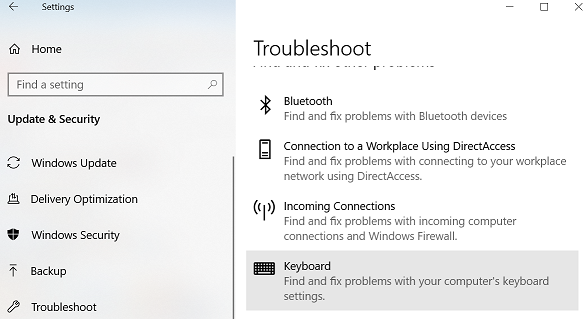
Keys may stop working due to dirt or hardware faults. Touchpads can become unresponsive or jumpy. Cleaning and driver updates often fix these input device issues.
Blue Screen Of Death Errors
Blue Screen errors signal serious system faults. They often result from driver conflicts or hardware failures. Running diagnostics and updating drivers can reduce these crashes.
Hinge And Physical Damage
Repeated opening and closing may loosen or break hinges. Physical damage also includes cracked screens and worn casing. Prompt repair prevents further damage and maintains usability.
Boot And Display Problems
Laptops stuck on the Lenovo logo or with blank screens face boot issues. These may arise from corrupted files or hardware errors. Safe mode and system repair tools help fix these faults.
Performance Troubleshooting
Performance issues can slow down your Lenovo laptop and affect your work. Fixing these problems improves speed and responsiveness. Simple steps help your device run smoothly again.
Managing Startup Programs
Many programs start automatically when you turn on your laptop. They use memory and slow down boot time. Open Task Manager and go to the Startup tab. Disable programs you do not need at startup. This frees up resources and speeds up your system.
Uninstalling Unnecessary Software
Old or unused software takes up space and can slow your laptop. Check the installed programs list in Control Panel. Remove apps you no longer use. This cleans your system and improves performance.
Updating Drivers
Outdated drivers cause errors and slowdowns. Visit Lenovo’s support website for the latest driver updates. Install updates for graphics, audio, and network devices. Updated drivers help your laptop run more efficiently.
Handling Bloatware
New Lenovo laptops often come with pre-installed apps called bloatware. They use system resources without adding value. Identify these apps and uninstall or disable them. This reduces unnecessary background activity and boosts speed.
Optimizing Ram Usage
RAM affects how many programs run smoothly at once. Close unused apps and browser tabs to free memory. Use the Task Manager to monitor RAM usage. Adding more RAM can also help if your laptop feels slow during multitasking.
Battery And Power Solutions
Battery and power issues are common in Lenovo laptops. These problems can cause unexpected shutdowns, slow charging, or battery drain. Understanding basic solutions helps keep your device running smoothly. Simple checks and fixes often restore proper power function without costly repairs.
Battery Calibration Tips
Calibrating your battery improves its accuracy and lifespan. First, fully charge the laptop to 100%. Next, unplug the charger and use the laptop until the battery drains completely. Finally, recharge it fully without interruption. Repeat this process every few months for best results.
Replacing Aging Batteries
Old batteries lose their ability to hold charge. If your laptop shuts down quickly or won’t charge, consider replacing the battery. Use genuine Lenovo batteries for safety and compatibility. Turn off the laptop before removing the old battery. Install the new one securely and check charging status.
Power Drain Procedure
Power drain fixes minor hardware glitches. First, shut down the laptop. Remove the charger and battery if possible. Press and hold the power button for 30 seconds. This clears residual power. Reinsert the battery and charger, then power on. This often resolves charging or power issues.
Checking Power Connections
Loose or damaged power connections cause charging problems. Check the charger plug for damage or dirt. Inspect the laptop’s charging port for debris or bent pins. Ensure the charger fits snugly into the port. Try using another compatible charger to rule out adapter faults.
Credit: support.lenovo.com
Cooling And Overheating Fixes
Overheating is a common problem in Lenovo laptops. It can slow down your device and cause unexpected shutdowns. Fixing cooling issues helps your laptop run smoothly and last longer. Simple steps can reduce heat buildup and improve performance.
Cleaning Dust From Vents
Dust blocks air vents and stops cool air from entering. Use a soft brush or compressed air to clear dust from vents. Turn off the laptop and unplug it before cleaning. Regular cleaning prevents overheating and keeps fans working well.
Improving Airflow With Cooling Pads
Cooling pads provide extra airflow under the laptop. They help lower the temperature during heavy use. Place the laptop on a cooling pad with built-in fans. This reduces heat and protects internal parts from damage.
Monitoring Fan Performance
Fans remove hot air inside the laptop. Check if fans spin properly and are not noisy. Use software tools to monitor fan speed and temperature. Replace faulty fans to avoid overheating and hardware failure.
Adjusting Power Settings
Power settings affect how much heat your laptop produces. Set your laptop to balanced or power saver mode to reduce heat. Lower screen brightness and close unused apps to save power. These changes help keep the laptop cool and extend battery life.
Connectivity And Network Fixes
Connectivity problems can disrupt your Lenovo laptop use. Network issues affect browsing, streaming, and work tasks. Simple fixes often restore stable connections and improve speed.
This section covers easy steps to resolve common Wi-Fi and network problems. Follow these tips for quick and effective solutions.
Troubleshooting Wi-fi Drivers
Wi-Fi drivers help your laptop communicate with wireless networks. Outdated or corrupt drivers cause connection drops or no Wi-Fi access. Check for driver updates in Device Manager. Right-click your Wi-Fi adapter and select “Update driver.”
Use Lenovo’s support site to download the latest driver versions. Reinstall drivers by uninstalling the current one, then restarting your laptop. This refresh often fixes hidden driver errors.
Resetting Network Adapters
Network adapters manage connections to the internet. Resetting them clears glitches and resets settings to default. Open Settings, go to “Network & Internet,” then select “Status.”
Click “Network reset” and confirm. Your laptop will restart, and adapters will reset. This process solves many connection problems by refreshing network components.
Checking Router Settings
Your router controls internet access for all devices. Incorrect settings can block your Lenovo laptop from connecting. Restart the router by unplugging it for 30 seconds, then plug it back in.
Access the router’s admin page using its IP address. Verify Wi-Fi is enabled and the password is correct. Check for firmware updates to improve router performance and security.

Credit: www.youtube.com
Hardware And Peripheral Repairs
Hardware and peripheral repairs are essential for maintaining Lenovo laptops. These repairs fix physical parts that affect daily use and device performance. Common problems include keyboard malfunctions, touchpad failures, broken hinges, and disk errors. Timely repairs can extend your laptop’s lifespan and improve its reliability.
Fixing Keyboard And Touchpad Issues
Keyboard and touchpad problems often arise from dust, spills, or wear. Cleaning under the keys with compressed air helps remove debris. For unresponsive keys, checking driver updates is crucial. Touchpad issues may need driver reinstall or sensitivity adjustments. Replacing faulty hardware parts can restore full functionality.
Addressing Hinge Problems
Loose or broken hinges affect screen stability and laptop usability. Tightening screws often resolves minor looseness. If hinges break, replacement parts must be ordered. Avoid forcing the screen back to prevent further damage. Proper hinge repair ensures smooth opening and closing of the laptop lid.
Diagnosing Disk Errors
Disk errors cause slow performance and data loss risks. Running built-in diagnostics can identify bad sectors or file system issues. Using tools like CHKDSK scans and repairs disk problems. Backing up important data before repairs is critical. Replacing a failing hard drive or SSD may be necessary for full recovery.
System Recovery And Reset
System recovery and reset are essential steps to fix major issues on Lenovo laptops. These processes restore your device to a stable state without advanced technical skills. They help resolve software errors, crashes, and slow performance. Lenovo provides built-in tools to simplify recovery and reset tasks. Following clear steps ensures safety for your important data and settings.
Using The Reset Button
Many Lenovo laptops have a small reset button or pinhole. Pressing it can reboot the system if it freezes or won’t start. Use a paperclip or similar tool to press the button gently. Hold it for a few seconds, then release. This action forces a hardware reset without losing data. It is a quick fix for unresponsive laptops or boot issues.
Running Lenovo Diagnostics
Lenovo Diagnostics is a built-in tool to check hardware health. It tests memory, hard drive, battery, and other parts. Run diagnostics by pressing the appropriate key during startup (usually F10 or Novo button). The tool scans components and reports any problems. Use the results to decide if hardware repair or replacement is needed. It helps identify issues before performing a full reset.
Performing System Restore
System Restore rolls back Windows to a previous state. It fixes errors caused by recent changes like software installations or updates. Access System Restore through the Control Panel or recovery options. Choose a restore point dated before the problem started. The process does not affect personal files but removes recent apps and drivers. This method resolves many software conflicts without a full reset.
Using Lenovo Support Tools
Lenovo offers support tools like Lenovo Vantage and Rescue and Recovery. Lenovo Vantage helps with updates, diagnostics, and system health checks. Rescue and Recovery guides you through restoring factory settings or backing up data. These tools have user-friendly interfaces designed for non-experts. They provide step-by-step instructions to safely recover or reset your laptop. Using official tools reduces risk and improves success.
General Maintenance Tips
Keeping your Lenovo laptop in good shape needs regular care. Simple maintenance helps avoid many common problems. It keeps your device running smoothly and extends its life. Follow these easy tips to maintain your Lenovo laptop effectively.
Regular Restarting
Restart your laptop often to clear memory and close unused apps. This helps improve speed and fixes minor glitches. Avoid keeping your laptop on for days without a restart. A fresh start makes your system more stable and responsive.
Keeping Software Updated
Update your operating system and drivers regularly. Updates fix bugs and improve security. Lenovo provides specific updates for their laptops. Check the Lenovo Vantage app or support website for the latest patches. Running outdated software can cause crashes and slowdowns.
Cleaning And Physical Care
Clean your laptop’s keyboard, screen, and vents gently. Use a soft cloth and avoid harsh chemicals. Dust buildup can block air vents and cause overheating. Keep your laptop on a hard surface to improve airflow. Handle your device carefully to prevent damage to hinges and ports.
Managing Startup Programs
Too many programs starting automatically slows down your laptop. Disable unnecessary startup apps in Task Manager. This frees up system resources and speeds up boot time. Review startup items regularly and remove apps you do not need. A lean startup helps your Lenovo run faster and smoother.

Credit: learn.microsoft.com
Frequently Asked Questions
What Is The Common Problem Of Lenovo Laptops?
Common Lenovo laptop problems include slow performance, battery issues, overheating, Wi-Fi drops, keyboard/touchpad failures, and Blue Screen errors.
How To Fix Unresponsive Lenovo Laptop?
Unplug the power cable, remove the battery if possible, then hold the power button for 30 seconds. Reconnect power and restart. Update drivers, clean vents, and uninstall unused apps to improve responsiveness.
What Is The Reset Button On A Lenovo Laptop?
The reset button on a Lenovo laptop restores the device to its original state or restarts it during freezes or malfunctions.
How To Run Troubleshoot On Lenovo Laptop?
To troubleshoot a Lenovo laptop, restart it first. Run Lenovo Vantage or Windows Troubleshooter. Update drivers and Windows. Clean vents to prevent overheating. Check hardware connections and battery health. Use Lenovo Support Diagnostics for detailed analysis.
What Are Common Lenovo Laptop Problems And Fixes?
Common issues include slow speed, battery troubles, and overheating. Cleaning vents, updating drivers, and checking battery health can help. Restarting or removing unnecessary programs also improves performance.
Conclusion
Troubleshooting a Lenovo laptop becomes easier with simple steps. Start by restarting the device to clear minor issues. Keep your drivers updated to ensure smooth performance. Clean dust from vents regularly to prevent overheating. Remove unused programs to free up space and speed up the system.
Check battery health and replace if it drains quickly. Address Wi-Fi problems by updating network drivers or resetting the connection. For persistent issues, consult Lenovo support or a professional technician. Regular care helps your laptop run longer and more reliably.



