
Is your Lexmark printer acting up right when you need it most? Don’t let frustrating printing problems slow you down.
Whether your printer won’t print, is showing error codes, or delivering poor print quality, you can fix many common issues yourself — quickly and without extra cost. In this guide, you’ll find simple, step-by-step troubleshooting tips tailored specifically for Lexmark printers.
From checking power and connectivity to resolving print errors and improving output quality, you’ll learn exactly what to do to get your printer back on track. Keep reading, and take control of your printing problems today!
Credit: support.lexmark.com
Power And Hardware Checks
Power and hardware checks are the first steps in fixing a Lexmark printer. Problems often start here. A printer may not work if it lacks power or if parts are not properly set. Checking these simple things can save time and avoid bigger issues.
These checks include ensuring a strong power connection, inspecting doors and paper trays, and clearing paper jams. Each step helps confirm that the printer is ready to print without interruptions. Let’s explore these steps in detail.
Secure Power Connection
Check the power cable to make sure it is firmly plugged into the printer and outlet. A loose cable can cause the printer to lose power. Use a different outlet if needed. Look for any damage on the power cord. Turn the printer off and on to see if it powers up correctly.
Inspect Doors And Paper Trays
Open all printer doors and trays. Ensure each one closes fully and locks in place. An open door stops the printer from working. Check the paper tray for correct paper placement. Remove any extra paper that may cause feeding problems. Properly loaded trays prevent many printing issues.
Clear Paper Jams
Paper jams are common but easy to fix. Turn off the printer and gently remove stuck paper. Avoid tearing the paper inside the printer. Check all paper paths, including the input and output trays. Clear any small pieces of paper left behind. After clearing jams, close doors and trays firmly before restarting the printer.
Connectivity Issues
Connectivity issues often cause Lexmark printers to stop responding. These problems prevent the printer from communicating with your computer or network. Fixing them requires checking cables, network settings, and printer configuration. This section guides you through simple steps to restore connection and get printing again.
Usb Cable Troubleshooting
Check the USB cable for damage or loose connections. Unplug the cable from both the printer and computer. Wait a few seconds, then reconnect firmly. Use a different USB port on your computer to rule out port problems. If possible, try another USB cable to see if the issue resolves. Avoid using long or low-quality cables as they may cause connection failures.
Wi-fi And Ethernet Setup
Ensure the printer is connected to the correct Wi-Fi network or Ethernet cable. Restart your router and printer to refresh the connection. On the printer’s display, verify the network name matches your router. If using Ethernet, confirm the cable is securely plugged into both devices. Avoid placing the printer too far from the router to maintain signal strength.
Network Configuration
Open the printer settings to check the IP address and network status. The printer must have a valid IP address within your network range. Reset network settings to default if the printer shows an error. Update the printer firmware to fix known connectivity bugs. Disable any firewall or antivirus temporarily, as they might block printer communication.
Driver And Software Fixes
Driver and software issues often cause Lexmark printer problems. Fixing these can restore smooth printing quickly. Many printer errors occur due to outdated or corrupted drivers and software conflicts. Resolving these problems involves reinstalling drivers, clearing print queues, and updating firmware. These steps help your printer communicate properly with your computer. Follow simple instructions to solve common printing issues and improve performance.
Reinstall Printer Drivers
Remove the current Lexmark printer driver from your computer. Visit the official Lexmark website to download the latest driver. Choose the right driver for your printer model and operating system. Run the installer and follow the on-screen instructions. Restart your computer after installation. This clears corrupted files and fixes driver conflicts. Your printer will work better with fresh software.
Clear Print Queue
Open the print queue on your computer. Check for stuck or pending print jobs. Select all jobs and cancel them. Sometimes, a frozen print job blocks new ones. Restart the print spooler service to refresh the queue. This can fix delays or failed printing. Clearing the queue lets your printer process new documents smoothly.
Update Printer Firmware
Firmware controls your Lexmark printer’s internal functions. Check for firmware updates on Lexmark’s support page. Download and install the latest firmware version. Follow the instructions carefully to avoid errors. Updating firmware fixes bugs and adds new features. It also improves printer stability and compatibility. Keep firmware current for best printer performance.
Print Quality Problems
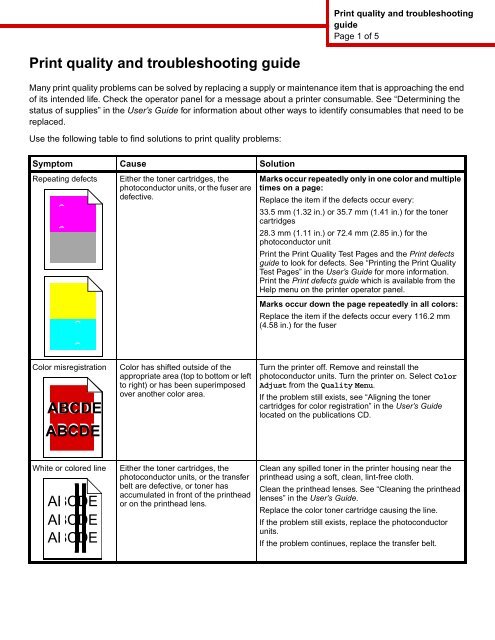
Print quality problems can make your Lexmark printer frustrating to use. Poor print results affect documents and photos. You may see faded text, streaks, or blank spots. These issues often signal simple fixes. Checking key parts and running tests helps find the cause. Follow these steps to improve your print output quickly.
Check Toner And Ink Levels
Low toner or ink causes faded prints and streaks. Open the printer cover and check the toner cartridge. Replace it if the toner is low or empty. For ink printers, check ink levels using the printer software. Refill or replace cartridges as needed. Always use compatible supplies for best results.
Run Print Quality Tests
Use the printer’s built-in test page to check print quality. This test shows color and alignment problems. Access this option from the printer menu or software. The test helps spot issues like banding or color misalignment. Note any defects and use the printer’s cleaning or alignment tools to fix them.
Handle Blank Or Faded Pages
Blank or faded pages can mean clogged print heads or bad cartridges. Run the printer’s cleaning cycle to clear blocked nozzles. Repeat cleaning if needed but avoid excessive cycles. Remove and reinstall cartridges to ensure proper contact. If problems persist, replace the cartridge or contact support for further help.
Error Codes And Messages
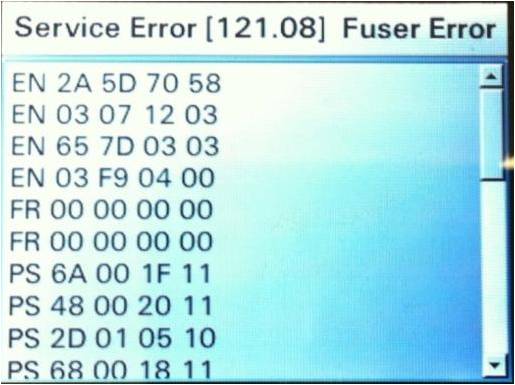
Lexmark printers often display error codes and messages to help users understand and fix problems quickly. These codes point out specific issues, making troubleshooting easier. Recognizing and responding to these messages can save time and reduce frustration.
Each error code relates to a particular problem, such as paper jams, low ink, or connection errors. The printer’s screen shows these messages clearly, guiding users toward the right solution. Knowing how to read and act on these codes improves printer performance and avoids unnecessary repairs.
Identify Common Error Codes
Common Lexmark error codes include E03 for paper jams and E10 for cartridge issues. Other codes like E20 mean low toner, while E30 signals a hardware problem. Check the printer display to see the exact code. Write it down to find the right fix quickly.
Follow On-screen Instructions
The printer screen often shows steps to fix errors. These can be simple, like removing stuck paper or reinstalling cartridges. Follow each instruction carefully to resolve the issue. Restart the printer if the problem persists after following the steps.
Consult User Manual
The user manual has detailed explanations for every error code. It offers step-by-step solutions and safety tips. Keep the manual handy for quick reference. Download a digital copy from Lexmark’s official site if needed.

Credit: printsaverepeat.com
Performance And Speed
Performance and speed are vital for efficient printing with your Lexmark printer. Slow printing or delays can disrupt your workflow and waste time. Understanding how to improve these aspects can help you get the most out of your device. Here are key tips to boost your printer’s speed and overall performance.
Optimize Large File Printing
Large files can slow down printing significantly. Break big documents into smaller parts for faster processing. Use simple fonts and reduce unnecessary images. Convert files to PDF format to minimize size. This helps the printer handle data more quickly and print without delays.
Manage Graphics Settings
High-quality graphics take longer to print. Lower the print resolution to speed up output. Choose draft mode for everyday prints. Avoid printing unnecessary color or complex images. Adjusting these settings reduces the workload on your printer and speeds up printing.
Check Printer Memory
Insufficient memory can cause slow printing. Check your Lexmark printer’s memory capacity through the control panel. Add more memory if needed to handle large jobs smoothly. More memory allows the printer to process data faster and improves overall speed.
Advanced Troubleshooting
Advanced troubleshooting helps fix complex Lexmark printer problems. It involves steps beyond basic checks. These methods reset the printer or seek expert help. Follow these steps carefully for better results.
Perform Power Reset
Turn off your Lexmark printer completely. Unplug it from the power source. Wait for about 60 seconds. Plug the printer back in and turn it on. This clears temporary errors and refreshes the printer’s system.
Restore Factory Defaults
Access the printer’s menu using the control panel. Navigate to the settings or tools section. Find the option labeled “Restore Factory Defaults.” Confirm your choice to reset all settings. This fixes configuration issues causing printer errors.
Contact Lexmark Support
Reach out to Lexmark support for help beyond these steps. Use their official website or call their customer service. Provide your printer model and error details. Support agents offer tailored solutions and repair options.
Credit: www.yumpu.com
Frequently Asked Questions
Why Is My Lexmark Printer Not Printing?
Check power, cables, and paper supply. Ensure the printer and computer connect to the same network. Restart the printer. Clear paper jams and verify toner installation. Update or reinstall printer drivers. Review error messages on the printer display and follow instructions.
Contact support if issues persist.
What Is The Most Common Problem With Printers?
The most common printer problems include paper jams, ink or toner issues, connectivity loss, and poor print quality. Regularly checking paper trays, cables, and ink levels helps prevent these issues. Restarting the printer and updating drivers often resolve many printing errors quickly and effectively.
How Do I Reset My Lexmark Printer?
To reset your Lexmark printer, open the menu and navigate to “Restore Factory Defaults. ” Select it and press “OK” to confirm. The printer will reboot and reset all settings to default.
How Would You Troubleshoot A Printer That Isn’t Printing?
Check power connections and ensure the printer is on. Verify paper is loaded correctly and no jams exist. Confirm USB or network cables are secure and the printer is on the same network. Clear the print queue and restart both printer and computer.
Update or reinstall printer drivers.
Why Is My Lexmark Printer Not Printing?
Check if the printer and computer are connected to the same network. Restart the printer and look for any paper jams or toner issues. These simple steps often fix printing problems.
Conclusion
Troubleshooting your Lexmark printer becomes easier with simple checks. Always start by verifying power and cable connections. Clear any paper jams and confirm the printer has enough paper. Check the printer’s software and network settings next. Restart the device to refresh its system.
Keep an eye on error messages shown on the control panel. Reset or reinstall drivers if problems continue. These steps often solve common issues quickly. If not, contacting Lexmark support may help. Stay patient and methodical to get your printer working well again.



