Having trouble with your Midco service? Whether your internet is slow, your Wi-Fi keeps dropping, or your cable TV isn’t working right, these issues can be frustrating and disrupt your day.
The good news is, most Midco problems have simple fixes that you can try yourself before calling for help. In this guide, you’ll discover easy, step-by-step Midco troubleshooting tips designed to get your connection back up and running fast. You’ll learn how to reboot your equipment correctly, check cables, identify outages, and use helpful tools like the Midco app.
By the end, you’ll feel confident handling common issues on your own—and know exactly what to do if you need extra support. Keep reading to take control of your Midco service and enjoy smooth, reliable internet and TV again.
Router And Modem Reboot
Rebooting your router and modem is a simple yet effective step in Midco troubleshooting. This process can resolve many common internet issues by refreshing your network connection. It helps clear temporary glitches and re-establishes communication with your service provider.
Performing a router and modem reboot regularly keeps your internet running smoothly. It improves speed, reduces lag, and fixes intermittent disconnections. The process is easy and does not require technical skills. Follow the steps below to reboot your devices correctly.
Power Cycle Steps
Start by unplugging the power cords from both your router and modem. Wait for about 30 seconds to 1 minute. This pause allows the devices to fully reset.
Plug the modem back into the power source first. Wait for its lights to stabilize before reconnecting the router. Then plug the router back in and wait for it to fully reboot.
After both devices restart, check your internet connection on a device. This simple power cycle often fixes many connection problems.
Checking Indicator Lights
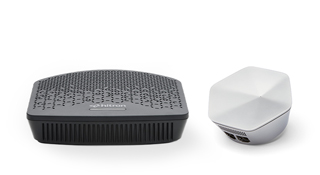
Look at the lights on your modem and router after rebooting. These lights show the device status and connection health.
A steady or blinking green light usually means the device is working properly. Red or no lights can indicate a problem with the device or service.
Check the user manual or Midco’s support site to understand each light’s meaning. Proper indicator lights confirm your network is ready to use.
Credit: midco.com
Cable And Connection Check
Checking cables and connections is a key step in Midco troubleshooting. Faulty or loose cables often cause internet or TV problems. Confirming cable integrity and connection security helps fix many issues fast.
Begin by examining all Ethernet and coaxial cables. Look for visible damage or wear. Replace any cables that seem broken or frayed. Using good-quality cables supports stable service.
Inspect Ethernet And Coaxial Cables
Ethernet cables connect your router to devices or modem. Coaxial cables link your modem or cable box to the wall outlet. Both must be in good shape.
Check for cuts, bends, or exposed wires on cables. Damaged cables can interrupt signals. Swap cables with known working ones to test if needed.
Also, ensure cables are the correct type and length. Too long or thin cables may reduce performance. Use cables rated for your internet speed.
Secure Cable Connections
Loose connections cause intermittent service or no signal. Firmly push all cable ends into ports until they click or feel secure.
Check the connection points on your modem, router, and cable box. Make sure coaxial connectors are tightly screwed in. Ethernet plugs should snap into place.
Unplug and replug each cable to ensure a clean connection. Dust or debris in ports can block signals. Clean ports gently with compressed air if needed.
Wi-fi Troubleshooting
Wi-Fi issues can disrupt your online activities and cause frustration. Midco offers several ways to troubleshoot Wi-Fi problems efficiently. Simple steps can restore your connection without needing technical support. Follow these tips to improve your Wi-Fi performance and enjoy a stable internet experience at home.
Restarting Wi-fi Pods
Restarting your Wi-Fi pods can fix many connectivity issues. Unplug the power cable from each pod, wait about 30 seconds, then plug them back in. This process clears temporary glitches and helps pods reconnect to the main router. Wait a few minutes for the pods to fully restart and stabilize.
Adjusting Wi-fi Channels
Interference from other networks can slow down your Wi-Fi. Changing the Wi-Fi channel can reduce this interference. Access your router settings through the Midco app or website. Select a less crowded channel for your 2.4 GHz or 5 GHz network. This adjustment often improves signal strength and speeds.
Using The Midco Wi-fi App
The Midco Wi-Fi app makes troubleshooting easy and fast. Use the app to check your network status and run diagnostic tests. It helps identify weak signals and suggests the best placement for your pods. The app also guides you through resetting devices and optimizing your Wi-Fi setup.
Device Isolation
Device isolation is a key step in Midco troubleshooting. It helps find where the problem lies. Is the issue with your device, the network, or the connection type? By isolating the device, you narrow down the cause. This saves time and effort in fixing your internet or TV service.
Testing Wired Vs Wireless Connections
Start by testing a wired connection. Use an Ethernet cable to connect your device to the router. Wired connections are more stable and faster. If the wired connection works well, the wireless might have issues.
Next, test the wireless connection on the same device. Move closer to the router to improve signal strength. If wireless is slow or disconnects, the problem may be Wi-Fi interference or router settings.
Trying Different Devices
Use another device to check the network. For example, test your phone if your laptop has issues. If the second device connects fine, the first device may have a problem.
If multiple devices have trouble, the issue is likely with your network or equipment. This helps decide if you need a new router or support from Midco.
Midco Speed Tests
Midco Speed Tests help check your internet connection quality. They measure how fast data travels to and from your device. These tests reveal if your internet speed matches your plan. Running speed tests regularly can spot problems early. Knowing your true speed aids in troubleshooting and ensures smooth online use.
Running Internet Speed Checks
Start by closing all apps using the internet. Connect your device directly to the modem with an Ethernet cable for best results. Visit the official Midco speed test website or use a trusted speed test app. Click the “Start Test” button to begin. The test takes about 30 seconds and measures download and upload speeds.
Run the test multiple times at different times of day. This helps get an average speed and detect slow periods. Avoid heavy internet use during the test for accurate results.
Interpreting Speed Results
Download speed shows how fast you get data from the internet. Upload speed shows how fast you send data out. Compare these speeds with your Midco plan details. Speeds much lower than your plan may indicate issues.
Ping or latency measures delay in data transfer. Lower ping means better responsiveness for gaming and video calls. If speeds are low or ping is high, restart your modem and router. Check cables and reduce device interference. Contact Midco support if problems persist.
Credit: midcosports.com
Cable Tv Fixes
Cable TV issues can disrupt your viewing experience. Simple fixes often restore your service quickly. This section covers easy steps to solve common problems. Follow these tips to get your Midco Cable TV working again.
Checking Mute And Volume Settings
Start by checking your TV’s mute status. Make sure the mute button is off. Increase the volume gradually. Sometimes the sound is low, not off. Also, check the remote control batteries. Weak batteries can cause volume control issues. Confirm your TV speakers are working properly.
Resetting The Cable Box
Resetting the cable box can clear temporary errors. Unplug the box from power. Wait about 30 seconds. Plug it back in and power on. Allow a few minutes to reboot fully. This step often fixes signal or freezing problems. Avoid unplugging the box frequently to prevent damage.
Verifying Input Sources
Ensure your TV is set to the correct input source. Use the TV remote to select HDMI, AV, or Cable input. Wrong input selection shows no picture or sound. Check all cables are connected to the right ports. Loose or wrong connections cause signal loss. Confirm your cable box output matches the TV input.
App And Software Fixes
App and software problems can disrupt your Midco experience. Simple fixes often solve these issues quickly. Focus on app management to restore normal function. This section explains easy steps to fix common software glitches.
Force Stopping And Relaunching Apps
Force stopping an app ends its current process. This clears temporary bugs and frees up system resources. To force stop, open your device settings and find the Midco app. Tap “Force Stop” to close it completely. Wait a few seconds and then reopen the app. This often solves freezing or crashing problems.
Force stopping helps when the app does not respond or loads slowly. It refreshes the connection and can improve app speed. Try this method before moving to more complex solutions.
Uninstalling And Reinstalling Apps
Uninstalling removes all app files from your device. This clears corrupted data that may cause errors. After uninstalling, download the latest version from your app store. Fresh installation often fixes persistent bugs.
To uninstall, press and hold the Midco app icon, then select “Uninstall.” Confirm the removal and restart your device. Go to your app store and reinstall Midco. Sign back in and check if the app works properly. This step is useful for repeated crashes or login issues.

Credit: midco.com
Outage And Account Checks
Outage and account checks form the first step in Midco troubleshooting. They help identify if a problem is caused by local network issues or account-related settings. This saves time and effort by pinpointing the source quickly.
Checking for outages ensures the issue is not widespread. Account diagnostics help confirm your subscription and settings are correct. Both steps are simple but crucial for resolving common Midco service problems.
Checking For Local Service Outages
Start by visiting Midco’s official website or support page. There, you can find real-time updates about service interruptions in your area. Enter your zip code or address to see if an outage affects your location.
Outages can happen due to weather, maintenance, or unexpected technical failures. Knowing about an outage prevents unnecessary troubleshooting at your end. It also provides an estimated time for service restoration.
Using Midco Account Diagnostics
Log in to your Midco account through the app or website. Use the diagnostic tools offered to check your connection status and account health. These tools can detect problems like service suspensions or billing issues.
Account diagnostics often include signal tests and device status checks. Follow the on-screen instructions to complete the process. If the diagnostics find no issues, the problem might be with your equipment.
When To Contact Support
Knowing the right time to contact Midco support can save time and reduce frustration. Start troubleshooting on your own with simple checks. If the problem continues despite these efforts, reaching out to support is the next step. This ensures expert help for more complex issues or service interruptions.
Using Online Support Tools
Midco offers various online tools to help solve common problems. You can check for service outages in your area. Use the Midco app or website to run diagnostics on your equipment. These tools often provide quick fixes without needing to call. Searching the support site can answer many questions about your internet or TV.
Calling Midco Customer Service
Call Midco customer service when issues persist after basic troubleshooting. Speak to a representative for personalized assistance. Have your account and equipment details ready for faster service. Customer service can guide you through advanced steps or schedule technician visits. Calling is best for urgent problems or outages affecting many devices.
Frequently Asked Questions
How To Reboot A Midco Router?
Unplug the Midco router’s power cord from the outlet. Wait 30 seconds, then plug it back in. Wait for lights to stabilize. This reboots the router and refreshes your connection.
How Do I Troubleshoot Wi-fi Connectivity Issues?
Restart your modem and router. Check cables and device connections. Verify no outages in your area. Forget and reconnect to Wi-Fi. Test with another device. Adjust Wi-Fi settings if needed. Contact Midco support if problems persist.
How To Reset Midco Cable Box?
To reset your Midco cable box, unplug its power cord, wait 30 seconds, then plug it back in. The box will reboot automatically.
How Do I Troubleshoot My Router?
Unplug your router’s power for 30 seconds, then plug it back in. Check all cables are secure. Verify internet outages online. Restart connected devices. Test with another device or wired connection. Use router setup software for configuration. Contact support if problems persist.
How Do I Reboot My Midco Router Safely?
To reboot your Midco router, unplug its power cable. Wait about 30 seconds, then plug it back in. This refreshes the connection and often fixes many issues.
Conclusion
Troubleshooting Midco services can be simple with the right steps. Start by rebooting your modem, router, or cable box. Check all cable connections to ensure they are secure. Use the Midco app or website to look for outages in your area.
Testing your internet speed helps identify slow connections. For Wi-Fi, ensure pods have power and app settings are correct. If problems continue, contacting Midco support is the best choice. Stay patient and follow these tips to keep your service running smoothly.