Is your MSI motherboard acting up, leaving your PC stuck on a black screen or showing a stubborn red light? You’re not alone—and you don’t have to guess what’s wrong or rush to a repair shop just yet.
Troubleshooting an MSI motherboard can seem confusing, but understanding the common signs and knowing the right steps can save you time, money, and frustration. In this guide, you’ll discover how to identify key symptoms of motherboard issues, from random freezes to strange beeping noises, and learn simple, practical fixes you can try right now.
Whether your computer won’t power on or you’re facing display glitches, this article will help you get back in control and keep your system running smoothly. Ready to fix your MSI motherboard? Let’s dive in.

Credit: www.msi.com
Common Motherboard Symptoms
Motherboard issues often reveal themselves through clear signs. Recognizing these symptoms helps diagnose problems early. Many common problems link directly to motherboard faults. Identifying these signs can save time and repair costs.
Motherboards connect every part of a computer. Faulty motherboards affect overall system stability. Symptoms range from boot problems to strange noises. Understanding these signs guides effective troubleshooting.
No Power Or Boot Problems
The computer fails to turn on or stays stuck at startup. No POST (Power-On Self-Test) means the system does not complete its initial checks. Power supply issues or motherboard faults cause this.
Frequent Freezes And Restarts
Systems freeze randomly without heavy use. Unexpected restarts disrupt work and data. These symptoms often point to motherboard or memory problems.
Blue Screen Errors
Blue Screen of Death (BSOD) appears frequently. These errors signal hardware or driver conflicts. Repeated BSODs often link to motherboard faults.
Peripheral Device Failures
USB ports stop working or devices are not recognized. Keyboards, mice, and external drives may fail to connect. This often indicates motherboard connection issues.
Unusual Beeping Or Noises
Strange beeping sounds come from the computer at startup. Different beep patterns indicate specific hardware issues. Clicking or buzzing noises may also suggest motherboard problems.
Overheating Issues
The system overheats even during light use. Faulty power regulation or damaged components may cause this. Overheating risks further hardware damage.
Display And Graphics Glitches
Screens flicker or show distorted images. Sometimes, no display appears despite the system powering on. These issues may point to motherboard or graphics card faults.
Slow System Performance
Overall system becomes sluggish over time. Programs take longer to open and run. Slow performance can result from motherboard faults affecting communication between parts.
Visual Inspection Tips
Visual inspection is the first step in troubleshooting an MSI motherboard. It helps spot obvious problems fast. Careful observation can reveal issues without special tools. This saves time and guides the next steps in repair. Focus on key signs that show damage or failure.
Check For Physical Damage
Look closely at the motherboard surface. Search for burnt spots or scorched areas. Examine circuits for cracks or breaks. Check capacitors for bulging or leaking fluid. These signs often mean hardware failure. Also, inspect connectors and slots for bent pins. Physical damage can cause startup issues and crashes.
Detect Burning Smells
A burning smell often signals electrical problems. It might come from overheating parts or short circuits. Smell near the power supply and chipset areas. This odor is a warning of serious damage. Do not ignore it, as it may cause permanent failure. Turn off power immediately if you detect burning smells.
Troubleshooting Steps
Troubleshooting an MSI motherboard requires a clear, step-by-step approach. Start by isolating the problem. Test each part carefully to find the faulty component. Follow simple checks before moving to complex solutions. These steps help save time and avoid extra costs.
Swap And Test Components
Remove one part at a time and replace it with a known good one. Test the system after each swap. Check the RAM, CPU, graphics card, and power supply. This method helps identify broken parts causing the issue. Keep track of changes to avoid confusion.
Verify Cable Connections
Check all cables connected to the motherboard. Make sure power cables, data cables, and display cables are secure. Loose or damaged cables cause many motherboard problems. Re-seat the cables by unplugging and plugging them back. Use gentle pressure to avoid damage.
Reset Bios And Cmos
Resetting the BIOS and CMOS clears stored settings that might cause errors. Power off the computer and unplug it. Locate the CMOS battery on the motherboard and remove it for a few minutes. Press the power button to discharge residual power. Replace the battery and power on the system.
Alternatively, use the CMOS reset jumper if available. This step often fixes boot and display problems. Always consult the motherboard manual for exact instructions.
Decoding Motherboard Indicators
Motherboard indicators provide crucial clues during troubleshooting. These signals help identify the root cause of hardware issues quickly. MSI motherboards offer clear indicators such as LED lights and beep codes. Understanding these signals reduces guesswork and speeds up repair. This section explains how to decode these motherboard indicators effectively.
Interpreting Red Led Lights
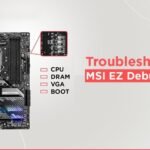
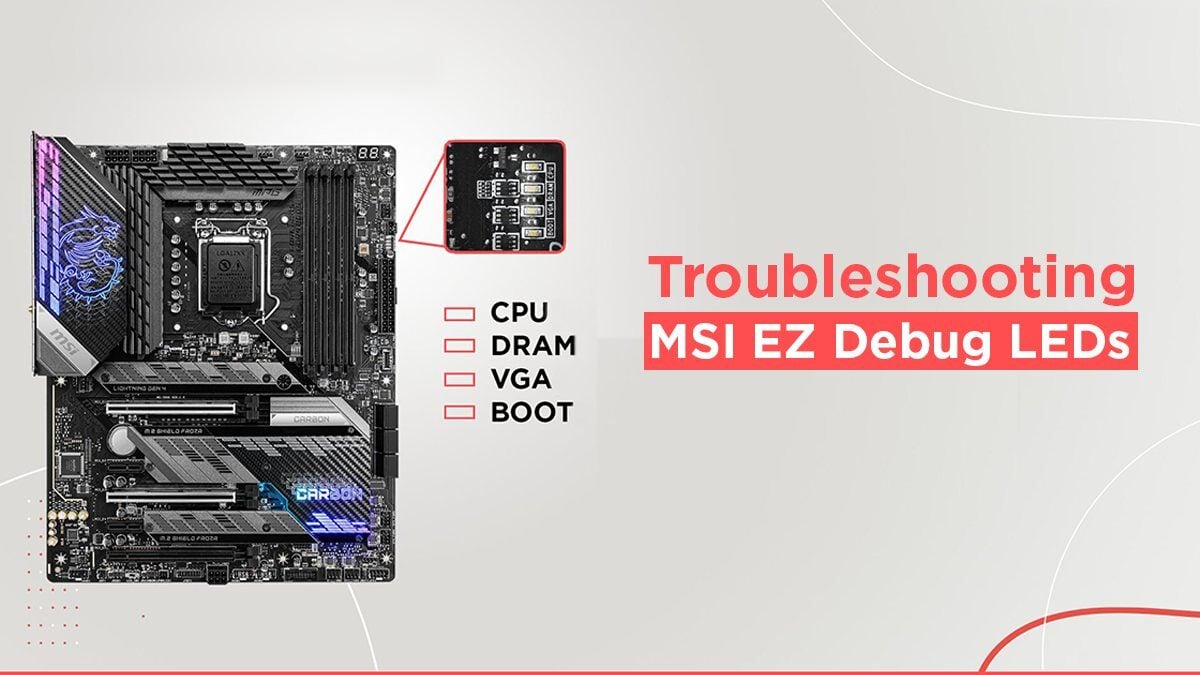
Red LED lights on an MSI motherboard pinpoint specific hardware problems. Each light corresponds to components like CPU, RAM, VGA, or boot device. For example, a red CPU light means the processor may not be seated correctly or is faulty. A red RAM light often signals memory issues or poor connection. Checking the motherboard manual will explain each LED meaning in detail. These lights turn on during the Power-On Self-Test (POST) phase. They help isolate the problem part before the system boots fully.
Listening To Beep Codes
Beep codes are sound signals from the motherboard speaker. They indicate hardware errors during startup. Different beep patterns represent different faults. For instance, continuous beeping might mean memory failure. A series of short beeps could indicate a graphics card issue. Listening closely to the beep pattern helps identify failing components. MSI provides a beep code guide for easy reference. This method is useful when the display does not show error messages. It offers a quick way to detect problems without extra tools.
Fixes For No Power Issues
Fixing no power issues on an MSI motherboard requires careful checks and simple steps. These problems often stop your PC from turning on. Start with basic power supply tests to rule out common faults. Next, inspect the motherboard’s power connectors for loose or damaged cables. Finally, consider replacing the CMOS battery, which can cause startup failures if it is dead or weak.
Power Supply Checks
Begin by testing the power supply unit (PSU). Ensure the PSU is plugged in and switched on. Use a PSU tester or swap with a known working unit to confirm it delivers power. Check the power cable and wall socket for faults. A faulty PSU often causes no power issues.
Motherboard Power Connectors
Verify all power connectors on the motherboard are firmly attached. The 24-pin main power connector and 8-pin CPU power connector must be secure. Loose or improperly seated connectors prevent the motherboard from powering up. Look for bent pins or damaged cables as well.
Cmos Battery Replacement
A dead CMOS battery can stop the motherboard from booting correctly. Remove the old battery carefully and replace it with a fresh CR2032 battery. This small step can reset BIOS settings and fix power issues. Check the battery holder for corrosion or damage before installing the new battery.
Credit: www.cgdirector.com
Resolving Boot And Display Errors
Boot and display errors on MSI motherboards can stop your PC from starting properly. These problems often cause a black screen, no signal to the monitor, or constant reboot loops. Fixing these issues requires careful steps to identify and solve the root cause. This section explains key methods to resolve boot and display errors effectively.
Bios Update Procedures
Updating the BIOS can fix many boot and display problems. Start by downloading the latest BIOS version from MSI’s official website. Use a USB drive formatted to FAT32 for the update file. Enter BIOS setup by pressing the “Delete” key during startup. Locate the M-Flash tool inside BIOS to begin the update process. Follow on-screen instructions carefully. Avoid turning off the PC while updating. A successful BIOS update improves hardware compatibility and fixes bugs.
Clearing Post Errors
Post errors often cause the motherboard to stop booting. Clear these errors by resetting the CMOS memory. Power off the PC and unplug it from the power source. Find the CMOS battery on the motherboard and remove it for about five minutes. Alternatively, use the CMOS clear jumper if available. Reinsert the battery or reset the jumper. This action resets BIOS settings to default, often resolving boot issues. Power on the system to check if the problem persists.
Graphics Card Troubleshooting
Display errors can come from graphics card issues. First, check if the card is securely seated in its PCIe slot. Remove and reinstall the card if needed. Clean dust and debris from the card and slot. Connect the monitor to another video output if possible. Test with a different graphics card to isolate the problem. Make sure the GPU power connectors are plugged in properly. Update the graphics card drivers to the latest version. Faulty or loose hardware often causes no display or flickering screens.
Preventive Maintenance Tips
Preventive maintenance is essential to keep your MSI motherboard running smoothly. Regular care reduces the risk of hardware failures and improves performance. Simple steps taken early can save time and money later. Focus on cleaning, cooling, and safe use to extend the life of your motherboard.
Regular Cleaning And Dust Removal
Dust buildup can block airflow and cause overheating. Use a soft brush or compressed air to clean the motherboard gently. Avoid using a vacuum, which may create static electricity. Clean your PC every few months, focusing on fans, vents, and heat sinks. Keeping the motherboard free from dust helps prevent crashes and hardware errors.
Ensuring Proper Cooling
Proper cooling keeps your motherboard at safe temperatures. Check that all fans work correctly and spin freely. Replace any faulty or noisy fans immediately. Use thermal paste between the CPU and cooler to improve heat transfer. Position your PC in a well-ventilated area to avoid heat buildup. Good cooling prevents overheating and extends component life.
Safe Overclocking Practices
Overclocking pushes your motherboard beyond standard speeds. Increase clock speeds gradually and test stability after each change. Monitor temperatures closely to avoid overheating. Use MSI’s BIOS tools to adjust settings safely. Avoid extreme overclocking without proper cooling and power supply. Safe overclocking prevents damage and keeps your system stable.

Credit: www.msi.com
Frequently Asked Questions
What Are The Signs Of A Dead Motherboard?
Signs of a dead motherboard include no power or boot issues, frequent crashes, Blue Screens of Death, unrecognized devices, strange beeps, overheating, display glitches, burning smells, and physical damage like burnt spots or bulging capacitors.
How To Hard Reset Msi Motherboard?
To hard reset an MSI motherboard, turn off power, unplug the PC, remove the CMOS battery for 5 minutes, then reinsert it and power on. Alternatively, use the CLR_CMOS jumper by moving it to the reset position for a few seconds, then return it to normal.
What Does Red Light On Msi Motherboard Mean?
A red light on an MSI motherboard indicates a hardware issue with CPU, RAM, VGA, or boot device. Check component connections.
What Do I Do If My Msi Won’t Turn On?
Check all power connections and ensure the battery is charged. Reset the CMOS by removing the battery for 5 minutes. Test with another power supply or RAM. Inspect for visible damage or burning smells. Contact MSI support if the problem persists.
What Causes Msi Motherboard Boot Light Errors?
Boot light errors often signal hardware issues like RAM or CPU problems. Loose connections or faulty components may trigger these lights.
Conclusion
Troubleshooting your MSI motherboard can fix many common problems. Check all cables and connections first. Test other parts like RAM and power supply to isolate issues. Watch for signs like strange noises, overheating, or display glitches. Small steps often solve boot failures or crashes.
Always inspect the motherboard for physical damage or burning smells. Staying calm and patient helps in finding the root cause. With careful checks, you can keep your system running smoothly. Regular maintenance prevents future troubles and extends your PC’s life.