Having trouble with your Netgear Orbi router? You’re not alone.
Whether your internet keeps dropping, the satellites won’t connect, or the lights are flashing in confusing colors, these issues can be frustrating. But don’t worry—you can fix many common Orbi problems yourself with a few simple steps. In this guide, you’ll learn how to troubleshoot your Orbi router quickly and easily.
From basic restarts to syncing satellites and updating firmware, you’ll find clear instructions to get your WiFi back up and running smoothly. Keep reading, and you’ll be online again in no time.
Quick Restart Steps
Resolving satellite issues is key to a smooth Netgear Orbi network. Satellites extend your WiFi range and connect devices farther from the main router. Problems with satellites can cause slow speeds or dropped connections.
This section explains how to sync satellites, understand their LED signals, and place them for best performance. Fixing these issues improves your whole network’s reliability.
Syncing Satellites With Router
First, ensure your satellites connect properly to the main router. Press the Sync button on the router. Then press the Sync button on the satellite within two minutes. Wait a few minutes for the connection to establish. The satellite should show a solid light once synced. If syncing fails, restart both devices and try again.
Interpreting Satellite Led Colors
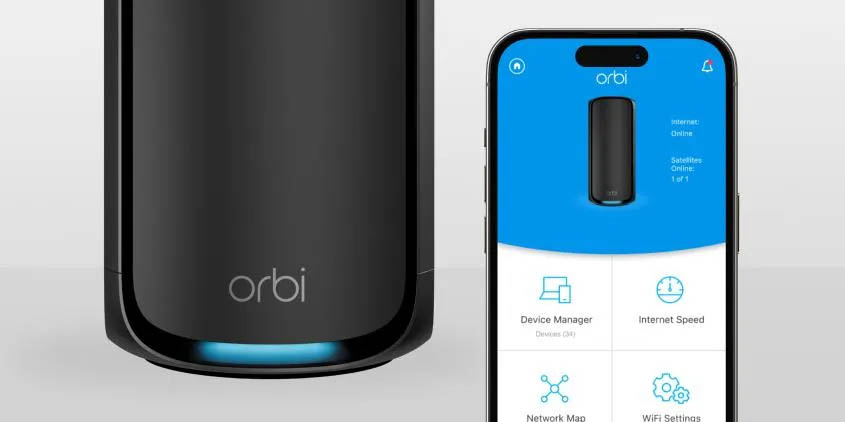
LED lights on your satellite show its status. A solid blue light means a strong connection. Amber light signals a fair connection but may cause slower speeds. Red light warns of a poor or lost connection. No light means the satellite is off or not powered. Use these colors to diagnose your network’s health quickly.
Improving Satellite Placement
Place satellites in open spaces, away from thick walls and metal objects. They should be within range of the main router but close to devices needing WiFi. Avoid placing satellites near microwaves or cordless phones. Higher spots, like shelves, often give better signals. Test different spots and watch the LED colors to find the best location.
Credit: www.netgear.com
Fixing Internet Connection
Performing a factory reset on your Netgear Orbi router is a key troubleshooting step. It returns the device to its original settings. This can fix persistent issues that other methods can’t resolve. Resetting clears all custom settings, so use it carefully.
Follow clear steps to reset the router properly. Also, back up your settings before resetting. This saves time during setup after the reset.
When To Reset
Reset your Orbi router if it keeps disconnecting. Also, try resetting if updates cause problems. If you forget your password or settings, reset can help. Use reset as a last option after other fixes fail.
How To Perform A Factory Reset
Locate the reset button on the back of the Orbi router. Use a paperclip or similar tool to press the button. Hold it down for about 10 seconds. Release the button when the power light blinks. Wait for the router to restart and reset.
After reset, the router will be like new. You must set it up again from scratch. Connect to the default network and access settings via the Orbi app or web interface.
Backup And Restore Settings
Before resetting, save your current router settings. Log into the Orbi web interface by entering the router’s IP address. Go to the settings menu and find the backup option. Download the configuration file to your device.
After the reset, upload the saved file to restore settings. This saves time and keeps your custom network setup. Always verify the settings work correctly after restoring.
Resolving Satellite Issues
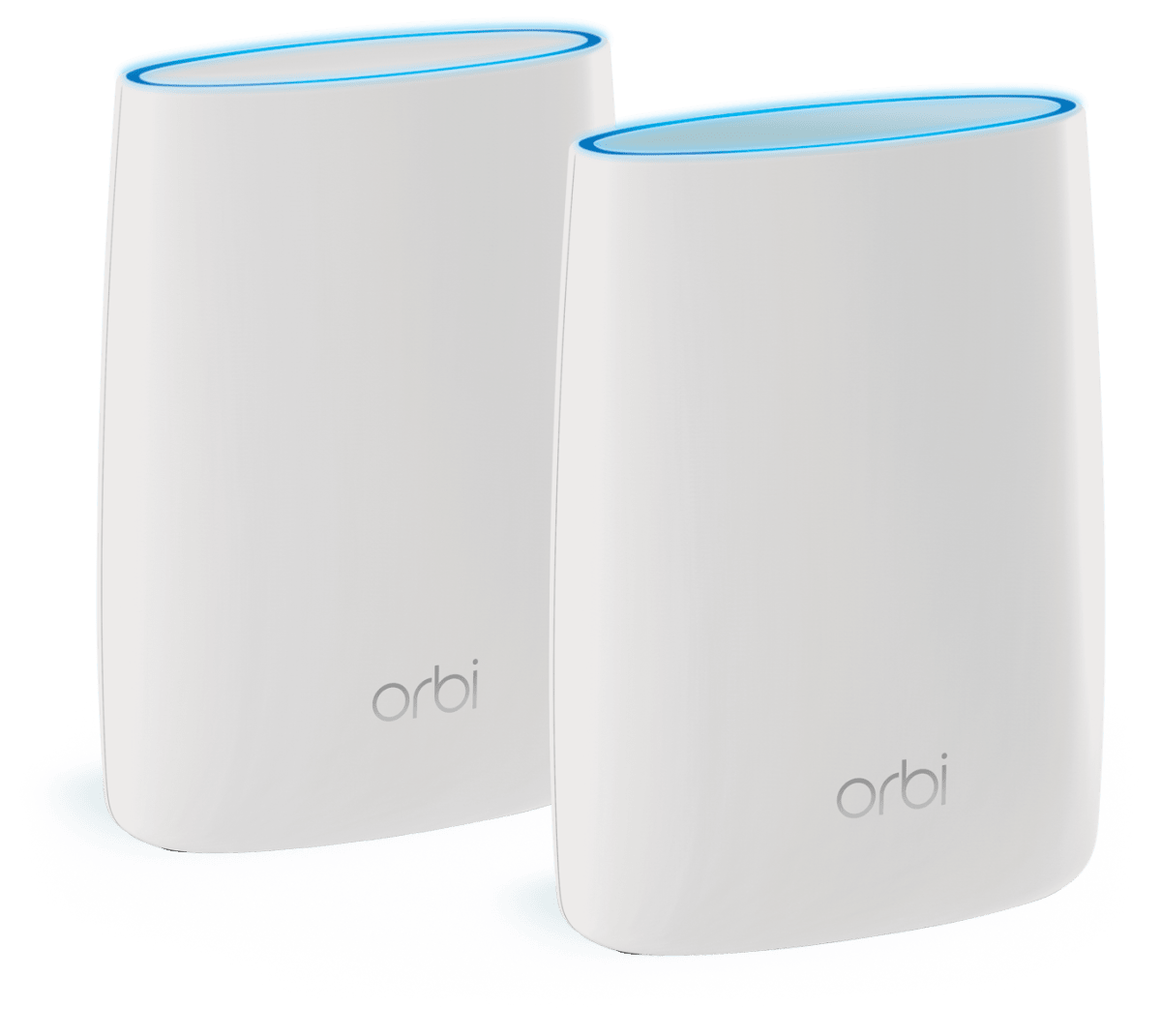
The Orbi LED Status Guide helps you understand the router’s current state. These lights show if the device works well or if there is a problem. Knowing what each light means can save time and reduce frustration. The guide explains the different colors and patterns you might see on your Orbi router. It also helps you decide the next steps for fixing any issues.
Solid White And Pulsing White
A solid white light means the Orbi router is powering on. It is booting up and preparing to connect. A pulsing white light shows the router is ready but not connected yet. This light stays until the Orbi finds a connection or completes setup. If the light stays white too long, it could mean a delay in starting or a connection problem.
Blue, Amber, And Magenta Indicators
A blue light means the Orbi router has a good connection. The WiFi signal is strong and working well. An amber light signals a weak connection or some problem with the link. It means the router is working but not at full strength. A magenta light warns of an error or no internet connection. This color means you need to check cables or settings to fix the issue.
Troubleshooting Based On Led Colors
Start with the white light: wait for it to change. If it stays white too long, restart the router and modem. For a blue light, your system works fine, no action needed. Amber means move the satellite closer to the router or check cables. Magenta means check the internet cable or reset the router. Use the Orbi app for more detailed diagnostics and updates.
Credit: damien.co

Credit: www.youtube.com
Frequently Asked Questions
What Are Common Orbi Problems?
Common Orbi problems include frequent disconnections, slow speeds, satellite syncing issues, firmware update bugs, and internet connectivity failures. Restarting devices, checking cables, syncing satellites, updating firmware, or performing a factory reset often resolve these issues quickly.
What Do The Lights On The Orbi Router Mean?
The Orbi router lights indicate status: solid white means booting, solid blue shows a good connection, amber signals a fair connection, and purple means no internet. Blinking lights often indicate syncing or errors. Check the Orbi app for detailed status and troubleshooting steps.
Why Is My Orbi Router Not Connecting To The Internet?
Your Orbi router may not connect due to modem or router issues, loose cables, ISP outages, outdated firmware, or satellite sync problems. Restart the modem first, then the router and satellites. Check cable connections, update firmware via the Orbi app, and sync satellites.
Perform a factory reset if needed.
Why Is My Netgear Router Not Connecting To The Internet?
Your NETGEAR router may not connect due to modem issues, loose cables, outdated firmware, or ISP outages. Restart modem, router, and check connections. Sync satellites and update firmware via the Orbi app. Perform a factory reset if problems persist.
What Do The Lights On My Netgear Orbi Router Mean?
The lights show your router’s current status. White or blue means normal operation. Amber or blinking lights often signal connection issues or updates.
Conclusion
Troubleshooting your Netgear Orbi router can solve many common issues. Start with simple steps like restarting your modem and router. Check all cable connections carefully. Use the Orbi app to update firmware and monitor status. Sync satellites properly to improve WiFi coverage.
A factory reset should be your last option. These tips help keep your network stable and fast. Stay patient and follow each step for the best results. Your Orbi system can work smoothly with regular care and attention.