
Is your Netgear router acting up right when you need it most? Whether your internet keeps dropping, the Wi-Fi signal is weak, or the router won’t connect at all, these issues can be frustrating—and you want answers fast.
The good news? You don’t have to be a tech expert to fix common Netgear router problems. In this guide, you’ll discover simple, step-by-step troubleshooting tips that anyone can follow to get your network back on track. Ready to stop the endless buffering and dropped connections?
Let’s dive into how you can quickly troubleshoot your Netgear router and restore smooth, reliable internet in no time.
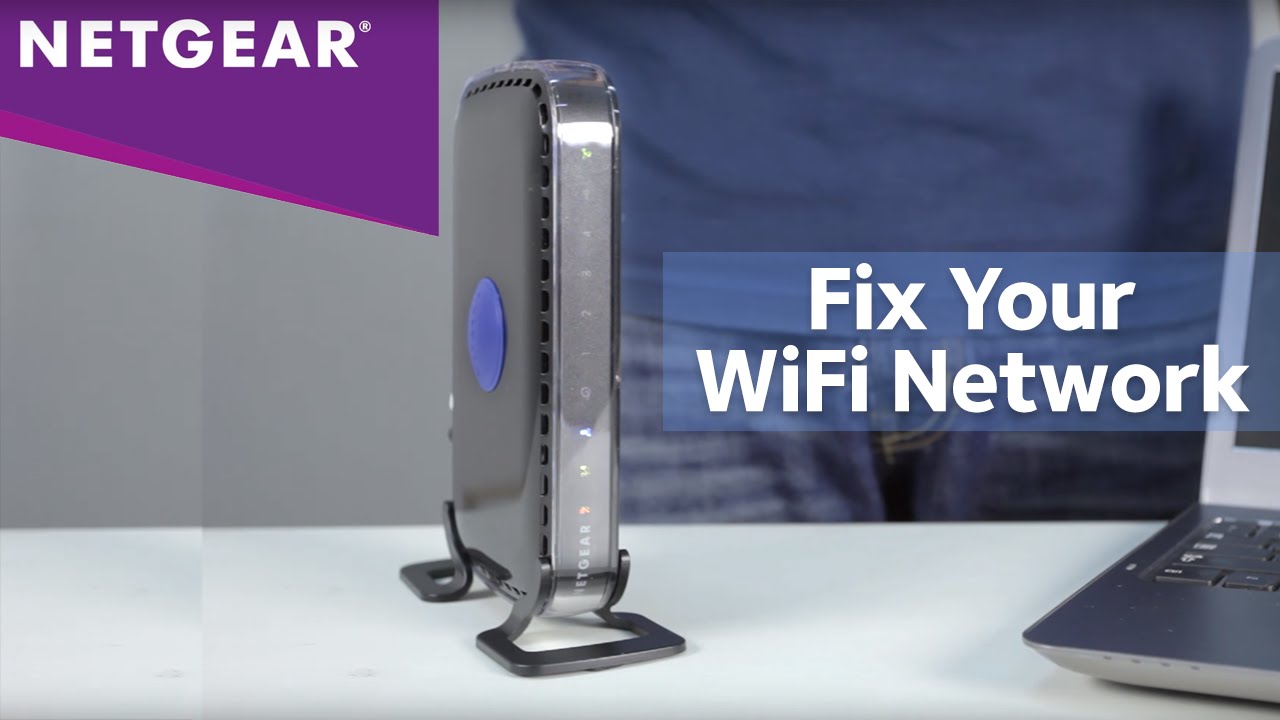
Credit: www.youtube.com
Common Netgear Router Issues
Netgear routers are popular for home and office networks. Yet, they can face several common issues. These problems may affect your internet speed, connection stability, and device performance. Understanding these issues helps to fix them quickly and keep your network running smoothly.
Slow Speeds And Drops
Slow internet speeds frustrate many Netgear users. This issue can happen due to interference, outdated firmware, or crowded Wi-Fi channels. Connection drops often occur when the router is far from devices or walls block signals. Restarting the router and changing Wi-Fi channels may help improve speeds and stability.
Overheating Symptoms
Overheating is a common problem that harms router performance. If the router feels very hot or shuts down unexpectedly, it may be overheating. Dust buildup and poor ventilation cause this issue. Keep the router in a cool, open place and clean it regularly to avoid overheating.
Frequent Reboots
Netgear routers sometimes reboot themselves without warning. This behavior interrupts your connection and causes frustration. Frequent reboots can result from power supply problems, firmware bugs, or hardware failure. Checking cables and updating firmware often solve this problem.
Firmware Update Failures
Updating firmware is important to fix bugs and add features. Firmware update failures happen due to poor internet connection or corrupted files. A failed update may cause router malfunctions. Use a stable connection and follow the update instructions carefully to avoid errors.
Led Light Indicators
LED lights on a Netgear router show its status. A solid white or blue light means the router works well. Blinking or red lights indicate problems like connection errors or hardware issues. Understanding these signals helps diagnose and resolve router troubles fast.
Quick Router Checks
Quick router checks can save time and solve many common Netgear router issues. These simple steps ensure your device runs smoothly and connects properly. Start with easy actions before diving into complex troubleshooting.
Power Cycling The Router
Power cycling means turning the router off and on again. Unplug the router from the power source. Wait about 30 seconds to 1 minute. Plug it back in and turn it on. This refreshes the router’s system and clears temporary glitches. Many connection problems fix themselves after power cycling.
Inspecting Cables And Connections
Check all cables connected to your Netgear router. Ensure the power cable is firmly plugged in. Verify the Ethernet cables connect correctly to the router and modem. Look for damaged or frayed wires. Loose or broken cables cause frequent disconnections and slow speeds. Replace any faulty cables you find.
Resetting To Factory Defaults
Resetting restores your router to original settings. Find the small reset button on the back of the router. Use a paperclip or pin to press and hold it for about 10 seconds. Release the button when the lights blink. The router will restart and erase custom settings. Use this step only if other checks do not solve the issue.
Troubleshooting Internet Connection
Troubleshooting your Netgear router’s internet connection can quickly restore your online access. Problems may arise from various sources. Identifying the root cause helps fix the issue efficiently. Follow these steps to isolate and resolve connection problems.
Testing Wired Vs Wireless
Check if the internet works on a wired device first. Connect a computer directly to the router with an Ethernet cable. If the wired connection works, the issue may be with the Wi-Fi. Test wireless devices next to see if they can connect. This helps determine if the problem is with the wireless signal or the router itself.
Bypassing The Router
Connect your modem directly to a computer using an Ethernet cable. This bypasses the router and shows if the internet works without it. If you get internet access, the router may be the problem. If there is still no internet, the issue could be with your modem or ISP.
Checking Isp Status
Sometimes the internet problem is outside your home. Visit your Internet Service Provider’s website or call their support line. They can tell you if there is an outage or maintenance work in your area. Knowing the ISP status can save time and prevent unnecessary troubleshooting steps.
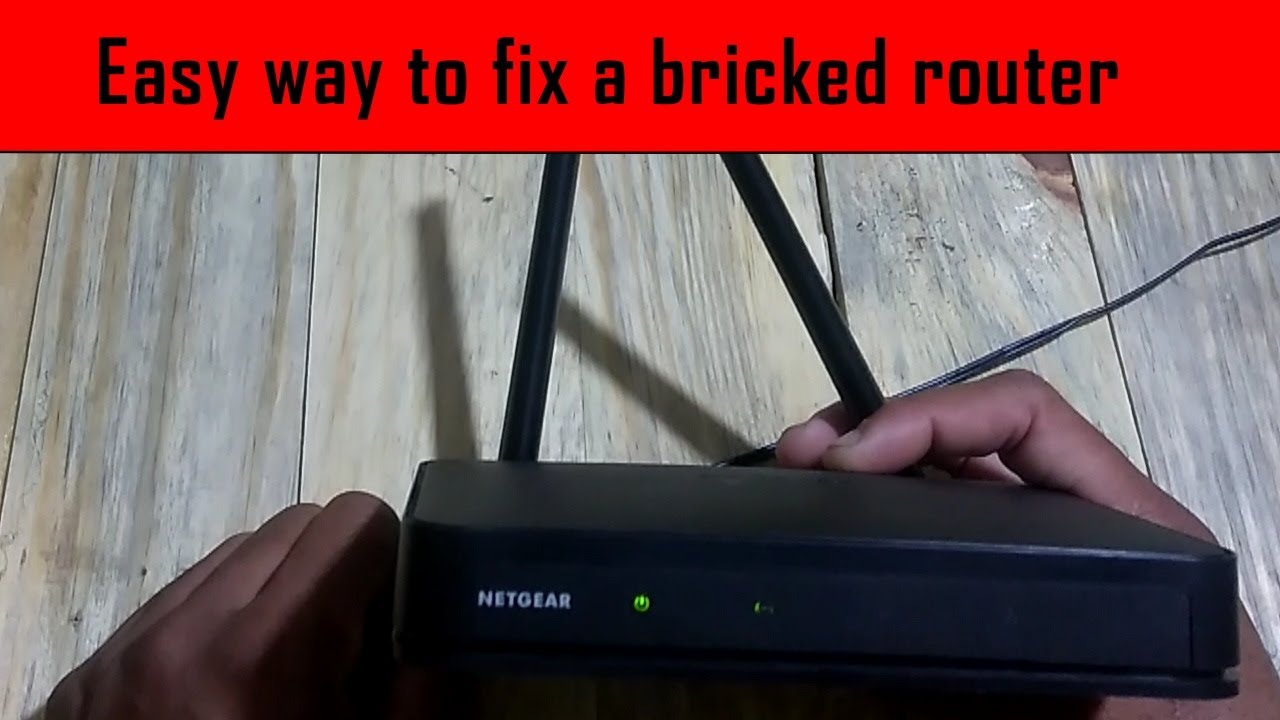
Credit: www.youtube.com
Fixing Login Page Access
Accessing the Netgear router login page is essential for managing settings and securing your network. Sometimes, this page may fail to load, causing frustration. Troubleshooting this issue requires a few simple steps to restore access quickly. Follow these practical methods to fix login page access problems and get your router settings back online.
Clearing Browser Cache
Browser cache can store outdated data that blocks the login page. Clear your browser cache to remove old files and cookies. This refreshes the browser and often resolves loading issues. Restart your browser after clearing the cache, then try accessing the login page again.
Using Default Ip Addresses
Incorrect IP addresses cause login page errors. Use the default IP address for Netgear routers, usually 192.168.1.1 or 192.168.0.1. Enter this address directly into your browser’s address bar. Avoid typing “http://” before the IP. Ensure your device is connected to the router’s network to reach the login page.
Disabling Vpn And Firewall
VPNs and firewalls can block access to the router login page. Temporarily disable your VPN and firewall settings on your device. This allows direct connection to the router without interference. After disabling, try loading the login page. Remember to re-enable your security settings once done.
Addressing Led Light Problems
LED lights on your Netgear router show its current status. Understanding these lights helps in quick troubleshooting. They indicate power, internet connection, and data activity at a glance. Misleading or unusual lights often point to specific issues. This section explains what each LED color and blinking pattern means. It guides you to fix common router problems easily.
Power Led Meanings
The Power LED shows if the router is on and working right. A solid white or green light means the router is ready. An amber or orange light during startup means the router is booting. If the Power LED blinks for too long, the router may have a fault. No light at all means no power or a hardware issue. Check the power cable and outlet first.
Internet Led Colors
The Internet LED tells if your router connects to the internet. A solid white or blue light means a good internet connection. An amber or orange light means limited or no internet access. A red light signals a serious connection problem. No light indicates no connection detected. Check your modem and cables if the Internet LED shows a problem color.
What Blinking Lights Indicate
Blinking lights show activity or errors on the router. A blinking Power LED during normal use suggests a firmware issue. The Internet LED blinking means data is being sent or received. Rapid blinking may point to heavy traffic or a faulty device. Slow blinking on other LEDs usually signals normal operation. If blinking lights seem abnormal, restart the router to refresh the system.

Credit: community.netgear.com
Improving Wi-fi Performance
Improving your Netgear router’s Wi-Fi performance can make a big difference in your internet experience. Better Wi-Fi means faster downloads, fewer drops, and smoother streaming. Simple steps can help boost your wireless network without extra cost or complex setups.
Try changing settings and placement to get the best signal. Small changes often fix common issues and improve speed for all your devices.
Changing Wireless Channels
Wireless routers use channels to send signals. Many routers use the same channels by default. This causes signal interference and slows down Wi-Fi. Changing your Netgear router’s wireless channel can reduce interference. It helps avoid crowded frequencies used by neighbors’ routers.
Access your router’s settings and choose a less busy channel. Channels 1, 6, and 11 are popular on the 2.4 GHz band. On 5 GHz, several channels are available. Testing different channels can improve Wi-Fi speed and stability.
Updating Router Firmware
Firmware is the software inside your Netgear router. It controls how the router works. Firmware updates fix bugs and improve performance. They also add new features and security patches.
Check Netgear’s website or your router’s admin page for updates. Keep firmware current to avoid slow speeds and connection problems. Update your router regularly for the best Wi-Fi experience.
Optimizing Router Placement
Where you place your router affects Wi-Fi coverage. Place your Netgear router in a central, open spot in your home. Avoid walls, metal objects, and large appliances. These block or weaken signals.
Higher placement, like on a shelf, helps Wi-Fi reach more areas. Keep the router away from devices that cause interference, such as microwaves and cordless phones. Good placement improves speed and reduces dead zones.
When To Replace Your Router
Knowing when to replace your Netgear router can save time and improve your internet experience. Routers usually last several years, but problems can show their age. Troubleshooting helps fix many issues, but some signs mean it’s time for a new device. This section explains when replacement is necessary.
Persistent Issues After Troubleshooting
Sometimes, problems continue despite all fixes. Restarting, resetting, and updating firmware may not solve slow speeds or dropped connections. If your router still disconnects or cannot keep a stable signal, replacement should be considered. Persistent errors reduce internet quality and cause frustration.
Hardware Failure Signs
Physical signs often indicate hardware failure. Overheating is common if the router feels very hot. Strange noises or burning smells are serious warnings. Lights on the router also help diagnose problems. A blinking power light or orange Internet light shows trouble. Broken ports or damaged antennas also mean it’s time to replace the router.
Choosing A New Netgear Model
Select a new router that fits your needs and budget. Look for the latest Netgear models with strong Wi-Fi standards like Wi-Fi 6. Consider the size of your home and number of devices. Features such as parental controls and security updates add value. Reading reviews and checking compatibility with your internet service helps make a smart choice.
Frequently Asked Questions
How Do I Fix My Netgear Router Not Connecting To The Internet?
Restart your modem and router, ensuring the modem powers up first. Check all cables are secure. Test internet by connecting directly to the modem. Confirm no local outages with your ISP. Reset the router to factory settings if problems persist.
What Lights Should Be On A Netgear Router?
A NETGEAR router should show a solid white or green Power LED when ready. The Internet light must be solid or blinking blue/white. Amber or red lights indicate issues. All relevant Ethernet or Wi-Fi LEDs should be steady or blinking to show active connections.
How Do I Know If My Netgear Router Is Bad?
Signs of a bad NETGEAR router include slow speeds, frequent disconnections, overheating, or constant self-reboots. Persistent orange/red Internet lights or failed firmware updates also indicate issues. Test by connecting directly to the modem and power cycling. Replace the router if problems continue after troubleshooting.
Why Is My Router Suddenly Not Connecting To The Internet?
Your router may not connect due to modem issues, ISP outages, or faulty cables. Restart your modem and router. Check for service interruptions in your area. Ensure all cables are secure. Contact your ISP if problems continue.
How Do I Fix My Netgear Router Not Connecting To Internet?
Restart your modem first, then power on the router. Check if your internet service is active. Contact your ISP if the issue continues.
Conclusion
Netgear router issues can disrupt your internet experience. Simple steps often fix common problems quickly. Restart your devices and check all cable connections. Keep firmware updated to ensure smooth performance. Watch the router’s indicator lights for signs of trouble. Persistent problems may need a replacement router.
Stay calm and follow these tips to restore your connection. Reliable internet is possible with basic troubleshooting skills.



