Is your internet suddenly acting up, or your connection keeps dropping without warning? If you’ve noticed your computer struggling to connect to the network, the problem might be your network adapter.
Don’t worry—you’re not alone, and fixing it is often simpler than you think. You’ll discover easy, step-by-step methods to troubleshoot your network adapter issues and get back online quickly. Whether you’re facing Wi-Fi dropouts, Ethernet problems, or mysterious connection errors, these tips will guide you through quick fixes and deeper solutions.
Ready to regain control of your connection? Let’s dive in and solve your network adapter troubles for good.
Common Network Adapter Issues
Network adapters are vital for connecting your device to the internet or local networks. Many users face issues that block smooth communication between their device and network. Understanding common network adapter problems helps fix them faster and avoid frustration.
These problems range from simple software glitches to serious hardware failures. Each issue affects your connection differently. Recognizing symptoms allows you to choose the right troubleshooting method quickly.
Connection Drops
Connection drops happen when your device loses network access intermittently. This problem may cause websites to load slowly or stop working. It often occurs due to weak signals or interference from other devices. Sometimes, outdated drivers or incorrect settings cause sudden disconnections.
Driver Conflicts
Driver conflicts arise when network adapter software clashes with other system drivers. This can result in poor performance or total network failure. Installing wrong or outdated drivers often triggers these conflicts. Keeping drivers updated and compatible with your system reduces such risks.
Hardware Failures
Hardware failures involve physical damage or faults in the network adapter itself. Common signs include the adapter not appearing in Device Manager or complete loss of connectivity. Dust, overheating, or wear and tear can damage the hardware over time. Replacing the faulty adapter is usually necessary to restore connection.
Ip Configuration Errors
IP configuration errors occur when your device cannot get a valid IP address. This stops it from communicating with the network properly. Causes include incorrect manual settings or conflicts with other devices on the network. Resetting network settings or using automatic IP assignment often solves this issue.
Initial Quick Fixes
Network adapter issues can stop your internet from working properly. Initial quick fixes help solve many common problems fast. These steps require no special tools or skills. Try them first to save time and avoid complex solutions.
Restart Your Computer
Restarting your computer clears temporary glitches. It refreshes the system and network settings. Many network problems fix themselves after a reboot. Save your work and turn your PC off, then on again. Check if your internet works after restarting.
Run Windows Network Troubleshooter
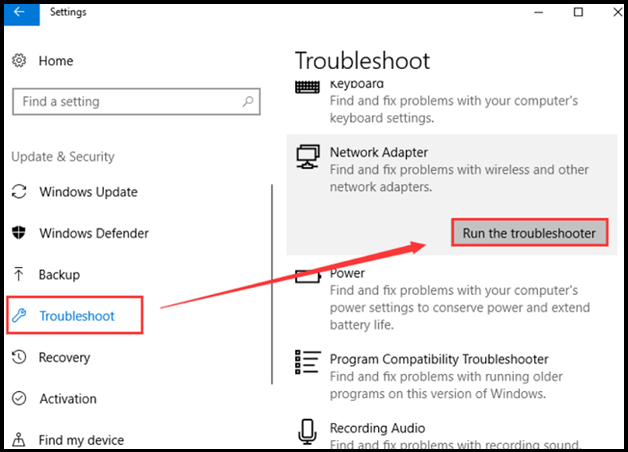
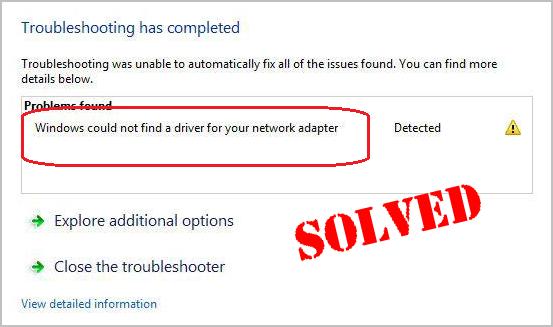
Windows has a built-in tool to find network problems. Open Settings and go to Troubleshoot. Select “Network Adapter” and click “Run the troubleshooter.” The tool checks settings and tries to fix errors. Follow any instructions it gives. This method often fixes adapter issues automatically.
Check Physical Connections
Loose or unplugged cables cause many network problems. Make sure the Ethernet cable is firmly plugged into the computer and router. Check the cable for damage or wear. If using Wi-Fi, ensure your router is powered on. A quick cable check can restore your connection fast.
Device Manager Actions
Device Manager offers key tools to fix network adapter issues. It shows all installed adapters and their status. Using this tool helps find and solve connection problems quickly. You can disable and enable adapters, update drivers, and spot faulty devices. These actions often restore your network without extra software.
Disable And Re-enable Adapter
Disabling and re-enabling the network adapter resets its connection. Open Device Manager and find your adapter under “Network adapters.” Right-click it and select “Disable.” Wait a few seconds, then right-click again and choose “Enable.” This simple step clears minor errors and refreshes the adapter’s settings.
Update Network Adapter Drivers
Outdated drivers cause many network problems. In Device Manager, right-click your adapter and pick “Update driver.” Choose to search automatically for updated software. Windows will look online and install the latest driver if available. Updated drivers improve performance and fix known bugs.
Identify Faulty Adapters
Device Manager highlights adapter problems with warning icons. Look for yellow triangles or red X marks next to adapters. These signs show hardware or driver issues. Right-click the faulty adapter and select “Properties” to see error details. Knowing the exact problem guides you to the right fix or replacement.
Credit: fixbit.com
Command Prompt Solutions
Using Command Prompt offers quick ways to fix network adapter issues. These commands clear errors and refresh settings. They work without complex steps or extra tools. Just a few commands can restore your connection and improve network speed.
Flush Dns Cache
DNS cache stores website addresses to speed browsing. Sometimes, old or corrupted data causes connection problems. Flushing the DNS cache clears this data. Open Command Prompt as admin and type ipconfig /flushdns. Press Enter. This command removes outdated entries. It helps fix errors like pages not loading or slow browsing.
Reset Winsock
Winsock controls network communication on your PC. Corrupted Winsock settings can block internet access. Resetting Winsock restores default network settings. Open Command Prompt as admin. Type netsh winsock reset and press Enter. Restart your computer after this. It often solves issues with network adapters and connectivity.
Release And Renew Ip Address
Your IP address identifies your device on the network. Problems with IP can stop internet access. Use Command Prompt to release and renew your IP address. Type ipconfig /release and press Enter. This frees your current IP. Then type ipconfig /renew and press Enter to get a new IP. This refreshes network settings and fixes many adapter issues.
Network Settings Reset
Resetting your network settings can fix many connection problems. It clears old configurations that might block your device from connecting properly. This step often restores normal network function quickly. Resetting is easy and safe, but you will lose saved Wi-Fi passwords and custom settings.
Perform Full Network Reset
To perform a full network reset, open your system settings first. Find the option labeled “Network & Internet” or similar. Scroll to the bottom and select “Network reset.” Confirm your choice to start the reset process.
Your computer will restart automatically. After reboot, all network adapters return to their default states. This step removes all saved networks and VPN connections.
Reconfigure Network Preferences
After resetting, you must reconfigure your network preferences. Start by reconnecting to your Wi-Fi network using the correct password. Check your IP settings to ensure they are set to automatic if unsure.
Adjust any VPN or proxy settings you use. Test your internet connection to confirm everything works well. This refresh often resolves hidden issues that cause adapter problems.
Credit: www.drivereasy.com
Diagnosing Hardware Problems
Diagnosing hardware problems with your network adapter is a key step in fixing connection issues. Hardware faults can cause slow speeds, disconnects, or no connection at all. This section helps you find out if the adapter itself is the problem. Follow simple checks and tests to identify any hardware faults quickly.
Check Device Manager Warnings
Open Device Manager to see if Windows flags any issues. Press Win + X and choose Device Manager. Look under “Network adapters” for yellow warning signs or red crosses. These symbols indicate driver problems or hardware failures. Right-click the adapter and select “Properties” for error details. Note any error codes shown, as they help guide your next steps.
Test With Another Network Adapter
Using a different network adapter is a simple way to confirm hardware faults. Borrow a USB or PCI network adapter and connect it to your PC. If the new adapter works well, your original adapter likely has a hardware issue. This test rules out software and driver problems. Testing on another computer also helps isolate the problem.
Consider Hardware Replacement
If tests show your adapter is faulty, replacing it is the best option. Internal adapters can be swapped with a new PCI card or USB network adapter. Choose a model that matches your system and connection type. Replacement is often cost-effective and restores full network functionality. Avoid wasting time fixing damaged hardware that no longer works.
Preventive Tips
Preventing network adapter problems saves time and keeps your connection stable. Small habits can avoid many common issues. Follow simple tips to maintain your network adapter’s health and ensure smooth internet access.
Keep Drivers Updated
Drivers control how your network adapter works. Old drivers cause errors and slow speeds. Visit the manufacturer’s site often to download the latest driver updates. Updated drivers fix bugs and improve performance. Use Device Manager to check for updates regularly.
Regular System Restarts
Restarting your computer clears temporary glitches. It refreshes network settings and memory. Restart your system at least once a day. This simple step prevents minor software conflicts. It helps your network adapter run without interruptions.
Monitor Network Status
Check your network status regularly to catch issues early. Use built-in tools like the Network and Sharing Center or third-party apps. Watch for unusual drops or slow speeds. Early detection helps fix problems before they worsen. Stay aware of your connection’s health every day.

Credit: learn.microsoft.com
Frequently Asked Questions
How Do I Fix My Network Adapter Problem?
Restart your PC and run the built-in network troubleshooter. Reset network settings and flush DNS using Command Prompt. Update or reinstall drivers via Device Manager. Disable and re-enable the adapter. Perform a full network reset if needed. Consider hardware replacement if problems persist.
How Do You Tell If Your Network Adapter Is Bad?
Check Device Manager for your network adapter. Look for warning signs like yellow exclamation marks. Test connectivity and run the network troubleshooter. Update or reinstall drivers. Persistent connection issues or hardware errors often indicate a bad network adapter.
When Troubleshooting A Network Adapter Issue, What Is The Easiest Initial Step?
The easiest initial step is to restart your computer. This often resolves temporary network adapter issues quickly.
How To Solve Adapter Problem?
Restart your computer and run the Windows Network Adapter troubleshooter. Disable and re-enable the adapter via Device Manager. Update or reinstall drivers from the manufacturer’s site. Use Command Prompt commands like ipconfig /flushdns and netsh winsock reset. Perform a full network reset if needed.
What Are Common Signs Of A Faulty Network Adapter?
A faulty network adapter may cause slow internet or no connection at all. You might see error messages or no network detected. Device Manager may show a warning icon next to the adapter.
Conclusion
Network adapter issues can disrupt your internet access quickly. Start with basic steps like restarting your computer. Use the built-in troubleshooter to find common problems fast. Check Device Manager to see if your adapter works correctly. Updating drivers often fixes many connection errors.
Command Prompt commands like ipconfig /flushdns help refresh your network settings. If problems persist, resetting the network or replacing hardware might be necessary. Staying patient and following these steps improves your chances to fix the issue. Reliable internet depends on a well-functioning network adapter.