
Is your network printer acting up just when you need it most? You’re not alone.
Network printer issues can be frustrating, especially when deadlines are looming. But before you give up or call for expensive help, there’s good news: many common printer problems have simple fixes you can try right now. In this guide, you’ll discover clear, step-by-step troubleshooting tips that anyone can follow—no tech degree required.
Whether your printer won’t print, shows offline, or has connection glitches, this article will help you get back on track quickly. Keep reading to take control of your network printer and stop those annoying interruptions for good.
Common Printer Issues
Network printers often face issues that disrupt smooth printing. These common problems can slow down work and cause frustration. Identifying them quickly helps fix the printer and resume tasks.
Printer Offline
A printer shows offline if it loses connection to the network. This stops any print jobs from starting. Often, the printer is powered on but not connected properly. Checking the network settings and restarting the printer can solve this. Also, make sure the printer is set as the default device on your computer.
Paper Jams
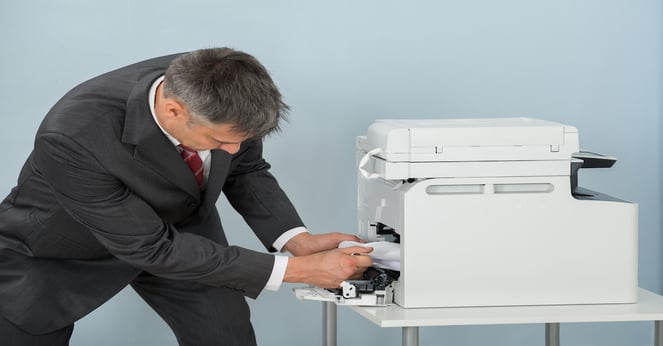
Paper jams block the printing process and cause errors. They happen when paper is stuck or fed incorrectly. Clearing the jam carefully prevents damage to the printer. Always remove paper slowly and check for small scraps inside. Using the right paper type and loading it correctly reduces jams.
Low Ink Or Toner
Low ink or toner leads to faded or incomplete prints. Printers often alert users when supplies are low. Replacing ink cartridges or toner on time keeps print quality high. Avoid using expired or non-compatible cartridges to prevent damage. Regular checks help maintain clear and sharp prints.
Connection Drops
Network drops cause printers to lose communication with devices. This can happen due to weak Wi-Fi signals or router issues. Moving the printer closer to the router can improve signals. Restarting the router and printer often restores connection. Keeping firmware updated also prevents frequent drops.
Checking Network Connections
Checking network connections is the first step in fixing network printer issues. The printer must have a good connection to the network to work properly. A weak or broken connection often causes printing problems. Simple checks can find and fix many issues quickly. Follow these steps to make sure your network connection is strong and stable.
Cable And Wi-fi Inspection
Start by checking all cables connected to your printer. Make sure the Ethernet or USB cable is plugged in tightly. Look for any visible damage on the cables. For Wi-Fi printers, check if the printer is connected to the correct network. Confirm the Wi-Fi password is entered correctly on the printer. A loose cable or wrong Wi-Fi setup can stop the printer from communicating with your computer.
Router And Modem Reset
Turn off your router and modem to refresh their settings. Unplug them from the power source. Wait at least 30 seconds before plugging them back in. Restart the printer after the router and modem power up. This simple reset can solve many network connection problems. It clears temporary glitches that might block communication between devices.
Signal Strength
Check the Wi-Fi signal strength near your printer. A weak signal can cause slow or failed printing tasks. Move the printer closer to the router if the signal is low. Avoid placing the printer near thick walls or metal objects. These can block or weaken the Wi-Fi signal. Strong signal strength ensures reliable communication and faster printing.
Printer Status And Settings
Understanding your printer’s status and settings is key to fixing network printing problems. The printer might appear connected but not print due to offline status or wrong settings. Checking these can save time and avoid frustration.
Setting Printer Online
Sometimes the printer shows as offline even if it is ready. Open the Control Panel and go to Devices and Printers. Right-click your printer and select “See what’s printing”. Click on the Printer menu and uncheck “Use Printer Offline”. This action forces the printer online and allows jobs to print.
Selecting The Correct Printer
Printing issues can happen if the wrong printer is selected. Always check the printer name in the print dialog before printing. Select the network printer you want to use. This ensures documents send to the correct device without errors or delays.
Clearing Print Queue
Print jobs stuck in the queue block new documents from printing. Open the print queue by right-clicking the printer and selecting “See what’s printing”. Cancel all pending jobs to clear the queue. This step often fixes frozen printing tasks and restores normal function.
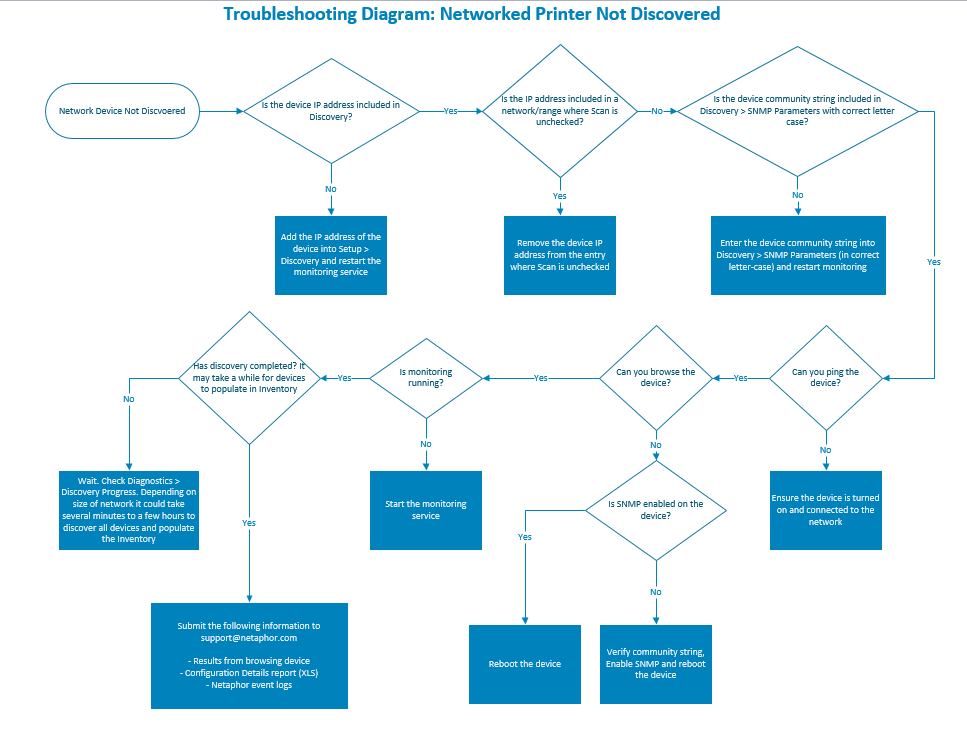
Credit: support.netaphor.com
Driver And Software Issues
Driver and software problems often cause network printer errors. These issues stop printers from working correctly on your system. Fixing driver and software troubles can restore smooth printing quickly. This section explains key steps to handle these problems.
Updating Printer Drivers
Old drivers can cause printing errors and slow performance. Check the printer manufacturer’s website for the latest driver updates. Download and install the newest version for your printer model. Updated drivers improve compatibility and fix bugs.
Windows Update can also find driver updates automatically. Keep drivers current to avoid conflicts with your operating system. Restart your computer after updating drivers to apply changes.
Reinstalling Printer Software
Corrupt or missing printer software leads to printing failures. Uninstall the current printer software from your system. Then, download the full software package from the printer maker’s website. Follow the installation steps carefully to reinstall it.
Reinstalling software resets printer settings and clears glitches. This process helps recover printer functionality if software files were damaged. Restart your computer after reinstalling the software for best results.
Checking Driver Compatibility
Incorrect drivers cause the printer to malfunction or not print at all. Verify your printer driver matches your computer’s operating system version. Using a driver for a different OS can block printer communication.
Confirm whether your system is 32-bit or 64-bit and select drivers accordingly. Compatibility checks prevent errors and improve print job handling. Always download drivers from trusted sources to ensure safety and accuracy.
Resetting The Printer
Resetting the printer can fix many common network printer issues. It clears minor errors and refreshes the device settings. This process helps the printer reconnect to your network properly. Resetting is often the first step in troubleshooting before trying more complex fixes.
Two main reset methods exist: power cycling and factory resetting. Power cycling is a simple restart that clears temporary glitches. Factory resetting returns the printer to its original settings, removing all custom configurations. Both methods restore printer function in different ways.
Power Cycle Steps
Turn off the printer using the power button. Unplug the printer’s power cord from the outlet. Wait for 30 seconds to 1 minute. This pause helps clear the printer’s memory and cache. Plug the power cord back into the outlet. Turn on the printer and wait for it to initialize. Check if the printer reconnects to the network and prints properly.
Factory Reset Options
Locate the printer’s control panel or touchscreen menu. Find the setup or settings option. Look for a reset or restore factory defaults choice. Select this option to start the factory reset. Confirm your selection if prompted. The printer will erase all custom settings and restart. After reset, reconnect the printer to your network manually. This step often fixes deep software or configuration issues.

Credit: learn.microsoft.com
Advanced Troubleshooting
Advanced troubleshooting helps fix tough network printer problems. It digs deeper than basic checks. It looks at how the printer and network talk to each other. This section covers key steps to find and solve hidden issues. These steps make your printer work smoothly and save time.
Testing Printing Architecture
Testing printing architecture checks how print jobs move through the system. It shows if the printer driver and spooler work right. Start by sending a test page from the print server. Watch if the job reaches the printer without errors. Use tools like Print Management or PowerShell commands. They give details on the print queue and drivers. Fix any stuck jobs or corrupt drivers found in this test.
Using Printer Web Interface
Many network printers have a web interface for settings and status. Open a browser and enter the printer’s IP address. The web interface shows errors, ink levels, and network settings. It lets you update firmware or restart the printer remotely. Check logs for recent problems. Adjust settings like security and network protocols here. This helps solve network conflicts and access issues.
Assigning Tcp/ip Ports
Assigning the correct TCP/IP port is crucial for network printing. Go to your computer’s printer properties and find the Ports tab. Confirm the port matches the printer’s IP address. Create a new Standard TCP/IP Port if needed. This ensures print jobs reach the right device. Avoid using generic or old ports that cause misrouting. Proper port setup prevents many connection errors.
Maintaining Printer Performance
Maintaining your network printer’s performance keeps printing smooth and reliable. Regular care prevents common problems that slow down work. Focus on cleaning, updating, and checking supplies often. These steps help avoid breakdowns and extend printer life.
Regular Cleaning
Clean your printer every few weeks. Dust and dirt can block sensors and rollers. Use a soft cloth and gentle cleaner. Avoid harsh chemicals that damage parts. Remove paper scraps from trays and feeders. Keep the printer free of debris to reduce jams.
Firmware Updates
Check for firmware updates regularly. Updates fix bugs and improve printer functions. Visit the manufacturer’s website for the latest version. Install updates following the instructions carefully. Updated firmware keeps your printer secure and efficient.
Monitoring Consumables
Track ink and toner levels closely. Replace cartridges before they run out. Low supplies cause poor print quality and errors. Check paper stock and ensure it matches printer specs. Using the right consumables helps maintain print quality and prevent damage.
Credit: www.sumnerone.com
Frequently Asked Questions
Why Is My Printer Connected To The Network But Not Printing?
Your printer might be offline, have a paper jam, or low toner. Check connections, restart devices, and ensure correct printer selection.
How To Reset Network Printer?
Turn off the printer and unplug its power cord. Restart your router and modem. Plug the printer back in and turn it on. This resets your network printer effectively.
How To Get A Network Printer Back Online?
Restart the printer and router. Check cables and Wi-Fi connection. On Windows, open Devices and Printers, right-click your printer, and uncheck “Use Printer Offline. ” Clear any print queue errors to bring the network printer back online.
What Are The Common Printer Connection Issues?
Common printer connection issues include disconnected cables, weak Wi-Fi signals, incorrect driver settings, offline status, and low ink or paper jams. Restarting devices and checking network connections often resolves these problems quickly.
Why Is My Network Printer Not Printing Despite Connection?
The printer may be offline or paused. Check printer status and clear any paper jams or low ink alerts.
Conclusion
Network printer problems can disrupt your work. Checking cables and connection status helps. Restarting the printer often fixes many issues. Clear paper jams and check ink levels. Make sure the printer is set online in settings. Keeping drivers updated improves performance.
Simple steps save time and reduce frustration. Troubleshooting becomes easier with practice and patience. Stay calm and follow these tips to print smoothly.



