
Are you having trouble with your NOCO Genius 1 battery charger? If the lights on your charger are flashing strangely or it won’t charge your battery, you’re not alone.
Many users face common issues like error signals, standby mode, or connection problems that can be confusing and frustrating. But don’t worry—this guide is here to help you understand what those lights mean and how to fix them quickly. By following simple troubleshooting steps, you can get your charger working properly again and keep your battery in top shape.
Keep reading to unlock easy solutions that save you time and frustration.
Led Indicators Guide
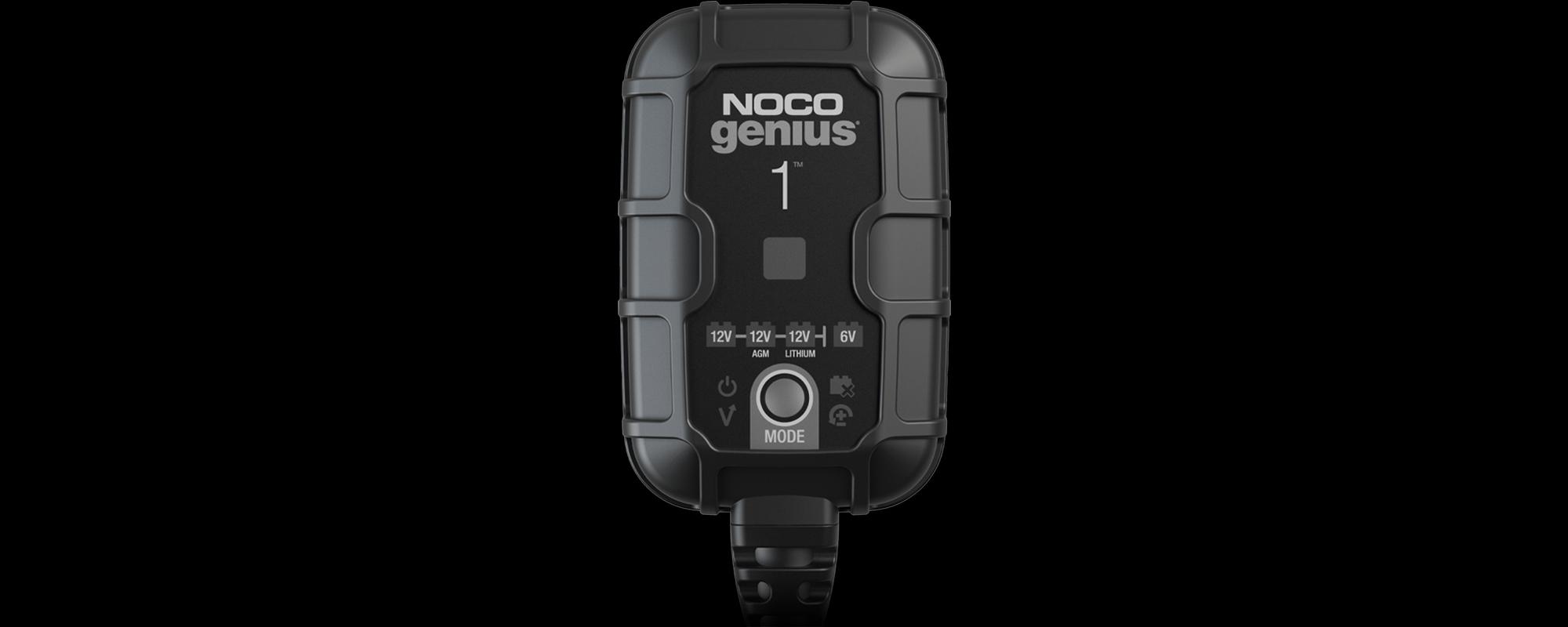
The NOCO Genius 1 uses LED lights to communicate its status and any issues. Understanding these LED signals helps you troubleshoot effectively. This guide explains what each LED pattern means and what action to take. Clear knowledge of these indicators saves time and protects your battery and charger.
Pulsing Red And Green Lights
This pattern shows the charger is starting to analyze the battery. It tests voltage and condition. Wait until the lights change to another pattern before proceeding. Interrupting this process may cause errors.
Solid And Slow Pulsing Green
A solid green light means the battery is fully charged. Slow pulsing green indicates maintenance mode. The charger provides a small current to keep the battery healthy. Leave it connected to maintain battery life.
Flashing Red And Green Alternating
This signals a problem with the battery or connections. It may mean poor contact, internal leakage, or a failing battery. Check that clamps connect properly to terminals. Clean terminals if needed. Replace the battery if the problem continues.
Solid And Flashing Red
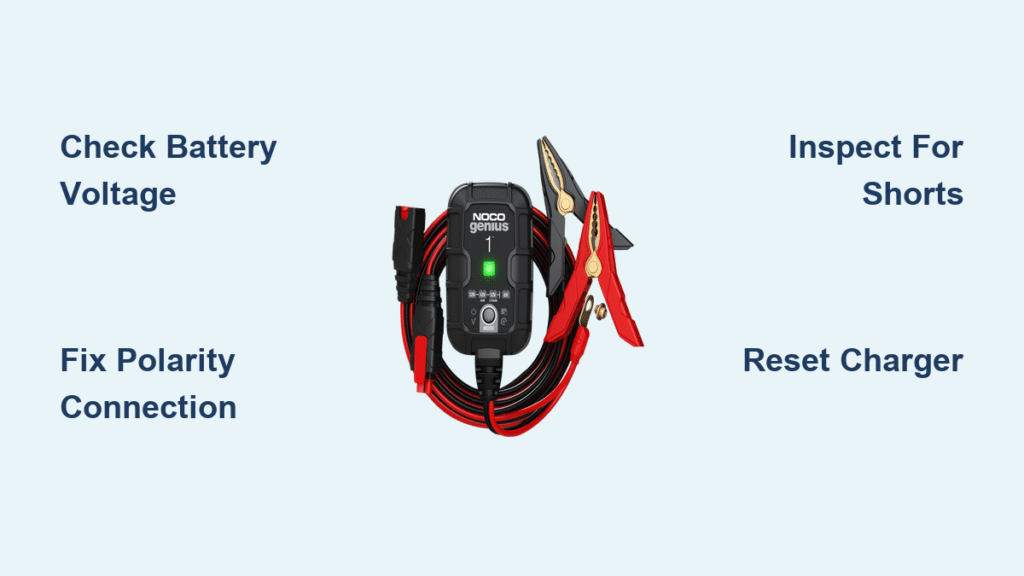
Solid or flashing red warns of an error. Common causes include reverse polarity or a short circuit. Double-check that red connects to positive and black to negative. Also, inspect cables for damage. Correct any mistakes to avoid damage.
Solid Orange Standby
A solid orange light shows the charger is in standby. This happens when battery voltage is very low or undetectable. Try jump-starting the battery or use a different charger mode. This helps the charger recognize the battery.
All Error Leds Flashing
When all error LEDs flash, temperature issues exist. The charger or battery may be too hot or cold. Move the charger and battery to a room temperature area. Allow time to cool or warm before continuing.
Basic Troubleshooting Steps
Troubleshooting the NOCO Genius 1 charger can be simple with basic steps. These steps help identify common issues. Follow each step carefully to ensure your charger works properly.
Check Connections
Make sure the clamps are tightly connected to the battery terminals. The red clamp must be on the positive terminal. The black clamp goes on the negative terminal. Loose or reversed connections cause errors. Clean the terminals if they are dirty or corroded. Proper contact is essential for charging.
Restart Charger
Unplug the charger from the power source. Wait for a few seconds before plugging it back in. Restarting can clear minor errors in the system. It helps reset the charger’s internal settings. This step often fixes simple glitches.
Test Battery And Terminals
Check the battery voltage using a multimeter if possible. Low voltage or a dead battery can stop the charger from working. Inspect the battery terminals for corrosion or damage. Replace the battery if it cannot hold a charge. Testing ensures the charger is not the problem.
Use Force Mode For Low Voltage
If the battery voltage is very low, the charger might not start charging. Use the Force Mode feature to override this. Force Mode helps the charger detect and charge deeply discharged batteries. Hold the button on the charger as instructed in the manual. This step can revive batteries that seem dead.
Common Issues And Fixes
Common issues can arise with the Noco Genius 1 charger. Understanding these problems helps fix them quickly. This section covers frequent errors and how to solve them. Each issue has clear signs and simple solutions. Follow these tips to keep your charger working well.
Solid Orange Light Issues
A solid orange light means the charger is in standby. This happens if the battery voltage is very low. The charger waits for the voltage to rise before starting. Check the battery connections to ensure they are tight and clean. If the battery is too drained, try jump-starting it or use a higher voltage charger first.
Reverse Polarity Errors
A flashing red light or solid red usually signals reverse polarity. This means the clamps are on the wrong battery terminals. Swap the clamps: red on positive, black on negative. Turn off the charger before fixing the clamps. After correction, the charger should start normally with a green light.
Temperature Related Errors
The charger may flash all error LEDs if the temperature is too high or low. Move the charger and battery to a normal temperature area. Allow time for cooling or warming. Avoid charging in extreme heat or cold. Charging resumes once the temperature is safe.
No Power Or Charging Problems
If the charger does not power on, check the power source first. Confirm the outlet works by testing another device. Inspect the charger cable for damage. Try resetting by unplugging and plugging back in. If the battery still does not charge, ensure the clamps are secure and terminals are clean.
Normal Pulsing Red Light
A pulsing red light means the charger is checking the battery. It is normal during the initial stage. The charger tests the battery’s voltage and condition. Wait for the light to change to green or flashing green. If it stays red too long, the battery may be faulty or deeply discharged.
Credit: no.co
Advanced Troubleshooting
Advanced troubleshooting with the NOCO Genius 1 charger helps solve complex issues. This section covers deeper problems beyond basic fixes. Understanding battery health and connection issues improves your charging experience. Follow these tips to keep your charger and battery in good shape.
Battery Health Concerns
Battery problems often cause charging errors. The charger might flash red or red-green lights. This can mean the battery is failing or cannot hold a charge. Check the battery voltage with a multimeter. If voltage is very low, the charger may not detect it. Use the charger’s force mode if available to boost voltage.
Old or damaged batteries show poor charging results. Swollen or leaking batteries must be replaced immediately. The charger cannot fix internal battery faults. Regularly inspect the battery for cracks or corrosion. Clean terminals with a wire brush to improve contact.
Connection And Contact Problems
Loose or dirty connections cause many charging issues. The charger needs firm clamp contact on battery terminals. Ensure red clamp connects to positive (+) and black clamp to negative (-) terminal. A reversed connection triggers error lights and stops charging.
Corroded or dirty terminals block electricity flow. Clean terminals with baking soda and water, then dry. Check cables for damage or frays that reduce current flow. Replace damaged cables to avoid charging failure. Reconnect clamps securely and restart the charger for best results.
When To Seek Professional Help
Knowing when to seek professional help with your Noco Genius 1 charger prevents further damage. Some problems need expert attention beyond simple troubleshooting. Recognizing these signs saves time and protects your battery and charger.
Battery Testing
Professional battery testing shows if the battery is healthy or faulty. They use specialized tools to measure voltage, capacity, and cold cranking amps. This testing finds hidden issues that a charger cannot detect. A failing battery can cause charger errors or not hold a charge. Experts can advise if you need a replacement or repair.
Official Noco Support
Contacting official NOCO support helps with complex charger problems. They provide accurate guidance based on your model and issue. NOCO support can offer firmware updates, repair options, or warranty service. Following their instructions reduces the risk of voiding your warranty. Official support ensures safety and reliable charger performance.
Credit: jumpstarter24.com

Credit: invertersrus.com
Frequently Asked Questions
What Do The Lights Mean On Noco Genius1?
The NOCO GENIUS1 lights indicate charging status and errors. Solid green means fully charged. Pulsing green shows charging. Solid orange signals standby or low voltage. Flashing red or red/green means errors like reverse polarity or battery faults. All LEDs flashing indicates temperature issues.
Check connections if errors appear.
What Are Common Noco Genius 10 Problems?
Common NOCO Genius 10 problems include reverse polarity errors, battery faults, temperature issues, and standby mode due to low voltage. Users may face flashing red/green lights, solid orange standby, or no charging. Checking connections, cleaning terminals, using Force Mode, or replacing the battery often resolves these issues.
What Does Pulsing Red Light On Noco Genius1 Mean?
A pulsing red light on the NOCO GENIUS1 indicates a charging error like reverse polarity, bad battery, or poor connection. Check clamps, correct polarity, and battery condition.
Why Is My Noco Genius1 Stuck In Standby?
Your NOCO GENIUS1 stays in standby (solid orange) if battery voltage is too low for detection. Jumpstart or raise voltage. Check connections for correct polarity. Replace the battery if it still won’t charge.
What Does A Flashing Red And Green Light Mean?
A flashing red and green light signals a poor connection or battery problem. Check if clamps are secure and battery terminals are clean. It may also indicate internal battery leakage or failure.
Conclusion
Troubleshooting the NOCO Genius 1 can feel tricky at first. Check all connections carefully and ensure clamps attach correctly. Watch the LED signals closely; they tell you what’s wrong. Restart the charger to reset any temporary errors. Use Force Mode if the battery voltage is too low.
Clean battery terminals for better contact and charging. Persistent issues might mean the battery needs replacement. Following these steps helps keep your charger working well. Stay patient and methodical for best results.



