Are you tired of dealing with constant interruptions in your Optimum internet, TV, or mobile service? When things don’t work as they should, it’s frustrating and can throw off your entire day.
But here’s the good news: many common Optimum issues have simple fixes that you can do yourself—quickly and effectively. Whether your router won’t connect, your cable box shows error codes, or your streaming keeps buffering, understanding the right troubleshooting steps can save you time and stress.
You’ll discover clear, easy-to-follow tips to get your Optimum service back on track fast. Keep reading, and take control of your connection today.
Credit: www.optimum.net
Quick Cable Box Fixes
Quick cable box fixes save time and reduce frustration. These simple steps often solve common issues. Most cable box problems start with easy-to-fix errors. Follow these tips to get your Optimum cable box working fast again.
Common Error Codes
Error codes help identify specific problems. Common codes include 0001, 3001, and 4002. Code 0001 often means a signal issue. Code 3001 relates to authorization problems. Code 4002 signals software errors. Knowing these codes speeds up troubleshooting. Check the Optimum support site for detailed code meanings.
Resetting Your Cable Box
Resetting the cable box clears temporary glitches. Unplug the box from power for 30 seconds. Plug it back in and wait for it to restart. This simple step often restores service. Use the reset button only if unplugging does not work. Avoid frequent resets to prevent hardware damage.
Checking Cable Connections
Loose or damaged cables cause many issues. Check coaxial and HDMI cables for tightness. Replace any frayed or broken cables immediately. Secure connections at both the cable box and TV ends. Avoid bending cables sharply to prevent damage. Proper cable care ensures clear signals and smooth operation.

Credit: www.optimum.com
Router Troubleshooting
Troubleshooting your Optimum router can solve many internet problems quickly. Knowing simple steps helps restore your connection fast. This guide covers basic router troubleshooting techniques anyone can do. Follow these clear instructions to fix common router issues.
Rebooting Modem And Router
Turn off your modem and router. Unplug them from the power source. Wait for 30 seconds to 1 minute. Plug them back in and turn them on. This refreshes the devices and clears temporary glitches. Many connection problems resolve after a reboot.
Interpreting Router Lights
Check the lights on your router to find issues. A solid green light means the device works normally. A blinking green light shows data is moving between devices. Red or orange lights signal a problem. Use these signals to understand your router’s status and take action.
Resetting To Factory Defaults
Press and hold the reset button on the router for 10 seconds. This restores the router to its original settings. Use this step if other fixes do not work. Note that you will lose custom settings like Wi-Fi name and password. You must set them up again after reset.
Accessing Admin Panel Settings
Open a web browser and enter your router’s IP address. Login using the admin username and password. Here, you can check and change settings like Wi-Fi name, password, and security. Adjusting these settings can improve your connection and fix problems.
Internet Speed And Connectivity
Internet speed and connectivity play a vital role in daily online activities. Slow or unstable internet can cause frustration. Troubleshooting these issues helps restore smooth browsing, streaming, and gaming experiences. Understanding simple checks and fixes can save time and improve your connection quality.
Using Speed Test Tools
Speed test tools measure your internet download and upload rates. These tools help identify if your connection matches your plan. Run tests on different devices to compare results. Use Optimum’s official speed test for accurate readings. Regular testing can reveal intermittent issues or slowdowns.
Securing Cable Connections
Loose or damaged cables often cause connection problems. Check coaxial and Ethernet cables for tight, secure fits. Replace any worn or frayed cables immediately. Avoid bending cables sharply to prevent damage. Proper cable connections ensure stable internet signals and reduce interruptions.
Wifi Signal And Ssid Checks
WiFi signal strength affects internet speed and device connectivity. Move closer to your router to test signal improvements. Confirm your WiFi network name (SSID) is visible and correct. Hidden SSIDs can cause connection delays. Restart the router to refresh signal broadcasting if needed.
Tv Troubleshooting Tips
TV issues can disrupt your viewing experience. Simple fixes often solve common problems fast. Use these TV troubleshooting tips to get back to watching without delay. Follow clear steps to identify and resolve issues with your Optimum service.
Verifying Input And Channels
Check that your TV is set to the right input source. Use the remote to switch between HDMI, AV, or cable inputs. Confirm the channel number matches your desired program. Incorrect inputs or channels cause no picture or sound. Double-check to avoid this simple mistake.
Adjusting Network Settings
Ensure your TV or streaming device is connected to the correct Wi-Fi network. Navigate to the network settings menu to confirm the connection. Restart your router and TV if the connection is weak or lost. Update software to improve network performance. A stable network ensures smooth streaming.
Optimizing Optimum Stream Devices
Restart your Optimum Stream device by unplugging it for 10 seconds. Clear the cache or reset the device if problems continue. Keep the device firmware updated for best performance. Place the device near the router to improve signal strength. These steps reduce buffering and improve picture quality.
Mobile Device Solutions
Mobile devices often face connectivity and performance issues. Simple steps can fix many common problems quickly. These mobile device solutions help restore normal function without technical help.
Follow these easy methods to troubleshoot your phone or tablet. Each step targets different potential issues, improving your device’s stability and internet connection.
Restarting Your Device
Turning your device off and on again clears temporary glitches. This process closes apps and refreshes the system. It often solves slow performance and minor errors.
Press and hold the power button until the restart option appears. Select restart and wait for your device to power back up.
Toggling Wifi And Airplane Mode
Switching WiFi off and on can fix connection drops. It resets the connection between your device and the network router.
Airplane mode disables all wireless signals. Turning it on for a few seconds then off refreshes all network connections at once.
Access quick settings on your device to toggle WiFi or airplane mode easily.
Resetting Network Settings
This action removes saved WiFi passwords and resets network preferences. It solves persistent connection problems and network errors.
Go to your device’s settings, find network options, and select reset network settings. Confirm the reset and reconnect to WiFi afterward.
Resetting network settings helps clear corrupted configurations and restore proper connections.
Handling Service Outages
Service outages can disrupt your Optimum experience. Knowing how to handle these interruptions helps you regain service faster. This section guides you through simple and effective steps during an outage. Stay calm and follow these instructions for quick resolution.
Checking Optimum Service Status
Start by checking the Optimum service status online. Visit the official Optimum website or use their app. These platforms show real-time updates about outages in your area. This saves time by confirming if the problem is widespread. You avoid unnecessary troubleshooting when the issue is on Optimum’s side.
Steps During An Outage
Begin by powering off your modem and router. Wait at least 30 seconds before turning them back on. This simple reboot can fix many common issues. Ensure all cables are tightly connected and undamaged. Avoid resetting your device unless instructed by support. Patience is key; sometimes service restoration takes time.
Contacting Optimum Support
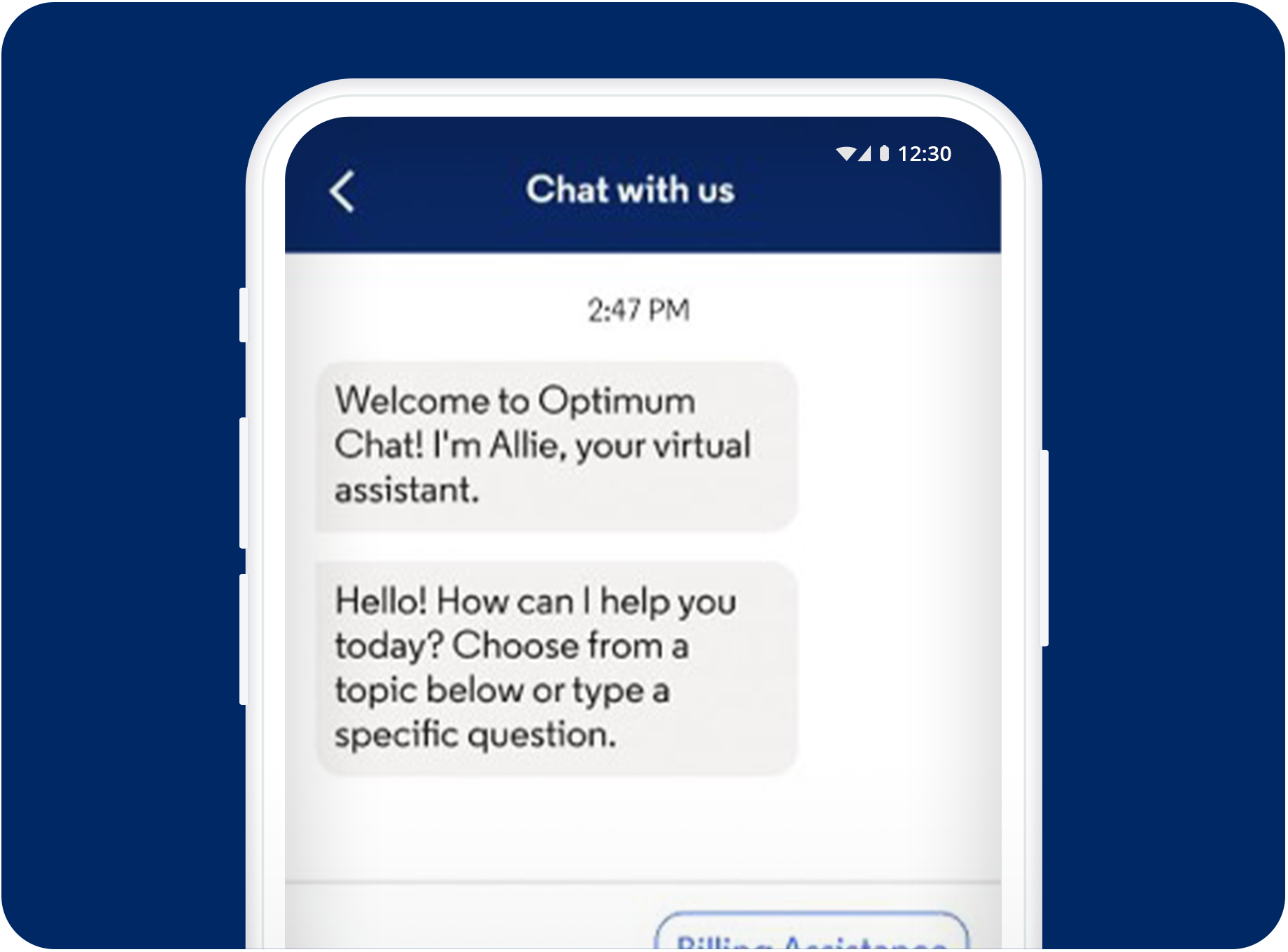
If the outage persists, contact Optimum support for help. Use their phone number or online chat for quick assistance. Prepare your account details and a description of the issue. Clear and direct communication speeds up the support process. Support agents can provide specific advice or escalate the problem.
Preventive Troubleshooting Tips
Preventive troubleshooting helps avoid common issues before they start. Regular care keeps your Optimum equipment running smoothly. Simple daily steps reduce downtime and improve performance. Follow these tips to maintain your connection and devices.
Regular Equipment Restart
Restarting your modem and router regularly clears memory and resets connections. This simple action removes temporary glitches that slow down your service. Schedule a restart at least once a week. Unplug devices for 30 seconds, then plug them back in. This helps maintain speed and reliability.
Cable And Connection Maintenance
Check all cables and connections often to prevent problems. Loose or damaged cables cause signal loss and slow internet. Tighten coaxial and Ethernet cables securely. Replace any frayed or worn cables immediately. Keep cables away from heat and sharp edges to avoid damage. Clean connectors gently to remove dust and dirt.
Monitoring Network Performance
Track your internet speed and connection quality regularly. Use Optimum’s online speed test tools to check performance. Note any slowdowns or disconnections and record the time. Monitoring helps spot patterns and potential issues early. Contact support with details if you see repeated problems. This keeps your network stable and fast.

Credit: www.youtube.com
Frequently Asked Questions
How Do I Reboot My Optimum Cable Box?
Unplug your Optimum cable box from power. Wait 30 seconds, then plug it back in. The box will reboot automatically.
Why Is My Optimum Not Working?
Check all cable connections for damage or looseness. Restart your modem and router. Verify wireless settings in the router’s admin panel. Use Optimum’s online speed test to check your connection. Contact Optimum support if problems continue or check for service outages in your area.
How Do I Talk To A Human Optimum Person?
Call Optimum’s customer service at 1-866-200-4239 and follow prompts to reach a live agent. Use online chat for faster help.
What Do The Lights On My Optimum Router Mean?
The Optimum router lights indicate status: solid green means normal operation, flashing green shows data transmission. Red or no light signals issues. Check cables and restart the router if problems occur.
What Are Common Optimum Troubleshooting Steps For Internet Issues?
Start by rebooting your modem and router to refresh connections. Check all cables for damage or looseness. Use Optimum’s speed test tool to verify your internet speed.
Conclusion
Optimum troubleshooting helps fix common internet, TV, and device problems. Always check cables and device settings first. Restarting your modem or router often solves many issues quickly. Use online tools to test your internet speed. If problems stay, look for service outages in your area.
Keep calm and follow each step carefully. For ongoing trouble, contacting Optimum support is the best choice. Staying patient and methodical leads to faster fixes and better service.