
Are you struggling with Outlook not working the way it should? Whether your emails aren’t syncing, Outlook crashes on startup, or search stops working, these problems can disrupt your day and slow you down.
The good news is, you don’t have to stay stuck. This guide will walk you through simple, effective steps to troubleshoot Outlook issues and get your email running smoothly again. By the end, you’ll know how to tackle common problems like full mailbox storage, connectivity glitches, and add-in conflicts—so you can stay focused on what matters most.
Keep reading to regain control over your Outlook experience today.
Common Outlook Issues
Outlook is a widely used email client, but it sometimes faces issues that disrupt daily work. Knowing common problems helps solve them faster. These issues range from mailbox space limits to app crashes and search troubles. Understanding each problem allows users to apply simple fixes. This section covers frequent Outlook problems and what causes them.
Mailbox Full
One frequent issue is a full mailbox. Outlook stops receiving new emails when storage runs out. Large attachments and many old messages fill space quickly. Users must delete unnecessary emails or empty the trash folder. Checking mailbox size in account settings helps track storage limits. Archiving old emails also frees space and keeps Outlook running smoothly.
App Crashes And Freezes
Outlook may crash or freeze during use. This often happens due to corrupted files, add-ins, or software conflicts. Running Outlook in safe mode disables add-ins, isolating the problem. Updating Outlook to the latest version can fix bugs. Repairing the Outlook installation through the control panel also helps resolve crashes and freezes.
Search Malfunctions
The search feature in Outlook sometimes stops working or shows incomplete results. Corrupted search indexes usually cause this. Rebuilding the search index can restore search functions. Users should also check if Windows Search service is running. Disabling and re-enabling Outlook indexing in settings often fixes this problem.
View Settings Problems
Incorrect view settings can make emails look missing or disorganized. Filters, sorting, or custom views can hide messages unintentionally. Resetting the view to default clears these issues. Users can do this by selecting the “Reset View” option on the View tab. Creating a new profile may be necessary if problems persist.
Email Delivery Failures
Emails sometimes fail to send or get delayed. Network issues, incorrect server settings, or large attachments cause this. Checking internet connectivity is the first step. Verifying SMTP and POP/IMAP settings ensures proper email delivery. Reducing attachment size or splitting emails helps prevent delays. Clearing the Outbox folder also resolves stuck messages.
Credit: www.shoviv.com
Quick Fixes For Email Problems
Facing email issues in Outlook can disrupt your work and waste time. Quick fixes often solve common problems fast. These simple steps help you get back to emailing without hassle. Try each fix carefully to restore smooth email function.
Restart And Safe Mode
Restart Outlook to clear minor glitches. Close the app completely, then open it again. If problems persist, start Outlook in Safe Mode. This disables add-ins that might cause errors. To do this, press Windows + R, type outlook /safe, and hit Enter. Safe Mode helps identify if add-ins block your emails.
Clear Cache
Cached data can cause Outlook to slow or freeze. Clear the cache to fix this. Go to your Outlook settings and find the option to clear temporary files. Removing old cache forces Outlook to load fresh data, improving performance and reducing errors.
Check Internet And Server Status
Email needs a stable internet connection. Check if your device is online by opening a website. Slow or no connection stops Outlook from syncing emails. Also, verify Microsoft’s server status online. Server outages can disrupt email services temporarily. Patience is key during these times.
Toggle Offline Mode
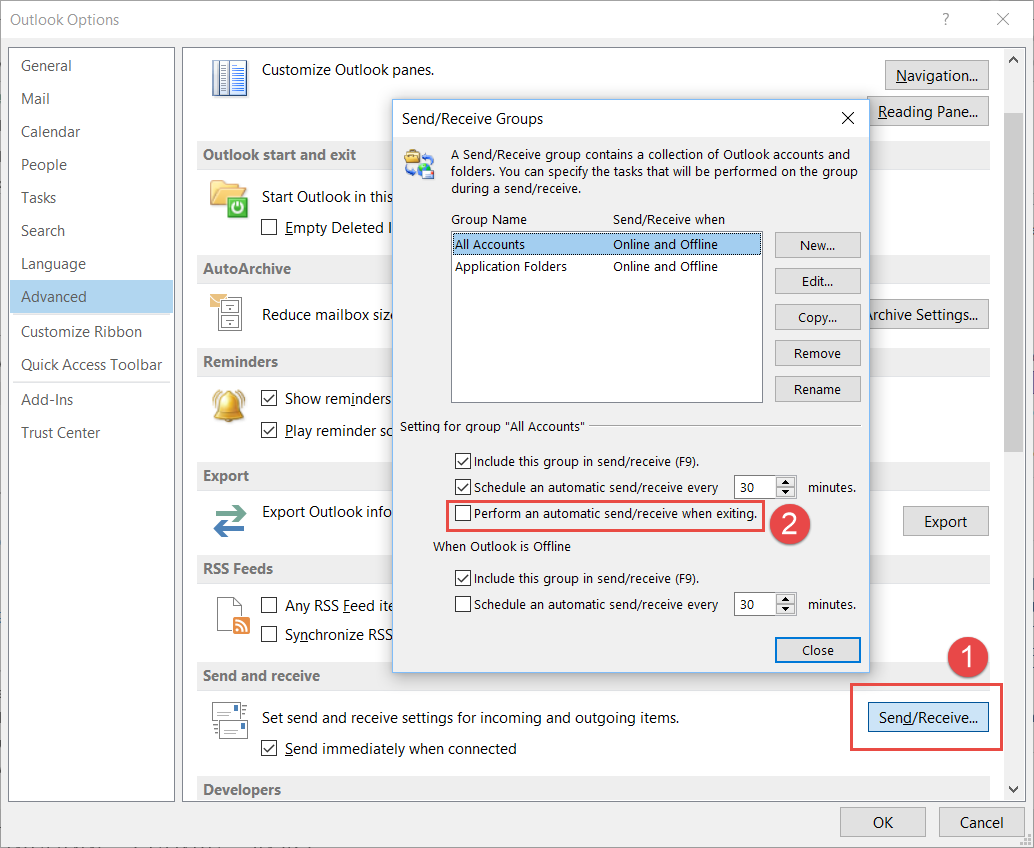
Outlook has an Offline Mode that stops email syncing. Sometimes it turns on by mistake. Look in the Send/Receive tab for the “Work Offline” button. If highlighted, click it to go back online. This simple toggle often restores your email flow immediately.
Update Passwords
Changed passwords block Outlook from sending or receiving emails. Update your password in Outlook’s account settings. Enter the new password exactly as used on your email provider. This step reconnects Outlook with your email server securely and quickly.
Managing Storage Space
Managing storage space in Outlook is essential for smooth email performance. A full mailbox can block new messages and slow down the app. Regularly clearing space helps avoid these issues. It keeps Outlook running efficiently and prevents data loss risks.
Delete Old Emails And Attachments
Old emails and large attachments take up most of the space. Start by removing emails you no longer need. Focus on those with big files attached. Use the search tool to find emails by size or date. Deleting these frees up significant storage quickly.
Check Storage Usage
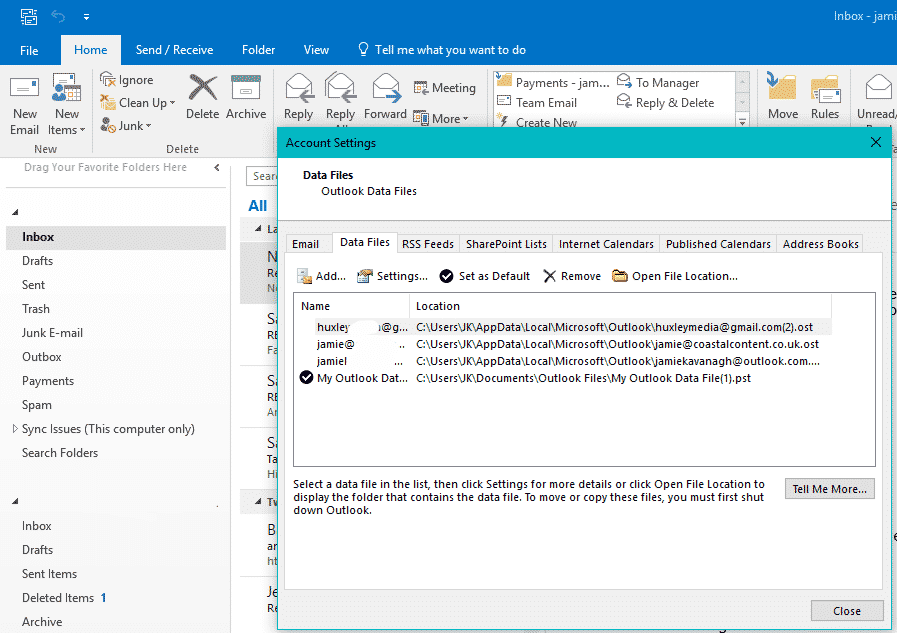
Outlook shows your current storage use clearly. Go to Settings and find the storage section. Check how much space you have left. This info helps plan your cleanup. Watching storage regularly stops unexpected full mailbox errors.
Archive And Backup Tips
Archiving old emails moves them out of your main mailbox but keeps them accessible. Use Outlook’s archive feature to save space without losing data. Backup important emails to a local drive or cloud storage. This protects data and helps manage mailbox size effectively.
Credit: www.davescomputers.com
Troubleshooting Add-ins
Add-ins enhance Outlook by adding new features and tools. Sometimes, these add-ins cause Outlook to slow down, freeze, or crash. Troubleshooting add-ins is crucial to keep Outlook running smoothly.
This section explains how to manage add-ins effectively. Learn to disable problematic add-ins, run Outlook without add-ins, and identify conflicts between extensions.
Disable Problematic Add-ins
Open Outlook and go to the File menu. Select Options, then choose Add-ins. At the bottom, find Manage and select COM Add-ins. Click Go. Uncheck the boxes for add-ins you want to disable. Click OK and restart Outlook to see if the problem stops.
Run Outlook Without Add-ins
Starting Outlook in safe mode helps to check if add-ins cause issues. Press Windows + R to open the Run dialog. Type outlook /safe and press Enter. Outlook opens without loading add-ins. If Outlook works fine, add-ins likely cause the problem.
Identify Conflicting Extensions
Enable add-ins one by one to find conflicts. Go back to the Add-ins menu and activate one add-in at a time. Restart Outlook after each activation. Watch for crashes or slowdowns. The last enabled add-in causing trouble is likely conflicting with others or Outlook.
Account Settings And Sync
Account settings and sync play a vital role in Outlook’s smooth operation. Problems here often cause emails to stop updating or fail to send. Checking these settings can quickly solve many common issues.
Sync ensures your Outlook matches your email server. If sync breaks, your inbox may not refresh. Correct account settings make sure Outlook connects properly to the server.
Verify Server Settings
Start by checking the incoming and outgoing server details. Use the exact server names your email provider gives. Double-check the ports and encryption methods. Wrong server info stops Outlook from syncing emails.
Go to Account Settings, select your email, and view server info. Confirm it matches your provider’s recommended settings. Adjust as needed and save changes.
Remove And Re-add Accounts
Sometimes account data gets corrupted. Removing and re-adding the account can fix sync issues. This resets connection data and refreshes settings.
Back up important emails before removal. Then delete the account from Outlook. Add it again using correct details. Outlook will sync fresh data from the server.
Repair Account Connections
Outlook offers a repair tool to fix account problems. It checks connection errors and attempts automatic fixes. This tool can resolve many sync and login issues.
Access the repair option in Account Settings. Follow prompts to complete the process. Restart Outlook and check if sync works better.
Using Web And Mobile Alternatives
Using web and mobile alternatives can help solve many Outlook problems fast. These options keep you connected without waiting for the desktop app to work properly. You can access your emails and calendar from anywhere. Both web and mobile versions offer useful features for daily tasks.
Access Outlook Online
Outlook Online runs in your web browser. No need to install software. Just open outlook.com and sign in with your Microsoft account. You get full access to emails, calendar, and contacts. It works on any device with internet. This method helps when the desktop app is slow or crashes.
Sync Issues On Mobile Apps
Mobile Outlook apps may face sync problems. Sometimes emails or calendar events don’t update right away. Check your internet connection first. Also, make sure the app is up to date. Removing and re-adding the account often fixes sync errors. Clearing cache can help if the app freezes.
Benefits Of Web Access
Using Outlook Online keeps your data safe on Microsoft servers. No need to worry about lost files. It updates instantly with all devices connected. The web version offers consistent features across platforms. You can manage emails, schedule meetings, and share files smoothly. It supports multiple accounts too, making work easy.
Checking Service Status
Checking the service status is a key step in troubleshooting Outlook issues. Sometimes, the problem is not on your device but with Microsoft’s servers. Knowing the current health of Outlook services can save time and guide your next steps. It helps to confirm if an outage or maintenance is causing the problem.
Microsoft Service Health Dashboard
The Microsoft Service Health Dashboard shows live updates about Outlook and other Microsoft services. This official tool reports ongoing outages, planned maintenance, and resolved issues. Users can see detailed information about service interruptions and estimated fix times. Checking this dashboard helps confirm if Microsoft is aware of the problem.
Community Outage Reports
Community outage reports provide insights from other Outlook users experiencing similar problems. Websites and forums collect these reports in real time. They show patterns and regions affected by outages. These reports help identify if the issue is widespread or isolated to your setup. They also give clues about the nature of the problem.
Real-time Problem Tracking
Real-time problem tracking tools gather data from multiple sources to monitor Outlook’s performance. They highlight spikes in error reports and connection failures. These tools alert users about sudden disruptions. Tracking problems live allows quick response and better understanding of ongoing issues. It complements official Microsoft updates and community feedback.
Credit: www.sperrysoftware.com
Frequently Asked Questions
How Do I Troubleshoot Outlook Problems?
Start Outlook in Safe Mode by typing “Outlook /safe” in the search bar and pressing Enter. Disable add-ins to identify conflicts. Restart Outlook normally. Clear cache and verify account settings. Repair Outlook via Apps & Features if needed. Remove and re-add your account to fix sync issues.
What Is The Most Common Problem In Outlook?
The most common Outlook problem is running out of mailbox space, causing email sending and receiving issues.
Why Is My Outlook Email Suddenly Not Working?
Your Outlook email may stop working due to full storage, incorrect password, server issues, or poor internet connection. Restart Outlook, check settings, clear cache, or repair the app to fix common problems.
Is There A Problem With Outlook Email Now?
Outlook email generally works fine, but occasional issues may occur. Check Microsoft’s Service Health Dashboard for outages. Restart Outlook or your device to fix local problems.
How Do I Troubleshoot Common Outlook Problems Quickly?
Start Outlook in safe mode by typing Outlook /safe in the search bar. Disable add-ins, then reopen Outlook normally. This often fixes crashes and freezes.
Conclusion
Troubleshooting Outlook can seem tricky at first. Small steps often fix common problems quickly. Restarting the app or device helps clear many issues. Checking your internet connection keeps Outlook running smoothly. Managing mailbox space prevents delays and syncing errors. Adjusting settings or disabling add-ins can resolve freezes or crashes.
Keep your password updated to avoid sign-in troubles. Regularly clearing the cache improves performance. Following simple tips saves time and reduces frustration. Stay patient and try each solution carefully. Your Outlook will work better with these easy fixes.



