
Is your Google Pixel acting up and leaving you frustrated? Whether your screen is unresponsive, apps keep crashing, or battery life suddenly drops, these issues can disrupt your daily routine.
But don’t worry—you’re not alone, and many common Pixel problems have simple fixes. In this guide, you’ll discover easy, step-by-step troubleshooting tips that anyone can follow to get your Pixel running smoothly again. From quick restarts to using built-in diagnostic tools, we’ll help you tackle your phone’s glitches with confidence.
Keep reading to unlock the solutions that will save you time, hassle, and possibly a costly repair. Your Pixel deserves to work perfectly—and you deserve peace of mind.

Credit: www.youtube.com
Basic Fixes
Basic fixes help solve many common Pixel problems quickly. These steps are easy and take little time. Start here before trying complex solutions. They can improve phone speed, battery life, and app performance.
Restart Your Pixel
Turn your Pixel off and on again to clear minor glitches. Hold the power button, then tap “Restart.” This refreshes system processes and closes stuck apps. Restarting often fixes freezing and slow response issues.
Check System Updates
Keep your Pixel software up to date for best performance. Go to Settings > System > System update. Download and install any available updates. Updates include bug fixes and security patches that improve stability.
Manage Storage Space
Free up space to avoid slowdowns and app crashes. Delete unused apps, old photos, or videos. Go to Settings > Storage to see usage. Aim for at least 10% free storage for smooth operation.
Use Safe Mode
Safe Mode disables third-party apps temporarily. Press and hold the power button, then tap and hold “Power off.” Select “OK” to reboot in Safe Mode. Check if issues persist. If not, a downloaded app may cause the problem.
Credit: www.androidauthority.com
App And Cache Issues
App and cache issues often cause Google Pixel devices to slow down or misbehave. Apps store temporary data called cache to load faster. Over time, this cache can become corrupted or too large, leading to glitches. Identifying and fixing these problems improves your Pixel’s performance. Simple steps like clearing cache, updating apps, or finding troublemakers can resolve many issues quickly.
Clear App Cache
Clearing the app cache frees storage and removes corrupt files. Open Settings on your Pixel. Go to Apps and select the app causing issues. Tap Storage & cache, then hit Clear cache. This action resets the app’s temporary data without deleting your personal information. Repeat for other apps if needed.
Update Apps
Outdated apps can cause errors or conflicts on your device. Visit the Google Play Store and tap your profile icon. Choose Manage apps & device and check for updates. Update all apps to their latest versions. Updated apps run smoother and fix bugs that may cause crashes or freezes.
Identify Problematic Apps
Some apps may drain battery, slow down your Pixel, or cause crashes. Restart your phone in Safe Mode to disable third-party apps temporarily. If the phone runs well in Safe Mode, a downloaded app likely causes the issue. Uninstall recently added apps one by one. Monitor your Pixel’s behavior after each removal to find the problematic app.
Display And Touch Problems
Display and touch problems can disrupt your Google Pixel experience. Screen flickering, unresponsive touch, or unusual colors reduce usability. These issues often stem from software settings or hardware glitches. Simple fixes may restore smooth operation without professional help. Follow these steps to troubleshoot and improve display and touch performance on your Pixel device.
Adjust Touch Sensitivity
Touch sensitivity affects how your screen responds to taps and swipes. Low sensitivity can cause missed touches, especially with screen protectors. Open your Pixel’s Settings and find the “Display” section. Look for “Touch sensitivity” or a similar option. Increase the sensitivity to make your screen more responsive. Test the change by tapping and swiping to ensure it feels right.
Try Adaptive Touch
Adaptive Touch adjusts screen behavior based on your usage patterns. It helps improve touch accuracy and reduces accidental inputs. To enable it, go to Settings > Accessibility > Interaction controls. Turn on “Adaptive Touch” or a related feature. This setting learns your touch habits and adapts over time. Check if this reduces touch issues and enhances your experience.
Run Display Diagnostics
Google Pixel includes built-in tools to test your display and touch functions. Open Settings and search for “Diagnostics” or “Device Health.” Choose “Display” or “Touch” tests to check for dead pixels, color accuracy, or responsiveness problems. Follow on-screen instructions to complete the tests. Diagnostic results help identify hardware faults or software glitches affecting the screen.
Connectivity Troubles
Connectivity troubles on your Google Pixel can disrupt daily use. Slow internet, dropped calls, and Bluetooth issues frustrate users. These problems often stem from network settings or temporary glitches. Simple fixes usually restore smooth connectivity. Below are key steps to solve common connection issues on your Pixel device.
Reset Network Settings
Resetting network settings clears all saved Wi-Fi, mobile data, and Bluetooth connections. This action removes corrupted or outdated configurations. To reset, open Settings, go to System, then Reset options. Tap “Reset Wi-Fi, mobile & Bluetooth.” Confirm the reset and restart your phone. Reconnect to your networks and devices afterward. This step often resolves many connection errors quickly.
Troubleshoot Wi-fi And Bluetooth
Wi-Fi or Bluetooth may stop working due to interference or software bugs. Turn off Wi-Fi and Bluetooth, then turn them back on. Forget the problem network or device and reconnect. Move closer to the router or Bluetooth device to improve signal strength. Restart your router if Wi-Fi remains weak. Use safe mode to check if any app blocks connections. These checks help identify and fix wireless issues.
Fix Dropped Calls
Dropped calls happen because of weak signals or network congestion. Switch to airplane mode for a few seconds, then turn it off. This resets your cellular connection. Check for carrier settings updates in your phone’s software section. Remove and reinsert your SIM card to refresh network access. Avoid locations with poor coverage or try switching between 4G and 5G modes. These actions improve call stability on your Pixel.
Battery And Performance
Battery life and overall performance are vital for a smooth Pixel experience. Many users face issues like rapid battery drain or slow response times after updates. Understanding how to monitor battery usage and improve device speed helps maintain your phone’s efficiency. Focused troubleshooting can fix these common problems quickly.
Monitor Battery Usage
Check battery usage in the Settings app under Battery. This shows which apps use the most power. Close or uninstall apps that drain battery excessively. Turn off features like Bluetooth and GPS when not needed. Lower screen brightness to save battery. Using Battery Saver mode can extend usage time.
Fix Battery Drain After Updates
Updates sometimes cause higher battery drain. Restart your Pixel after an update to fix minor glitches. Clear cache for apps that act strangely. Reset network settings if connectivity issues cause battery loss. Disable or uninstall apps that are not compatible with the new update. Consider waiting for a patch if the problem persists.
Improve Fingerprint Sensor Speed
Slow fingerprint sensors affect daily use. Keep the sensor clean and dry for better recognition. Remove and re-register your fingerprints for improved speed. Restart your device to refresh system functions. Avoid adding too many fingerprints as it may slow recognition. Ensure your phone’s software is up to date for best performance.
Credit: 9to5google.com
Advanced Tools
Advanced tools help fix complex Pixel problems quickly and effectively. These tools offer detailed insights and automated fixes. They reduce guesswork and save time. Using advanced options ensures your device runs smoothly and reliably. Explore three key tools below to enhance your troubleshooting process.
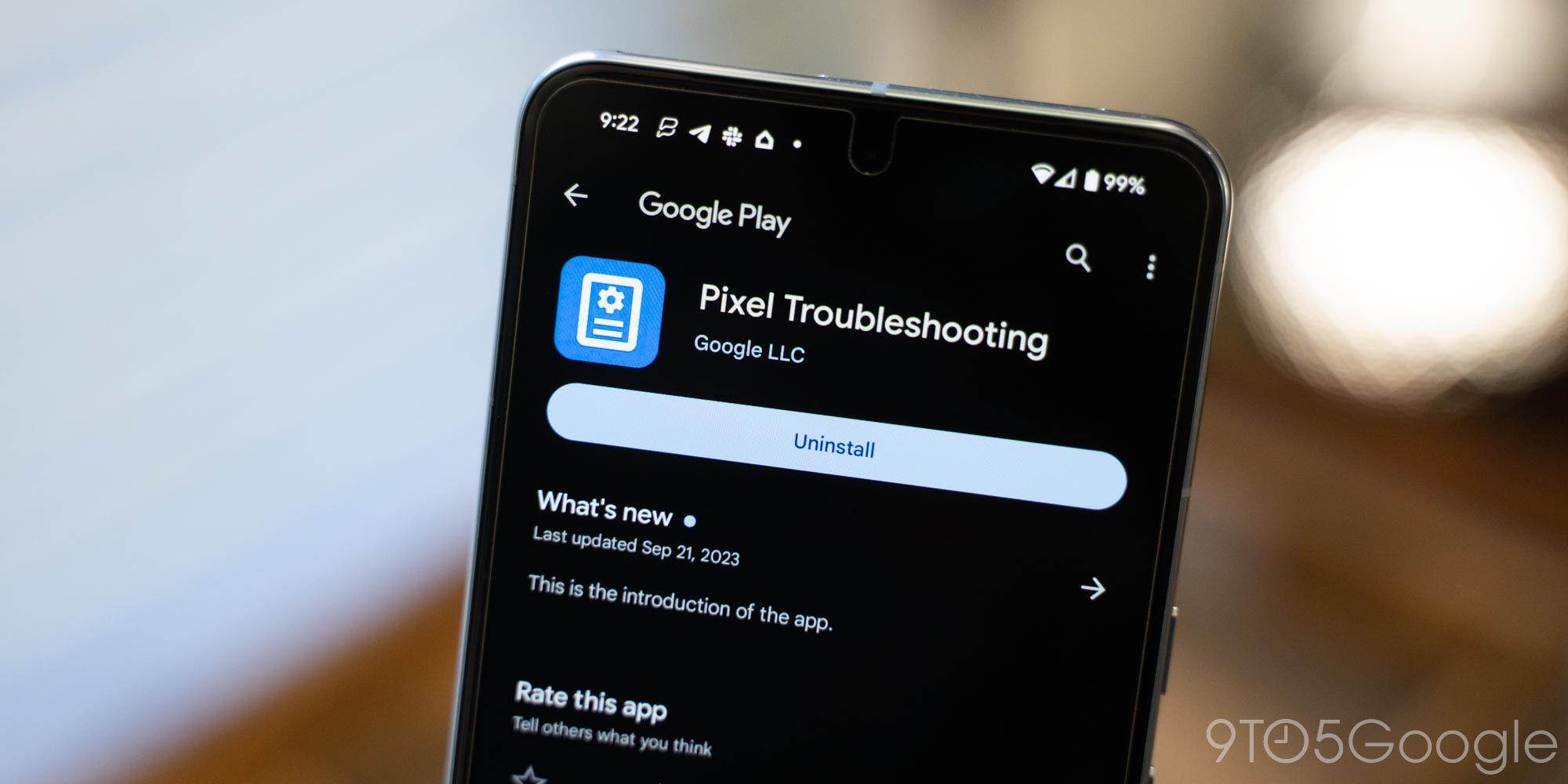
Use Pixel Troubleshooting App
The Pixel Troubleshooting app is designed to detect and fix common issues. It runs tests on hardware and software components. The app guides users step-by-step through solutions. It can identify battery, connectivity, and display problems. This app is easy to use and requires no technical skills.
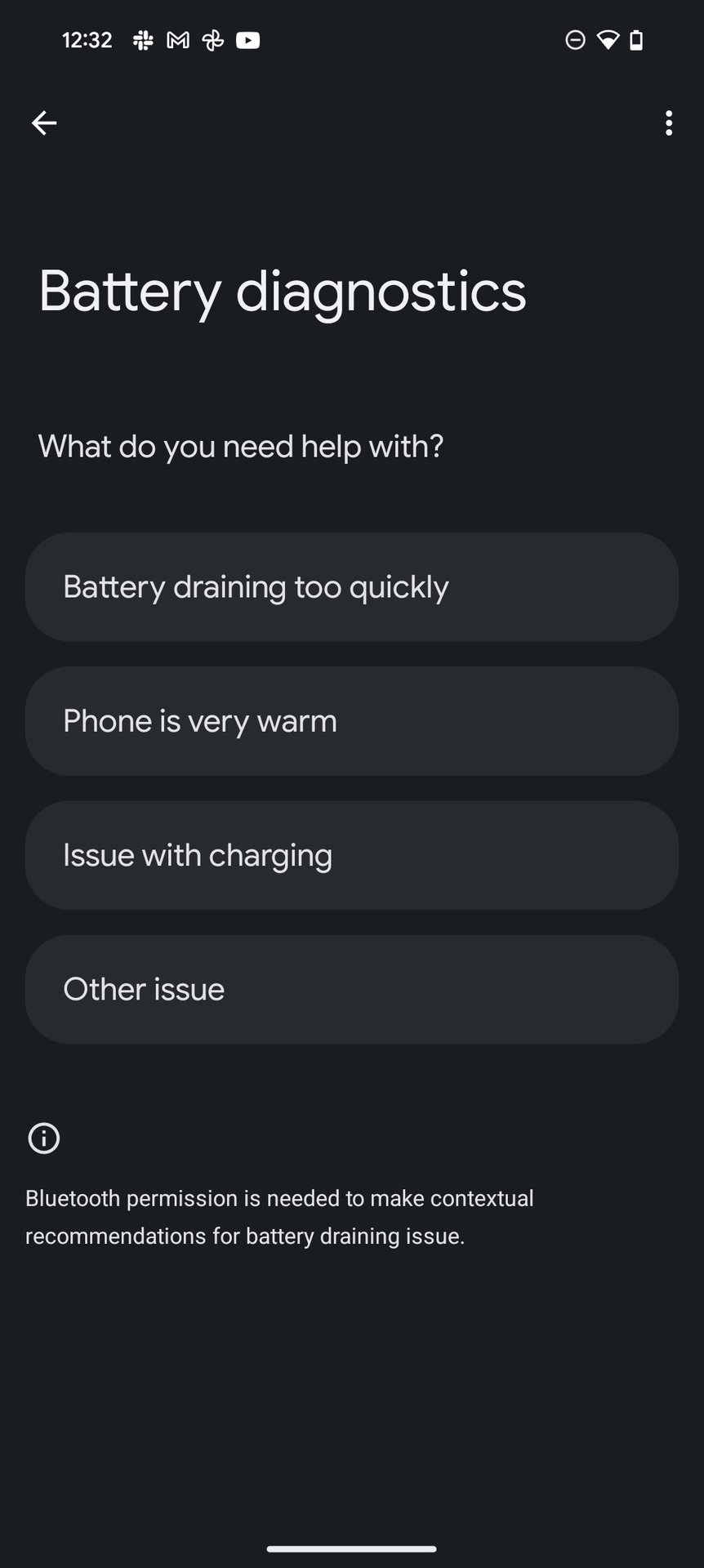
Run Device Diagnostics Tool
The Device Diagnostics Tool checks your Pixel’s hardware health. It tests the screen, battery, speakers, and sensors. This tool helps find faulty components quickly. Running diagnostics can reveal hidden issues affecting performance. Results show clear instructions on what to repair or replace.
Software Repair Tool
The Software Repair Tool fixes bugs and system errors without deleting data. It resets critical software settings to factory defaults. This tool resolves crashes, freezes, and slowdowns effectively. Running this repair can restore your Pixel’s normal operation. It works well for software glitches caused by updates or apps.
Factory Reset
A factory reset can fix many persistent issues on your Pixel device. It erases all data and restores factory settings. Use this method only after trying simpler fixes. This step often resolves software bugs or system slowdowns. Prepare carefully before starting the reset process.
Backup Important Data
Save photos, contacts, and files before the reset. Use Google Drive or another cloud service to keep your data safe. Connect your Pixel to a computer and copy important files. Double-check that backups are complete and accessible. Losing data is common if you skip this step.
Perform Factory Reset
Open the Settings app on your Pixel device. Scroll down and tap “System,” then choose “Reset options.” Select “Erase all data (factory reset).” Confirm your choice and enter your PIN or password. The phone will restart and begin the reset process. Wait patiently until the reset finishes.
Restore After Reset
After reset, your Pixel will restart like a new device. Follow the setup prompts to connect to Wi-Fi. Sign in with your Google account to restore backups. Choose which apps and data to recover. Check settings and reinstall any missing apps manually.
Additional Resources
Finding solutions for Google Pixel problems can be easier with the right resources. These tools and guides help users fix issues quickly. Explore trusted sources to get clear instructions and expert help. Use these additional resources for better troubleshooting results.
Google Pixel Help Page
The official Google Pixel Help Page offers detailed guides. It covers common problems like battery, display, and connectivity. Step-by-step instructions simplify troubleshooting for all users. Search topics or browse categories to find solutions fast. The page updates regularly with new tips and fixes.
Watch Troubleshooting Videos
Videos provide visual help for resolving Pixel issues. Watch experts explain fixes for software glitches and hardware faults. These tutorials show processes clearly, reducing confusion. Users can pause and replay steps during repairs. YouTube channels like uBreakiFix offer valuable, easy-to-follow content.
Contact Support Options
Direct support helps with problems that need expert attention. Google offers chat, phone, and email support for Pixel users. Support staff guide through complex troubleshooting or warranty claims. Use the support page to choose the best contact method. Quick response helps users get their devices working again.
Frequently Asked Questions
What Are Common Pixel 5 Problems?
Common Pixel 5 problems include battery drain, slow fingerprint sensor, dropped calls, touchscreen issues, and software glitches. Updates sometimes cause audio or display bugs. Connectivity problems and app crashes also occur. Restarting, updating software, clearing cache, and using Safe Mode often help resolve these issues.
How To Run Diagnostics On Google Pixel?
Open Settings on your Google Pixel. Go to System > Diagnostics or Device Health. Run tests for display, battery, and storage. Follow on-screen instructions to identify issues.
How Do You Force Restart A Pixel?
Press and hold the Power button and Volume Down button together for about 10-15 seconds. Your Pixel will restart automatically.
Why Is The Pixel Not Working?
The Pixel may not work due to battery drain, software glitches, or full storage. Restart the phone, update apps, clear cache, or try Safe Mode. Use built-in diagnostics or perform a factory reset if problems persist.
What Should I Do If My Google Pixel Won’t Turn On?
A fully drained battery often causes startup failure. Charge your Pixel for at least 30 minutes before retrying. If it still won’t start, try a force restart by holding the power button for 10 seconds.
Conclusion
Troubleshooting your Google Pixel can be simple with the right steps. Start by restarting your phone and checking for updates. Clearing storage space often solves many issues. Safe Mode helps find problematic apps by running only essential ones. Use built-in diagnostics to test your device’s hardware.
If problems persist, back up your data before a factory reset. Stay patient and follow each step carefully. This approach makes fixing Pixel problems easier and faster. Keep your phone running smoothly with regular maintenance and quick checks.



