
Are you facing issues with your Plantronics Voyager Legend headset? Whether it’s trouble connecting, charging problems, or unclear audio, these glitches can disrupt your daily calls and work flow.
Don’t let frustration take over—this guide will walk you through simple, effective troubleshooting steps to get your headset back to perfect working condition. You’ll learn how to reset your device, update the firmware, fix pairing problems, and much more. Keep reading to regain crystal-clear sound and seamless connectivity with your Voyager Legend.
Your next call deserves nothing less!
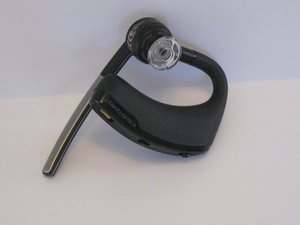
Credit: www.ifixit.com
Common Connection Problems
Connection problems with the Plantronics Voyager Legend can disrupt your calls and lower your headset experience. Many users face common issues that interfere with smooth Bluetooth communication. Identifying these problems helps fix them quickly. Below are the usual connection challenges and ways to handle them.
Bluetooth Pairing Issues
Pairing the Voyager Legend with your device may fail or take too long. This happens if the headset is already connected to another device. Clear the headset’s device list to allow new pairing. Also, make sure Bluetooth is turned on and the devices are close. Restarting both devices often solves pairing glitches.
Intermittent Disconnects
Calls may drop or the audio cuts out during use. Weak Bluetooth signals cause these interruptions. Keep the headset within 30 feet of the connected device. Avoid physical obstacles like walls or metal objects. Check the battery level; low power can reduce connection stability.
Compatibility With Devices
Some phones or computers may not fully support the Voyager Legend. Software or Bluetooth version mismatches limit performance. Update your device’s operating system and firmware for better compatibility. Review the headset’s user guide to confirm supported devices and Bluetooth profiles.
Charging And Battery Issues
Charging and battery issues are common with the Plantronics Voyager Legend headset. Problems such as slow charging, battery draining quickly, or the device not turning on can disrupt your experience. Understanding how to troubleshoot these issues helps you keep your headset ready for use. Below are key tips and signals to watch for with your headset’s power and battery.
Troubleshooting Charging Problems
Check the charging cable and adapter for any damage or wear. Use only the original charger or a compatible one to avoid issues. Clean the charging port on the headset gently to remove dust or debris. Ensure the headset is properly seated on the charger. Try plugging the charger into a different power outlet. Restart the charging process if it does not start immediately.
Battery Replacement Tips
Replace the battery if it no longer holds a charge after a full cycle. Purchase a genuine Plantronics battery to ensure compatibility and safety. Follow the manufacturer’s instructions carefully when removing the old battery. Use a small screwdriver to open the battery compartment if needed. Avoid forcing parts to prevent damage. Dispose of the old battery at a recycling center.
Indicator Light Signals
The indicator light shows the charging status. A red light means the headset is charging. A green light means the battery is fully charged. A flashing red light may indicate a low battery or charging error. No light could mean the headset is off or not charging. Watching these signals helps you know when to recharge or check for problems.
Firmware And Software Fixes
Firmware and software play a key role in the performance of your Plantronics Voyager Legend headset. Keeping the firmware updated fixes bugs and improves features. Software updates also enhance compatibility with your devices. This section explains how to handle common firmware and software issues easily.
Updating Firmware With Plantronics Hub
Plantronics Hub is the official software for managing your headset. Download and install it on your computer. Connect your Voyager Legend using a USB cable or Bluetooth. The Hub will check for available firmware updates automatically. Click “Update” to start the process. Do not disconnect the headset during the update. Wait until the update completes and the headset restarts. This ensures your headset runs on the latest software version.
Resolving Update Errors
Sometimes, errors appear during firmware updates. First, check your internet connection for stability. Restart the Plantronics Hub app and reconnect the headset. Close any other apps that might use Bluetooth or USB. If the error persists, restart your computer and try again. Use a different USB cable or port if possible. Clearing cache or reinstalling Plantronics Hub also helps. Follow on-screen instructions carefully to avoid corrupting the firmware.
Resetting The Headset
Resetting the Voyager Legend restores default settings and clears connection issues. Press and hold the call button and the volume up button together for about 5 seconds. The headset will power off and on again. This process clears the Bluetooth pairing list and resets internal settings. After the reset, pair the headset with your device once more. Resetting often resolves stubborn problems and improves headset performance.

Credit: opcionesadministrativas.com
Audio And Microphone Problems
Audio and microphone problems with the Plantronics Voyager Legend can disrupt calls and reduce user experience. These issues often include poor sound quality, microphone troubles, and no sound output. Troubleshooting these problems can restore clear communication quickly. Below are simple tips and fixes to address common audio and microphone issues effectively.
Poor Sound Quality Solutions
Check battery level first. Low battery often causes distorted sound. Clean the earpiece gently to remove dirt or earwax. Restart your headset to reset connection glitches. Ensure your device firmware is up to date. Interference from other wireless devices may reduce sound clarity. Move closer to the paired device to improve signal strength.
Microphone Positioning Tips
Adjust the microphone boom so it points towards your mouth. Keep the microphone about one inch from your lips. Avoid placing the microphone directly in front of your mouth to reduce breath noise. Make sure nothing blocks the microphone, like clothing or hair. Test speaking softly and loudly to find the best position.
Fixing No Sound Issues
Verify the headset is turned on and connected to your phone or computer. Check volume settings on both the headset and device. Restart both devices to clear temporary errors. Inspect the headset for any physical damage or loose parts. Reset the headset to factory settings if no sound persists. Try pairing the headset with another device to rule out device issues.
Physical Damage And Repairs
Physical damage can affect the performance of your Plantronics Voyager Legend. Small cracks, broken buttons, or dirt buildup can stop the headset from working properly. Fixing these issues can extend the life of your device. Simple repairs and cleaning often solve common problems.
Inspecting Headset Components
Start by checking all parts of the headset. Look for cracks on the body or ear hook. Test the buttons for any sticking or unresponsiveness. Check the microphone boom for damage or looseness. Inspect the charging port for dirt or bent pins. Early detection helps prevent bigger problems.
Replacing Buttons And Parts
Replace broken buttons to restore full control. Use a small tool to remove damaged buttons carefully. Order official replacement parts for best fit and function. Follow repair guides or videos for step-by-step help. Avoid forcing parts to prevent further damage. Proper replacement keeps the headset working smoothly.
Cleaning And Maintenance
Regular cleaning prevents issues caused by dust and sweat. Use a soft, dry cloth to wipe the headset. Clean the microphone and speaker areas gently with a dry brush. Avoid water or harsh chemicals that can harm electronics. Keep the charging port free of debris for a strong connection. Routine care improves sound quality and comfort.
Using Voyager Legend With Different Devices
The Plantronics Voyager Legend works with many devices. It pairs easily with PCs and smartphones. Managing connections keeps your experience smooth. Understanding these steps helps solve common issues fast.
Pairing With Pcs
Turn on your Voyager Legend headset. Activate Bluetooth on your PC. Search for new devices in Bluetooth settings. Select “Voyager Legend” from the list. Follow any on-screen prompts to complete pairing. Check that the headset shows as connected. If not, restart Bluetooth and try again.
Connecting To Smartphones
Switch on the headset and your phone’s Bluetooth. Look for “Voyager Legend” in available devices. Tap to pair and connect. Confirm any pairing codes if asked. Once connected, test audio by playing sound. If connection fails, turn off and on both devices. Repeat the pairing steps carefully.
Managing Multiple Connections
The Voyager Legend can connect to two devices. It switches between calls on both devices. To add a second device, pair it like the first. Use the headset’s call button to switch calls. You can also use your phone or PC controls. If switching has issues, reset the headset. This clears old connections for a fresh start.
Tips For Optimal Performance
To keep your Plantronics Voyager Legend working smoothly, follow some simple tips. These tips help improve sound quality, battery life, and connection stability. Small habits make a big difference over time. Use these best practices to enjoy clear calls and long-lasting use.
Proper Storage And Handling
Store the headset in a cool, dry place away from direct sunlight. Avoid dropping or bending the device as it can damage internal parts. Use the charging case or a soft pouch to protect it from dust and scratches. Handle the headset gently during use and transport to prevent wear.
Battery Saving Practices
Turn off the headset when not in use to save battery power. Lower the volume to a comfortable level to reduce energy consumption. Charge the headset regularly and avoid letting the battery fully drain. Using power-saving mode, if available, extends battery life during long days.
Regular Firmware Checks
Check for software updates at least once a month. Firmware updates fix bugs and improve performance. Use the Plantronics app or website to find the latest version. Follow the update instructions carefully to avoid connection issues. Keeping firmware current ensures your headset runs efficiently.

Credit: www.youtube.com
Frequently Asked Questions
How To Reset Plantronics Legend Headset?
To reset your Plantronics Legend headset, press and hold the call and volume up buttons together for about 5 seconds. Release when the headset powers off. This restores factory settings and clears the trusted device list. Then, power it on and re-pair with your device.
Why Is My Plantronics Headset Not Working?
Check if your Plantronics headset is charged and properly paired with your device. Update its firmware via settings. Clean charging ports and ensure the microphone boom points to your mouth. Restart the headset and Bluetooth on your device to fix connection issues.
What Does Red Light Mean On Plantronics Headset?
A red light on a Plantronics headset indicates it is charging. It may also signal low battery during use.
How Do You Reset The Voyager Legend 30?
Press and hold the call button and volume down button simultaneously for 5 seconds. The headset will power off and reset. This restores factory settings and clears paired devices.
How Do I Reset My Plantronics Voyager Legend Headset?
Press and hold the Call and Volume Up buttons together for about 5 seconds. The headset will power off and reset. This clears all paired devices and restores factory settings.
Conclusion
Plantronics Voyager Legend troubleshooting can be simple with the right steps. Check your headset’s battery and connection first. Clean charging ports to avoid power issues. Update the firmware regularly to keep the device running smoothly. Reset the headset if problems persist.
Test the microphone and ensure it faces your mouth. These quick tips can solve most common problems. Stay patient and follow each step carefully. Your headset will work better soon.



