
Having a smooth-running POS system is crucial for your business success. But what happens when your POS system suddenly freezes, won’t print receipts, or can’t process payments?
You might feel frustrated, stressed, or even helpless. The good news is, many common POS problems have simple fixes you can try right away. In this guide, you’ll learn easy, step-by-step troubleshooting tips to get your system back up and running fast.
Whether it’s a power issue, network glitch, or hardware hiccup, you’ll discover practical solutions that save you time and keep your customers happy. Keep reading—you’re just moments away from mastering your POS system troubleshooting!
Credit: www.mercomrepair.com
Common Pos Problems
POS systems are vital for smooth business operations. Common problems can disrupt sales and customer service. Knowing these issues helps in quick fixes and less downtime.
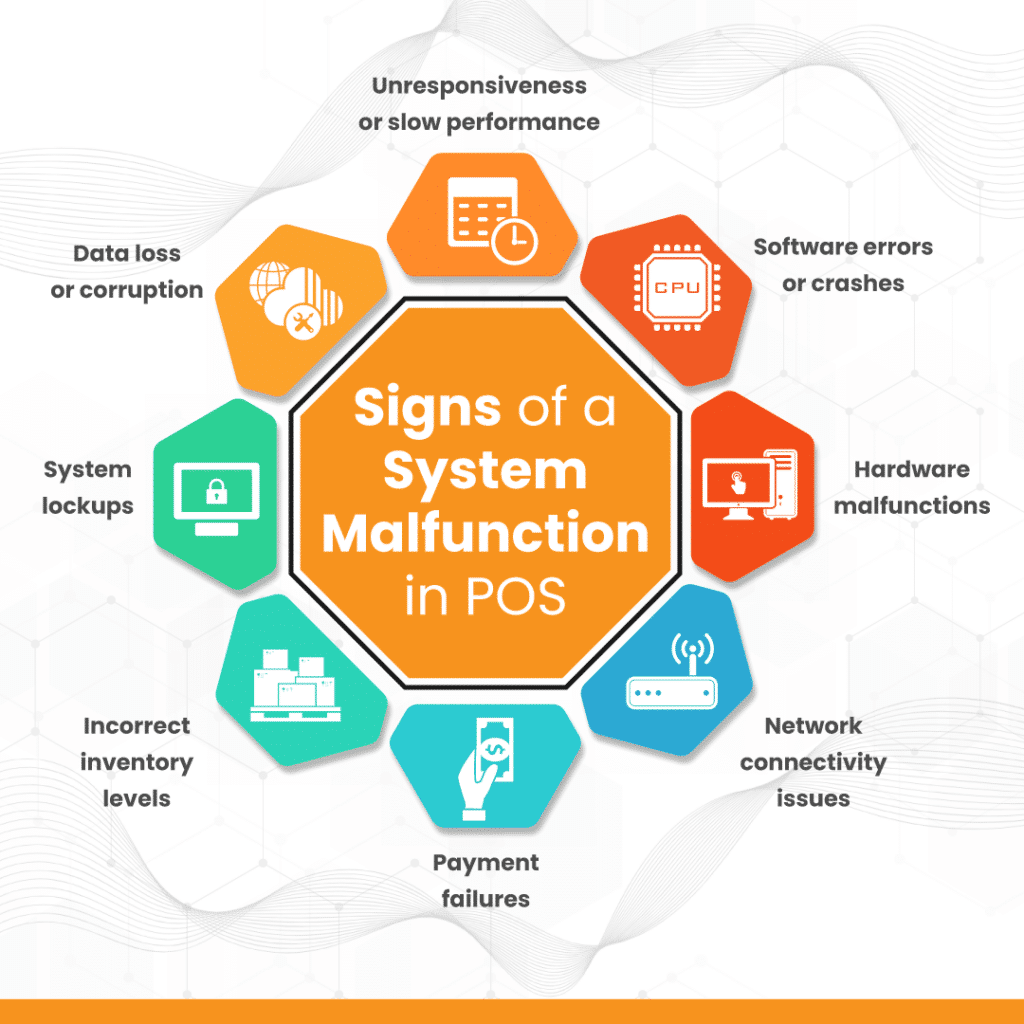
Some problems arise from hardware faults. Others come from software or network troubles. Recognizing the type of problem is the first step in troubleshooting.
Hardware Malfunctions
Hardware issues often involve printers, card readers, or cash drawers. Devices may stop working due to wear or loose connections. Regular checks and cleaning prevent many hardware failures. Replace faulty parts to keep the system running.
Slow Performance
Slow POS systems frustrate staff and customers. Causes include outdated software, too many background processes, or insufficient memory. Keeping software updated and closing unused apps improves speed. Sometimes, upgrading hardware is necessary.
Integration Challenges
POS systems often connect to inventory or accounting software. Integration issues can cause data errors or syncing delays. Ensure all software versions are compatible. Use supported plugins and confirm settings for smooth data flow.
Connectivity Issues
POS systems rely on stable internet or network connections. Connection drops lead to failed transactions and system freezes. Check cables, routers, and Wi-Fi signals regularly. Restart network devices to restore connections quickly.
Payment Failures
Payment problems stop sales and upset customers. Failures may occur from card reader errors, network issues, or gateway downtime. Verify card reader function and network status. Contact payment provider if problems persist.
Printing Errors
Receipts are critical for customer records. Printing errors include paper jams, faded prints, or no print output. Keep printers clean and loaded with paper. Replace printer heads or cartridges when print quality drops.
Basic Troubleshooting Steps
Basic troubleshooting steps help fix many common POS system issues quickly. Follow these simple actions to identify and solve problems without delay. These steps save time and reduce frustration during busy hours.
Start with easy checks. Many issues come from power or connection problems. Then, restart devices to refresh the system. Verify the network to ensure smooth communication between devices. Keep software and drivers updated for best performance. Clear cache and cookies to remove temporary data that may cause errors.
Check Power And Cables
Make sure the POS system is plugged in and powered on. Check all cables for secure connections and no damage. Loose or broken cables often cause devices to stop working. Inspect power strips and outlets to confirm they supply electricity. Replace any faulty cables or connectors.
Restart Devices
Turn off the POS system and related hardware like printers or card readers. Wait about 30 seconds before turning them back on. Restarting clears temporary glitches and refreshes device memory. This step often fixes frozen screens or unresponsive functions quickly.
Verify Network Connections
Check if the POS system connects to the correct Wi-Fi or wired network. Confirm other devices on the network work fine. Poor or lost network connection causes slow transactions and errors. Restart routers or switches if needed. Ensure network cables are firmly attached.
Update Software And Drivers
Use the latest software and driver versions for your POS system. Updates fix bugs and improve security. Check the manufacturer’s website for updates regularly. Install updates carefully to avoid interruptions. Outdated software can cause crashes and slow performance.
Clear Cache And Cookies
Remove cached files and cookies from the POS system’s browser or software. These files may store outdated information causing errors. Clearing them improves speed and accuracy. Use system settings or built-in tools to clear cache safely. Regular cleaning helps maintain smooth operation.
Hardware-specific Fixes
Hardware components play a crucial role in your POS system’s performance. Fixing specific hardware issues can save time and reduce downtime. This section covers practical solutions for common hardware troubles. Each fix targets a key device that keeps your business running smoothly.
Card Reader Maintenance
Keep the card reader clean and free of dust. Use a soft cloth with isopropyl alcohol to wipe the surface gently. Check cables for loose connections or damage. Restart the device if it stops reading cards. Regular cleaning prevents read errors and transaction delays.
Receipt Printer Care
Use the correct paper type for your receipt printer. Clean the print head with a soft brush or cloth. Remove paper jams carefully to avoid damage. Replace ink ribbons or toner when print quality fades. Proper care extends printer life and avoids printing issues.
Cash Drawer Checks
Inspect the cash drawer for obstructions or debris. Test the drawer opening mechanism to ensure smooth operation. Verify the connection between the drawer and POS terminal. Tighten loose screws or replace faulty cables. Regular checks prevent cash handling delays.
Touchscreen Calibration
Calibrate the touchscreen if it does not respond accurately. Access the calibration tool via system settings or POS software. Follow on-screen instructions to align touch points. Clean the screen with a microfiber cloth to avoid misreads. Calibration improves input accuracy and user experience.
Scanner Troubleshooting
Check the scanner lens for dirt or smudges. Clean gently with a soft, lint-free cloth. Test the scanner on different barcodes to confirm function. Ensure cables are connected securely. Update scanner drivers if scanning fails. Proper maintenance keeps scanning fast and reliable.
Credit: koronapos.com
Advanced Troubleshooting
Advanced troubleshooting dives deeper into complex POS system issues. It requires careful checks and technical steps. This section helps solve problems beyond simple fixes. Understanding these tips keeps your system reliable and fast.
Firewall And Security Settings
Firewalls can block POS system connections. Check if firewall rules allow POS traffic. Adjust security settings to permit necessary ports. Some antivirus software may also restrict POS functions. Temporarily disable them to test if they cause issues. Always restore settings after testing.
Driver Updates
Outdated drivers cause hardware problems. Update printer, scanner, and card reader drivers regularly. Visit manufacturer websites for the latest versions. Installing new drivers often improves device compatibility. Restart the POS system after updates for changes to apply.
Manual Mode Use
Manual mode helps process transactions offline. Use it when the network or hardware fails. Enter sales details manually to avoid losing sales. This mode ensures business continuity. Sync data with the server once the system is back online.
Running Diagnostics
Most POS systems include diagnostic tools. Run diagnostics to detect hardware or software faults. These tools check printer status, network connections, and memory usage. Follow the diagnostic reports to fix identified problems. Regular diagnostics prevent major failures.
When To Contact Support
Contact support if advanced steps fail. Persistent errors or hardware faults need expert help. Provide detailed information about your issue. Mention any error codes or messages shown. Professional support ensures proper and safe repairs.
Preventative Maintenance
Preventative maintenance is vital to keep your POS system running smoothly. It helps avoid sudden breakdowns and costly repairs. Regular care improves system reliability and extends hardware lifespan.
Small, routine tasks prevent major issues. Keeping software and hardware in good shape reduces downtime. Well-maintained systems support faster transactions and better customer service.
Regular Software Updates
Always install the latest software updates. Updates fix bugs and improve security. They add new features that enhance system performance. Set your POS system to update automatically. This keeps your system current without extra effort.
Routine Hardware Cleaning
Clean hardware parts regularly. Dust and dirt cause hardware failure and slow response. Use a soft cloth and gentle cleaning solutions. Focus on screens, keyboards, printers, and card readers. Avoid harsh chemicals to prevent damage.
Network Optimization
Ensure your network is fast and stable. Slow connections cause delays and errors in transactions. Use a wired connection if possible. Limit other devices using the same network. Regularly restart your router to maintain optimal speed.
Backup Procedures
Backup your POS data daily. Data loss can stop your business operations. Use cloud storage or external drives for backups. Test backups regularly to ensure they work. Keep multiple copies in different locations for safety.
Staff Training Tips
Train staff on proper POS use and care. Teach them how to handle common issues. Encourage reporting problems early. Regular training reduces user errors and system misuse. Create simple guides for quick reference during shifts.
Credit: amarsolution.com
Frequently Asked Questions
What Is The Common Problem In The Pos System?
Common POS system problems include hardware failures, slow performance, network connectivity issues, software glitches, and integration challenges.
How Do You Troubleshoot A Pos System?
Check power, cables, and network connections first. Restart the POS and network devices. Update software and clear cache. Inspect hardware like printers, card readers, and cash drawers. Run diagnostics and replace faulty components. Contact your POS provider if problems persist.
How Do You Troubleshoot A Pos Device?
Check power and cable connections, then restart the POS device and network equipment. Verify network connectivity and update software. Inspect hardware like printers, card readers, and cash drawers. Clear cache for web-based systems. Test components individually and run diagnostics. Contact support if issues persist.
How Do I Reset A Pos System?
To reset a POS system, first check power and cable connections. Restart the device and network gear. Update software and clear cache if needed. Inspect hardware like printers and card readers. Run diagnostics, and contact your POS provider if problems continue.
What Are The Most Common Pos System Problems?
Common POS issues include hardware failures, slow software, and network problems. Printer jams and card reader errors are frequent. Integration with other systems can also cause trouble.
Conclusion
Troubleshooting your POS system can save time and reduce stress. Start by checking power, cables, and internet connections. Restart your devices to fix many common issues. Keep software updated to improve performance and security. Regularly inspect hardware like printers and card readers for faults.
Clearing cache can also help resolve glitches. If problems continue, run diagnostics to find the cause. Don’t hesitate to contact your POS provider for support. Simple steps and patience often restore your system quickly. A well-maintained POS keeps your business running smoothly every day.



